

Supabase (OAuth)
Connect your Supabase database by signing in to Supabase, no connection string to copy.
With the Supabase (OAuth) connector you sign in to Supabase and pick your project. Stacksync looks up the connection details for you, you only type the database password.
Prefer pasting a connection string? Use the Supabase connector instead. Both create the same Postgres connection, so syncs behave the same whichever one you choose.
1. Select the Supabase (OAuth) connector
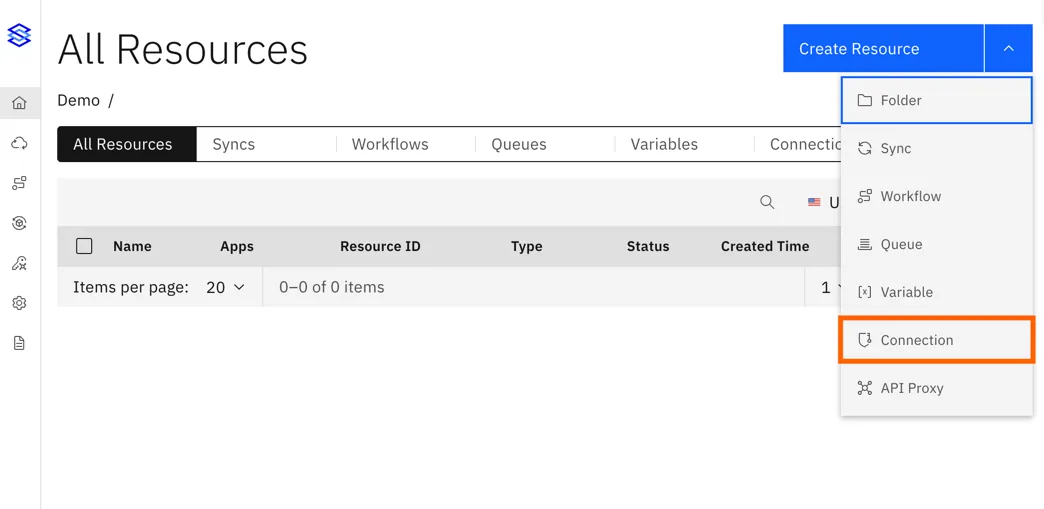
In Stacksync, open Create Resource and choose Connection.
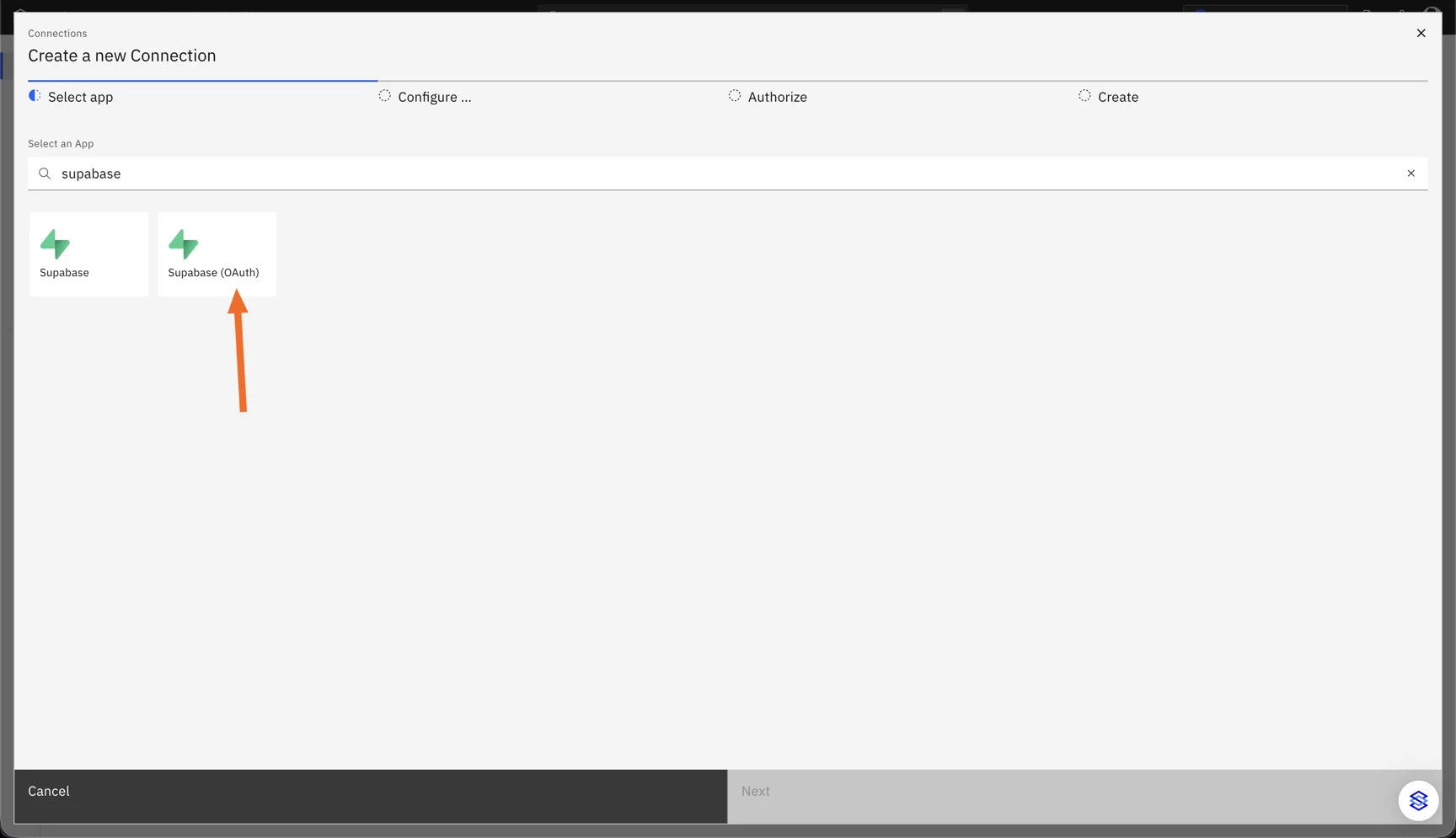
Search for supabase and select Supabase (OAuth).
2. Authorize Stacksync in Supabase
A Supabase window opens automatically. Sign in if needed, then:
- Under Organization, select the organization that owns your project.
- Click Authorize Stacksync.
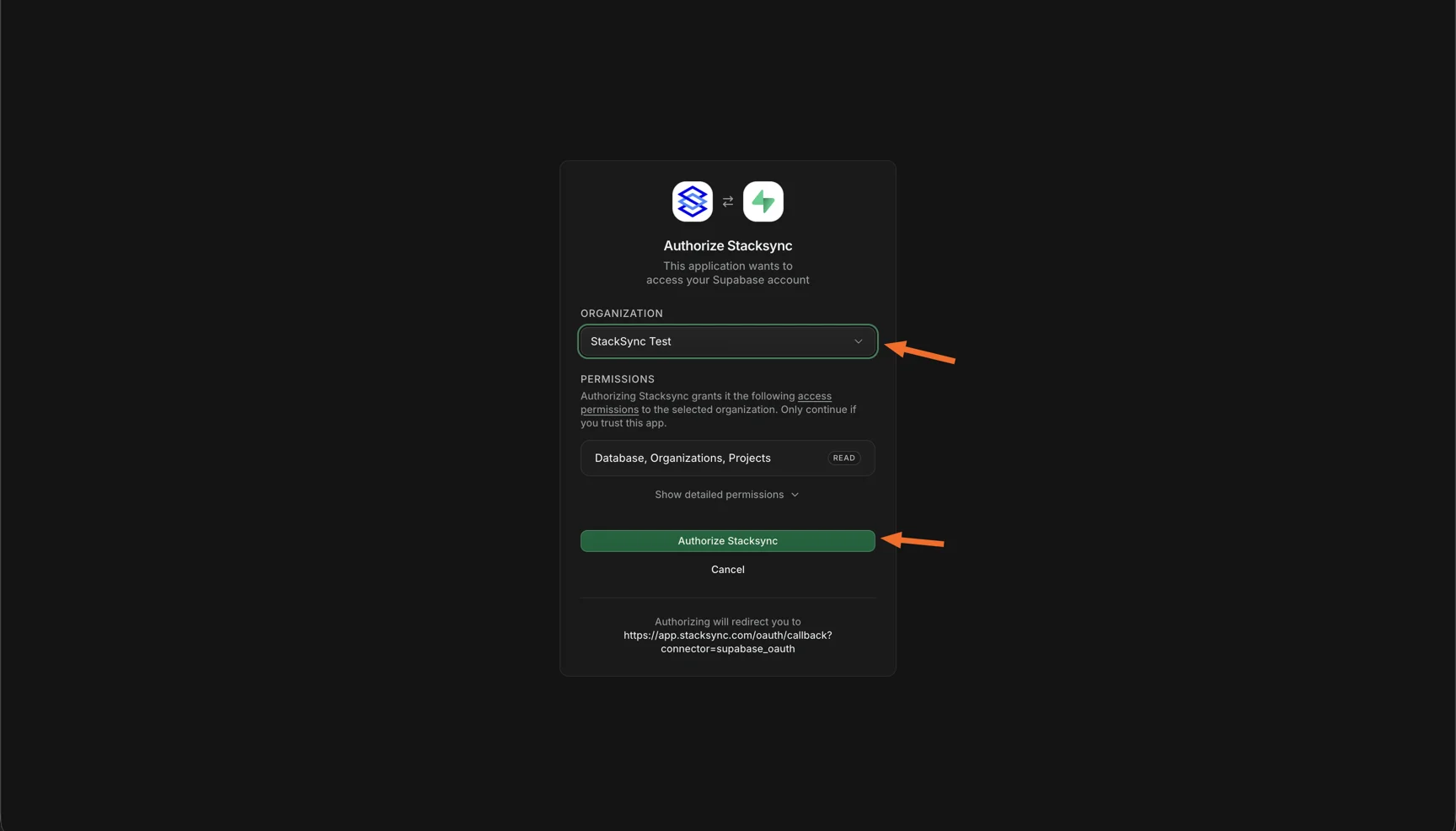
Stacksync asks for read-only access. It uses it only while you set up the connection, to list your projects and read their connection details, and does not store it.
If the Supabase window does not open, your browser probably blocked the popup. Allow popups for Stacksync and click Connect Supabase.
3. Complete the connection details
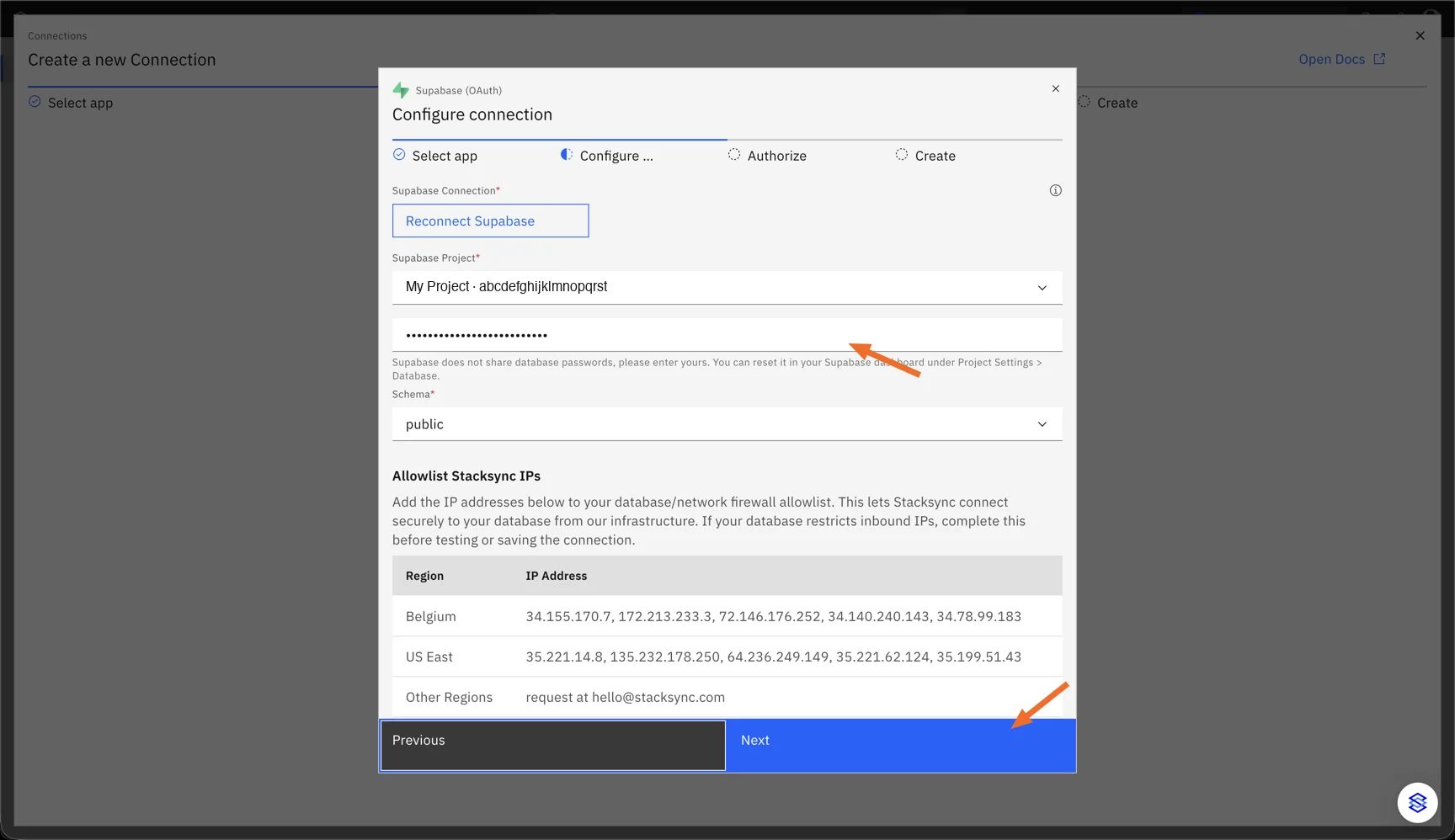
Back in Stacksync, the window closes and the connection details appear:
- Supabase Project: select your project. If your organization has a single project, it is selected for you. Stacksync fills in the host, port, user and database from the project's connection pooler.
- Database password: type your project's database password. Supabase never shares database passwords with third-party apps, so this is the only value you enter yourself. If you don't have it, reset it in your Supabase dashboard under Project Settings > Database.
- Schema: pick the schema to sync (
publicby default). - If your Supabase project restricts inbound IPs, add the Stacksync IP addresses listed under Allowlist Stacksync IPs to its allowlist.
Click Next.
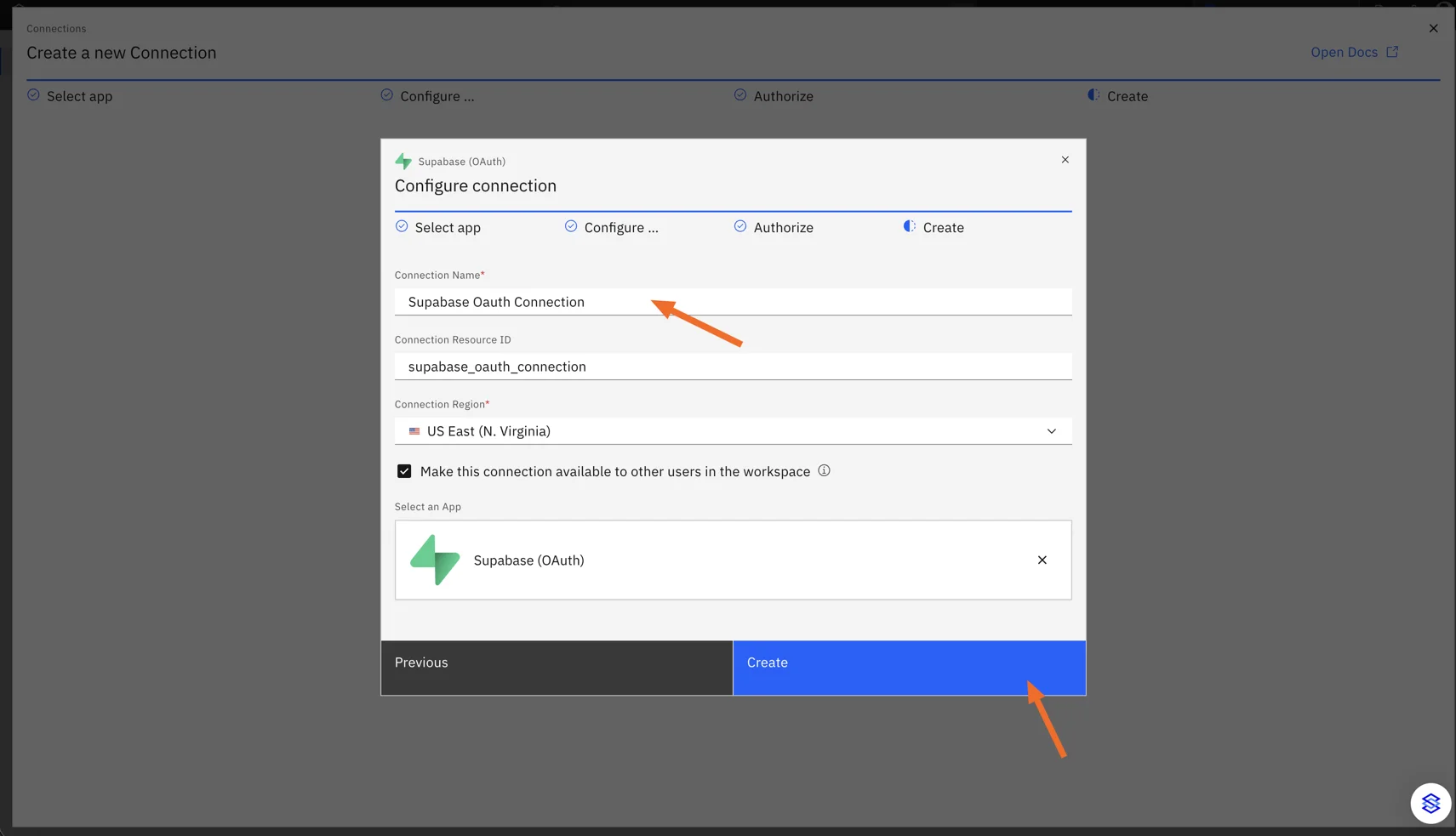
4. Name and create the connection
- Connection Name: give the connection a name you will recognize. Stacksync suggests a Connection Resource ID from it.
- Connection Region: pick the region your syncs run in.
- Leave Make this connection available to other users in the workspace checked to let your teammates use it.
Click Create.
Your Supabase database is now connected and ready to use in a sync or workflow.