

⚡Configure Event Triggers
Trigger a custom workflow in Zapier, Make or any HTTP REST endpoint of your choice (e.g. Slack and AWS Lambda functions!) or execute a database query when your data gets updated.
Stacksync lets you trigger custom workflows in real time when your data is created, updated, or deleted. When a data event happens and matches your custom filters, an HTTP request (or Database query) is sent to the endpoint of your choice.
- The triggered HTTP endpoint can be anything from an AWS Lambda function, a Zapier or Make workflow, or any other API endpoint.
- The triggered database query can target systems such as Postgres, Snowflake, BigQuery, DynamoDB, MongoDB, and more.
This guide illustrates how to create a trigger within a sync.
Create a trigger
1. First, go to your Stacksync dashboard
2. Open a sync
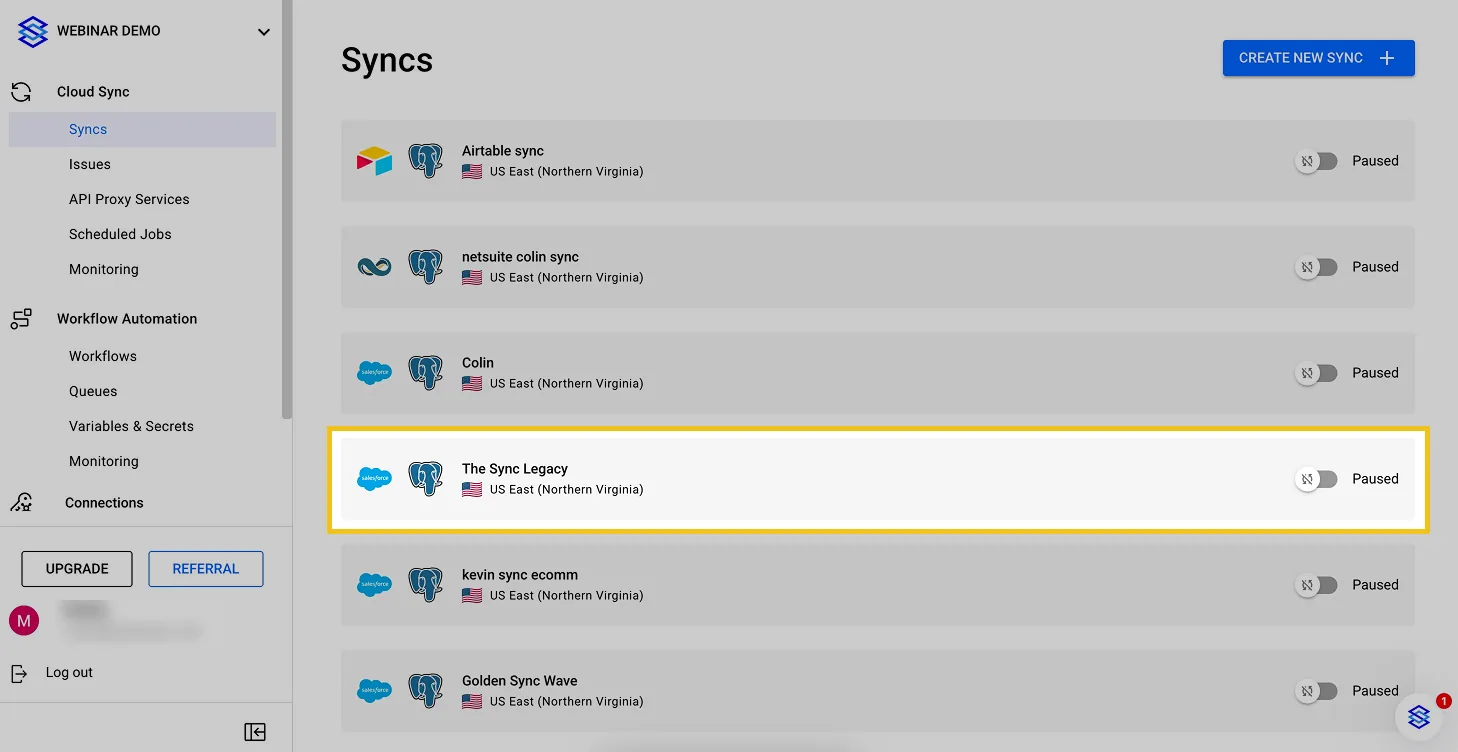
Open a sync
3. Click "Create trigger"
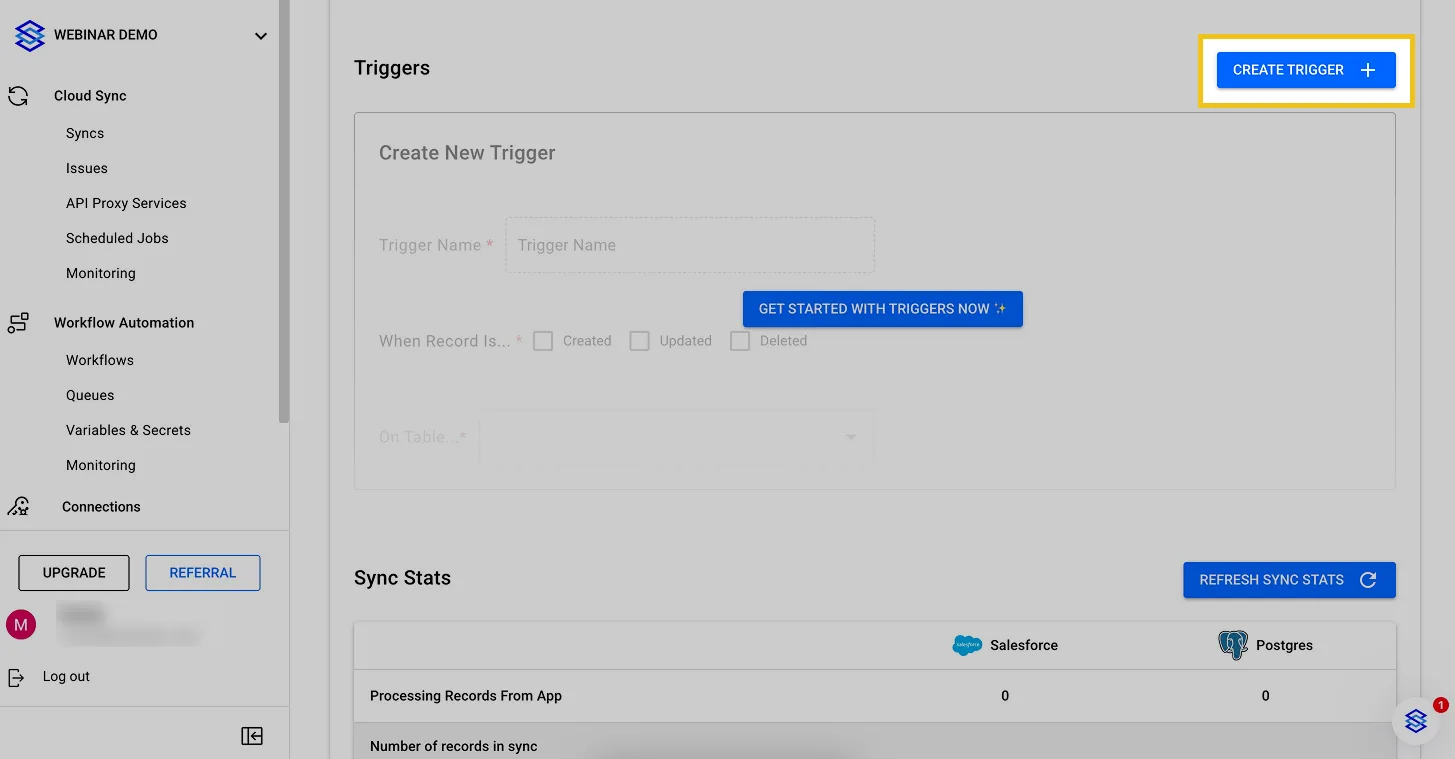
Click "Create trigger" button
4. Configure your trigger
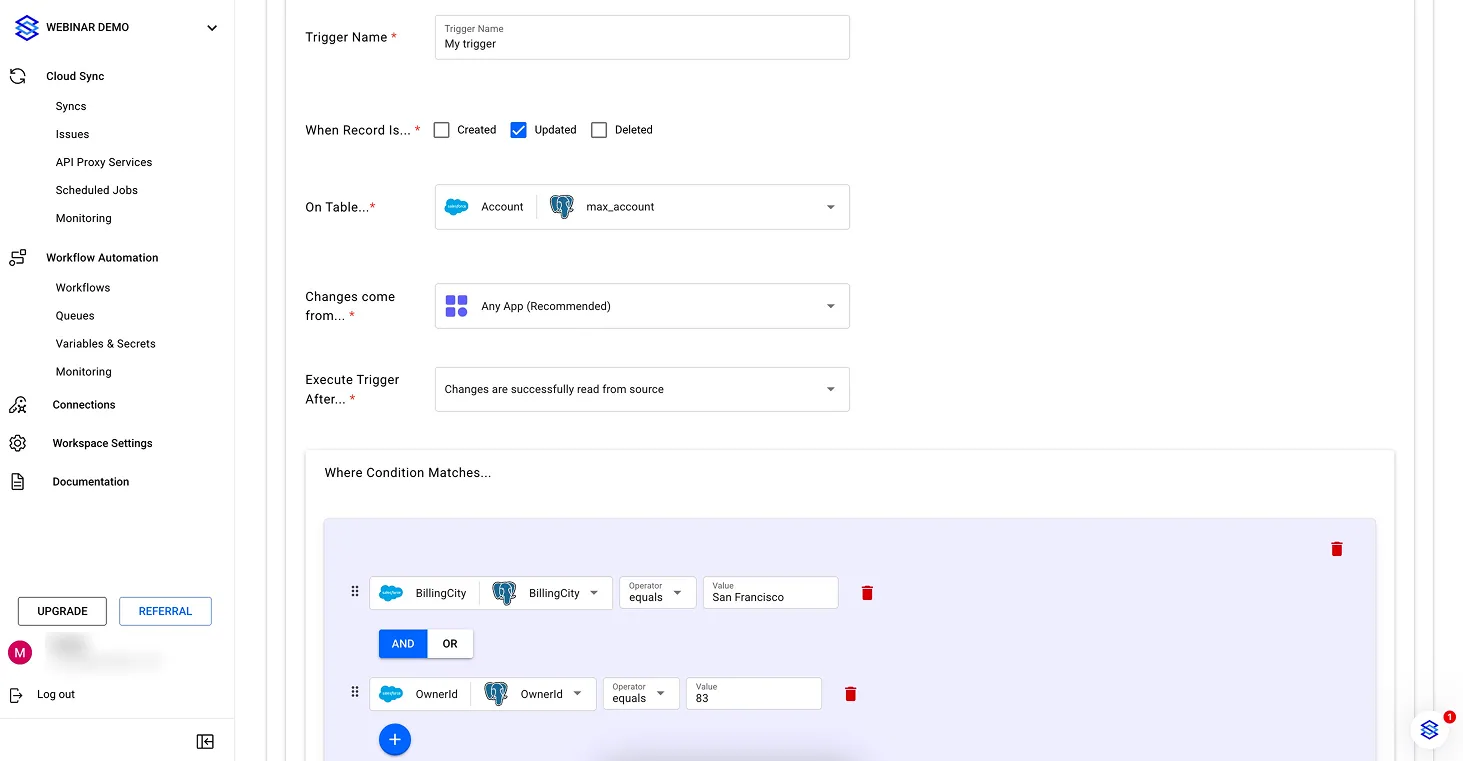
Example of trigger configuration
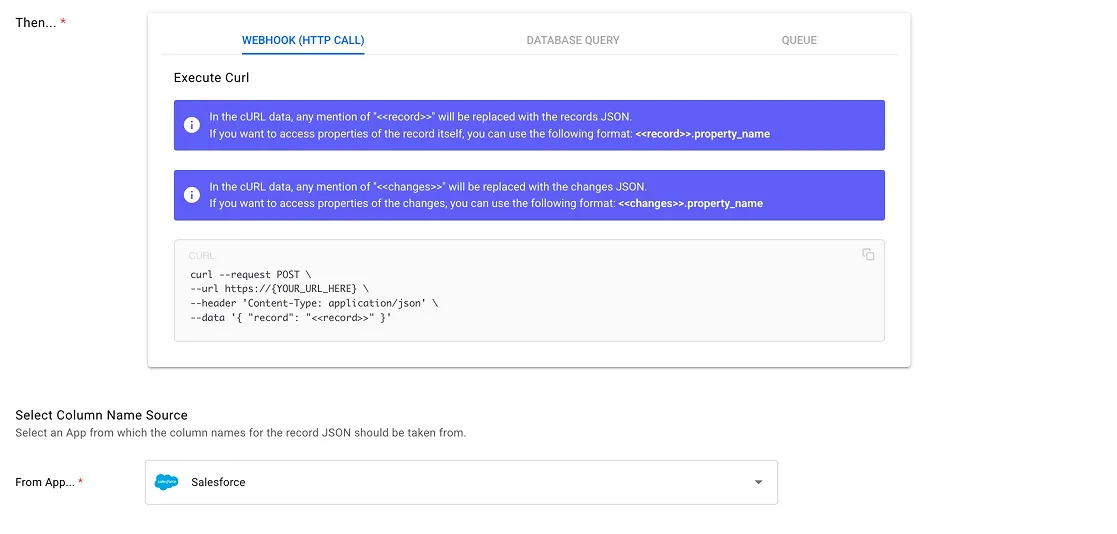
Example configuration of Webhook in a trigger
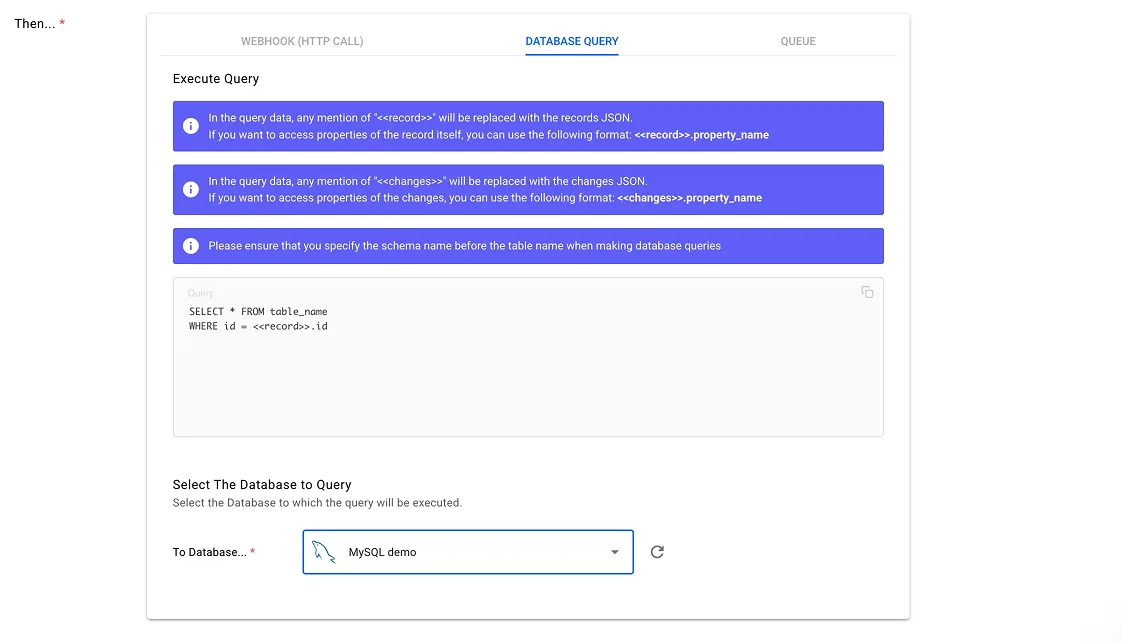
Example configuration of DB query in a trigger
Below is an explanation of every configuration parameter:
From app... [app_1, app_2]
This let's you choose which app should be watched for actions. For instance, if your sync is between Salesforce and Postgres and you create a trigger to be fired when a record is created from app [Salesforce], this means that the trigger will only fire up when a record is created in Salesforce but not when a record is created in Postgres.
Conditional filter based on record values
You filter can contain zero (no conditions) or many conditions. The no-code editor lets you create any sort of custom logics in a "drag and drop" fashion.
Need any help or have a feedback? Drop your question at hello@stacksync.com.
CURL to be executed
This field is a full CURL as you know it from the open source project https://curl.se/
You can include any authentication, parameters, turn the POST into a GET request or anything else. The CURL will just get executed as is, we will not run any checks on your behalf. If the API call fails or timeouts, the failure will not stop the execution of other triggers as every trigger will be fired up independently.
We recommend to keep the CURL as a POST request.
The payload is also fully customizable. For example, add some additional custom parameters in the JSON body as follows:
curl --request POST \
--url https://{YOUR_URL_HERE} \
--header 'Content-Type: application/json' \
--data '{ "record": "<<record>>", "my param": "my value", "my number": 1234 }'
If you need a utility to setup and test your requests and payloads, feel free to use the sandbox in our free and secure webhook utility my.hookforce.app.
If you need a free and secure sandbox to test your HTTP webhooks, check out Stacksync's free sandbox at my.hookforce.app.
Select Column Name Source for the JSON payload
When you sync data between your apps, apps will not always have the same schema and therefore column names. For instance, your column first_name in your CRM could be user_first_name in your database. Stacksync lets you choose which field names should be used for the data included in the JSON payload.
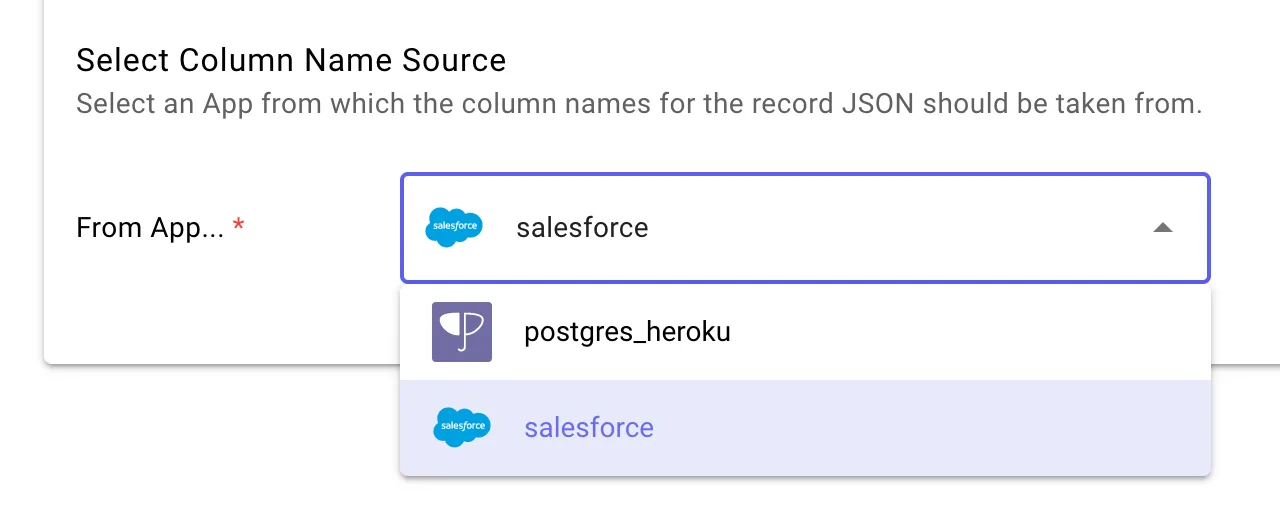
In this example, selecting "Salesforce" will use field names from your Salesforce app.
Do not fire up trigger when all the changes belong to a given list of fields
Some Systems such as HubSpot do have frequently changing system fields that might fire trigger execution when you do not want it.
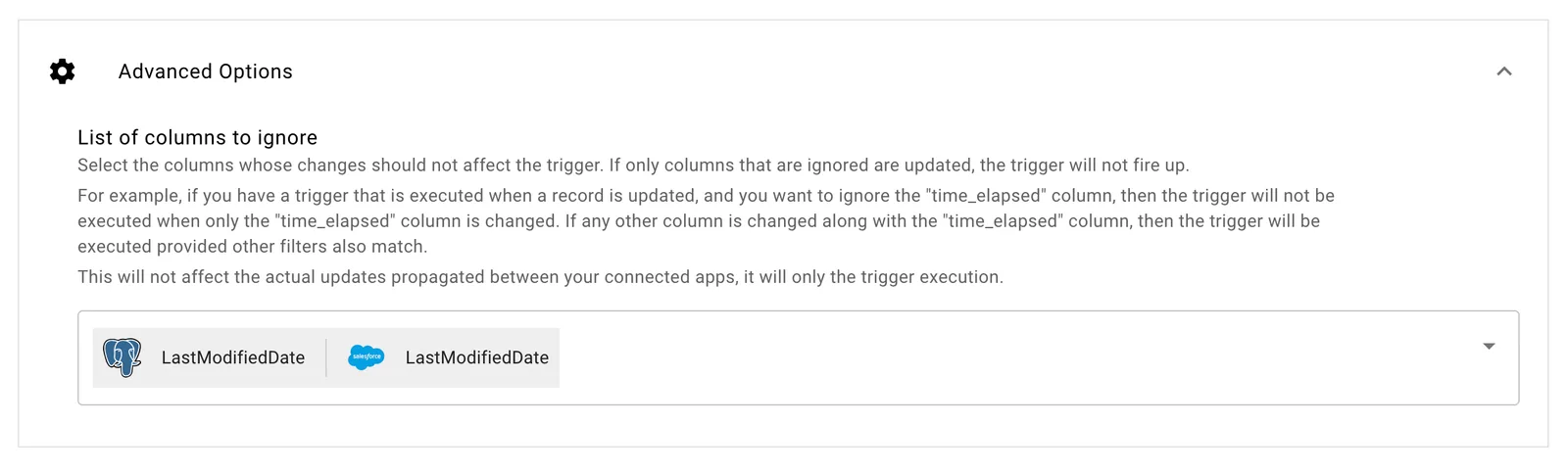
You can choose a list of fields to ignore. This means that if the all the fields that changed in a record belong to fields in this list, then the trigger will NOT fire.
For instance, let's assume you decide to ignore changes in columns lastModifiedTime and PhoneNumber (i.e. these fields are included in the list of fields to ignore).
- If only the column
lastModifiedTimewas updated, the trigger will NOT fire. - If the columns
lastModifiedTimeandPhoneNumberwere updated, the trigger will NOT fire. - If the columns
lastModifiedTimeandAddresswere updated, the trigger WILL fire since a field that does not belong to the list of fields to ignore was updated.
- Fields included in the list of fields to ignore can still be used in all of your filters and conditions.
- The execution of a trigger remains subject to match all of the filters and conditions (if any) that you have defined for that trigger. So when at least one field not in the list of fields to ignore is updated, the data will still be evaluated against your filters and conditions as usual.
5. Click "Create trigger"
Once your configuration is done, click "Create trigger" to start sending data to your HTTP endpoint.
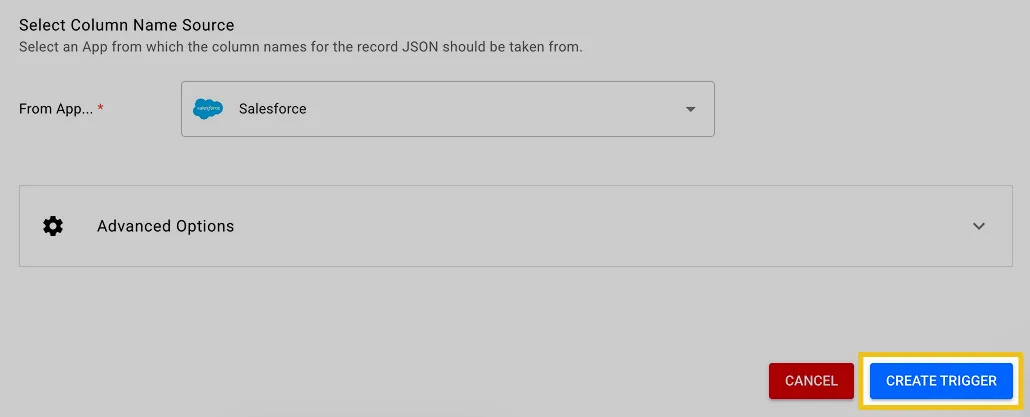
Click "Create trigger"
Created, Updated, or Deleted triggers can take up to a minute to propagate and start responding.
That's it! 🎉 You created a trigger!
Pause a trigger
Pausing a trigger will stop its execution until you resume the trigger.

Pause a trigger
Edit a trigger
Editing a trigger is easy, it follows the same procedure as creating one, but you first need to select the trigger you want to edit.

Edit a trigger
You can then follow our Create a trigger guide to edit your trigger.
Remove a trigger
Simply click on the bin icon to remove a trigger.

Click the bin icon to remove a trigger.
That’s it for triggers! Stacksync’s simple no-code editor lets you greatly simplify your backend and create as many triggers as you want. No limits!
Learn more by visiting our full trigger documentation at Event triggers
Create a Sync between Supabase Postgres and Salesforce
You are 5 minutes away from your real-time and two-way sync between Salesforce and Postgres. This guide walks you through the 3 simple steps to get up and running!
Add a New Custom Field to an Existing Sync
As your business evolves, your data evolves too. This guide shows you how to add a new custom field to an existing sync between your CRM and database.