

Amazon Lightsail
Find the connection credentials for your Amazon Lightsail Database.
Get your database endpoint and port information from the Lightsail console. You use these later when configuring your client to connect to your database.
1. To get your database connection details
2. Sign in to the Lightsail console.
3. On the Lightsail home page, choose the Databases tab.
4. Choose the name of the database that you want to connect to.
5. Get the Hostname and Port
On the Connect tab, under the Endpoint and port section, note the endpoint and port information.
6. Get username and password
On the Connect tab, under the "User name" and "passwords" section, make note of the user name, then choose "Show" under the "Password" section to view the current database password.
Because managed passwords are complex, we also recommend copying and pasting it to avoid entering it incorrectly. Highlight the managed password and press Ctrl+C if you’re using Windows, or Cmd+C if you’re using macOS, to copy it to your clipboard. Then, press Ctrl+V or Cmd+V as appropriate to paste it.
For the Amazon Lightsail connector, the user is required to have the Create privilege on the database.
This privilege can be enabled for the user using the following SQL query:
GRANT CREATE ON DATABASE database_name TO user_name;7. Paste all of this information into the Stacksync UI
For the database type, enter postgresql
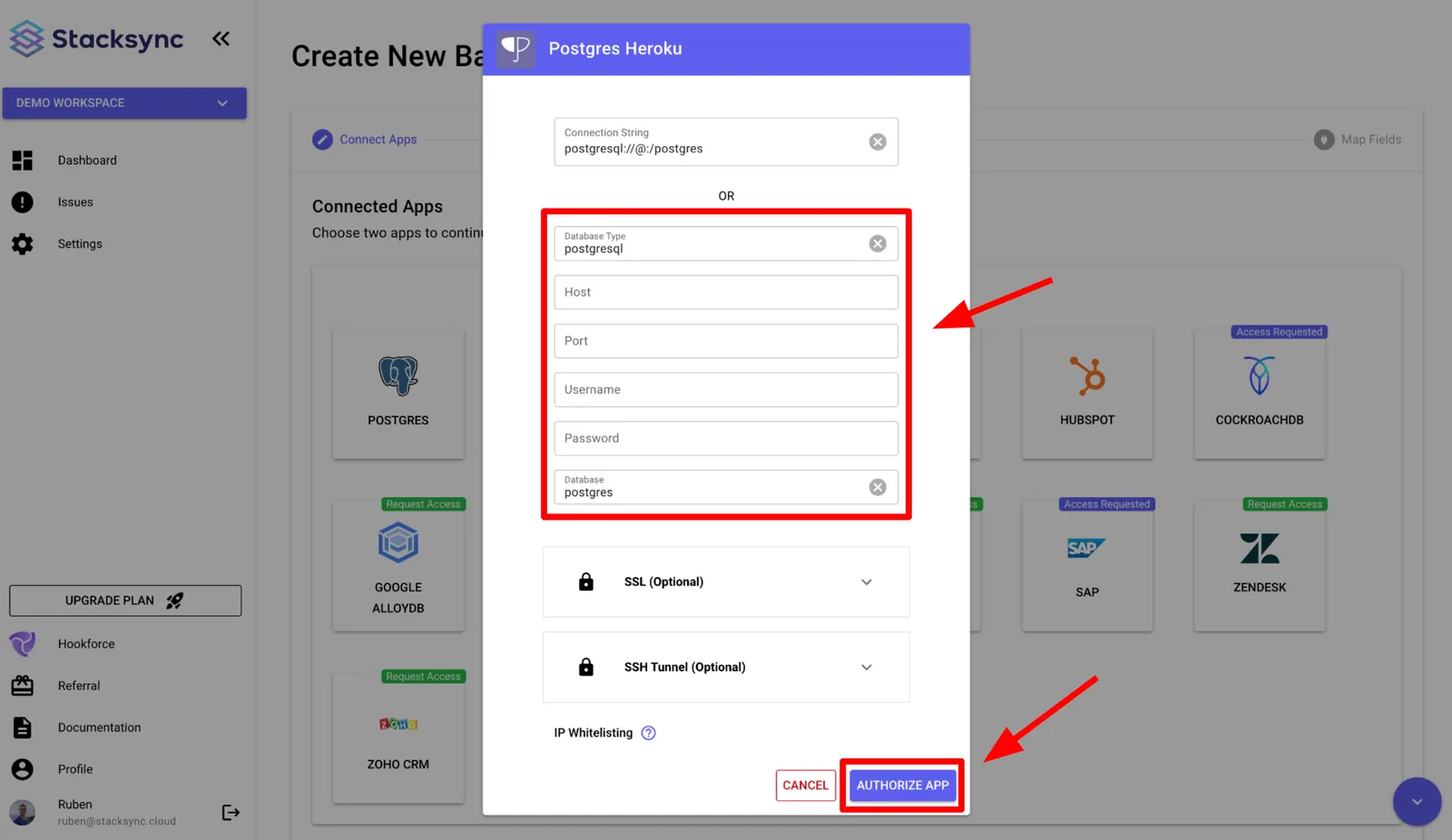
Past the credentials in the Stacksync UI
Enter postgres if you can’t remember the name of your primary database. Every PostgreSQL managed database has a postgres database that you can connect to, after which you’ll be able to access all other databases on the PostgreSQL managed database.
The connection string on top of the credentials setup box will autofill as you past your credentials in the designated fields (Host, Post, Username, Password, Database and Database type). You can ignore it, it is done automatically for you! Just fill up the other credential boxes.
Finally, click "Authorize App" to connect your database.
That's it, your database should be connected! 🎉
Other useful sources
Amazon connection tutorial: https://lightsail.aws.amazon.com/ls/docs/en_us/articles/amazon-lightsail-connecting-to-your-postgres-database