

Changelog
New updates and improvements
November 2026
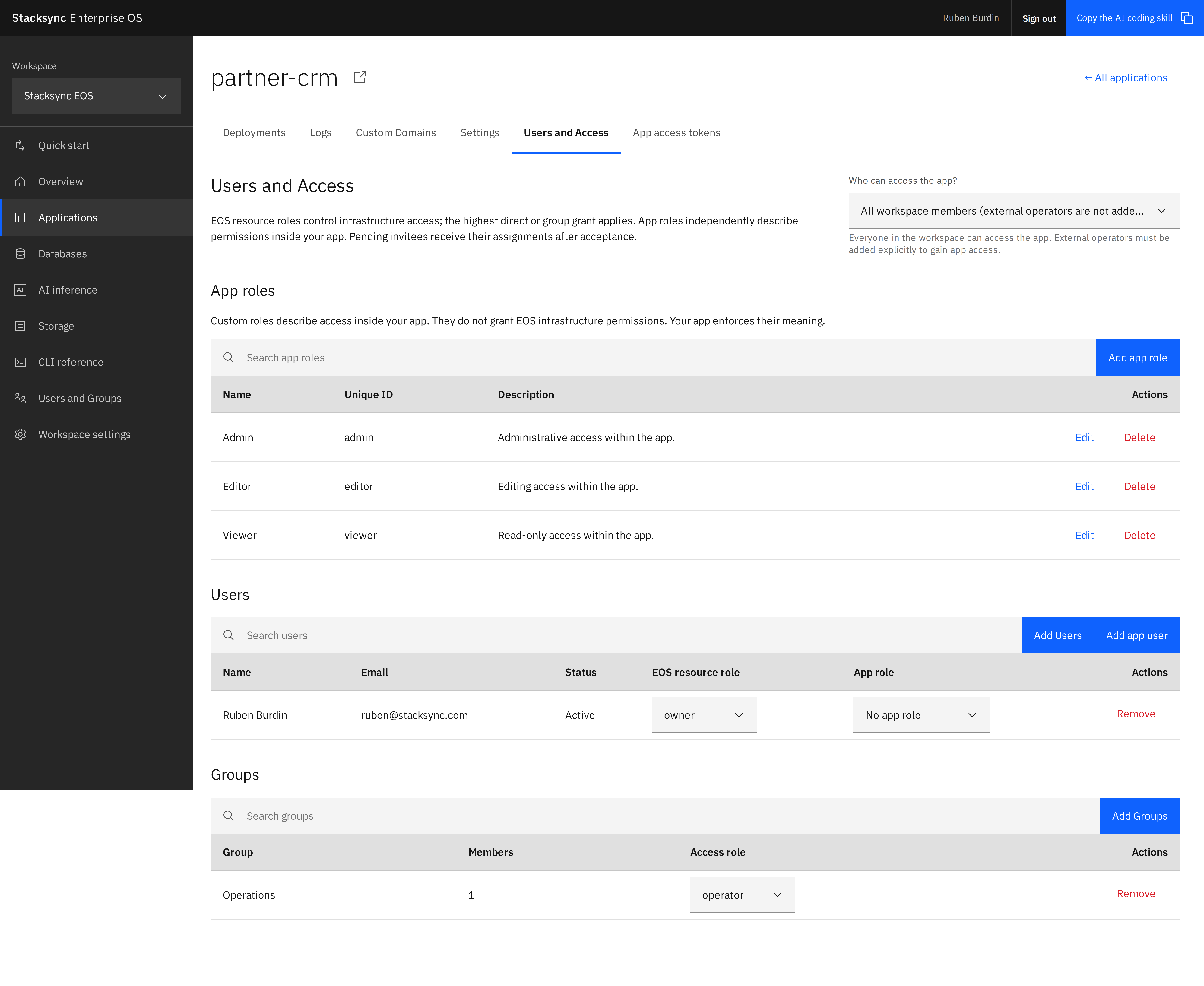
Custom app roles and user identity in EOS
Protecting an app's sign-in page is only the first step. A finance tool still needs to distinguish an Accountant from an Approver, and a customer portal needs to know which person is making each API request. Maintaining those identities and permissions separately in every application adds work and makes access harder to manage.
EOS now gives your UI and backend the same verified user identity, with a separate custom app role. Each app starts with editable Admin, Editor, and Viewer roles. Add your own roles, assign them in Users and Access, and use the returned user ID, email, and app role to enforce your application's business permissions. App roles remain separate from EOS infrastructure permissions.
An app's backend can manage its own users and roles with a scoped app access token. Create and rotate multiple tokens in the new App access tokens tab. EOS CLI 5.2.0 adds eos app roles, eos app users, and eos app tokens for the same workflows, including saving new tokens to a private file. Run eos update to upgrade.
The application gateway checks the current access policy on every request. Public apps admit anonymous traffic; private apps require an authorized user. API callers use personal bearer keys directly, with no JWT exchange. The roles, users, groups, and token tables now share a consistent design with search and clear empty states.
Learn how to read the current user, manage app roles and tokens, and automate through the CLI.
Private workflow connectors in Genies and MCP
Connectors you host yourself now work in Genies and Stacksync MCP, not only in workflows. Build a connector with the Stacksync CLI, run it on your own servers, and add its URL in Developer Studio. Only your workspace can use it, and there is no Stacksync review.
Its modules appear in the Genie skill picker with your other apps, and your AI assistant can list and run its actions through Stacksync MCP Gateway. When the Genie setup suggests one of its modules, it turns on Require approval. MCP Gateway Policies allow private connectors when they allow All apps, and every call appears in the MCP Activity Log.
Learn how to host a private workflow connector.
Connection rate limiting
Set one request limit on a connection, and every sync and workflow that uses it keeps to it together. When several syncs and workflows call the same system at once, they can go over its limit and get requests turned away. Now you tell Stacksync your provider's limit, and it holds all of them to it.
Choose the algorithm that matches your provider: concurrency, fixed window, sliding window, token bucket or leaky bucket. Then decide how the limit is shared: each workflow gets a guaranteed share and the syncs share one pool, and with capacity sharing on, idle resources lend their share to busy ones.
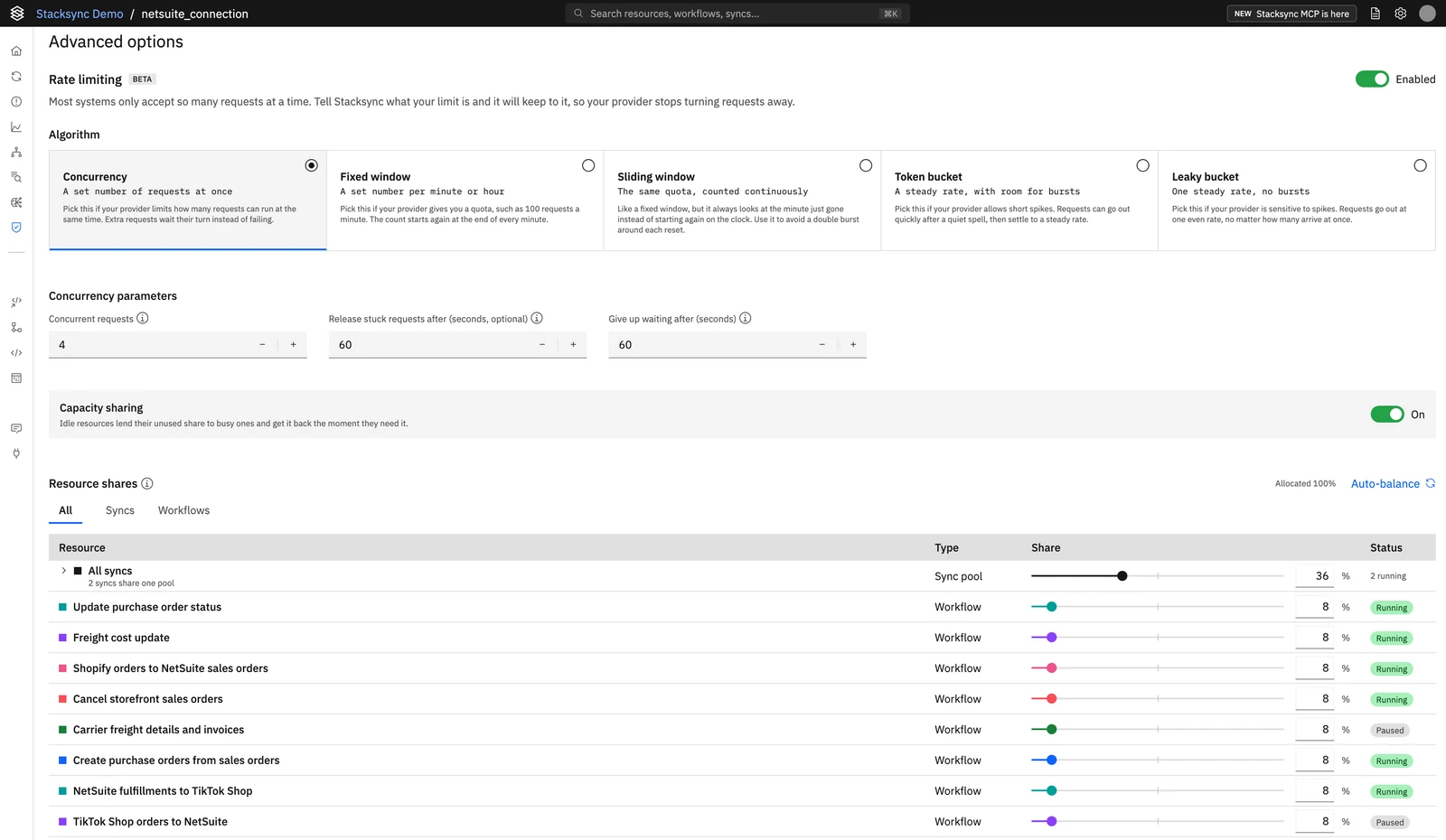
Available in beta for NetSuite connections: open the connection and go to Advanced options. Learn how to set a connection rate limit.
October 2026
App Triggers for Genies
Genies now start on their own when a record changes in a connected app. Add an App Trigger to a Genie, choose the app, the connection and the table to watch, then pick the events: record created, updated or deleted. Optional conditions narrow it to the changes that matter, such as deals that move to Closed Won.
Each matching change starts one Genie run with the record and the fields that changed, and the Genie handles it as its instructions say. A trigger reacts to changes made after it is turned on. Record data is encrypted, and every run appears in the Log Explorer with the app it came from.
To add one, open a Genie's Config tab and, under Interfaces, select Add and then Trigger. Learn more about Genies.
Manage custom domains with the EOS CLI
Teams automating app setup previously needed the dashboard or direct API calls to connect a custom hostname. EOS CLI 5.1.0 adds eos app domains commands to list, add, inspect, refresh, and delete domains from the selected workspace.
Add and show display DNS records and verification diagnostics; every command supports --json. Deletion asks for the exact hostname, while the original app URL remains available. Run eos update and follow the custom-domain CLI guide.
Custom domains for EOS applications
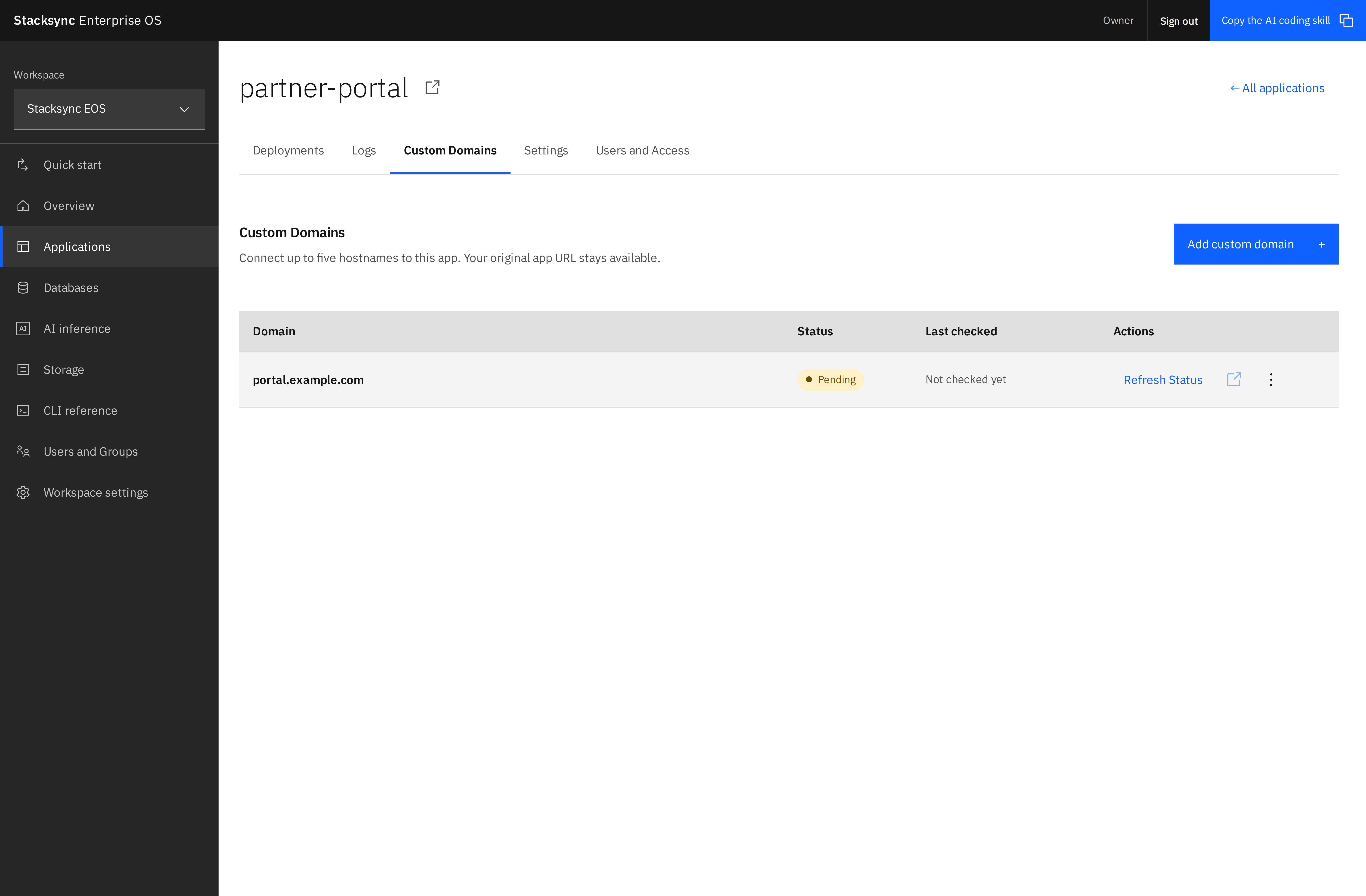
A customer portal or shared business tool is easier to recognize at an address your organization owns. Moving from a platform URL to that address usually means coordinating DNS, HTTPS certificates, and application routing before anyone can use it.
Give an EOS app your own hostname, with its interface and API at the same address. App Owners can now connect up to five custom domains per app: add a hostname in Applications → your application → Custom Domains, copy the displayed DNS records, and track verification and HTTPS activation from the app's settings. The app keeps its existing access policy and default URL.
EOS verifies domain ownership and manages HTTPS certificates. Status refreshes automatically, and DNS checks explain how to fix missing records, incorrect verification values, duplicated domain names, or an incorrect routing target. Teams can keep deploying new versions to the same app without losing their custom URLs.
Applications should use relative API URLs or update their configured public base URL so links and requests stay on the custom hostname.
See how to add a custom domain, including DNS examples, verification states, permissions, and troubleshooting.
EOS CLI now supports Windows, Mac, and Linux
Windows users previously needed WSL to use EOS. EOS CLI 5 now runs natively on Windows, Mac, and Linux, including Intel and Apple Silicon Macs. The same commands work across all three.
Existing users upgrade automatically on their next normal command with updates enabled. Credentials and workspace selection are preserved. Run eos --version to check your version.
Stacksync API reference
Every operation of the Stacksync API, documented. The API reference is now available in the Stacksync documentation, under API Reference: one page per operation with its parameters, request and response, and code samples in curl, Python and JavaScript. Every page also has a Markdown version for AI agents, and the whole API is described in the OpenAPI document /openapi.json, with /openapi-genies.json for Genie runs.
Start with the API Reference overview, then Authentication and Versioning.
Guardrails now protect what AI assistants see
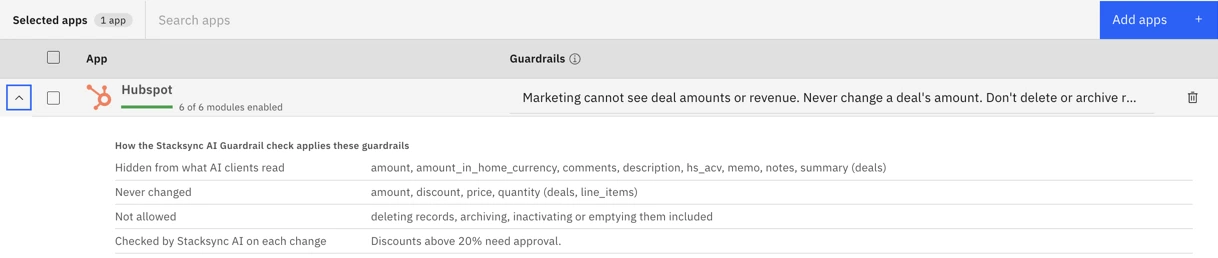
One sentence, enforced on every read and every change. Write "Marketing cannot see deal amounts or revenue" in an app's guardrails, and the deal amount, with the fields that repeat it, is removed from everything an assistant reads through that app. The rest of the record still comes back, and the assistant tells the member what was hidden and whom to ask.
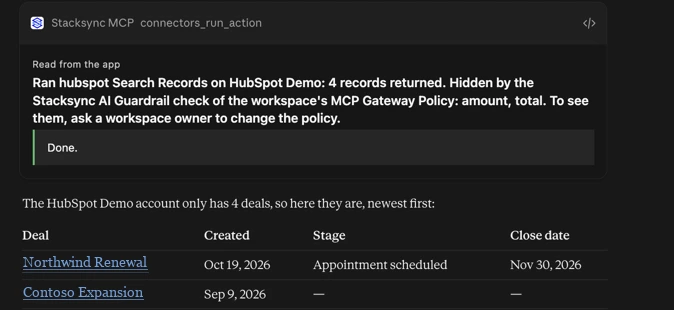
See how Stacksync applies your guardrails. When a policy is saved, Stacksync turns each app's guardrails into rules: the fields hidden from reads, the fields that never change, the actions that are not allowed, the conditions Stacksync AI checks on each change, and the changes the member confirms first. Expand the app in the policy to see them.
Harder to get around. Archiving, deactivating or emptying a record counts as deleting it, a protected total includes the line items it is computed from, and a field renamed or written in another case is still the same field. Every outcome the assistant reports is labelled Stacksync AI Guardrail check.
Workspace owners set guardrails under each app of a policy in the MCP Gateway Policies tab of the MCP page. Learn more.
Additional database users with granular permissions on EOS
A reporting tool may only need to read a few tables, while an application needs to update business records. Sharing the main database credentials gives both more access than they need and makes it harder to remove one integration without disrupting the others.
Give each application or integration its own PostgreSQL user and permissions. EOS now lets database owners create additional users, select the schemas and tables they can access, and choose whether they can read, insert, update, or delete rows. Separate metadata permissions control supported changes to schemas, tables, and columns, including creating schemas and tables.
Open a database’s Database users tab and select Create database user to configure access. Permissions start off, so you enable only what each user needs. You can update permissions, revoke an additional user, or reset passwords from EOS. The same user-management operations are available through the EOS CLI and its MCP tools for automated workflows.
Table permissions apply to the existing tables you select; new tables require an explicit permission update. Each user receives separate connection credentials, so a reporting integration can stay read-only while the application continues writing to its own tables.
Explore managed PostgreSQL databases and adding database users.
Every MCP Gateway Policy evaluated, with its verdict in the Activity Log
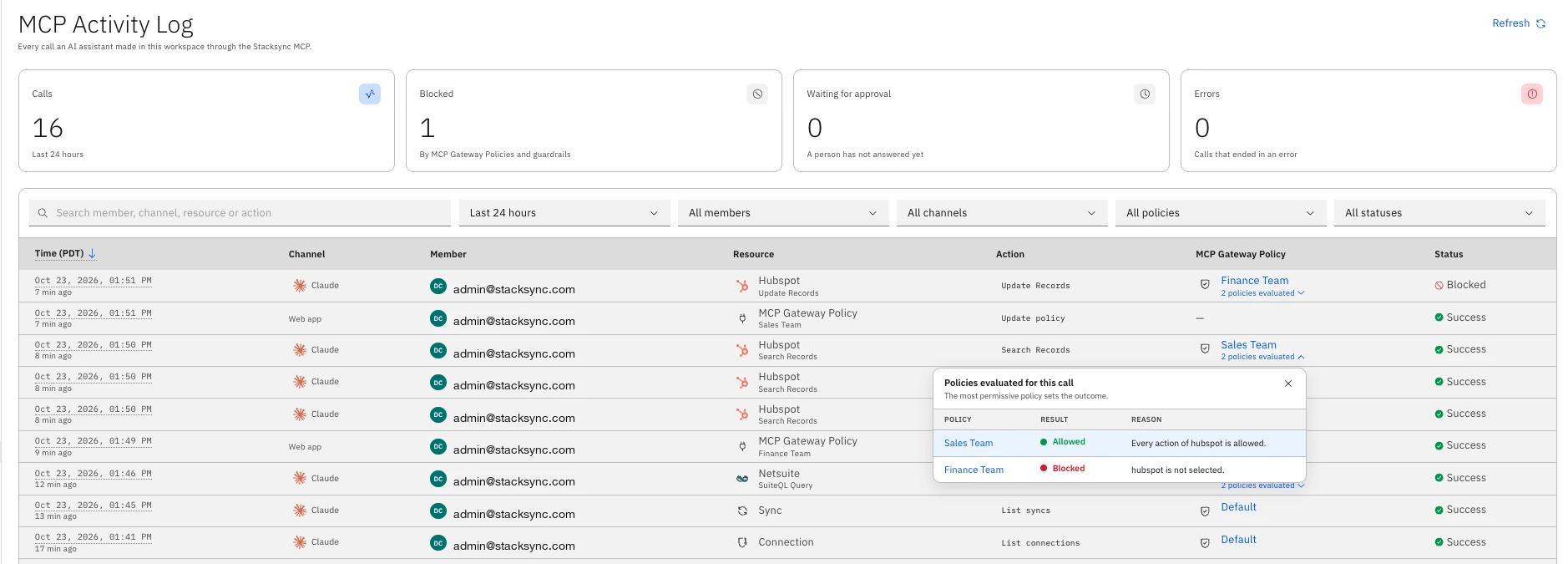
See what each policy said about a call. When several MCP Gateway Policies apply to a member, directly or through their groups, every one of them is evaluated on each call, one by one, and the most permissive verdict sets the outcome. The MCP Activity Log now lists every policy evaluated for a call with its result, Allowed, Blocked, Asked the person or Not applied, and the reason in plain words, including the guardrail a policy applied. Select N policies evaluated under the policy name of an entry to open the list.
Workspace owners open the log from the Activity Log tab of the MCP page. Learn more.
MCP Activity Log
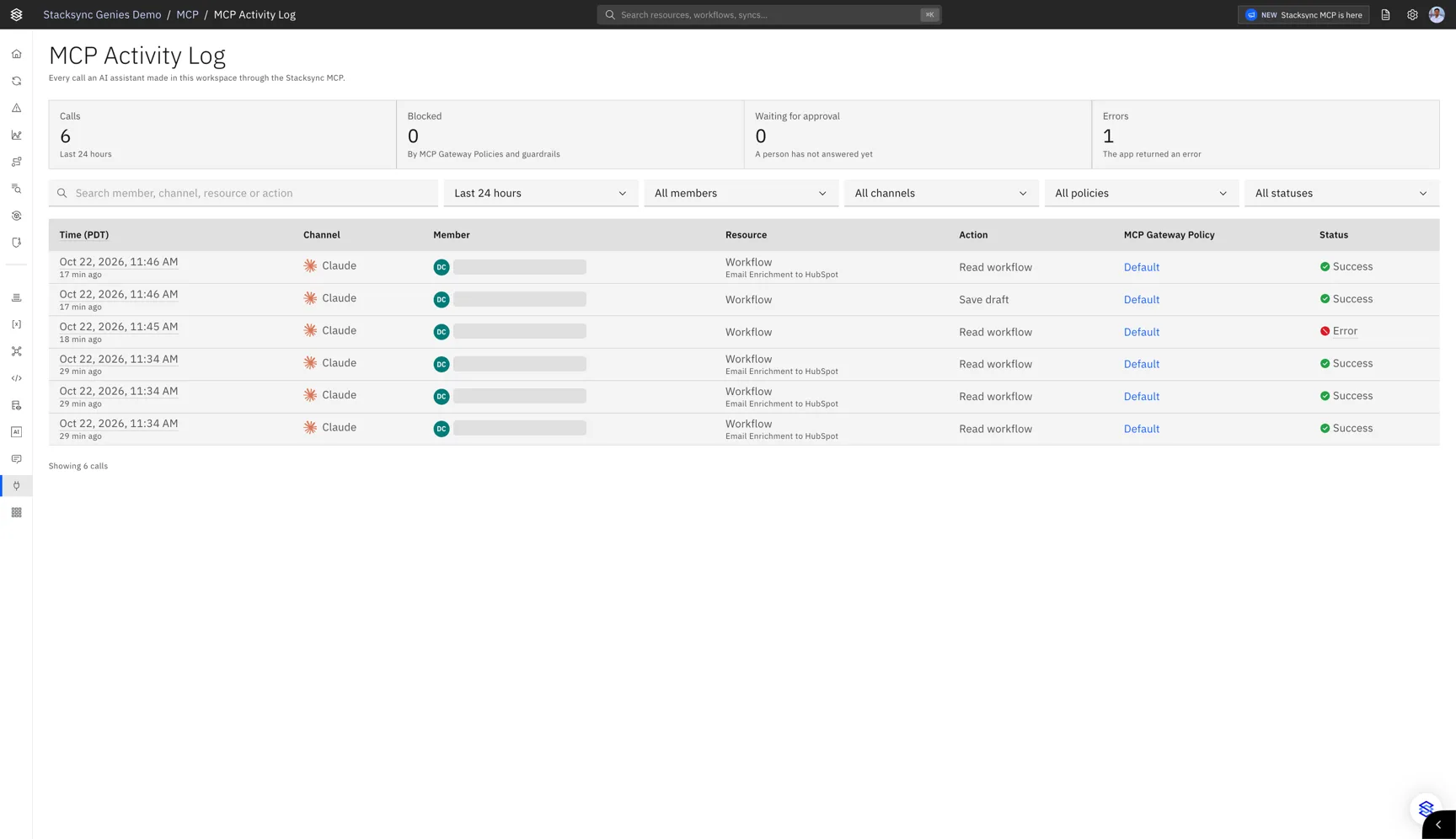
See every call AI assistants made in your workspace through the Stacksync MCP. Each entry shows the member, the assistant they used, the resource and the action, the MCP Gateway Policy that decided the call, and how it ended: success, error, blocked, or waiting for a member's approval. Workspace owners see the whole workspace; other members see their own activity.
Open it from the Activity Log tab of the MCP page. Learn more.
Guardrails for MCP Gateway Policies
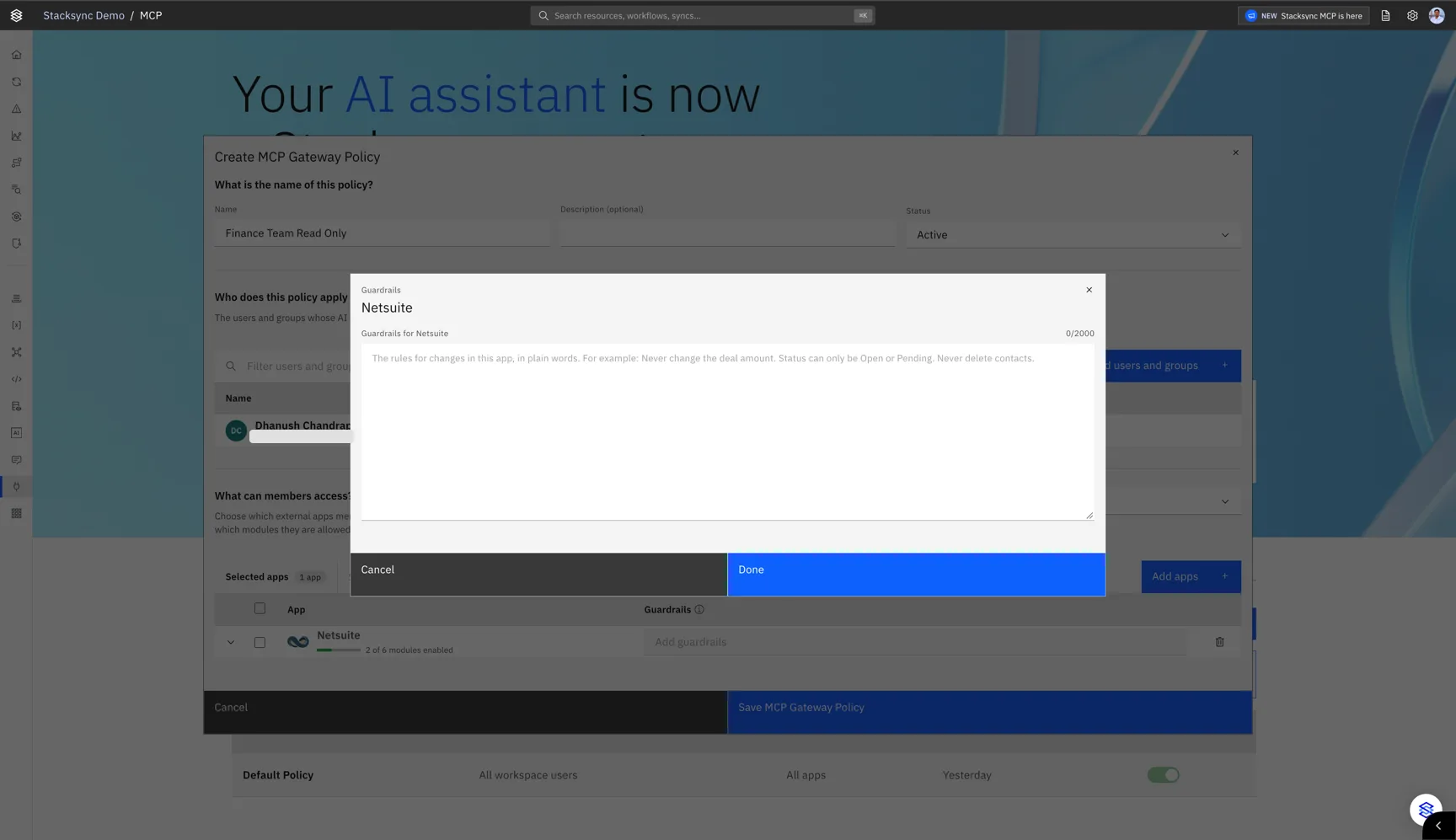
Write the rules every change through an app must follow, in plain language. Guardrails are set per app in an MCP Gateway Policy, for example "Only create purchase orders for our US subsidiary, in USD". Stacksync AI checks every change against them before it runs: a change that breaks a rule is blocked, and an uncertain case asks the member to confirm. Read operations are not checked.
Workspace owners set guardrails under each app of a policy in the MCP Gateway Policies tab of the MCP page. Learn more.
MCP Gateway Policies
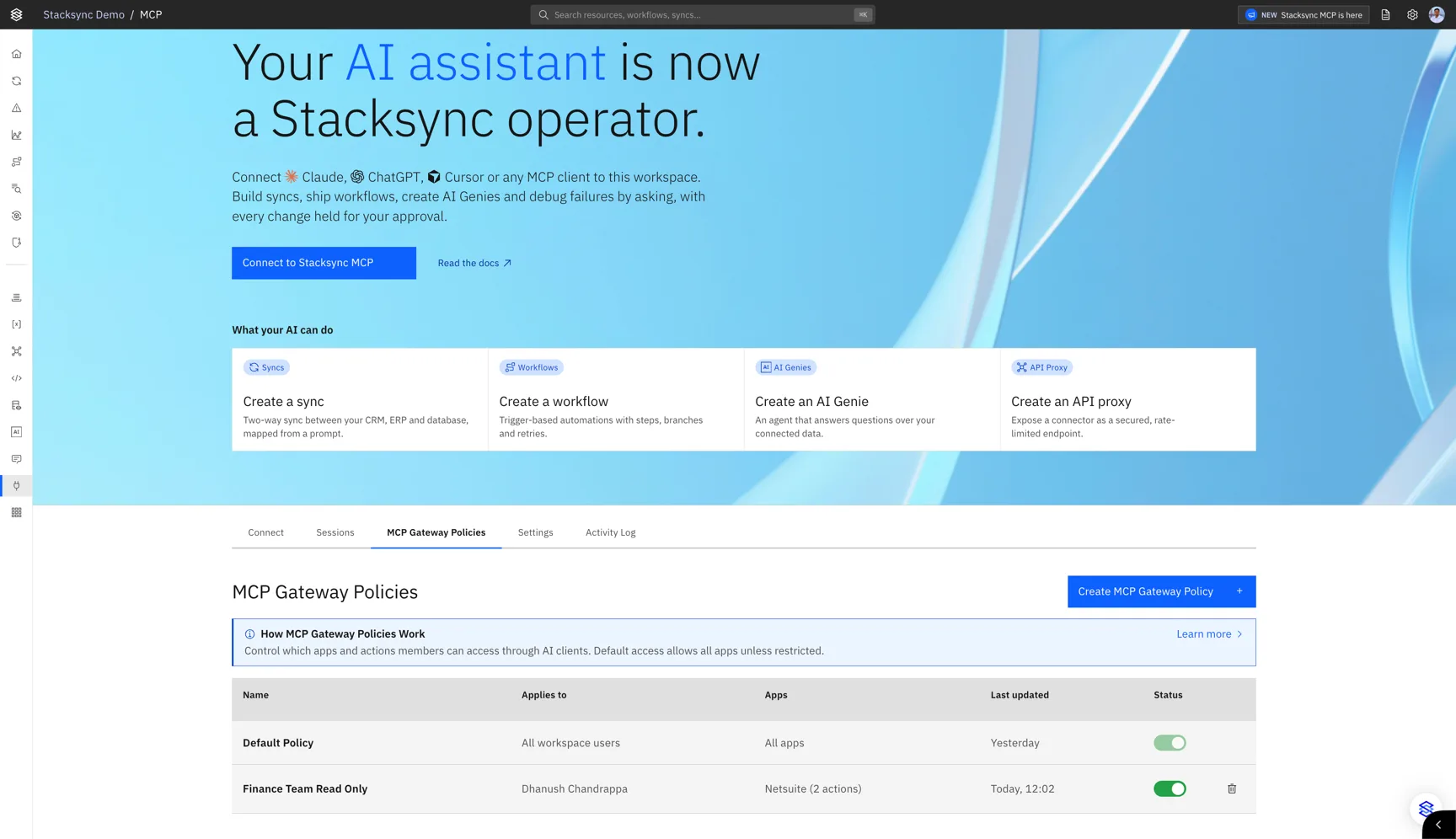
Control which apps your members' AI assistants can use, and what they can do in each. MCP Gateway Policies set which apps, and which actions of each app, members' assistants can call through the Stacksync MCP.
Every workspace has a Default Policy that allows all apps until a workspace owner restricts it. Workspace owners can create custom policies for specific users and groups, and members assigned to more than one policy receive the combined permissions of those policies. Policies apply to workspace owners as well. A blocked request changes nothing, and your assistant tells you which policy blocked it. Workflows, Genies and syncs continue to follow workspace roles.
Workspace owners create MCP Gateway Policies in the MCP Gateway Policies tab of the MCP page. Learn more.
Review every change from your AI assistant
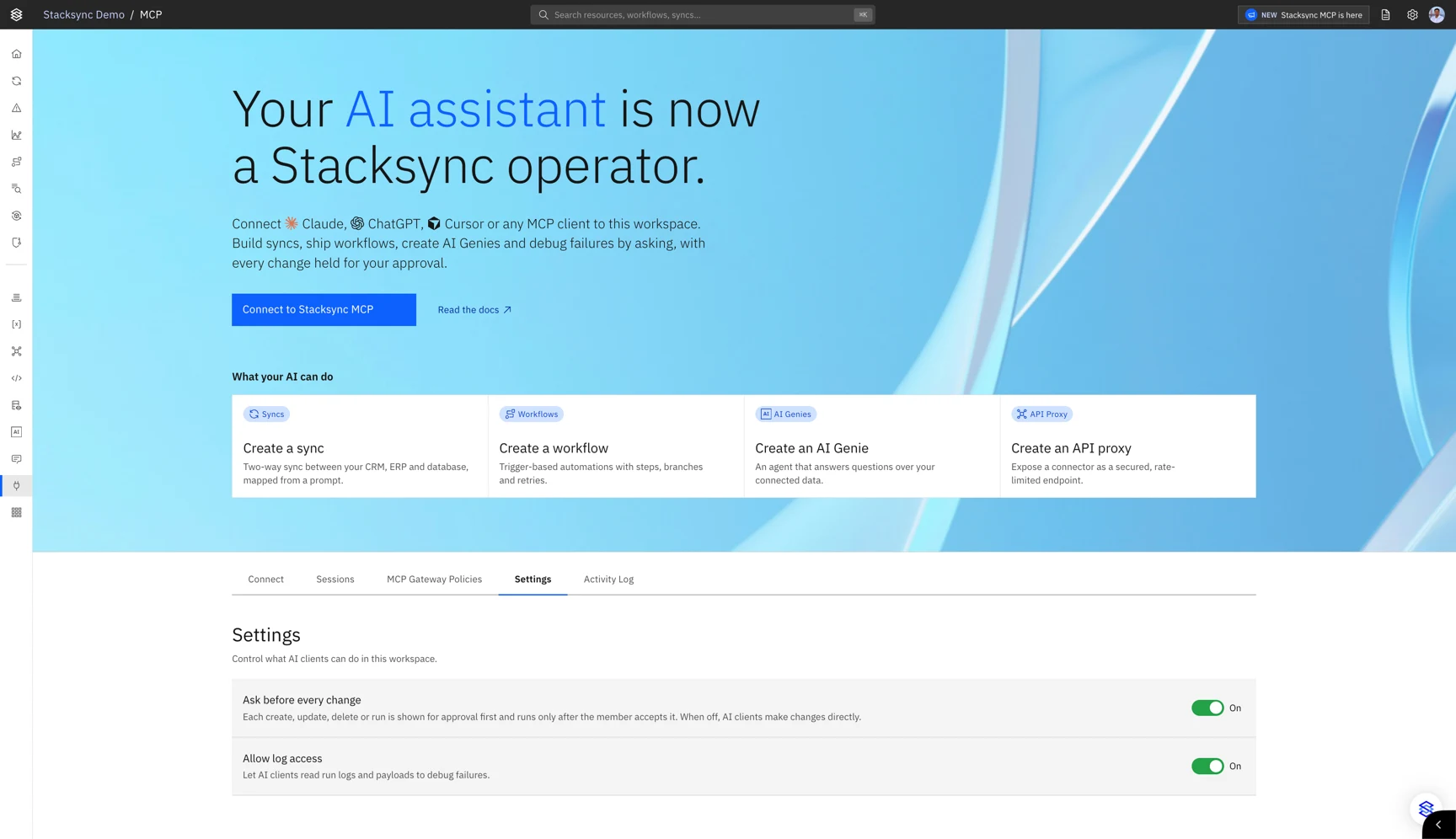
Approve or cancel each change before it runs. With Ask before every change turned on, every create, update, delete or run through the Stacksync MCP shows a preview of the change first, and runs only after you select Accept. Assistants that support MCP Apps display the preview as a review card in the chat; others ask you to confirm.
Workspace owners turn it on in the Settings tab of the MCP page. Learn more.
Browser Takeover for genies
Take over the genie's browser at any time. The genie pauses while you click and type. When you press Resume Genie, it picks up your changes and carries on with them, instead of redoing what you changed.
Browser Steering for genies
Chat with the genie while it works in the browser. Your messages reach it mid-run, so you can correct it, add details or change direction without starting over.
Currently from the browser session window; steering from Slack is coming soon.
Stacksync MCP
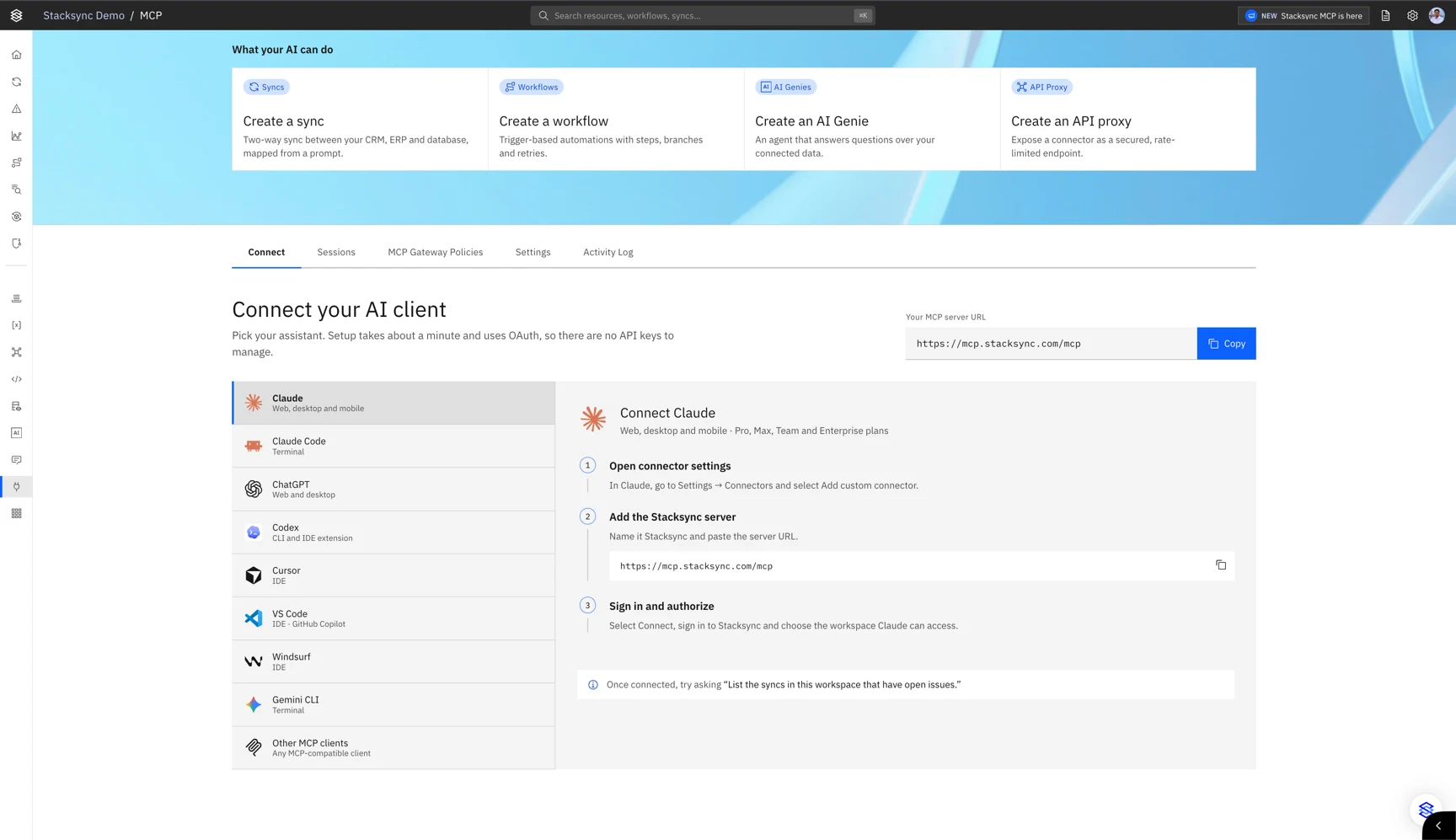
Operate Stacksync from Claude, ChatGPT, Cursor and other AI assistants. Connect the Stacksync MCP server to your AI assistant and describe what you need in plain language. Your assistant builds and runs two-way syncs, workflows and Genies, investigates issues and resolves them, with exactly the permissions you have in the Stacksync app.
Add https://mcp.stacksync.com/mcp to your assistant and sign in with your Stacksync login; there are no API keys to manage. Stacksync skills guide your assistant through each build, and the new MCP page in the Stacksync app lets you manage connected assistants and workspace settings.
Deploy EOS apps without signing in
A prototype running locally still needs a home before anyone can try it. Account creation and workspace setup interrupt that first deployment, before a developer or business team can see whether the application solves their problem.
Go straight from source code to a live app. The EOS CLI now deploys an application and can create a PostgreSQL database without requiring login. EOS creates a guest workspace automatically and saves a private credential on the device so you can continue managing your resources.
Guest apps are public. Unclaimed workspaces and their resources expire 14 days after creation. Sign in before that deadline to keep your work and invite colleagues. The CLI automatically claims the guest workspace for your account, whether you create a new account or use an existing one. AI inference, keys, File Storage, accessories, and collaboration require an account; inviting users also requires claiming the workspace.
Start with the quick start, or learn how to manage and claim a guest workspace.
File Storage for EOS applications
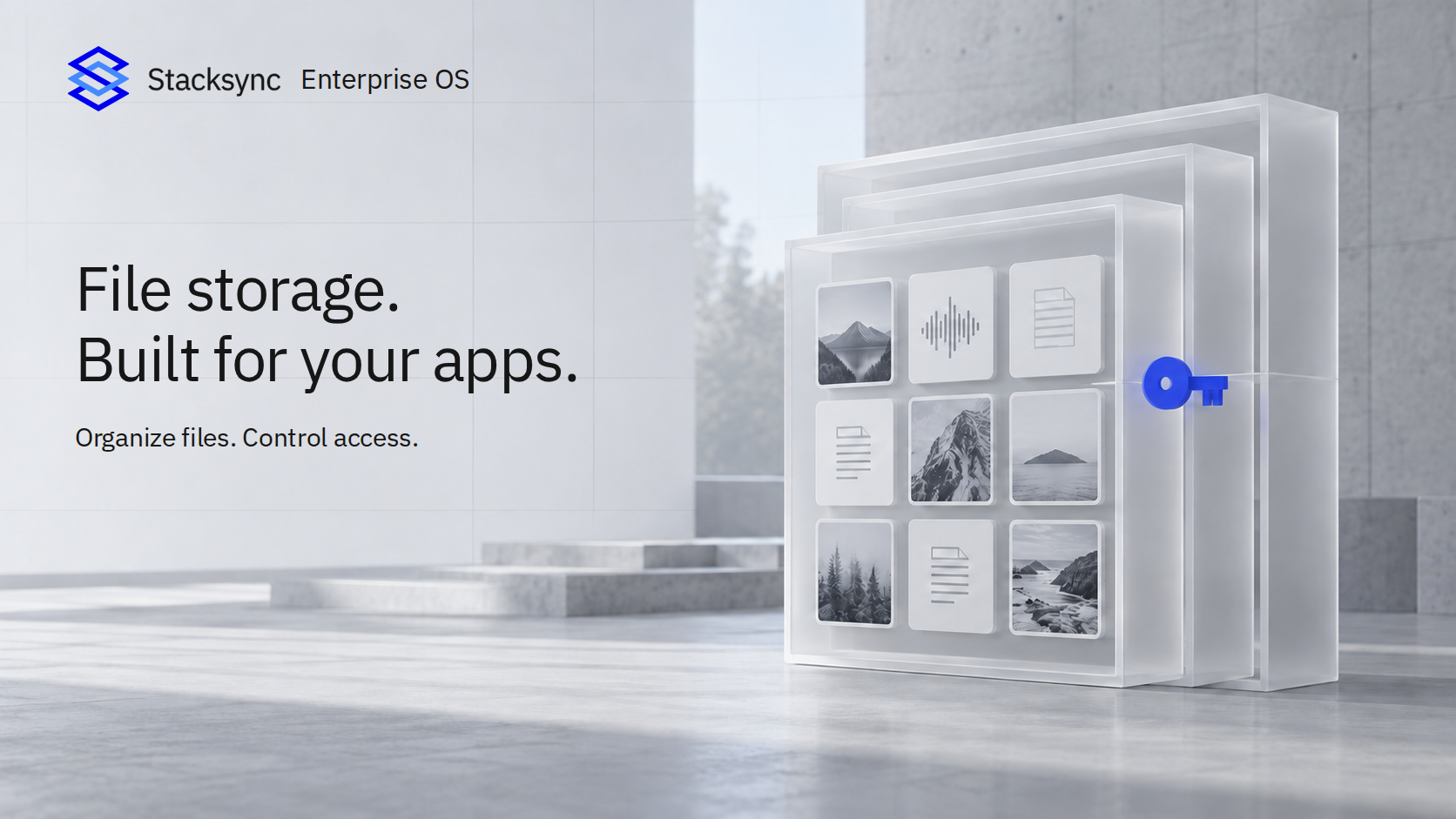
A useful image or audio processing prototype can quickly outgrow files stored on a developer's laptop or an application's local disk. Before colleagues can use it, the team needs somewhere durable to keep uploads and results, a way to browse them, and controls over who can read or change them. Setting up a separate storage service adds infrastructure and permissions work before the application can deliver value.
Give file-heavy applications a managed home for their data. EOS Storage provides private buckets for the images, audio, documents, and generated files your applications work with. It is a natural fit for image processing tools, audio transcription workflows, and other applications that need to retain source files and processed results.
Create buckets in the US or EU, upload and organize files, and explore their contents directly in EOS. Preview supported file types in the dashboard and share bucket access with the users and groups who need it. Applications connect through scoped API keys with read, write, list, and delete permissions, so each integration gets the access it needs.
Teams can keep originals and outputs in shared storage instead of managing a separate file service for each new tool. The EOS CLI also supports bucket and file management, making storage part of the same workflow developers and AI agents use to deploy applications.
Explore Storage, file management, and application API access.
Managed authentication on EOS applications
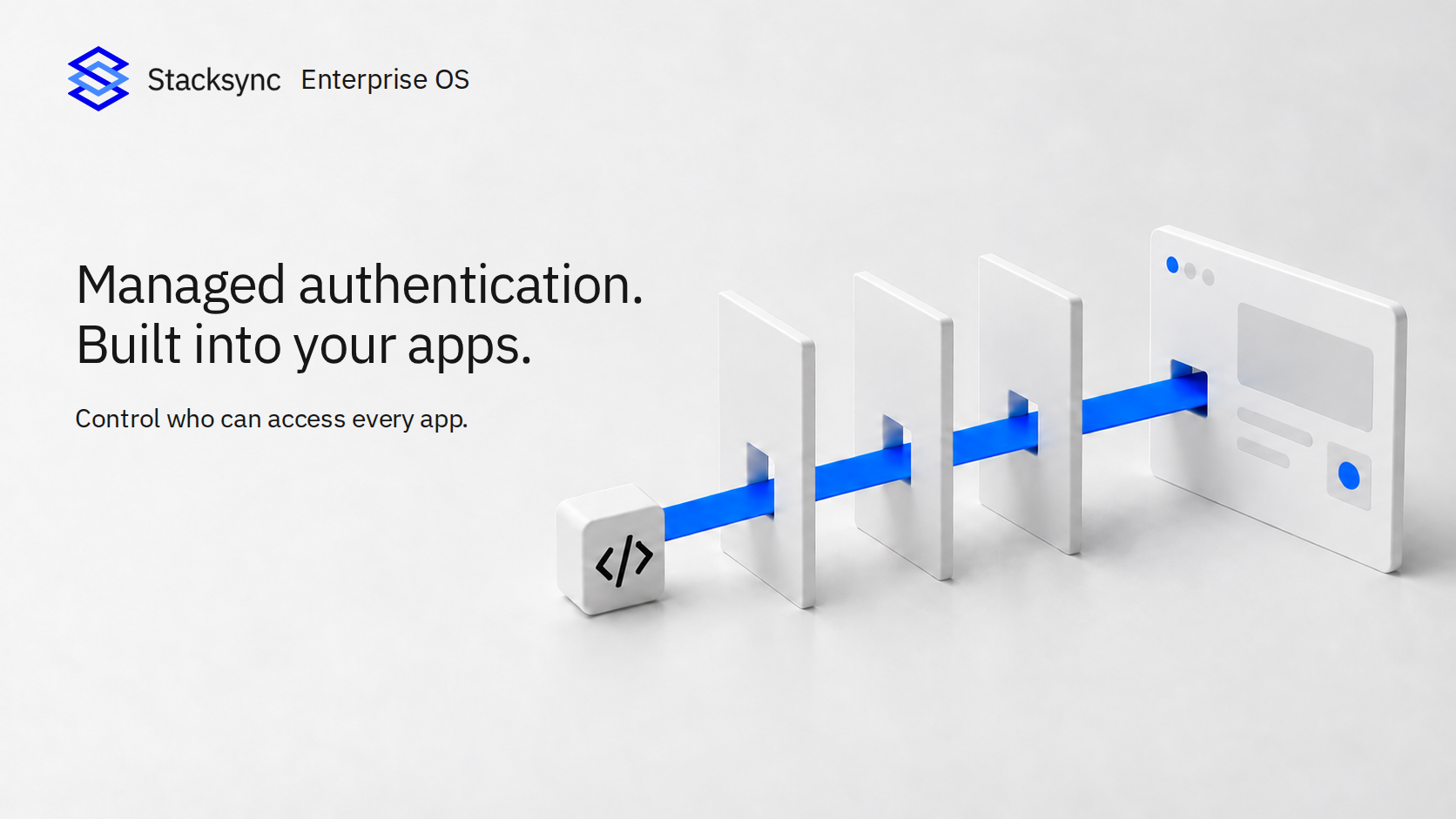
An internal tool may be ready to solve a business problem while still lacking the access controls needed to share it safely. Building sign-in, managing sessions, and checking every backend endpoint takes additional work; protecting the interface alone can leave APIs exposed. Repeating that work for each new tool slows deployment and creates opportunities for inconsistent protection.
Deploy internal tools without building authentication into every application. Stacksync EOS enforces your application's access policy at the backend access layer, before a request reaches the application. The same check covers every endpoint served through its Stacksync app URL, including backend APIs, so protection does not depend on adding a sign-in check to each page or API handler.
Choose who can use an app: specific users and groups, all workspace members, or a public audience. New applications in account workspaces default to workspace access. Guest applications are public. Configure the policy in Users and Access or automate it through the management API; use the EOS CLI to manage user and group access grants. Public access without authentication remains an explicit policy choice.
Teams can turn prototypes into shared business tools with a consistent authentication layer, while IT retains control over who can access them. These controls support the access-control requirements of a SOC 2 compliance program; application-specific permissions, security testing, and the wider compliance program remain essential.
Learn more about managed authentication and CLI access management.
Quick start page for Stacksync Enterprise OS (EOS)
AI coding tools make it easier to build a prototype, but getting it onto a URL colleagues can use still means choosing hosting, setting up a build and deployment workflow, provisioning resources, and connecting credentials. That gap can leave a useful idea running only on its creator's machine. Business teams need a clear path from describing an improvement to trying a deployed application with real users.
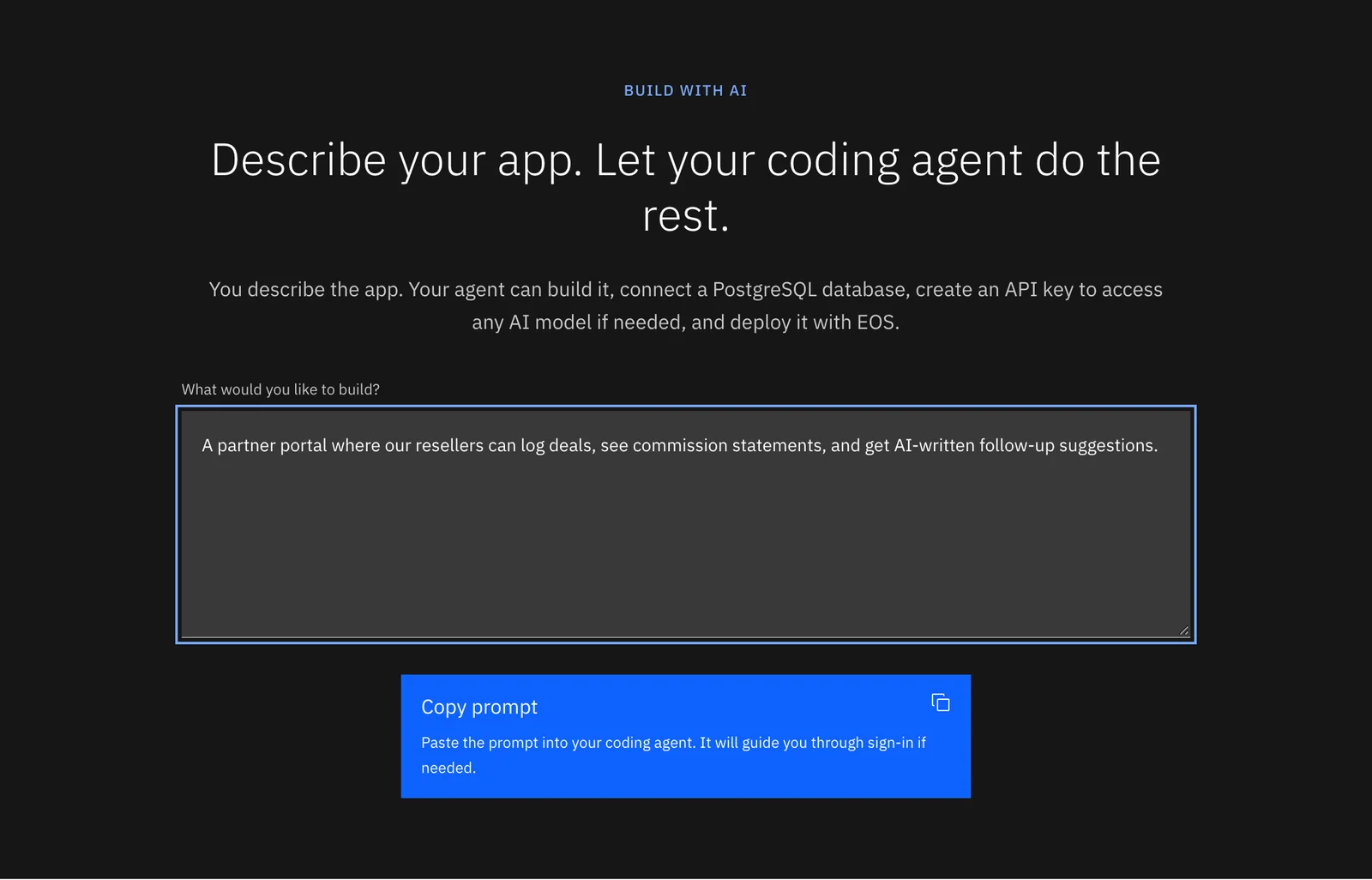
The new Quick start page in EOS gets you from an idea to a live app with a single prompt. Describe your app, select Copy prompt and paste it into any coding agent, such as Claude Code, Codex or Kilo Code. The agent builds the app, connects a PostgreSQL database, creates an AI inference API key if needed, and deploys it. Prefer the terminal? The page also lists the four commands to deploy an app yourself. See Quick start.
Passwordless login for Stacksync Enterprise OS (EOS)
Trying a new platform often starts with another password to create, store, and eventually reset. That friction can delay a colleague's first visit or interrupt someone returning to continue their work. A simpler sign-in flow helps teams get into EOS and start building, deploying, or managing applications with less account administration.
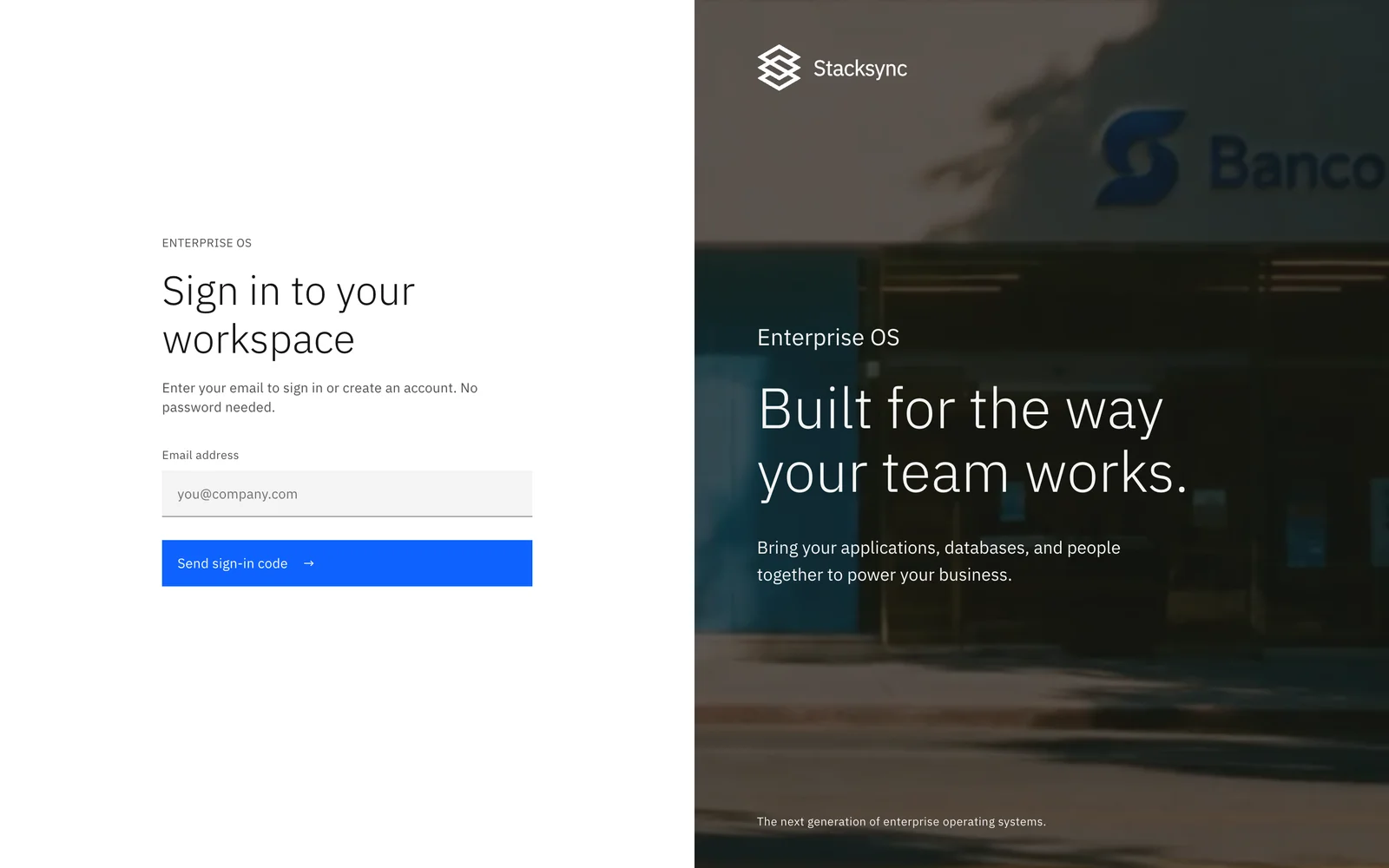
You can now sign in to Stacksync Enterprise OS without a password. Enter your email address, select Send sign-in code, and use the code sent to your inbox to open your workspace. New users can create an account the same way.
February 2026
Amazon Seller Central
Connect your Amazon Seller Central account to sync orders, inventory, and product data directly to your database with full OAuth support.
TikTok Shop
Sync your TikTok Shop e-commerce data, including orders, products, and fulfillment details to your database.
AI Copilot Chatbot
An in-app AI assistant is now available to help you configure syncs, troubleshoot issues, and navigate the platform, complete with conversation history and a resizable panel.
Issues Management Dashboard
View and resolve sync issues in bulk with filtering, sync direction support, and resolution tracking from a centralized dashboard.
Edit Sync Logs
View the full edit history for your syncs to track who changed what and when.
Schema Change Auto-Propagation
When your external app schema changes, Stacksync can now automatically propagate those changes to your database with user-configurable controls and email notifications.
cURL Command Generation
Automatically generate cURL commands for webhook-triggered workflows, making it easy to test and integrate from external systems.
Shopify Discount Application Schema
Sync Shopify discount application data including allocation methods and discount codes to your database.
App Icons in Resource Table
Quickly identify connected apps at a glance with visual app icons throughout the resource table.
Sync Configuration Enhancements
The sync setup form has been redesigned with an improved edit modal, better delete tracking options, and a smoother configuration experience.
HubDB Object Support
Improved schema generation and field name handling for HubDB objects, delivering more reliable syncs.
SuiteAnalytics Incremental Column Detection
SuiteAnalytics syncs now automatically detect new columns added to your saved searches.
SQL Server Table and Column Management
Manage SQL Server tables and columns directly from the Stacksync UI.
Airtable 10x Faster Batch Reads
Airtable reads are now up to 10 times faster thanks to increased API call batching per sync cycle.
January 2026
Microsoft Teams
Connect Microsoft Teams to use in workflows for sending messages, managing channels, and automating team notifications.
TikTok Shop Connector (Early Access)
Initial support for TikTok Shop is now available, with schema definition and connection configuration.
Orderful
Sync EDI and supply chain data from Orderful, enabling seamless B2B transaction visibility in your database.
Shopify OAuth with Refresh Tokens
Shopify connections now use refresh tokens, eliminating the need to manually reauthorize when access tokens expire.
SQL Server CDC Agent Health Monitoring
SQL Server Change Data Capture connections now monitor the SQL Server Agent health, alerting you if the agent stops running.
Schema Change Detection Enhancements
Improved reliability and coverage of automatic schema change detection across all connected apps.
Concurrent App Schema Generation
Setting up new syncs is now faster with parallelized schema generation across connected apps.
Dynamic Schema Setup for MySQL and Postgres
MySQL and Postgres source connections now support dynamic schema setup, automatically adapting to your database structure.
December 2025
SSO Finalization
Single Sign-On is now fully available with support for Azure AD and Okta, including SCIM provisioning and auto-propagation across workspaces.
Schema Change Notification Emails
Receive email notifications when Stacksync detects schema changes in your connected apps, so you can review and approve propagation.
Connection Security Enhancements
Improved handling of SSL certificates and SSH tunnel configurations for enterprise database connections.
Composite Key Support
Syncs now support composite primary keys across all database destinations, enabling accurate sync of tables with multi-column keys.
HubSpot Incremental Associations
HubSpot associations (e.g., deal-to-contact, company-to-contact) now sync incrementally instead of full reads, dramatically reducing sync times.
API Proxy Management
Create and manage API proxies with full credential schemas and connection-based routing from the Stacksync dashboard.
Salesforce Read Optimization
Salesforce sync reads are now faster with optimized query construction and pagination.
NetSuite/SuiteAnalytics Incremental Read Optimization
Incremental reads for NetSuite and SuiteAnalytics are now more efficient with improved query batching.