> For the complete documentation index, see [llms.txt](https://docs.stacksync.com/llms.txt). Markdown versions of documentation pages are available by appending `.md` to page URLs; this page is available as [Markdown](https://docs.stacksync.com/two-way-sync/features/update-sync-configuration.md).
# Manual Sync Configuration Update
As your business evolves, your data evolves too. Stacksync lets you update your sync configuration (change table and column names, add/remove columns in sync, change datatypes).
You can add/update/remove tables and fields to your existing syncs from the Stacksync dashboard. Here is a [quick video on how to update sync config for HubSpot](https://docs.stacksync.com/guides/add-a-new-custom-field-to-an-existing-sync).
Adding a new column in an existing sync: Explaining automatic data backfill for existing records.
The sync configuration update is a smart feature. For example, when you add a new column, all the data of that new column will backfill for the already synced records (historical data backfill), and keep syncing incrementally for any new update in real-time.

Updating a sync can be done in simple steps. Here is how:
Update your Sync configuration GIF Guide
## Step 1: Pause your sync
If your data keeps syncing while you modify your schema, table or column names/types in one of your synced apps, this could impact data in your other app in sync. This is why pausing the sync ensures maximum comfort for your sensible manipulations.
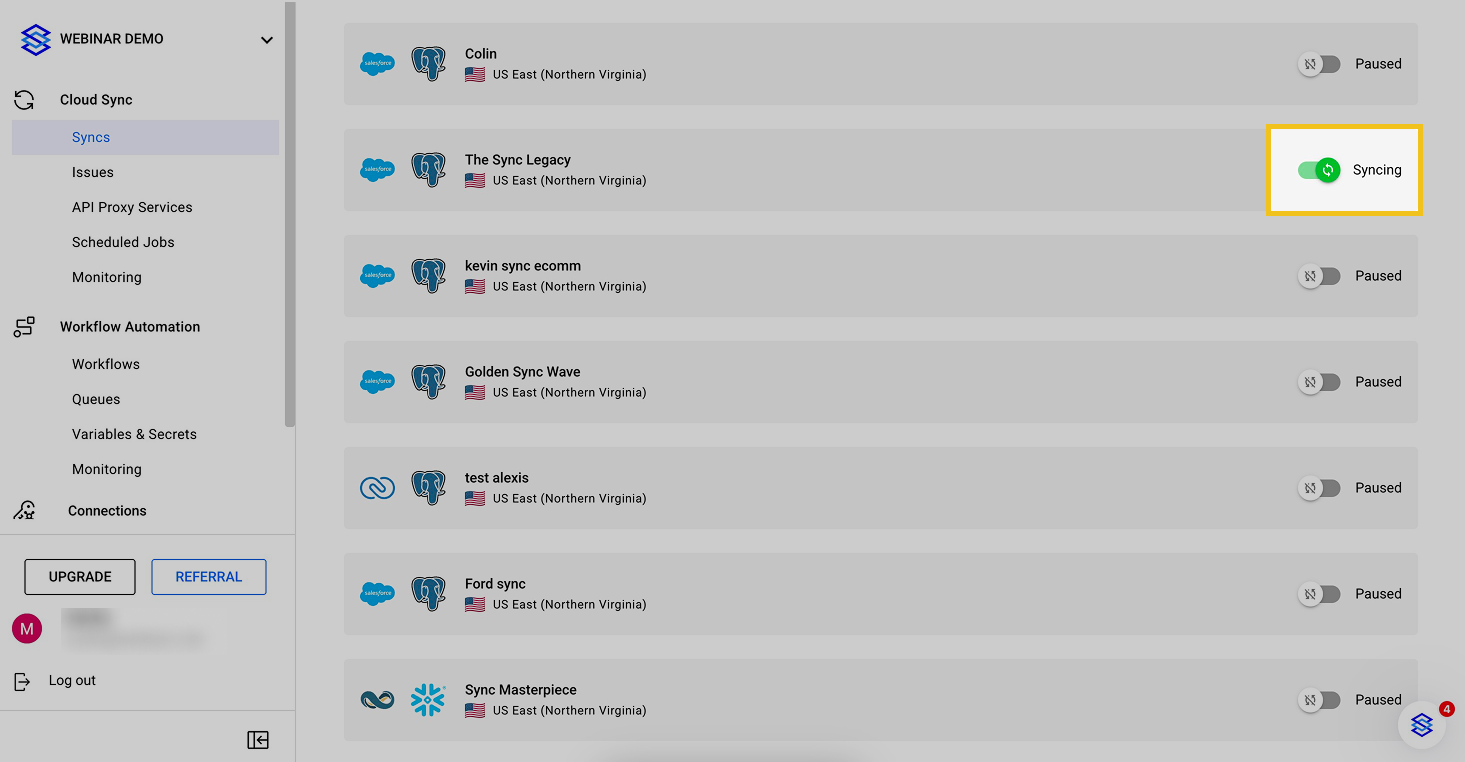
Pause your Sync (Switch OFF)
## Step 2: Modify your schema, table or column names/types in your external apps
Now you can do any modification you would like, feel free!
{% hint style="success" %}
All modifications are allowed, no limits!
{% endhint %}
## Step 3: Update your sync configuration
In your dashboard, open the sync details of the sync impacted by your changes.
Open Sync details
Click "Edit Sync" and follow the guided steps.
Start Editing Sync
This process is very similar to the [sync creation process](/two-way-sync/start-here/quick-start.md) (reauthorize apps if necessary, map tables and fields) but with additional features that enable you to keep going from where you left off! 🪄
## Step 4: Confirm your changes
{% hint style="danger" %}
Modifications to sync configuration are not reversible. Double-check your new configuration before validating!
{% endhint %}
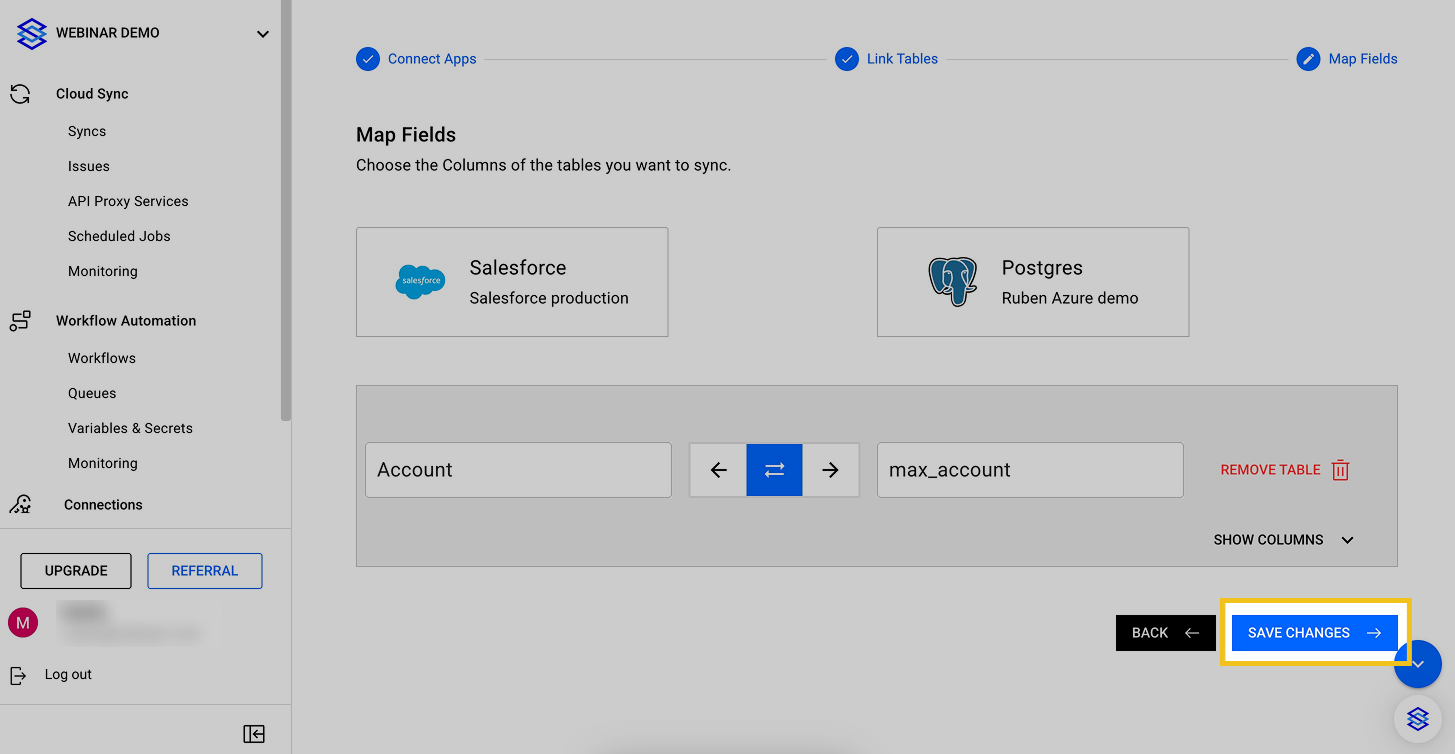
Save your Sync edits
## Step 5: Turn sync on!
Turn sync on and data starts syncing between your apps!
That's it! 🎉 Data will start syncing between your tools.
.png?alt=media&token=962e11d9-db4c-4eb8-9fcd-5a8ad9fa76d2)
.png?alt=media&token=0b0b9b1c-0bf5-4a1f-82e3-bb653c672a77)