
# Cloud SQL

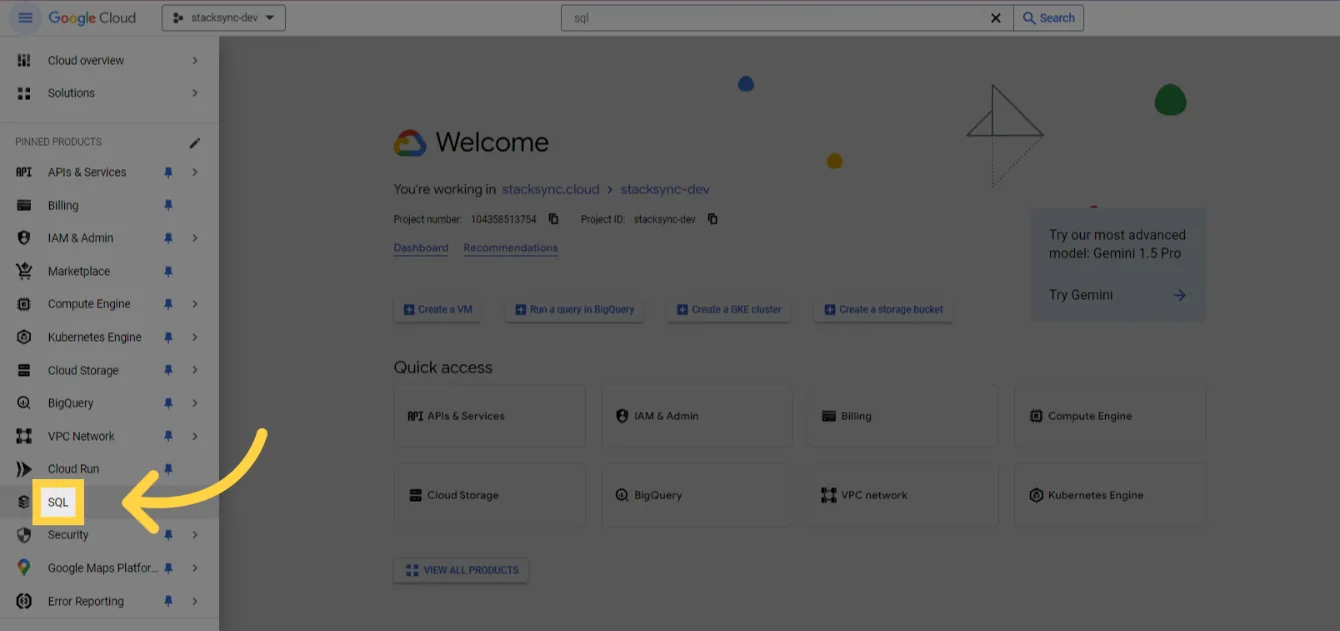
#### 1. Go to your [Google Cloud Console](https://console.cloud.google.com)

#### 2. Click on SQL

<figure><img src="https://2867423571-files.gitbook.io/~/files/v0/b/gitbook-x-prod.appspot.com/o/spaces%2FfJjIdV9cuW6K8asJjTPJ%2Fuploads%2FjWJnwHc3GBagrJZIkWBl%2Fimage.png?alt=media&#x26;token=577c0e95-cf9c-4dd1-83bb-f892a4b048b4" alt=""><figcaption></figcaption></figure>

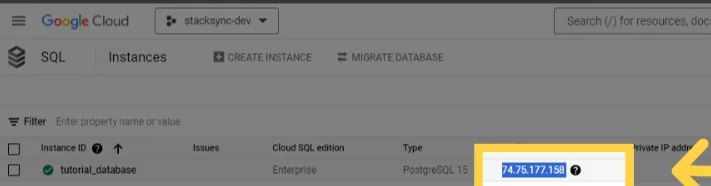
#### 3. Write down the public IP address of the SQL Instance you want to use
<figure><img src="https://2867423571-files.gitbook.io/~/files/v0/b/gitbook-x-prod.appspot.com/o/spaces%2FfJjIdV9cuW6K8asJjTPJ%2Fuploads%2FOdBsBudRbgf0zACSehoR%2Fimage.png?alt=media&#x26;token=4da434f0-efc8-4c86-b1c3-918b952a8b8c" alt=""><figcaption></figcaption></figure>

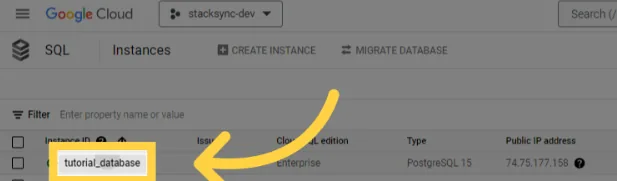
#### 4. Click on the instance you want to use
<figure><img src="https://2867423571-files.gitbook.io/~/files/v0/b/gitbook-x-prod.appspot.com/o/spaces%2FfJjIdV9cuW6K8asJjTPJ%2Fuploads%2F9iyvu8HXquTJfD9PO0Q1%2Fimage.png?alt=media&#x26;token=c8f0426f-47d0-4658-aac5-9ea053764868" alt=""><figcaption></figcaption></figure>

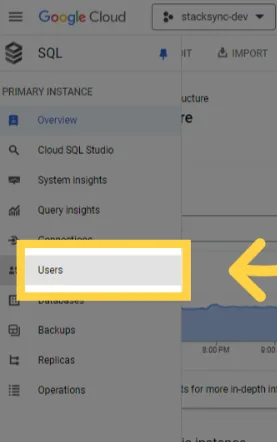
#### 5. Go to "Users"

<figure><img src="https://2867423571-files.gitbook.io/~/files/v0/b/gitbook-x-prod.appspot.com/o/spaces%2FfJjIdV9cuW6K8asJjTPJ%2Fuploads%2FQosdeAJ4VokSg0sjwctw%2Fimage.png?alt=media&#x26;token=0f62fd4e-2549-42d9-9eeb-440677a8bd21" alt=""><figcaption></figcaption></figure>

#### 6. Make sure the user you want to use is listed here, let's take "fake\_user"

<figure><img src="https://2867423571-files.gitbook.io/~/files/v0/b/gitbook-x-prod.appspot.com/o/spaces%2FfJjIdV9cuW6K8asJjTPJ%2Fuploads%2F1BrMnGit1Vz6BVa42hTW%2Fimage.png?alt=media&#x26;token=c95db459-5f4e-4bb5-a341-a814b47e7395" alt=""><figcaption></figcaption></figure>

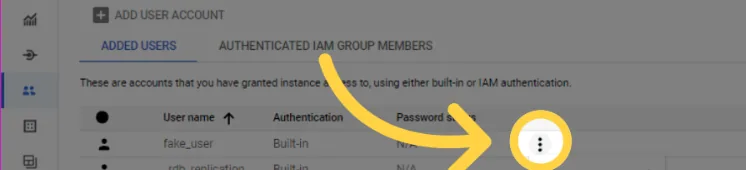
#### NOTE: You can manage the user's password by clicking on the 3 dots
<figure><img src="https://2867423571-files.gitbook.io/~/files/v0/b/gitbook-x-prod.appspot.com/o/spaces%2FfJjIdV9cuW6K8asJjTPJ%2Fuploads%2FT2rrDA83g0yopcFTp4yS%2Fimage.png?alt=media&#x26;token=f9948a75-c817-4c69-979d-1fec9bb56bef" alt=""><figcaption></figcaption></figure>

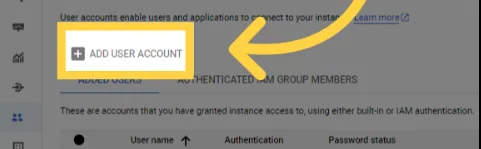
#### NOTE: you can add a new user by clicking "ADD USER ACCOUNT"
<figure><img src="https://2867423571-files.gitbook.io/~/files/v0/b/gitbook-x-prod.appspot.com/o/spaces%2FfJjIdV9cuW6K8asJjTPJ%2Fuploads%2FWPGSiAQGbVd010Qcxkwx%2Fimage.png?alt=media&#x26;token=81de35c0-f136-49de-bf1d-9e9a9931b165" alt=""><figcaption></figcaption></figure>

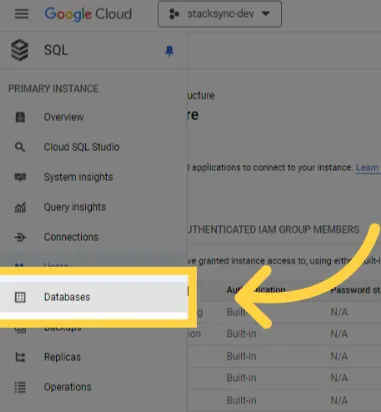
#### 7. Click on "Databases" and find the database inside the SQL Instance&#x20;

<figure><img src="https://2867423571-files.gitbook.io/~/files/v0/b/gitbook-x-prod.appspot.com/o/spaces%2FfJjIdV9cuW6K8asJjTPJ%2Fuploads%2FRpmQPrI1TDgo5Bs4hoat%2Fimage.png?alt=media&#x26;token=cca74afd-85ec-40a1-a0b1-891e1e75a619" alt=""><figcaption></figcaption></figure>

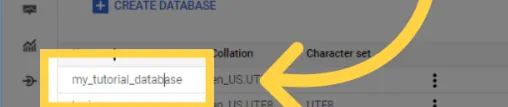
8. Write down the Database Name you want to use, here let's take "my\_tutorial\_database"

<figure><img src="https://2867423571-files.gitbook.io/~/files/v0/b/gitbook-x-prod.appspot.com/o/spaces%2FfJjIdV9cuW6K8asJjTPJ%2Fuploads%2FBee1VfD6oTAwIuv5lWVg%2Fimage.png?alt=media&#x26;token=811372a0-d9e4-49d9-87e3-50cb415a01da" alt=""><figcaption></figcaption></figure>

8. In Cloud SQL the port is always 5432, the connection string will then have the form: postgres\://\[USER]:\[PASSWORD]@\[PUBLIC\_IP\_ADDRESS]:5432/\[DATABASE\_NAME] In our example: postgres\://fake\_user:\*\*\*\*\*\*\*\*@74.75.177.158:5432/my\_tutorial\_database- you can now paste into Stacksync
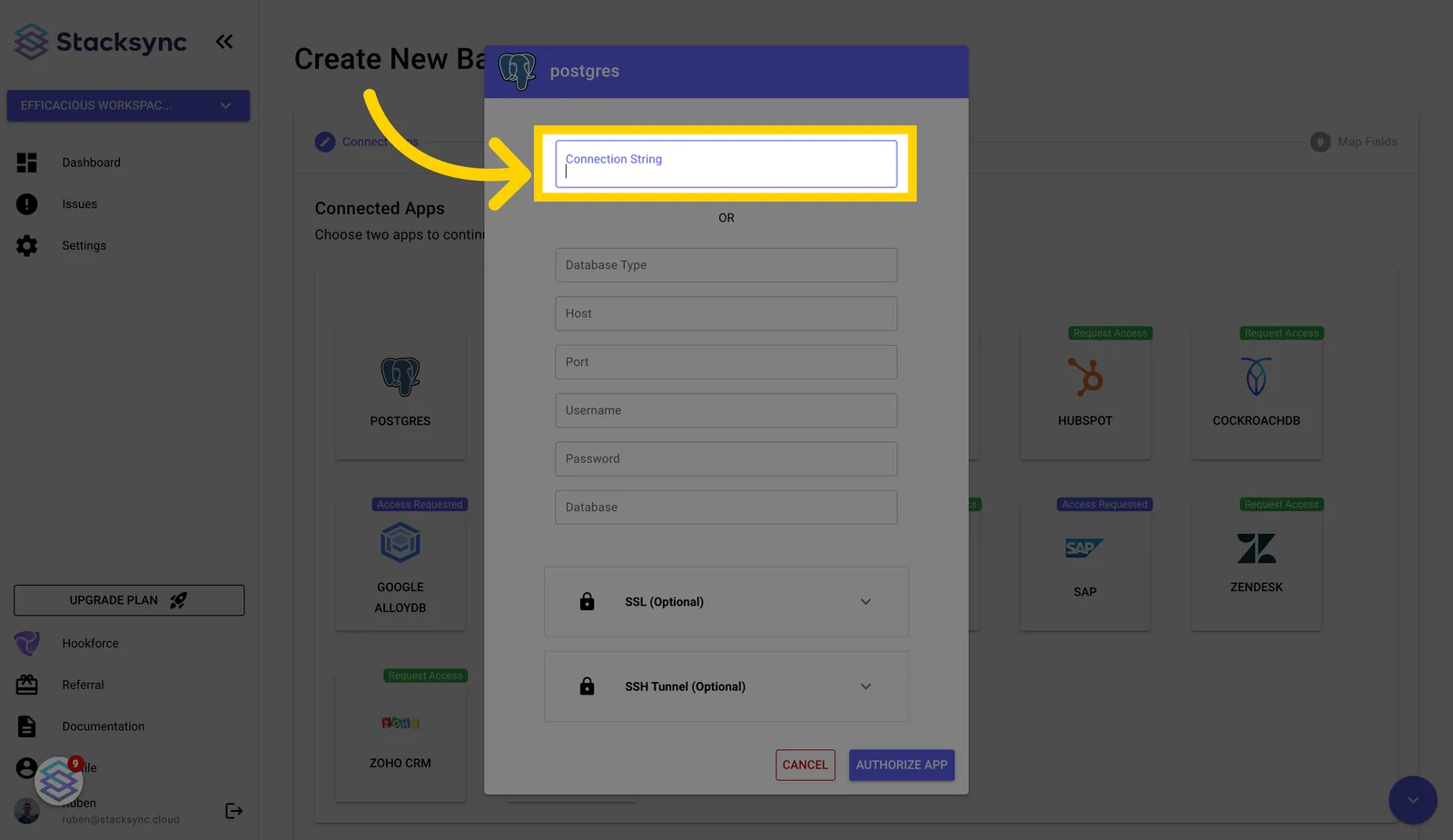
<figure><img src="https://2867423571-files.gitbook.io/~/files/v0/b/gitbook-x-prod.appspot.com/o/spaces%2FfJjIdV9cuW6K8asJjTPJ%2Fuploads%2FBuuUwViKr4xm9ZoGDD0w%2Fimage.png?alt=media&#x26;token=67b4c2d0-1299-4ea3-bf62-bc17d1e7b72d" alt=""><figcaption><p>Paste your database connection URL into Stacksync</p></figcaption></figure>

## That's it! 🥳