
# Salesforce Developer Instance Free Forever – Create Yours in 4 Minutes (2025)

<figure><img src="https://2867423571-files.gitbook.io/~/files/v0/b/gitbook-x-prod.appspot.com/o/spaces%2FfJjIdV9cuW6K8asJjTPJ%2Fuploads%2Ftx1GmxdiZlOm4nxv34Cz%2FCreate%20a%20Salesforce%20Developer%20instance.jpg?alt=media&#x26;token=6009c8e9-e348-4a04-9e36-db3aa36be0a2" alt=""><figcaption><p>Create a Salesforce Developer Instance in 4 minutes!</p></figcaption></figure>

### How to Create a Salesforce Developer Instance (Free Forever in 2025)

Want to build and test on Salesforce without paying a cent? In this 2025 guide, you’ll learn **how to create a Salesforce Developer instance (free forever)** in just 4 minutes. It’s perfect for developers who want to explore Salesforce apps, APIs, or connect their CRM with tools like **Stacksync** for real-time sync.

### 🧭 Steps to Create Your Salesforce Developer Instance

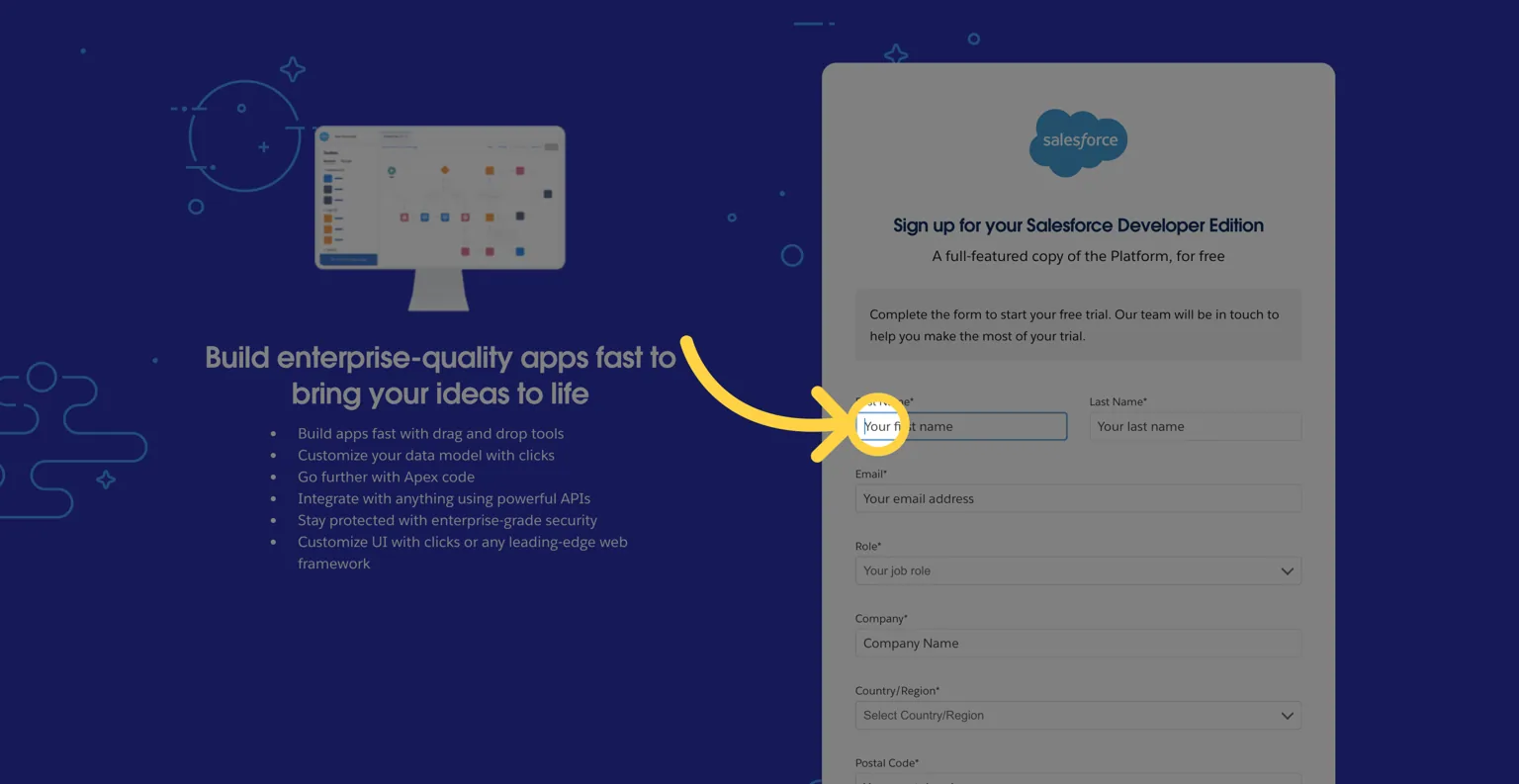
#### **1. Visit the official Salesforce signup page:**

👉 <https://developer.salesforce.com/signup>

<figure><img src="https://2867423571-files.gitbook.io/~/files/v0/b/gitbook-x-prod.appspot.com/o/spaces%2FfJjIdV9cuW6K8asJjTPJ%2Fuploads%2FscsWl7X0cyRdPczZ8wT2%2F1%20(1).png?alt=media&#x26;token=7eb13951-e13c-47fc-9955-5d691fccb097" alt=""><figcaption></figcaption></figure>

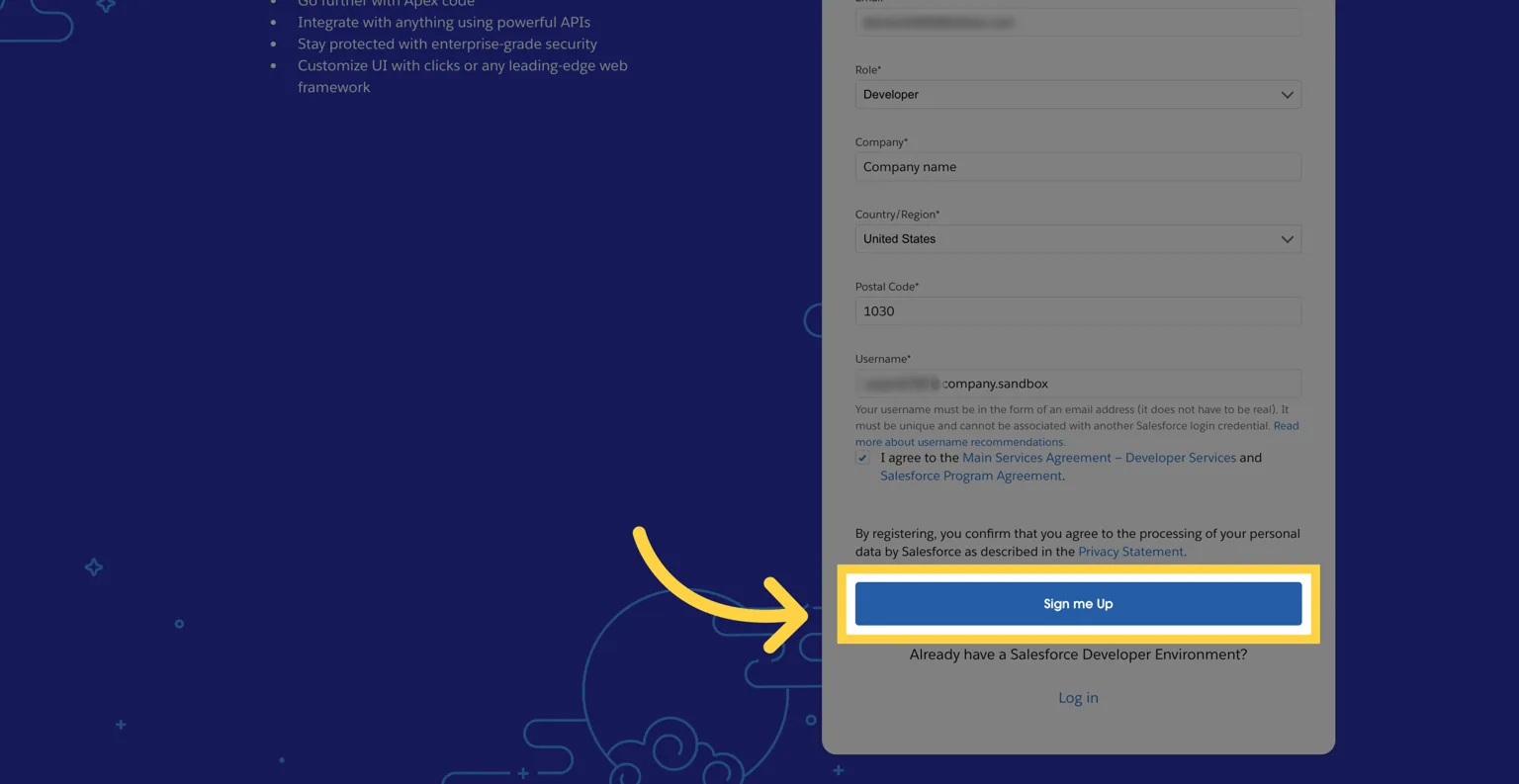
#### **2. Fill in your details and click “Sign Up.”**

* Use your work email for smoother integration later.
* **Remember** your username, you’ll need it to log in.
<figure><img src="https://2867423571-files.gitbook.io/~/files/v0/b/gitbook-x-prod.appspot.com/o/spaces%2FfJjIdV9cuW6K8asJjTPJ%2Fuploads%2FRPYSm87HirgFNL1hjqzU%2F2%20(1).png?alt=media&#x26;token=cbb6121b-78f2-4bec-8418-07368e9f5c8f" alt=""><figcaption></figcaption></figure>

👉 Make sure to remember the username you chose so you can log in later.

#### **3. Verify your email.**

{% hint style="info" %}
You will receive an email in your mailbox to validate your email and account creation. The email might take a minute to arrive, perfect time to clean up your desk for 50 seconds!
{% endhint %}

#### 3. Access your instance

Switch to *<mark style="color:blue;">yourcompany-dev-ed.develop.my.salesforce.com</mark>* (the link has been sent to you via email for validation).&#x20;

This link leads to your developer instance. Make sure to remember or bookmark it so you can return to it anytime!
<figure><img src="https://2867423571-files.gitbook.io/~/files/v0/b/gitbook-x-prod.appspot.com/o/spaces%2FfJjIdV9cuW6K8asJjTPJ%2Fuploads%2FBSlrZMdSfM3BScIIMBsI%2F3%20(2).png?alt=media&#x26;token=6074dc20-690f-4ebd-9b30-e5f5dd6129b3" alt=""><figcaption></figcaption></figure>

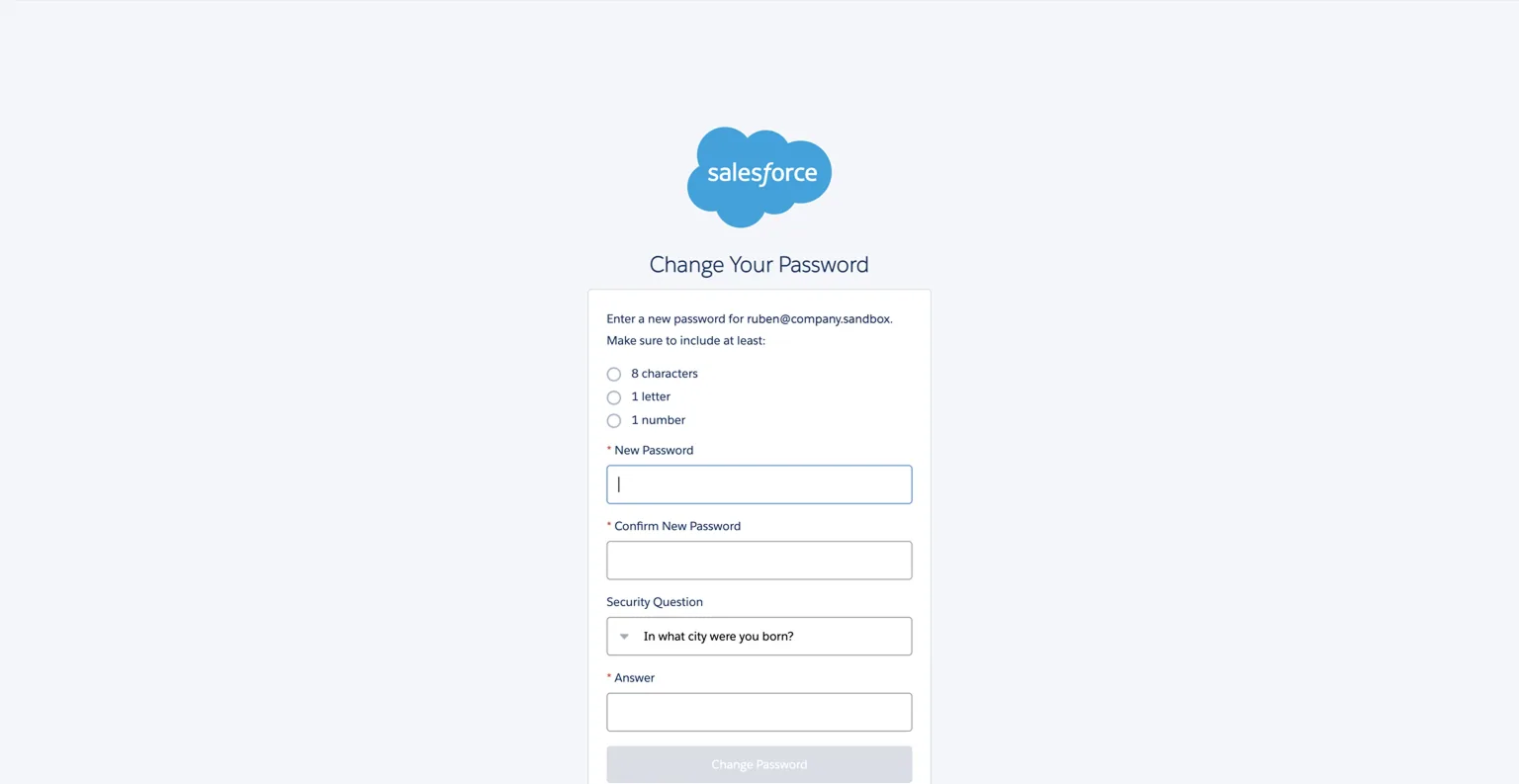
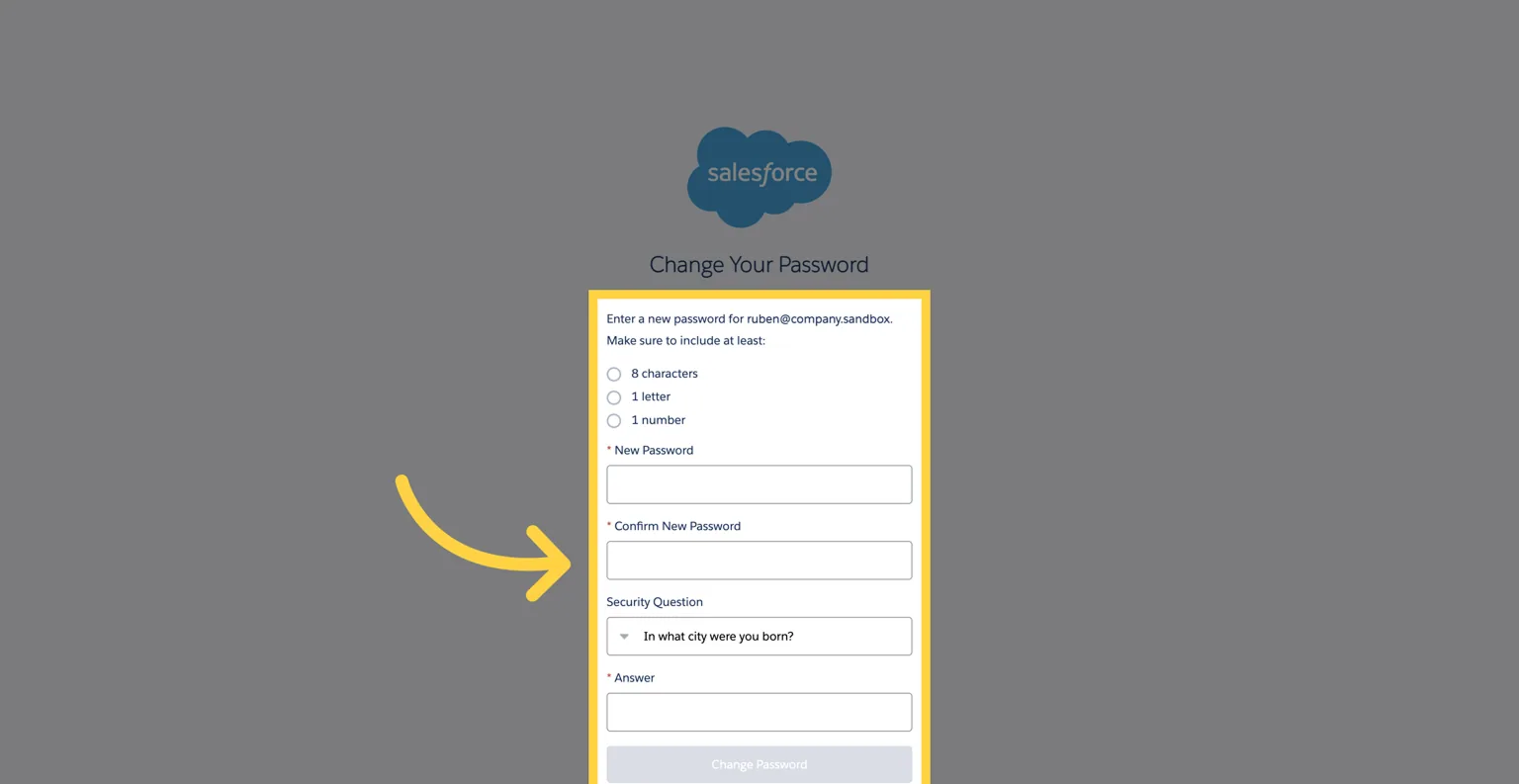
#### 4. Create your password

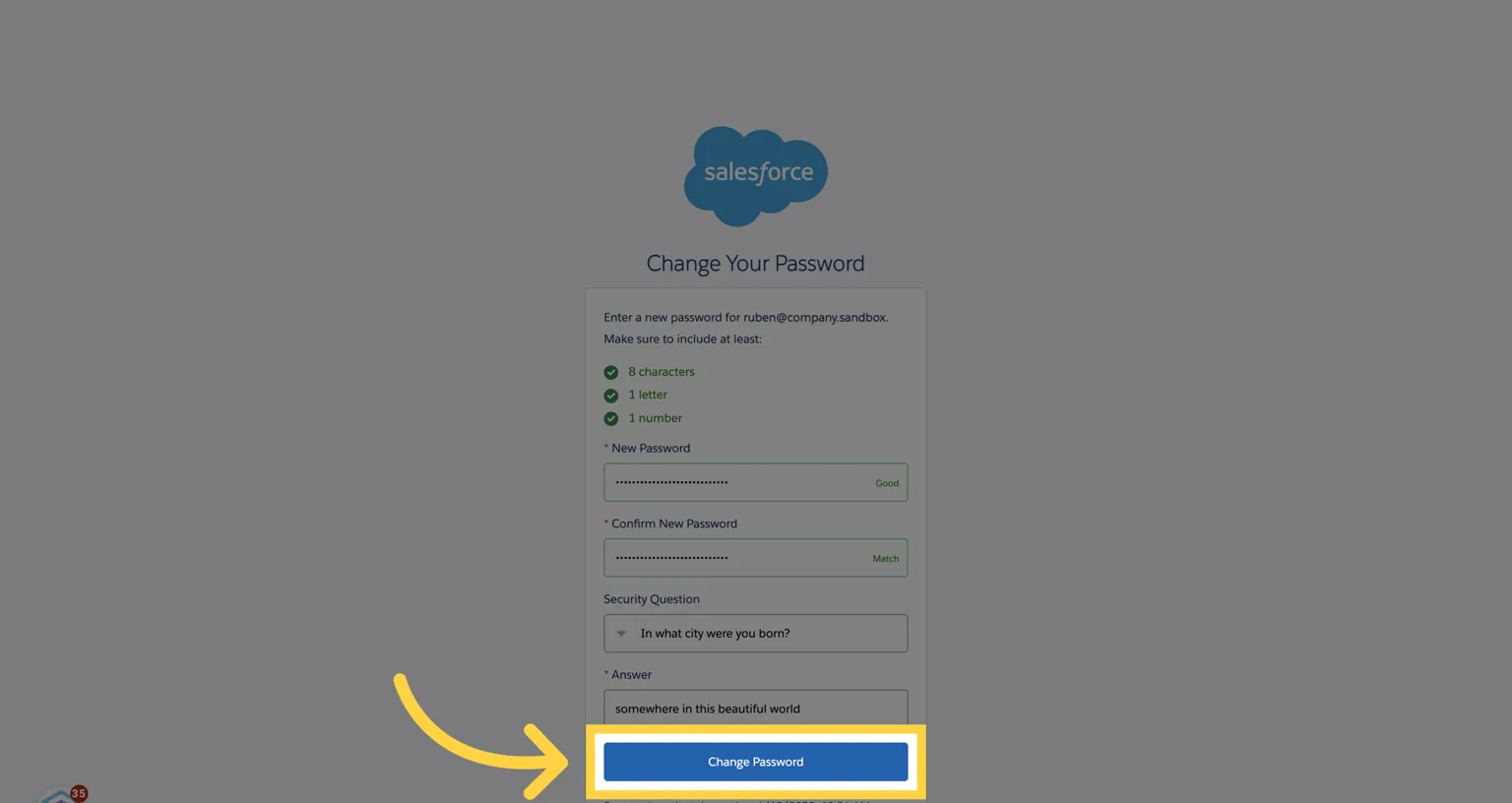
You now have to create your secure password to connect to your Salesforce instance.
<figure><img src="https://2867423571-files.gitbook.io/~/files/v0/b/gitbook-x-prod.appspot.com/o/spaces%2FfJjIdV9cuW6K8asJjTPJ%2Fuploads%2FfYYpOAk3brgRu0hvA89y%2F4.png?alt=media&#x26;token=eb39f0d1-cf0f-444f-a11b-48866a191494" alt=""><figcaption></figcaption></figure>

#### 5. Click "Change Password"

<figure><img src="https://2867423571-files.gitbook.io/~/files/v0/b/gitbook-x-prod.appspot.com/o/spaces%2FfJjIdV9cuW6K8asJjTPJ%2Fuploads%2F3IvRJd7PXeltiQq0z0Qo%2F5.png?alt=media&#x26;token=6813c7b3-93c1-4836-b5e4-efb173729a60" alt=""><figcaption></figcaption></figure>

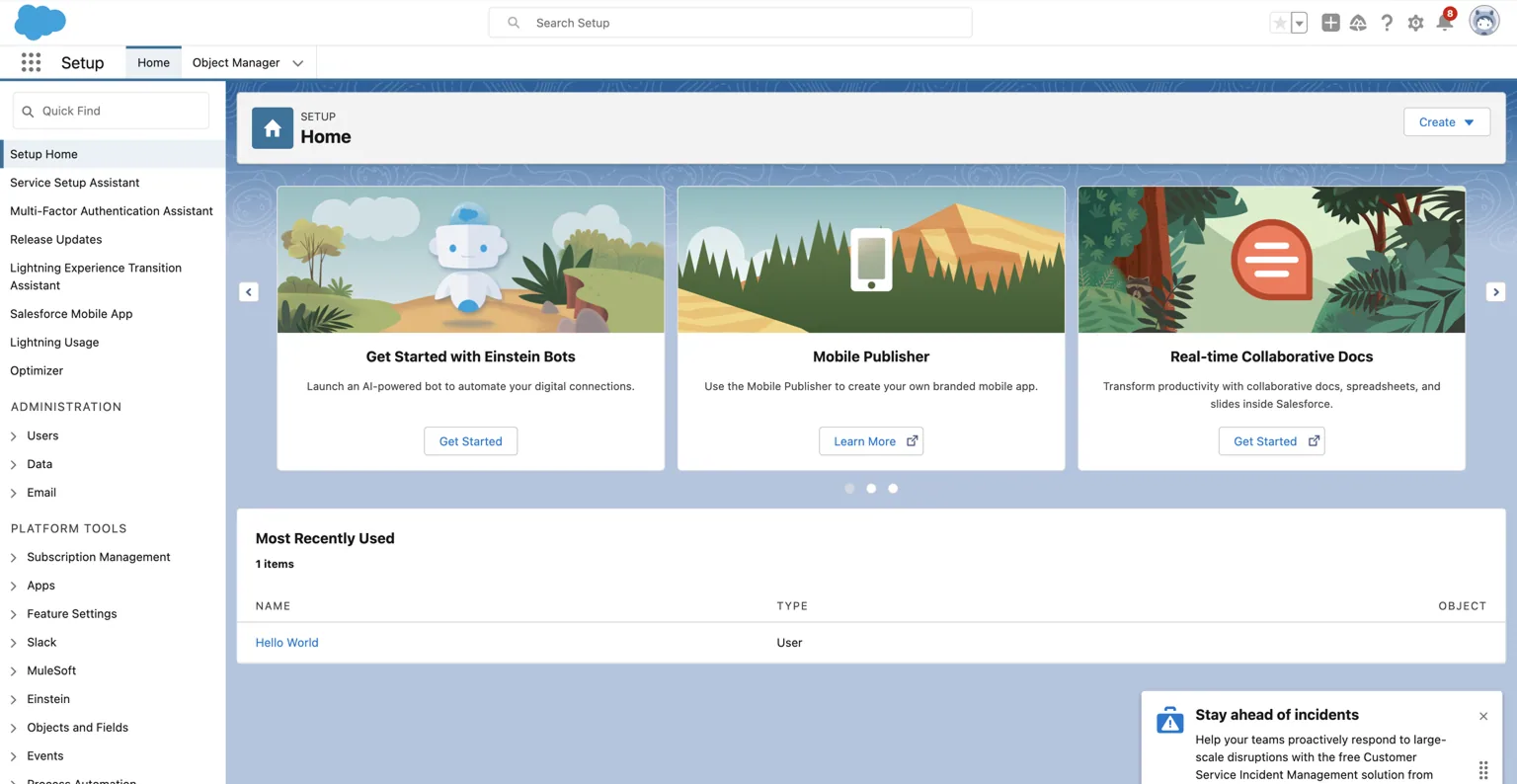
#### 6. Switch to *<mark style="color:blue;">yourcompany-dev-ed.develop.lightning.force.com</mark>* (you should be automatically redirected)

You are now in your Salesforce instance! 🎉&#x20;

<figure><img src="https://2867423571-files.gitbook.io/~/files/v0/b/gitbook-x-prod.appspot.com/o/spaces%2FfJjIdV9cuW6K8asJjTPJ%2Fuploads%2FVh3ySv3FctgHDEDeEmv5%2F6.png?alt=media&#x26;token=48713d44-48c6-4247-a695-5e35ea324b23" alt=""><figcaption></figcaption></figure>

Once inside, explore Salesforce’s core objects: **Accounts, Leads, and Opportunities.**\
These are your main data tables.\
To view them:

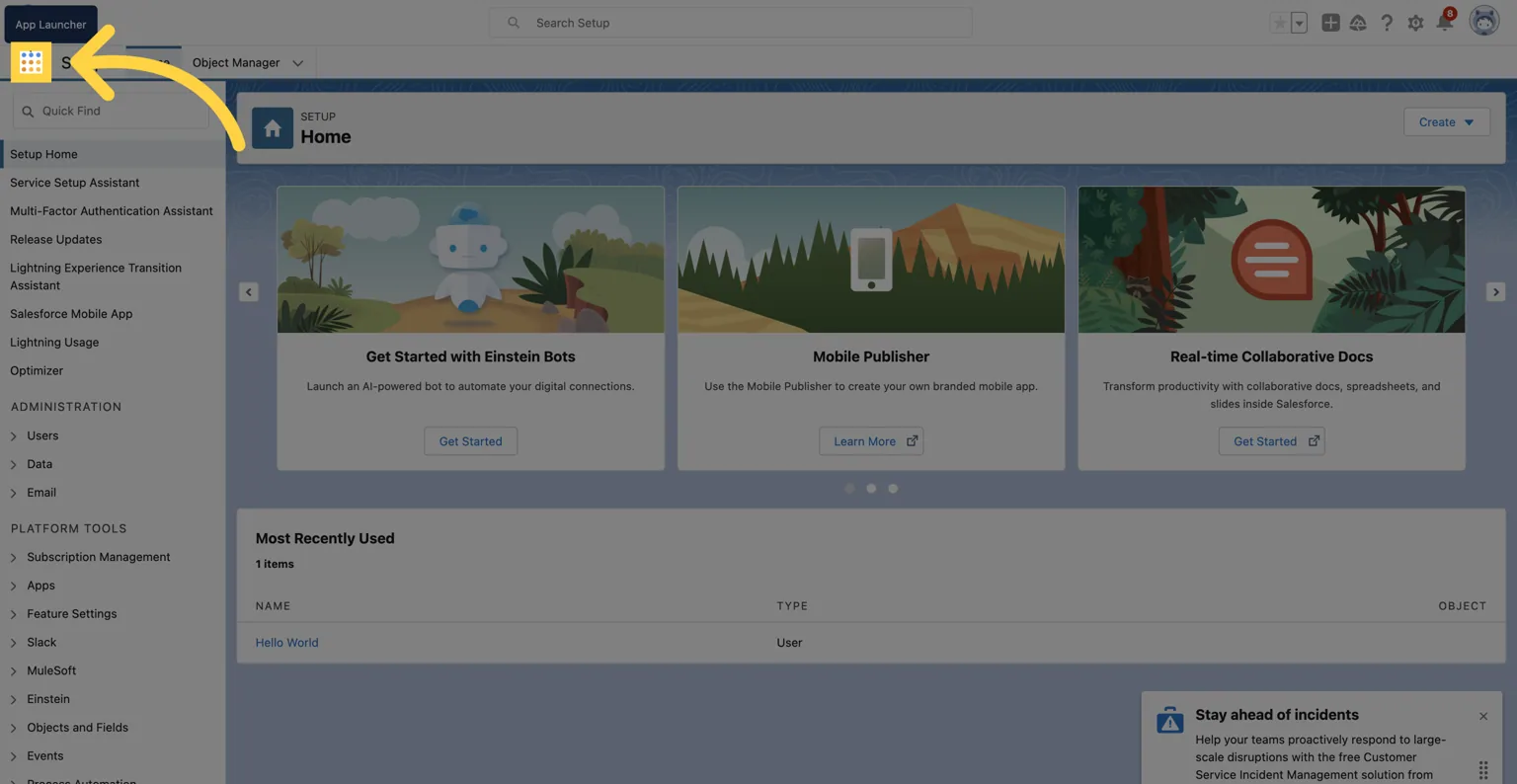
* Click the **App Launcher (grid icon)**.
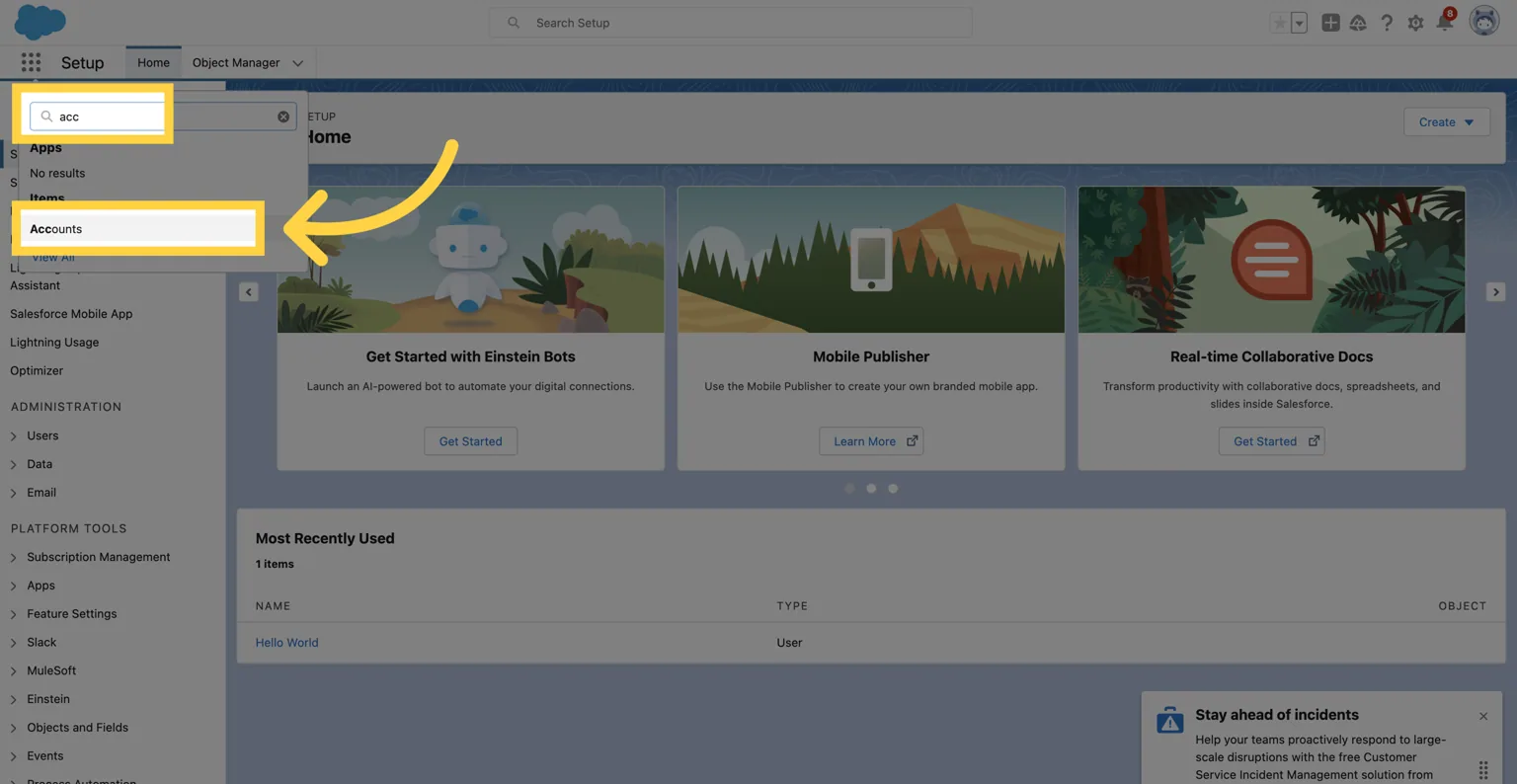
* Type **“Accounts”** and select it.
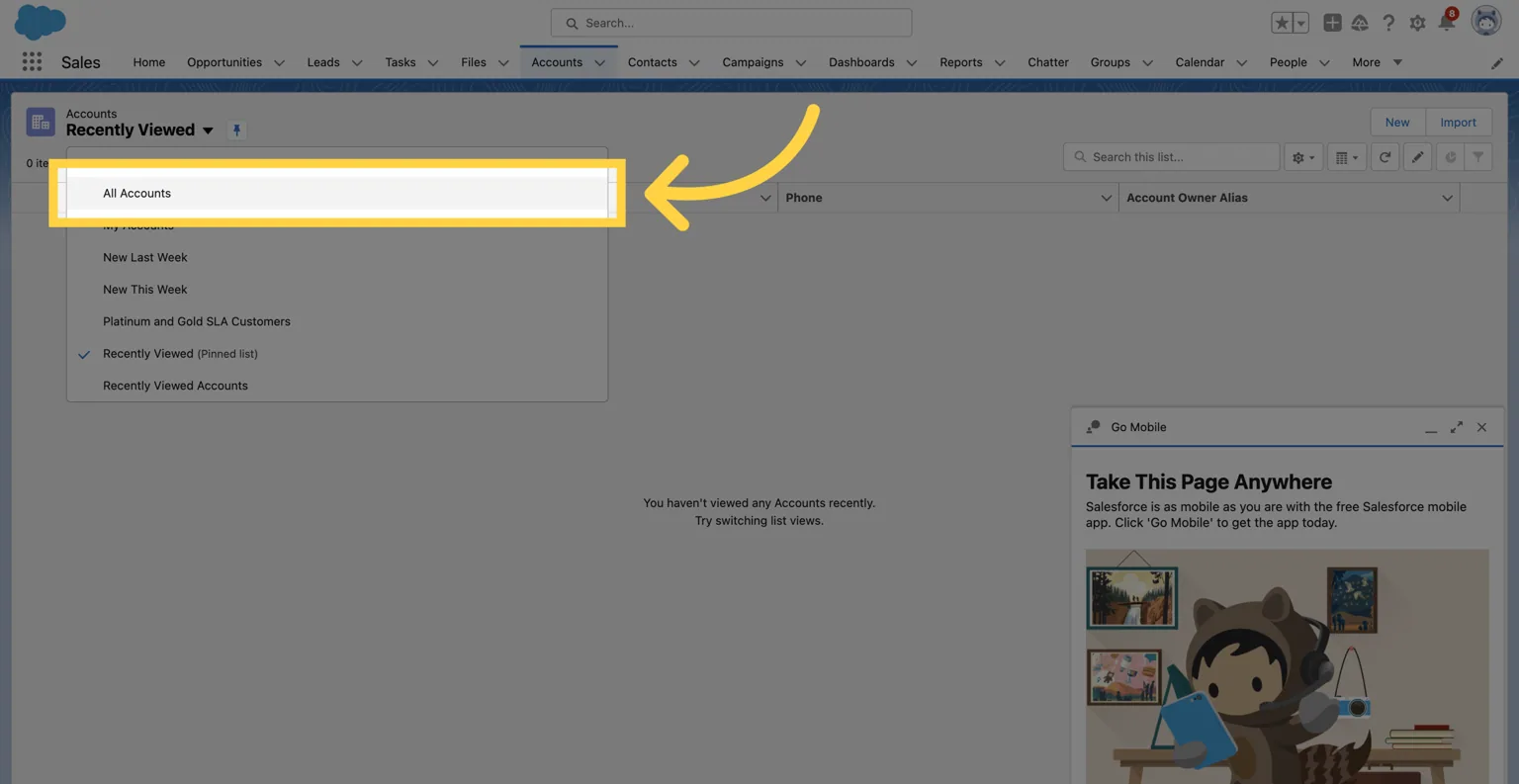
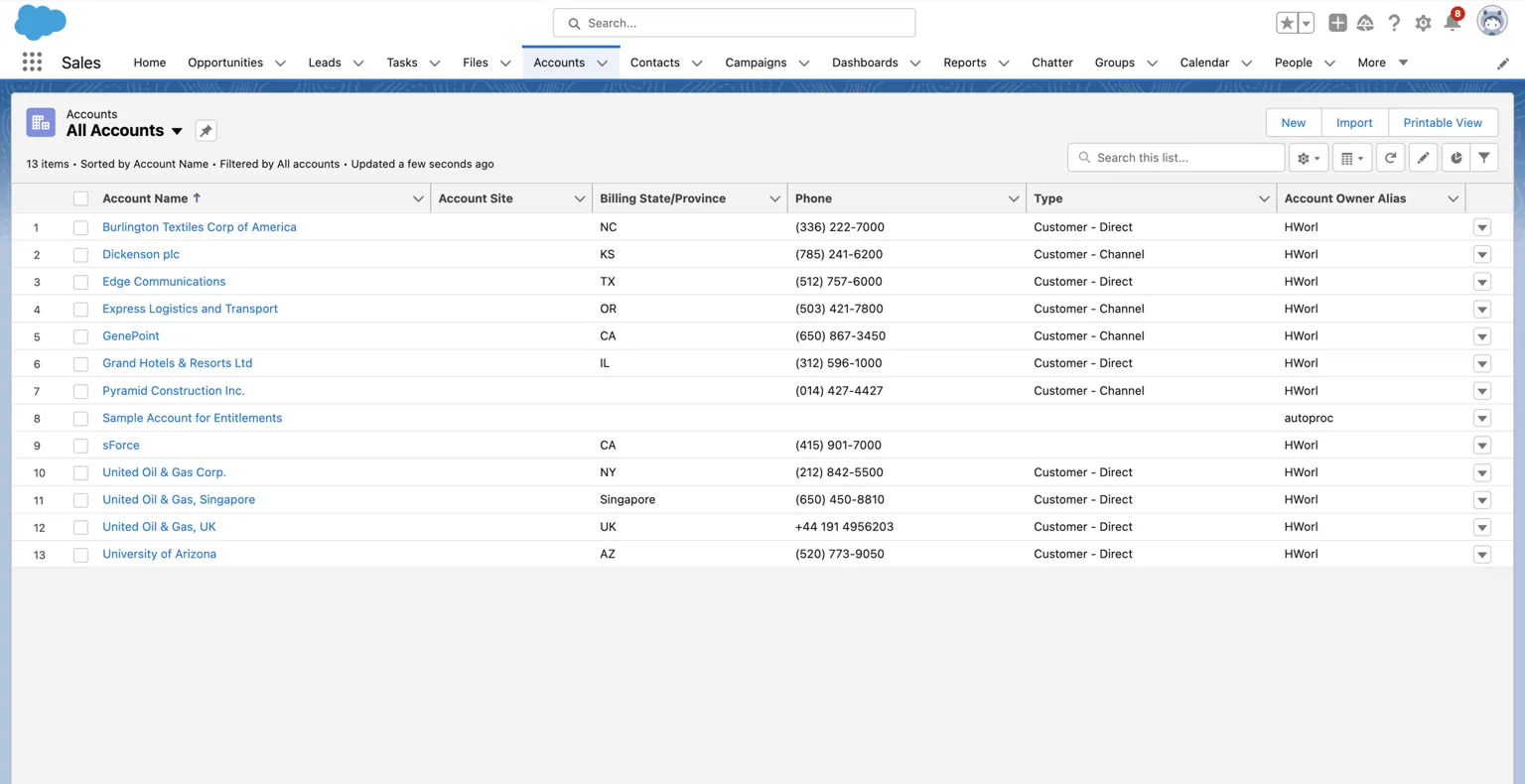
* Switch to **All Accounts** view to see your sample data.

{% hint style="info" %}
💡 Tip: This sandbox mirrors a real Salesforce org, ideal for testing custom fields, workflows, and integrations before production.
{% endhint %}

#### 7. Click on the App Launcher MENU

<figure><img src="https://2867423571-files.gitbook.io/~/files/v0/b/gitbook-x-prod.appspot.com/o/spaces%2FfJjIdV9cuW6K8asJjTPJ%2Fuploads%2FScLk9steTgAItRUY1PFI%2F7%20(1).png?alt=media&#x26;token=4d0fd4ef-2751-469d-8130-d8e1719a3b08" alt=""><figcaption></figcaption></figure>

#### 8. \[1] Search "Accounts" and \[2] Click on "Accounts" in results

<figure><img src="https://2867423571-files.gitbook.io/~/files/v0/b/gitbook-x-prod.appspot.com/o/spaces%2FfJjIdV9cuW6K8asJjTPJ%2Fuploads%2FNmHPvY9pH8bj1qZCBwZy%2F8.png?alt=media&#x26;token=60034866-51f8-4d20-9614-f291297d15f0" alt=""><figcaption></figcaption></figure>

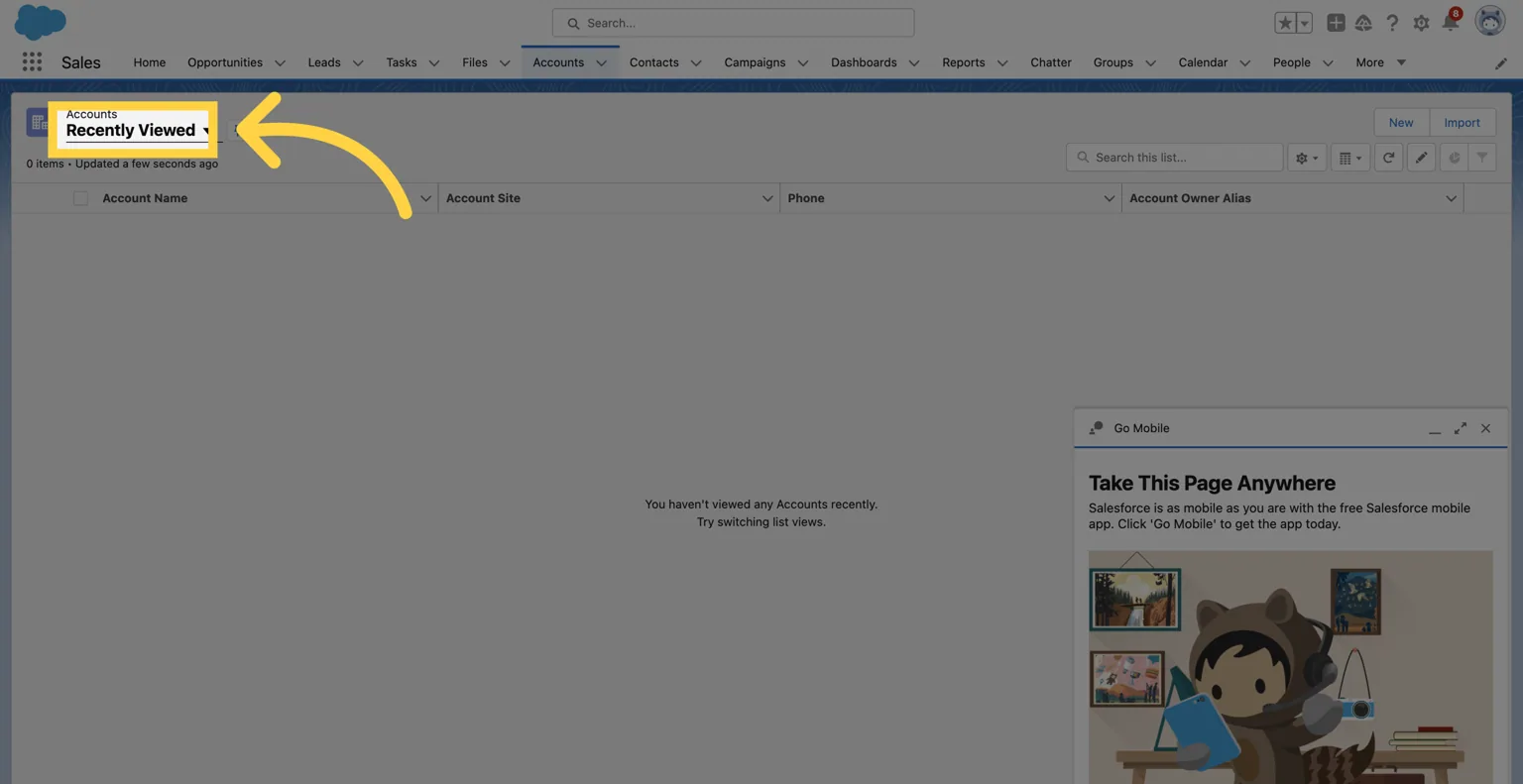
#### 9. Click "Recently Viewed"

<figure><img src="https://2867423571-files.gitbook.io/~/files/v0/b/gitbook-x-prod.appspot.com/o/spaces%2FfJjIdV9cuW6K8asJjTPJ%2Fuploads%2FJVHsTTua64UGrGNTCCDT%2F9%20(2).png?alt=media&#x26;token=e2347ee4-bb2e-478c-b18c-fb40daa4cde5" alt=""><figcaption></figcaption></figure>

#### 10. Click "All Accounts" to view all your data
<figure><img src="https://2867423571-files.gitbook.io/~/files/v0/b/gitbook-x-prod.appspot.com/o/spaces%2FfJjIdV9cuW6K8asJjTPJ%2Fuploads%2FlFF5yoqEs8IyBxnR9PKx%2F10%20(1).png?alt=media&#x26;token=6a29ac8b-233a-4c8f-ae10-85d57a616d78" alt=""><figcaption></figcaption></figure>

#### 11. You are now in your "All Accounts" view!
<figure><img src="https://2867423571-files.gitbook.io/~/files/v0/b/gitbook-x-prod.appspot.com/o/spaces%2FfJjIdV9cuW6K8asJjTPJ%2Fuploads%2Fby3sZEUe27KeZ3rvsp6z%2F11%20(1).png?alt=media&#x26;token=0716201e-b308-433f-bad4-4e801a9b648a" alt=""><figcaption></figcaption></figure>

### That's it! 🥳 - Next Step: Connect Your Salesforce Instance to a Database

Now that your developer instance is live, you can **sync Salesforce data in real time** with your database using **Stacksync**.\
Stacksync enables **bi-directional, sub-second sync** between Salesforce and Postgres, MySQL, or any database, no code required.

👉 [follow this short and sweet guide](https://docs.stacksync.com/two-way-sync/guides/two-way-sync-salesforce-and-postgres/create-a-sync-between-supabase-postgres-and-salesforce)!