

Retrieve Saved Search Column Names from NetSuite
NetSuite SOAP requests may not expose the saved search column list when the search returns no records. The RESTlet loads the saved search definition directly and returns its configured columns independently of whether the search currently contains data.
To retrieve the saved search columns reliably, you can create and deploy a SuiteScript RESTlet.
This guide walks through the complete setup.
1. Create the SuiteScript file
Create a new file on your computer named:
get_saved_search_columns_restlet.jsCopy the following code into the file and save it:
/**
 * Returns column definitions for a saved search.
 *
 * @NApiVersion 2.1
 * @NScriptType Restlet
 * @NModuleScope SameAccount
 */
define(["N/search", "N/log"], (search, log) => {
  /**
   * Safely converts a SuiteScript property to a plain string or null.
   */
  const safeString = (value) => {
    if (value === null || value === undefined || value === "") {
      return null;
    }

    return String(value);
  };

  const get = (request) => {
    try {
      const savedSearchId = safeString(request.savedSearchId);

      if (!savedSearchId) {
        return JSON.stringify({
          success: false,
          error: "savedSearchId is required",
        });
      }

      log.audit({
        title: "RESTlet request",
        details: `savedSearchId=${savedSearchId}`,
      });

      const savedSearch = search.load({
        id: savedSearchId,
      });

      log.audit({
        title: "Saved search loaded",
        details: `Column count=${savedSearch.columns.length}`,
      });

      /*
       * Explicitly convert every SuiteScript value into a primitive.
       * This prevents NetSuite from trying to serialize SuiteScript
       * enum values or internal objects.
       */
      const columns = savedSearch.columns.map((column, index) => ({
        position: index + 1,
        name: safeString(column.name),
        label: safeString(column.label),
        join: safeString(column.join),
        summary: safeString(column.summary),
        formula: safeString(column.formula),
        sort: safeString(column.sort),
      }));

      const response = {
        success: true,
        savedSearchId,
        columnCount: columns.length,
        columns,
      };

      /*
       * Return an explicit JSON string instead of allowing NetSuite
       * to serialize the object automatically.
       */
      return JSON.stringify(response);
    } catch (exception) {
      const failure = {
        success: false,
        errorName: safeString(exception.name),
        errorMessage: safeString(exception.message),
        stack: safeString(exception.stack),
      };

      log.error({
        title: "RESTlet failure",
        details: JSON.stringify(failure),
      });

      return JSON.stringify(failure);
    }
  };

  return { get };
});
2. Open the SuiteScripts folder
Log in to your NetSuite account.
From the main navigation menu, go to:
Documents → Files → SuiteScripts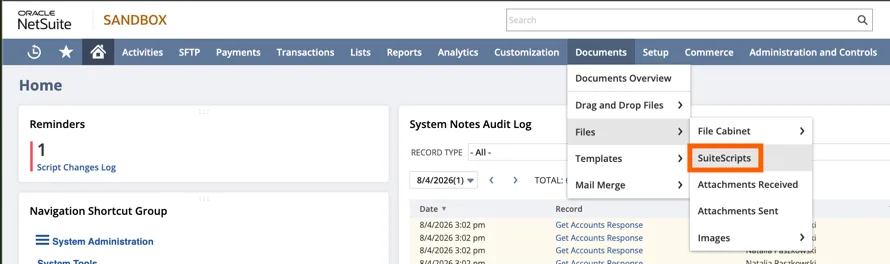
3. Upload the SuiteScript file
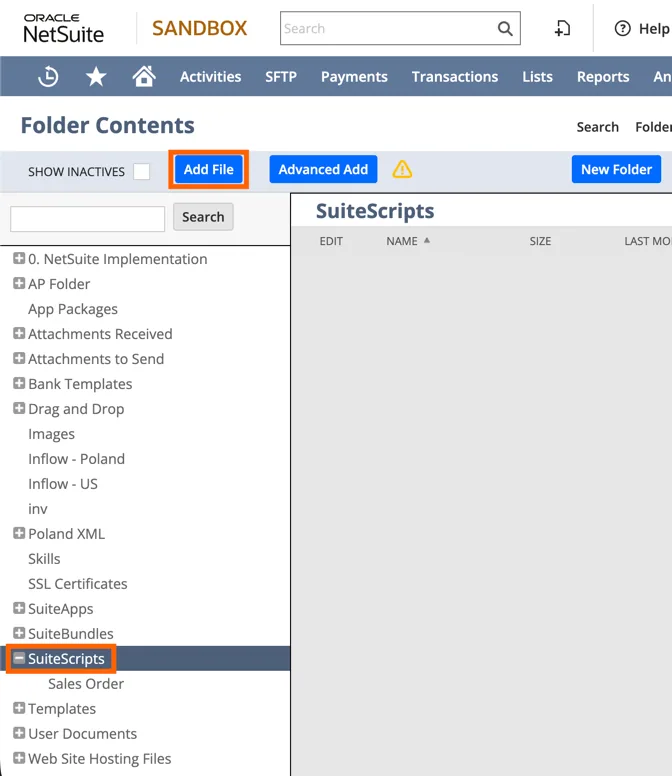
Inside the SuiteScripts folder:
- Click Add File.
- Select
get_saved_search_columns_restlet.jsfrom your computer. - Upload the file.
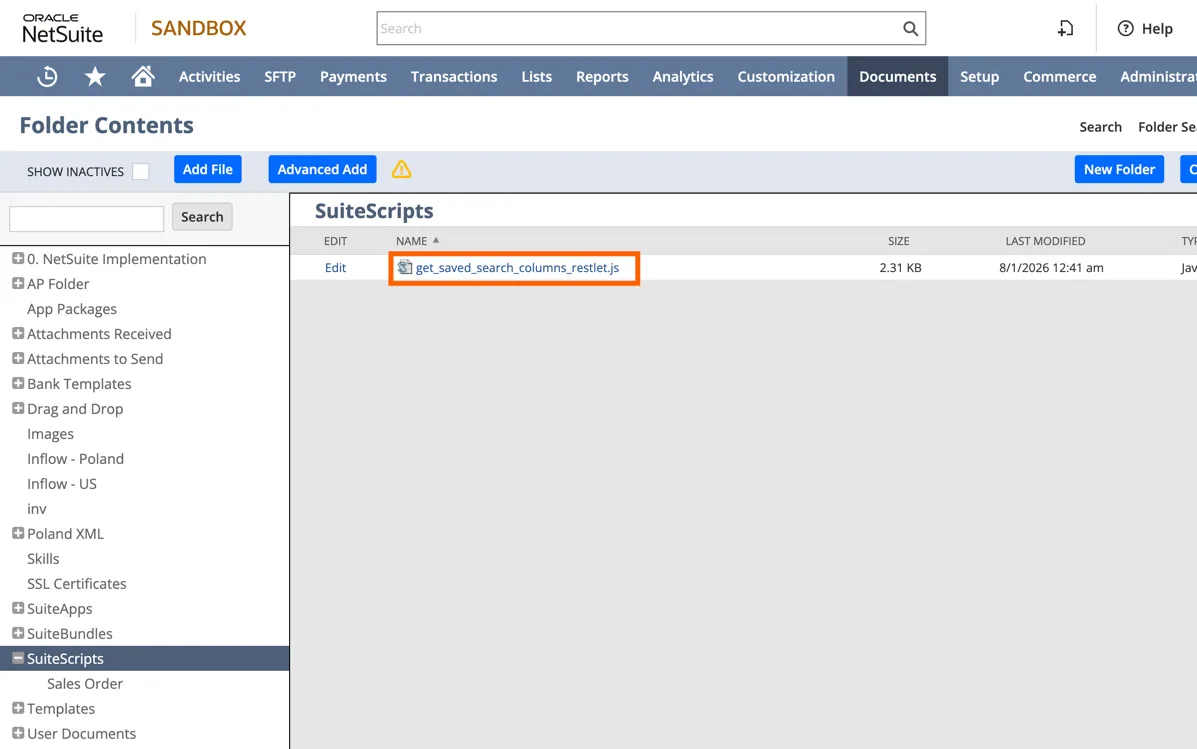
After the upload completes, the file should appear in the SuiteScripts table.
4. Create a new script
From the main navigation menu, go to:
Customization → Scripting → Scripts → New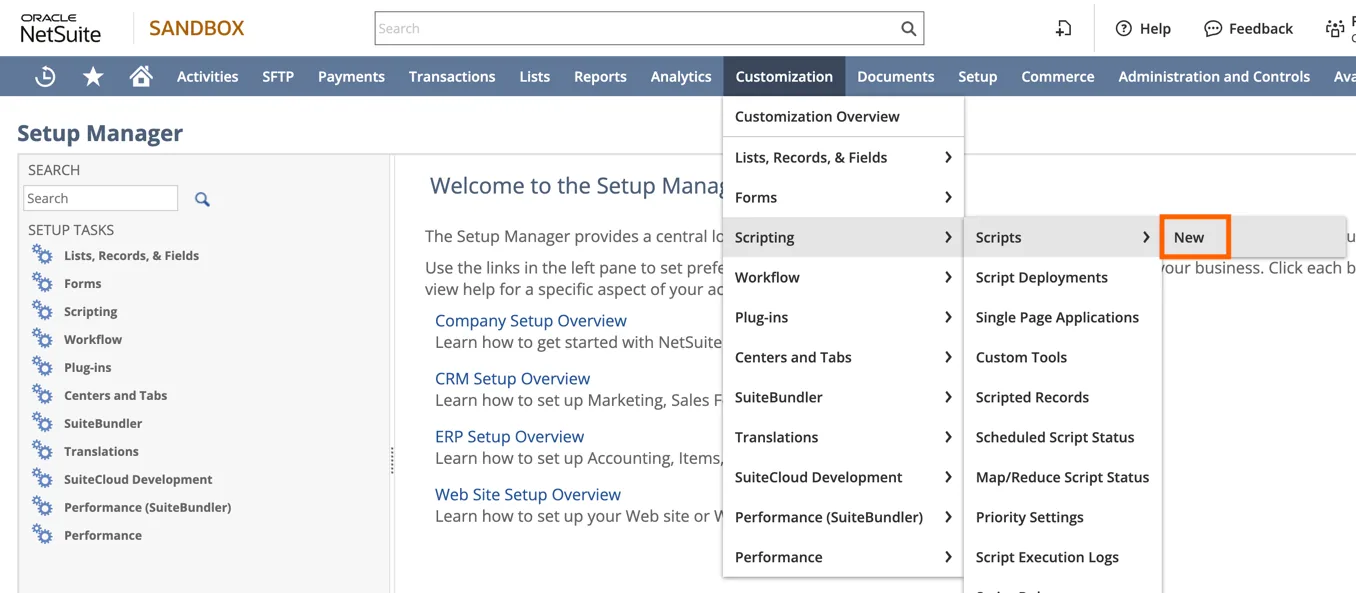
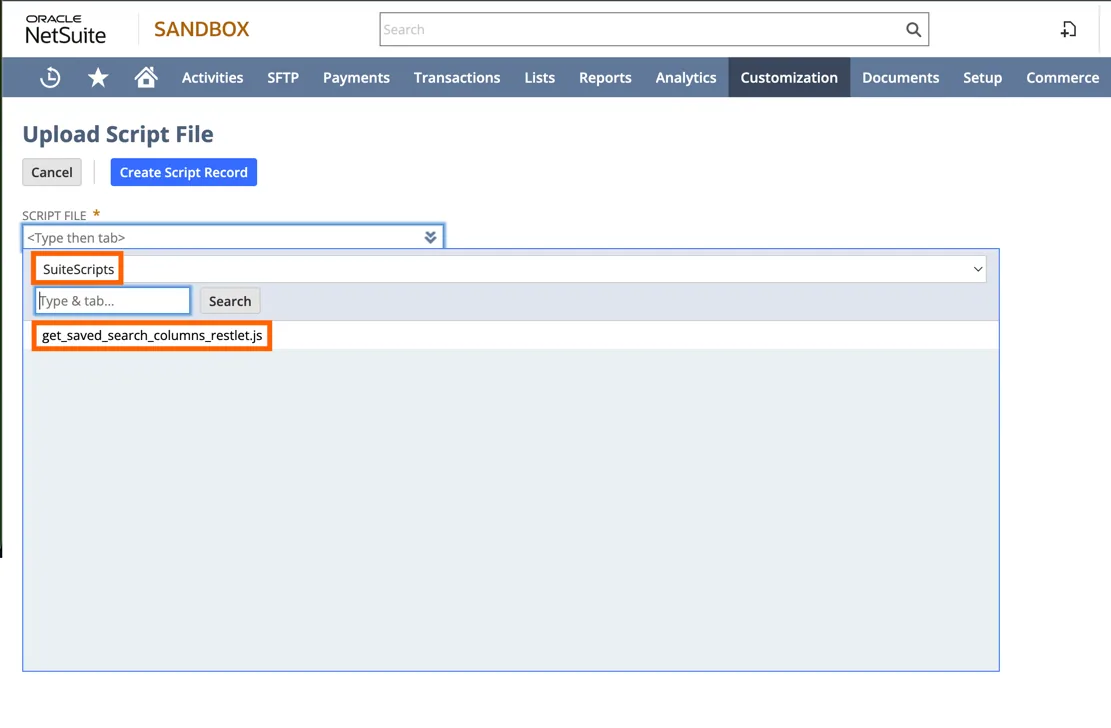
5. Select the uploaded file
In the Script File field:
- Open the SuiteScripts folder.
- Select
get_saved_search_columns_restlet.js.
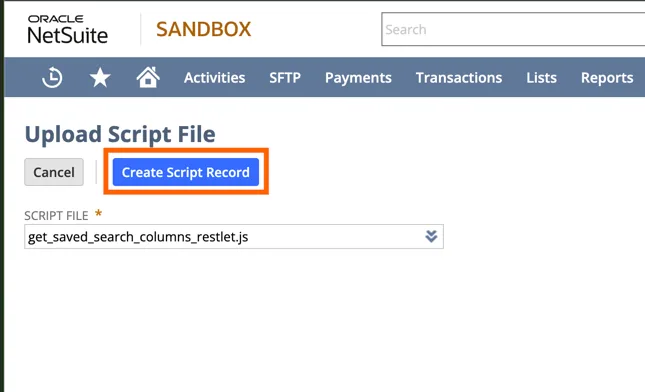
Click Create Script Record.
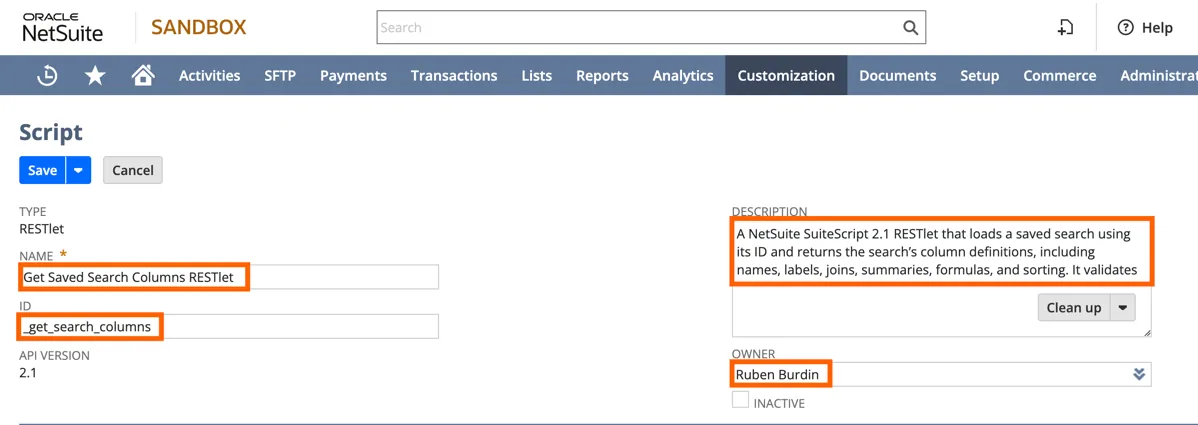
6. Configure the script record
Enter the following values:
| Field | Value |
|---|---|
| Name | Get Saved Search Columns RESTlet |
| ID | _get_search_columns |
| Description | A NetSuite SuiteScript 2.1 RESTlet that loads a saved search using its ID and returns the search’s column definitions, including names, labels, joins, summaries, formulas, and sorting. It validates requests, converts NetSuite values into JSON-safe strings, logs activity, and returns structured success or error responses. |
| Owner | Select the NetSuite user who should own the script |
NetSuite automatically adds the customscript prefix to the script ID. The resulting internal ID will appear similar to:
customscript_get_search_columnsClick Save.
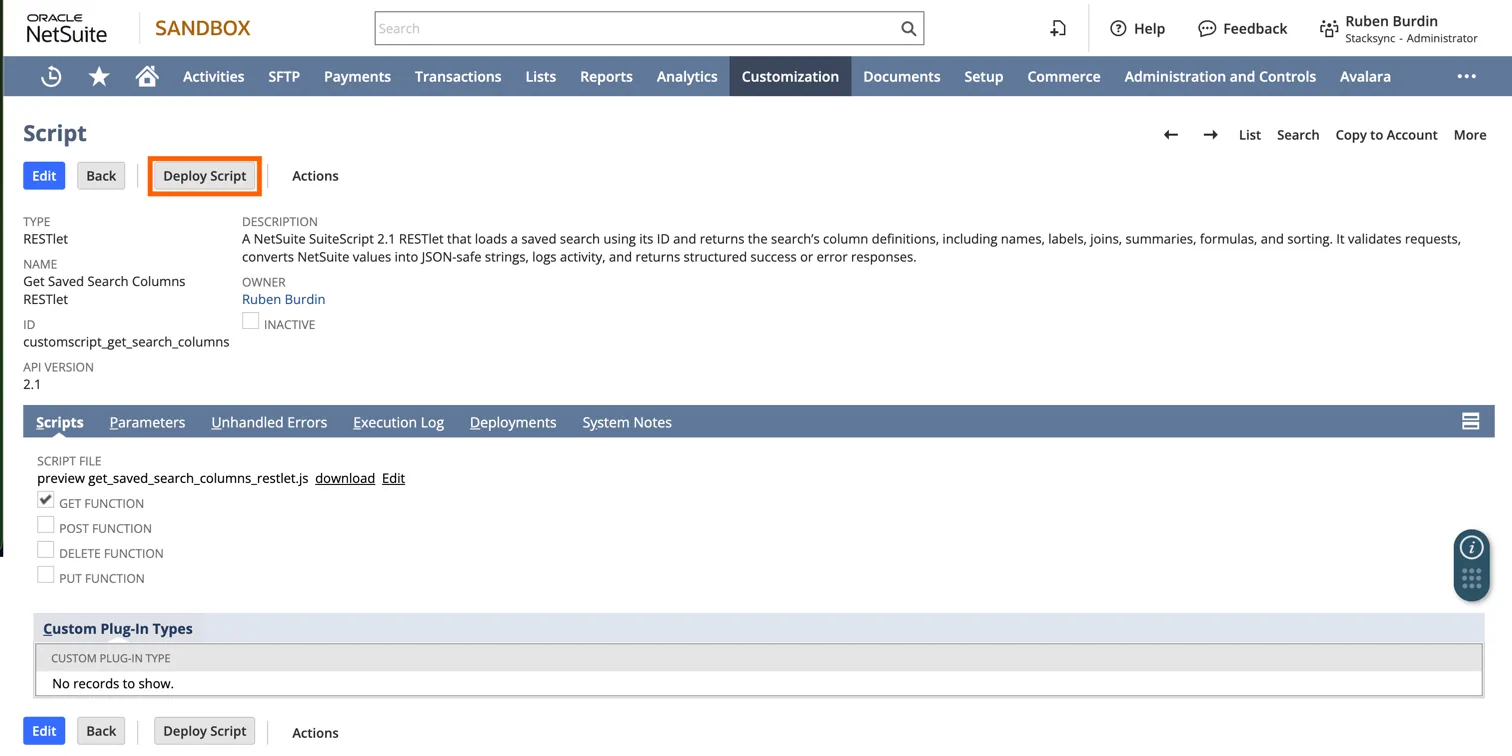
7. Deploy the script
After saving the script record, click Deploy Script.
8. Configure the deployment
Enter the following values:
| Field | Value |
|---|---|
| Title | Get Saved Search Columns RESTlet |
| ID | _get_search_columns |
| Status | Released |
| Log Level | Audit |
| Deployed | Enabled |
Under the Audience section, select the users or roles that should be allowed to access the RESTlet.
For example, select the NetSuite user used by Stacksync or your NetSuite service account.
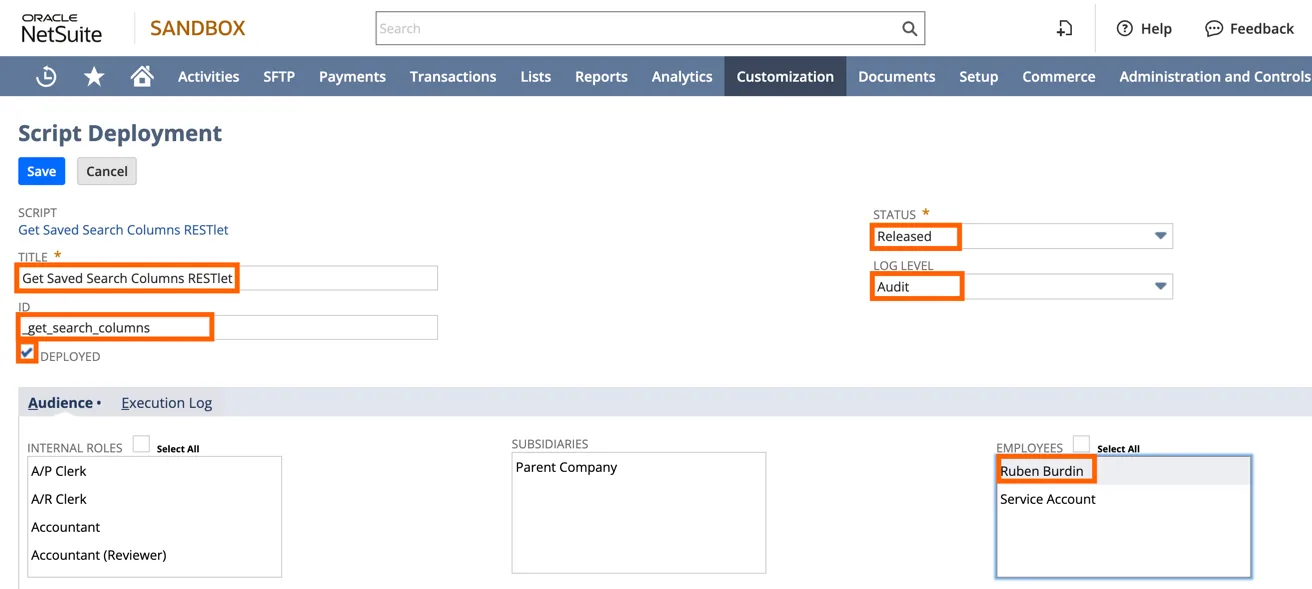
NetSuite automatically adds the customdeploy prefix to the deployment ID. The resulting internal ID will appear similar to:
customdeploy_get_search_columnsClick Save.
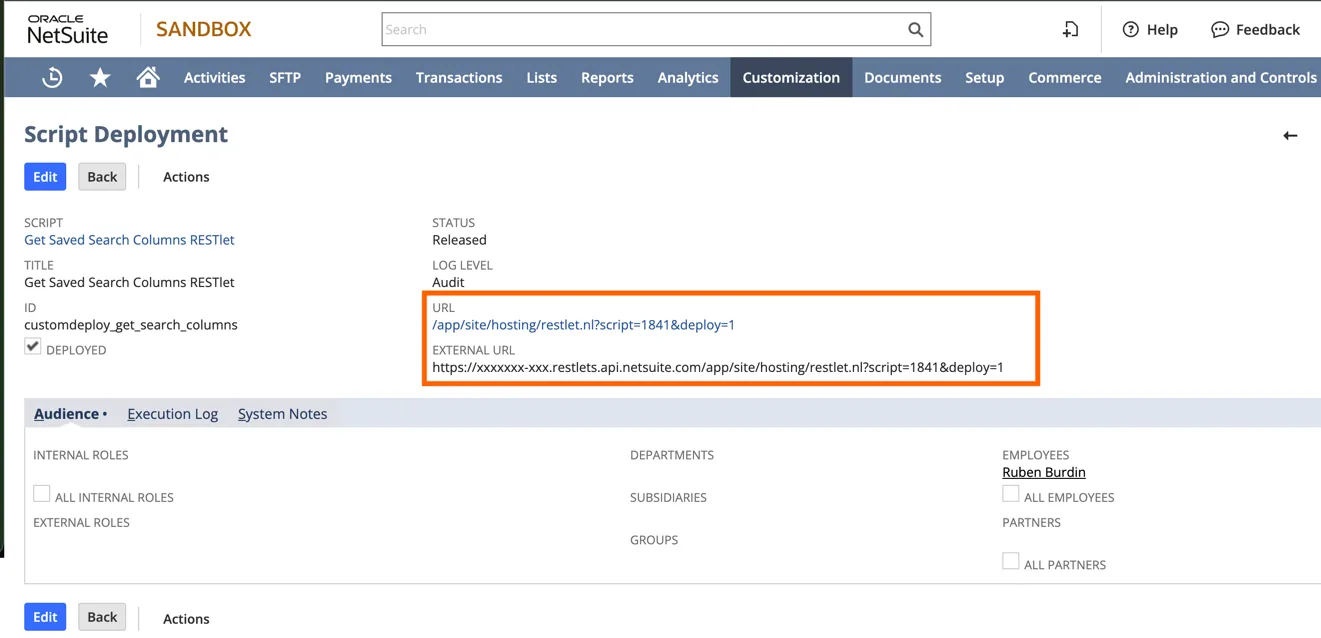
Troubleshooting
The script file does not appear
Confirm that the file was uploaded under:
Documents → Files → SuiteScriptsAlso confirm that the filename is exactly:
get_saved_search_columns_restlet.jsThe RESTlet returns an authorization error
Verify that:
- The deployment status is Released.
- The Deployed checkbox is enabled.
- The integration role has permission to access the saved search.
- The integration role has the required SuiteScript and RESTlet permissions.