

Getting Started with Stacksync
Set up your first sync in less than 5 minutes
Stacksync lets you sync data across your tools so when you update data anywhere, it updates everywhere! You can create your first sync in under 5 minutes. Here's how:
Step 1: Create a new sync
From your dashboard, click "Create a new sync"
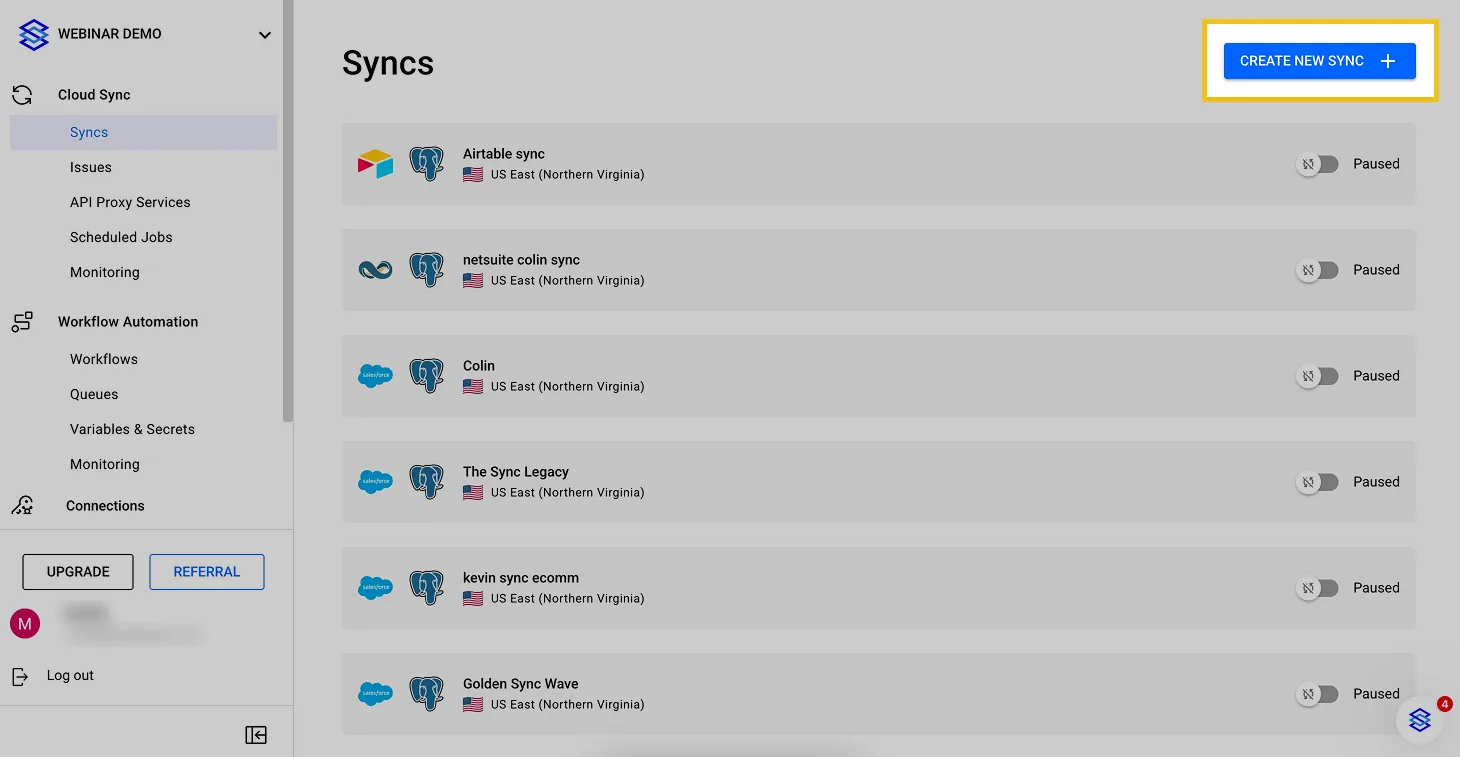
Click "Create a new sync"
Step 2: Connect your apps
Click on each app you want to sync and connect with a single click!
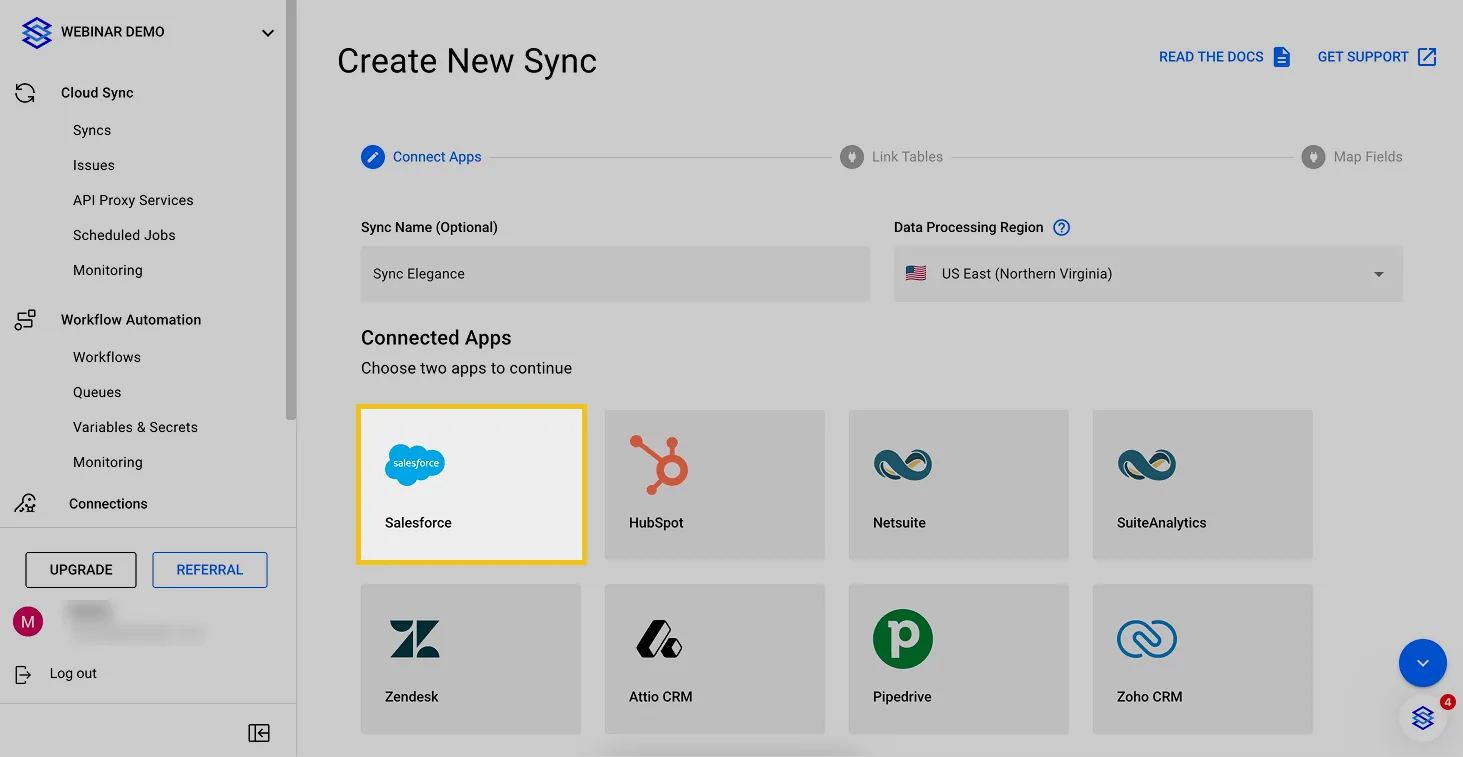
Connect your App in a click
Step 3: Map tables
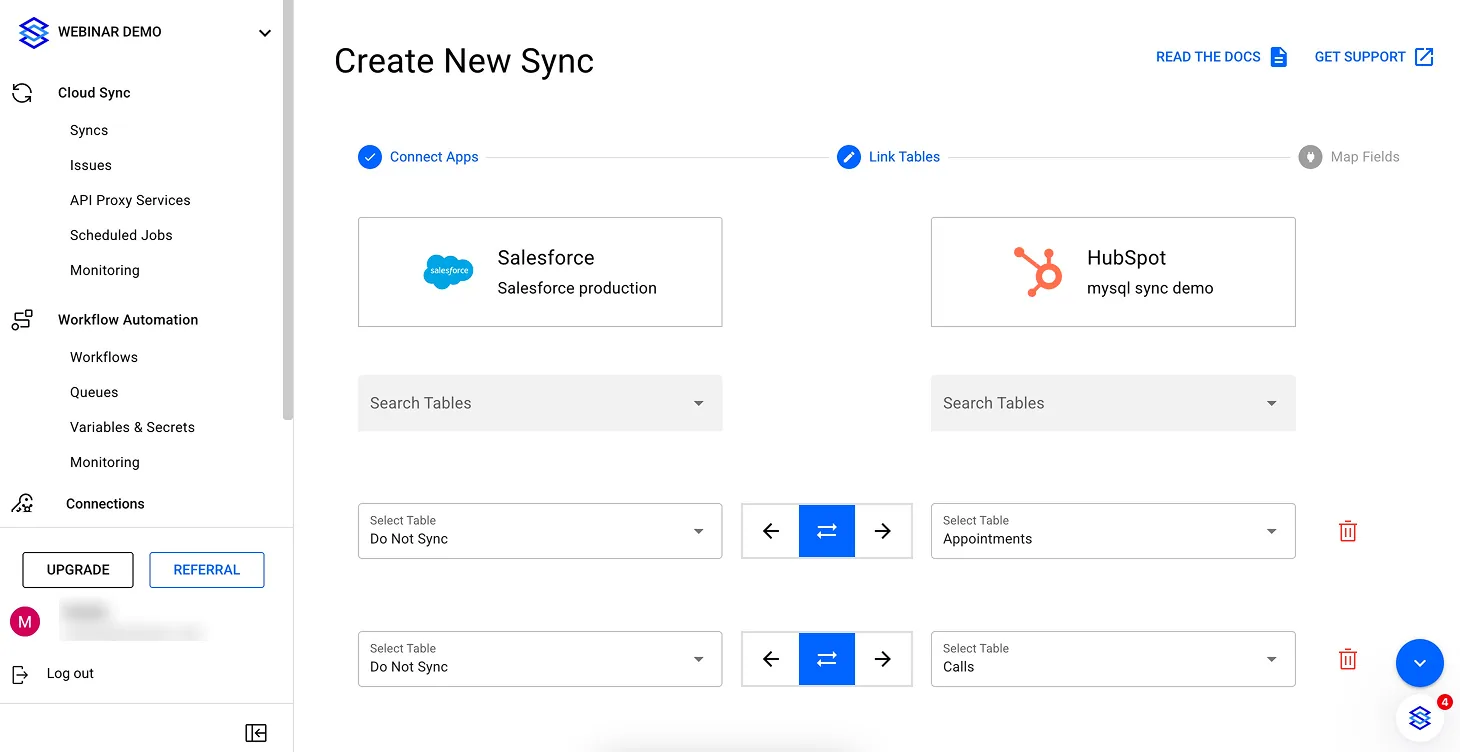
Map tables between your Apps
If both of your apps contain tables that should be synced together, you can select them side by side. If, for some tables in an app, you don’t yet have a table in the other app, Stacksync will create pixel-perfect schemas for you! ✨ In most cases, you’ll let Stacksync create new tables for you, but it’s up to you!
You can also choose the sync direction: one-way or two-way sync 😍
Step 4: Map fields
For every table you want to sync, you will map fields (i.e. columns) together.
Stacksync uses AI auto-mapping, which finds the best matching pairs for you so you don’t have to do all the work manually. You can modify the proposed mapping as you like, with maximum flexibility.
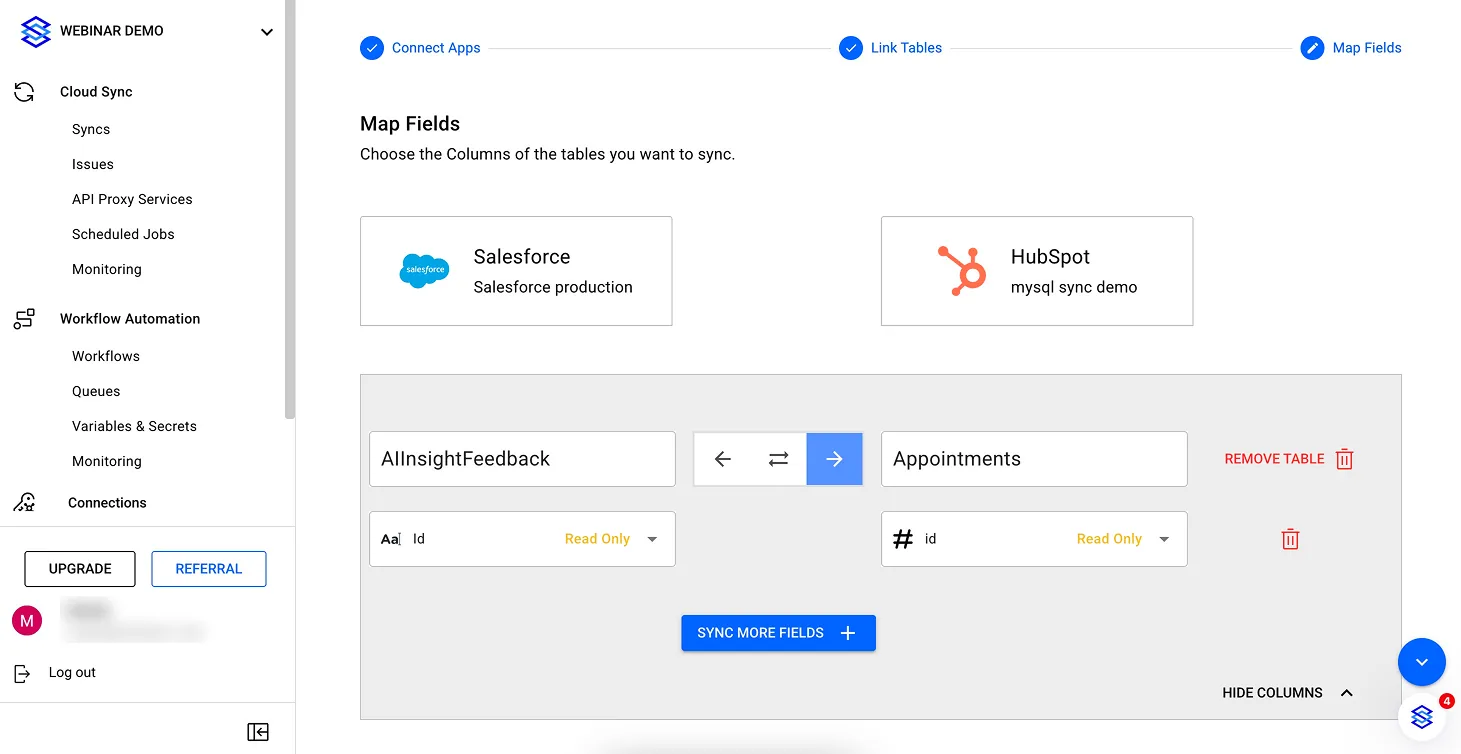
Map fields in Stacksync UI
Field names do not have to match.
Field types need to be compatible (no need to be exactly the same but semantically compatible). Check our documentation on field mapping for more details.
Step 5: Turn sync on!
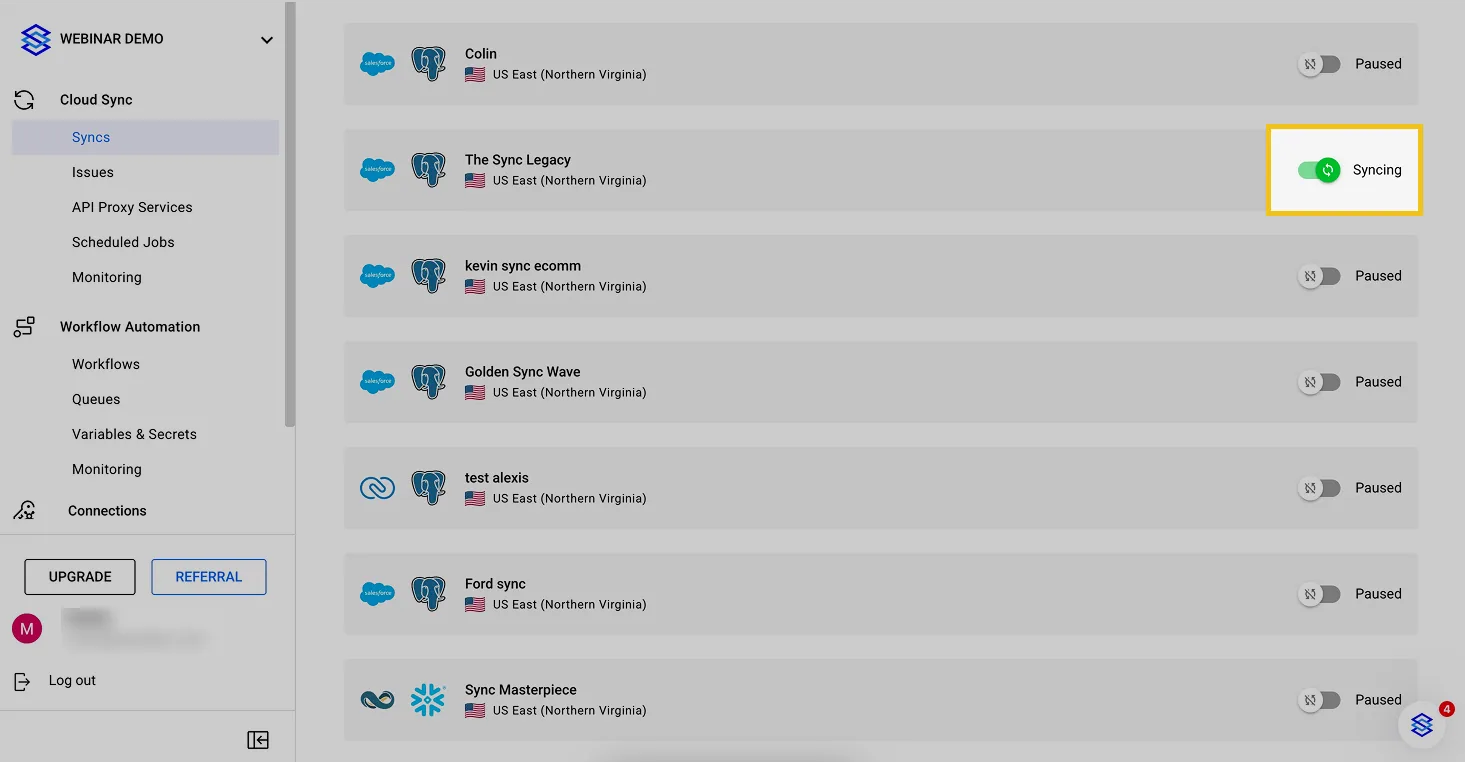
Turn sync on and data starts syncing between your apps!
That's it! 🎉 Data will start syncing between your tools. With real-time and two-way sync you can modify your data in any of your synced apps for it to be updated in any other apps.
After turning sync on, you can check the issues dashboard to see any sync errors from your connected apps. Access it from the menu on the left of your Stacksync screen.