

Authorize Dynamics 365 CRM
This guide explains how to connect your Dynamics 365 CRM environment to Stacksync.
1. Find your Microsoft Dynamics Environment URL
Your environment URL is the base address of your D365 CRM instance. To find it, copy the URL from your browser when you are in the application.
Examples:
- Production:
https://yourorg.crm.dynamics.com - Sandbox:
https://yourorg.sandbox.crm.dynamics.com
2. Select Dynamics 365 CRM
In Stacksync:
-
Click Create Sync
-
Choose Dynamics 365 CRM
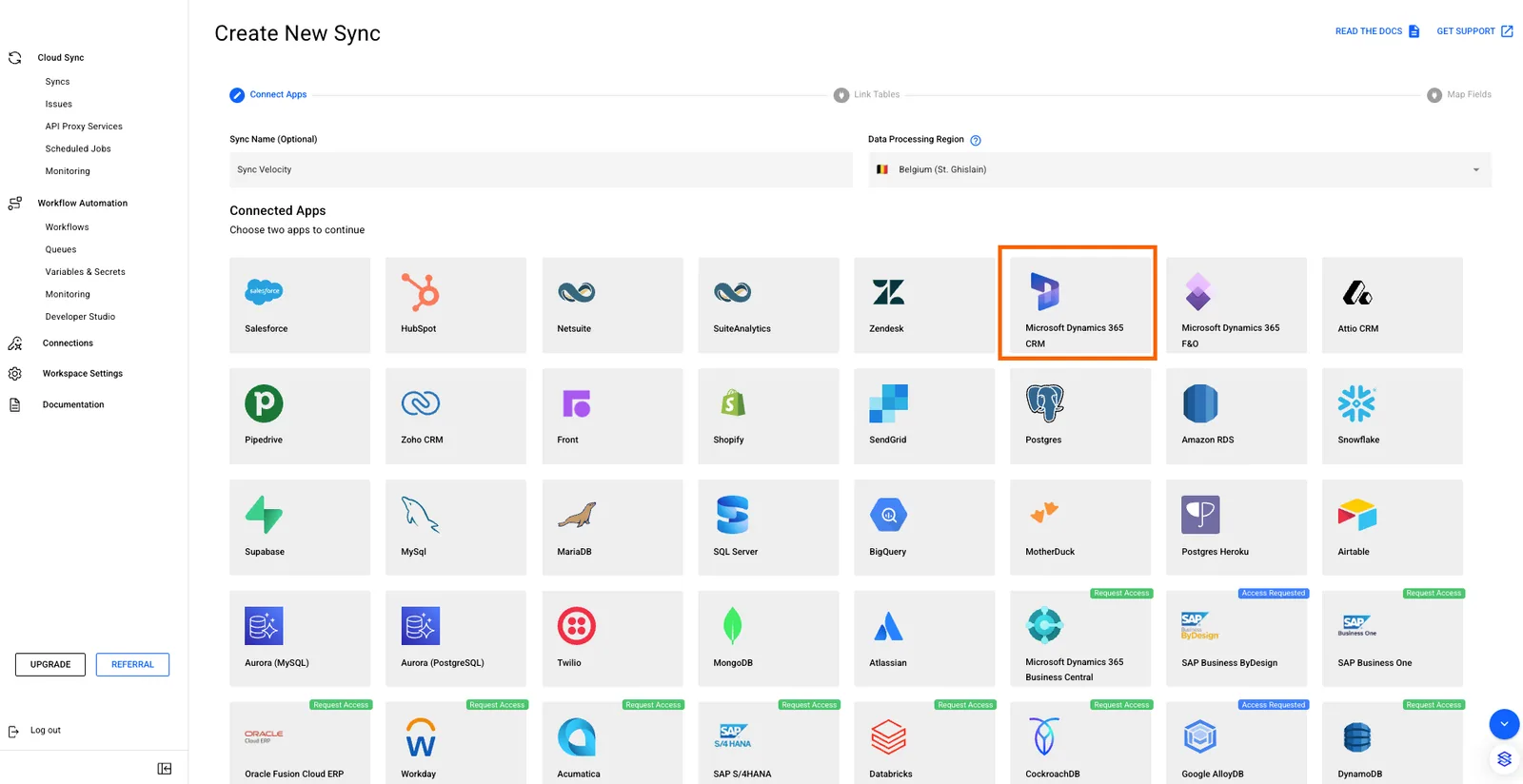
This opens the authorization flow.
3. Enter Your Environment URL
Provide the base URL of your D365 CRM environment you retrieved in the first step.
\
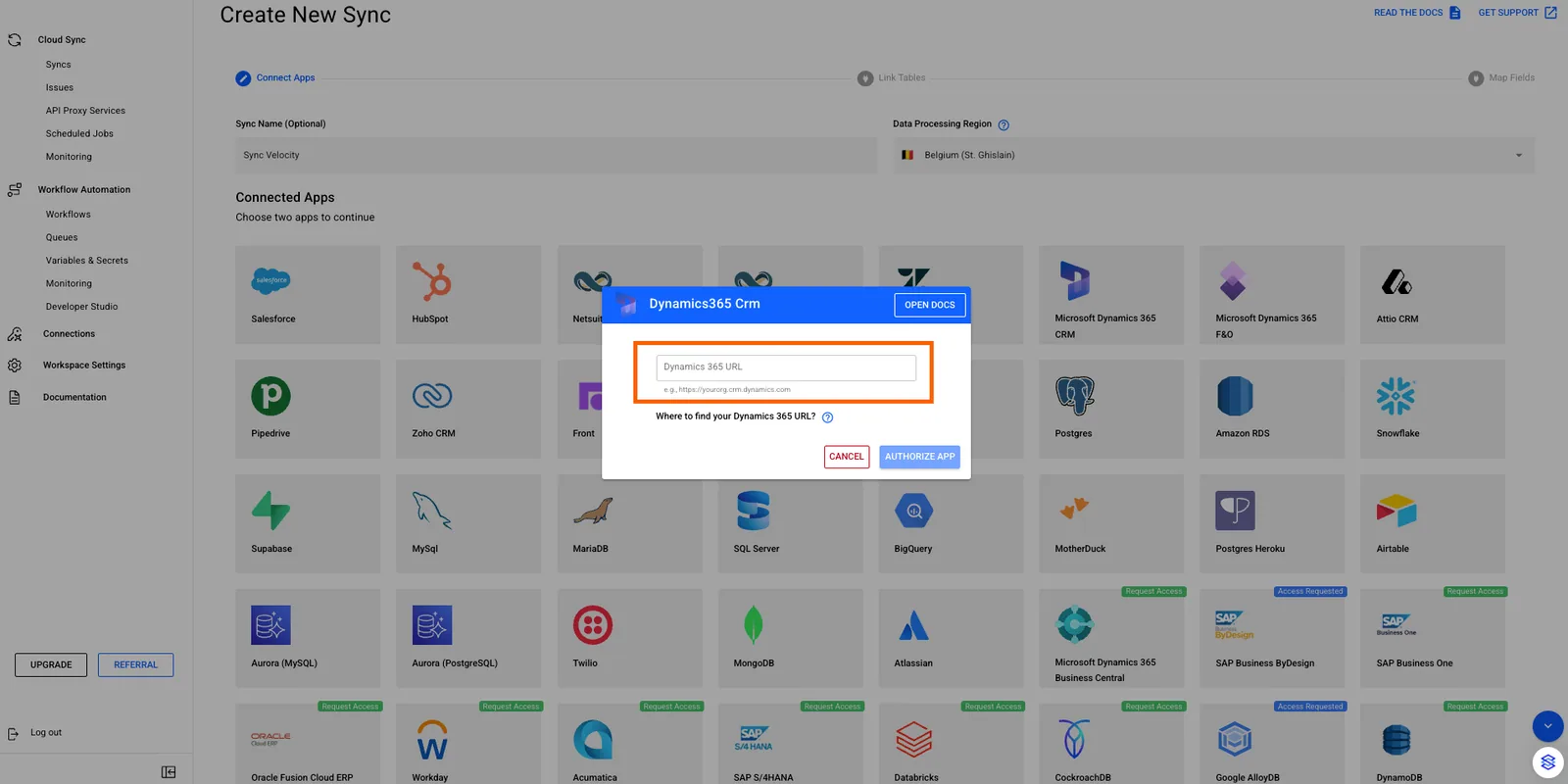
Click Authorize App.
4. Sign In with Microsoft
You will be redirected to Microsoft’s login page.
- Enter your Microsoft credentials
- Continue to the permissions screen
This authenticates you as a valid D365 user.
5. Grant Stacksync Access
Microsoft will ask you to approve the Stacksync app.
Click Accept to authorize:
- Permission to read CRM data
- Permission to interact with OData entities
If you see this message:
“Need admin approval for this app.”
Ask your admin to:
- Open the Microsoft identity / directory admin portal and go to the enterprise applications / app registrations area.
- Locate the Stacksync application or the corresponding app registration.
- Review and grant the requested API permissions (for example, access to Dynamics 365 CRM APIs).
Once an admin has granted consent, the “Need admin approval” screen will no longer appear when you authorize Stacksync. You can then restart the authorization from step 2, and the flow will complete successfully, allowing Stacksync to connect to your Microsoft account and start syncing data.
If you have any questions or run into any blockers, reach out anytime at hello@stacksync.com and the Stacksync team will be happy to help.