
# Authorize Attio

Attio connection is done without any coding required in a few steps.

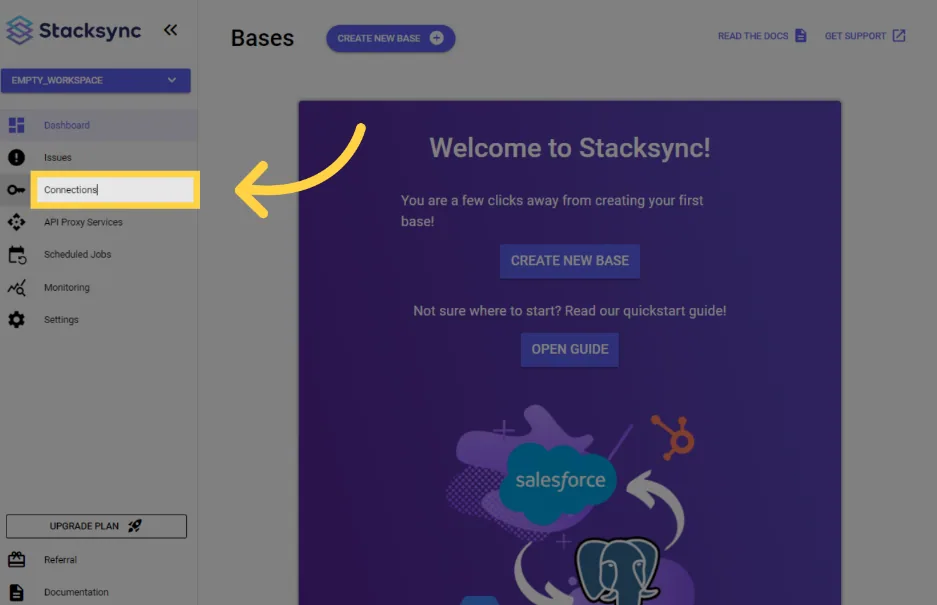
#### 1. Click on "Connections"

<figure><img src="https://2867423571-files.gitbook.io/~/files/v0/b/gitbook-x-prod.appspot.com/o/spaces%2FfJjIdV9cuW6K8asJjTPJ%2Fuploads%2FTaWcUwG8mjJLMwv8Ihn0%2Fimage.png?alt=media&#x26;token=6c505026-ed21-46a0-950d-653c5b37f3ef" alt=""><figcaption></figcaption></figure>

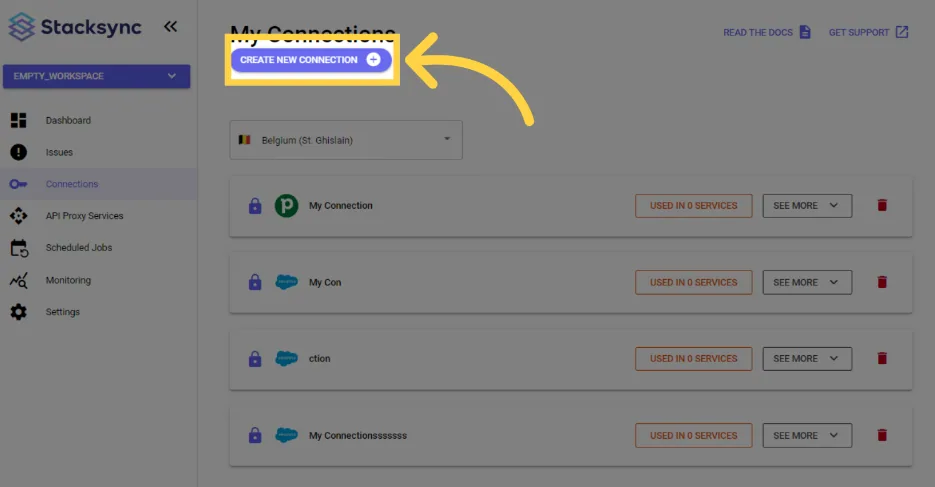
#### 2. Click "create new connection"

<figure><img src="https://2867423571-files.gitbook.io/~/files/v0/b/gitbook-x-prod.appspot.com/o/spaces%2FfJjIdV9cuW6K8asJjTPJ%2Fuploads%2Fr6ONeDWaqkpNH66oH9iR%2Fimage.png?alt=media&#x26;token=e5952ac4-ad16-470e-ab0b-f474b027fa77" alt=""><figcaption></figcaption></figure>

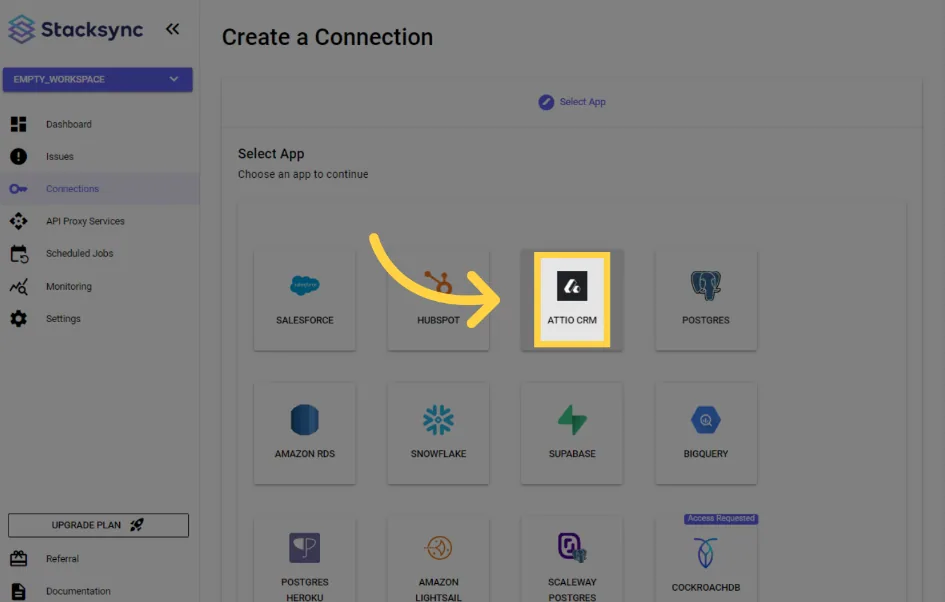
#### 3. Click "Attio CRM"

<figure><img src="https://2867423571-files.gitbook.io/~/files/v0/b/gitbook-x-prod.appspot.com/o/spaces%2FfJjIdV9cuW6K8asJjTPJ%2Fuploads%2FjnULcKqjSpUxmr5KFMz3%2Fimage.png?alt=media&#x26;token=68b377ad-95c2-4314-bb41-4d973f1ca547" alt=""><figcaption></figcaption></figure>

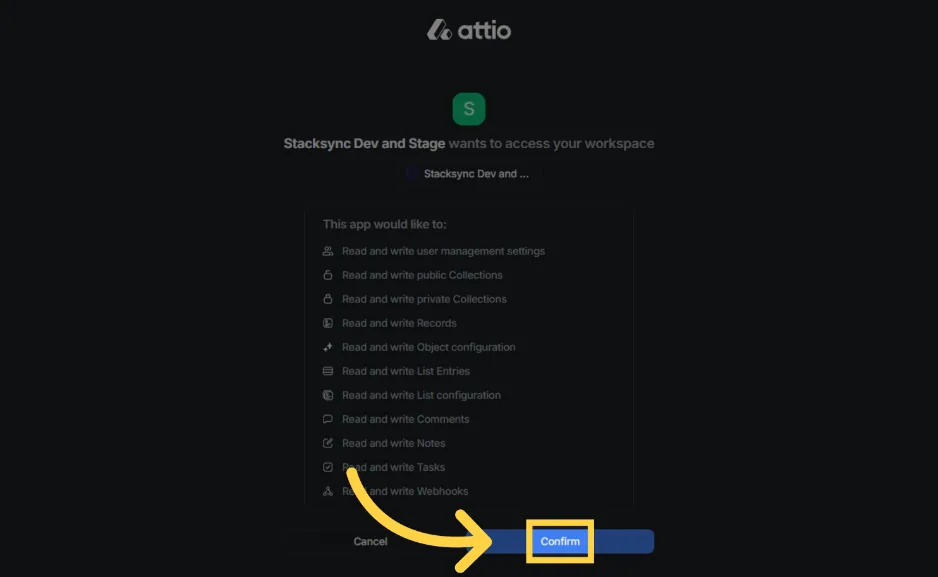
#### 4. Click "Confirm"

<figure><img src="https://2867423571-files.gitbook.io/~/files/v0/b/gitbook-x-prod.appspot.com/o/spaces%2FfJjIdV9cuW6K8asJjTPJ%2Fuploads%2FrF2M1Di8GRha6xEMehFL%2Fimage.png?alt=media&#x26;token=96608fcb-c125-458f-ba34-bc8f581afc7c" alt=""><figcaption></figcaption></figure>

That's it! Your Attio instance is now connected to Stacksync!🎉