

MCP Activity Log
Every call AI assistants made in your workspace through the Stacksync MCP: who, through which assistant, what, and how it ended
The MCP Activity Log shows what AI assistants did in your workspace through the Stacksync MCP: every read, every change, every call an MCP Gateway Policy blocked, every change waiting for a member's approval, and every assistant connected or disconnected.
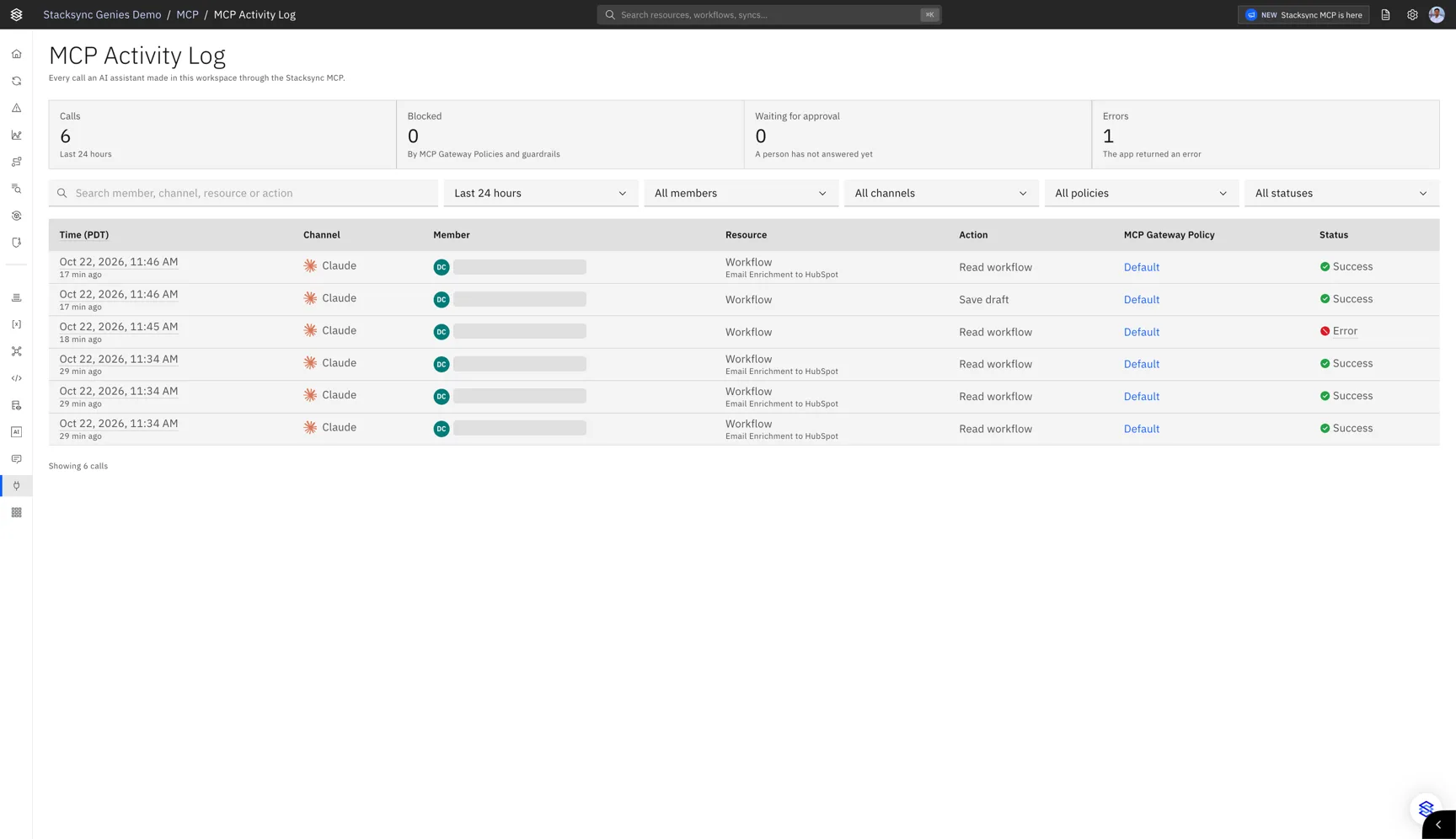
Open the Activity Log
In the Stacksync app, open the MCP page and select Activity Log. The log opens in a new browser tab and refreshes by itself; older entries load as you scroll.
Who sees what
- Workspace owners see the whole workspace: every member, every assistant and every API key.
- Other members see their own activity: the calls made through their own sign-ins and their own user API key.
Calls made with a workspace API key act as the workspace, so only owners see them.
What each entry shows
| Column | What it holds |
|---|---|
| Time | When the call was made. |
| Channel | The AI assistant the call came through, by the name it signed in with (Claude, ChatGPT, Cursor, ...). API key for a call made with an API key, and Web app for an MCP Gateway Policy changed in the Stacksync app. |
| Member | The person the call was made for: the signed-in member, or the person an API key acts as, with the key named under them. |
| Resource | What the call acted on, by name as it was at the time: an app and its connection for an app action, or a sync, workflow, Genie, connection, folder, queue, variable, API proxy, knowledge base or file. A list names the kind of resource listed. |
| Action | What was done: the app action's own name (for example Update Records), or the operation on the resource (Read sync, List workflows, Create folder, Run workflow, ...). |
| MCP Gateway Policy | The policy that decided the call. Default when no other policy applied. |
| Status | How the call ended, see below. |
Statuses
| Status | Meaning |
|---|---|
| Success | The call ran. |
| Approved | The change ran after the member accepted its preview, under Ask before every change or a guardrail that asked for confirmation. |
| Blocked | An MCP Gateway Policy refused the call: the app or action is not allowed, or a guardrail refused the change. Nothing ran. The entry names the policy and the reason. |
| Waiting for approval | The change was previewed and the member has not answered yet. A preview expires after 10 minutes. |
| Not approved | The member didn't accept the change before its preview expired. Nothing ran. |
| Error | The app or Stacksync answered an error. The entry shows it. |
Counts and filters
Above the log, four counts cover the selected time range: Calls, Blocked, Waiting for approval and Errors.
Filter the log by time range (last 24 hours, 7 days or 30 days), member, channel, MCP Gateway Policy and status, or search by member, channel, resource or action. The link of a filtered view keeps its filters, so you can share it with another owner.
Good to know
- What is recorded. The action, the resource and its name, the assistant, the member, the policy and the outcome. Never the data an assistant read or sent, and never a credential.
- Names at the time. Entries keep the name a resource had when the call was made, so a renamed or deleted resource still reads as it did then.
- Where it comes from. The entries are the workspace's audit log, written in the region of the resource. The log shows both regions together.