

MCP Gateway Policies
Control which apps, and which actions of each app, your members' AI assistants can use through the Stacksync MCP
MCP Gateway Policies let workspace owners decide which apps their members' AI assistants can use directly through the Stacksync MCP, and which actions of each app they can run.
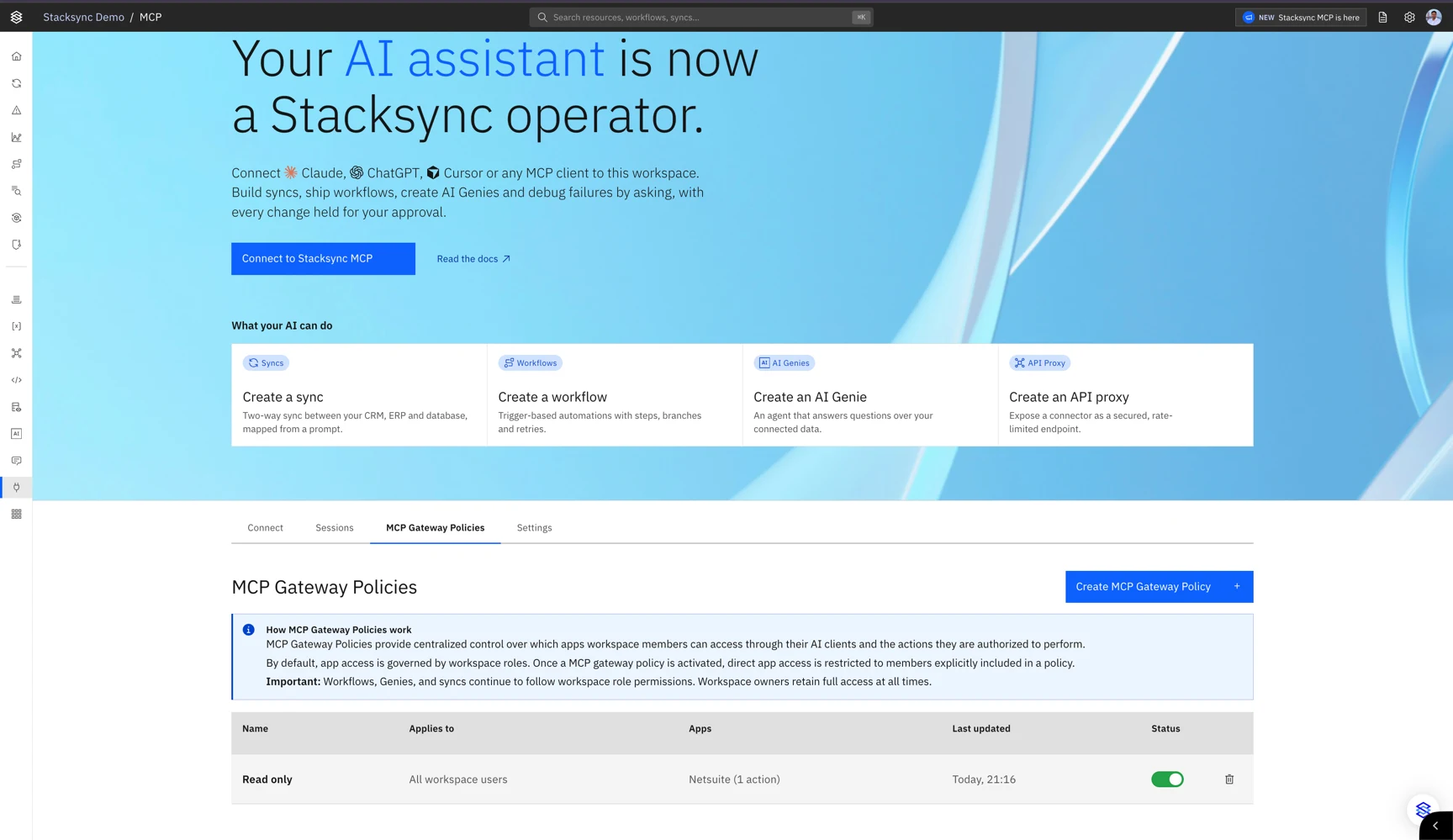
How MCP Gateway Policies work
- No policy, no limit. Without an active MCP Gateway Policy, AI assistants can use apps as the member's workspace role allows.
- Once a policy is active, it limits app access. Members' assistants can use only the apps and actions an active policy allows them. Members no active policy includes can no longer use apps directly.
- The most permissive policy wins. When several policies include a member, the member's assistant can do what any one of them allows.
- Apps only. MCP Gateway Policies limit direct use of apps: running an app's actions and reading its forms. Workflows, Genies and syncs continue to follow workspace roles, and Stacksync's built-in apps, such as Stacksync AI, email, variables and queues, are always available.
- Owners keep full access. MCP Gateway Policies never limit workspace owners, so an owner can always correct a policy.
Create an MCP Gateway Policy
Only workspace owners can create, change and delete MCP Gateway Policies.
- In the Stacksync app, open the MCP page and select the MCP Gateway Policies tab.
- Select Create MCP Gateway Policy.
- Under What is the name of this policy?, enter a Name and, optionally, a Description.
- Under Who does this policy apply to?, choose All workspace users, or Only selected users and groups and add them.
- Under What can members access?, choose All apps, or Only selected apps and add them. Expand an app to turn each of its actions on or off. An app with every action on also allows the actions the app gains later.
- Select Save MCP Gateway Policy.
Pause or delete a policy
- Pause: turn off the policy's Status switch in the list. A paused policy is saved but not enforced. Turn the switch back on to enforce it again.
- Delete: select the delete icon in the policy's row. The members it applied to keep only what their other policies allow. Once no active policy is left, every member's AI assistant follows their workspace role again. Deleting a policy can't be undone.
What your members see
When an MCP Gateway Policy blocks a request, nothing runs or changes. The AI assistant tells the member which policy blocked it and to ask a workspace owner, for example:
Blocked by the workspace MCP Gateway Policy "Sales team": the Update record action of hubspot is not allowed. Nothing was changed. Ask a workspace owner to change it.Members who are not owners see the policies that apply to them in the MCP Gateway Policies tab.
Good to know
- API keys. A workspace API key follows the policies that apply to All workspace users. A user API key follows the policies of its user. Learn more about API keys.
- When changes apply. A saved policy applies right away. A change of group membership applies within 5 minutes.