

Custom domains
Serve an EOS application's interface and API from a hostname you own, with DNS verification and managed HTTPS.
Give colleagues and customers an address they recognize, such as portal.example.com. A custom domain connects to an existing EOS application, so its interface, API routes, and assets can share that address without redeploying the app to another hosting service.
Before you start
You need Owner access to the application, a claimed EOS workspace, and permission to edit DNS records for your domain. Claim a guest workspace before adding a custom domain.
Start with a subdomain such as portal.example.com. Your existing DNS provider can continue managing the domain. Using the root address, such as example.com, requires a DNS provider that supports a suitable ALIAS record or CNAME flattening. Do not copy an IP address from a DNS lookup into an A record as a substitute.
Each hostname belongs to one EOS application. An app can have up to 5 custom domains. Different apps can use different hostnames under the same domain, for example portal.example.com and reports.example.com.
Add the domain
- Open the workspace containing your application.
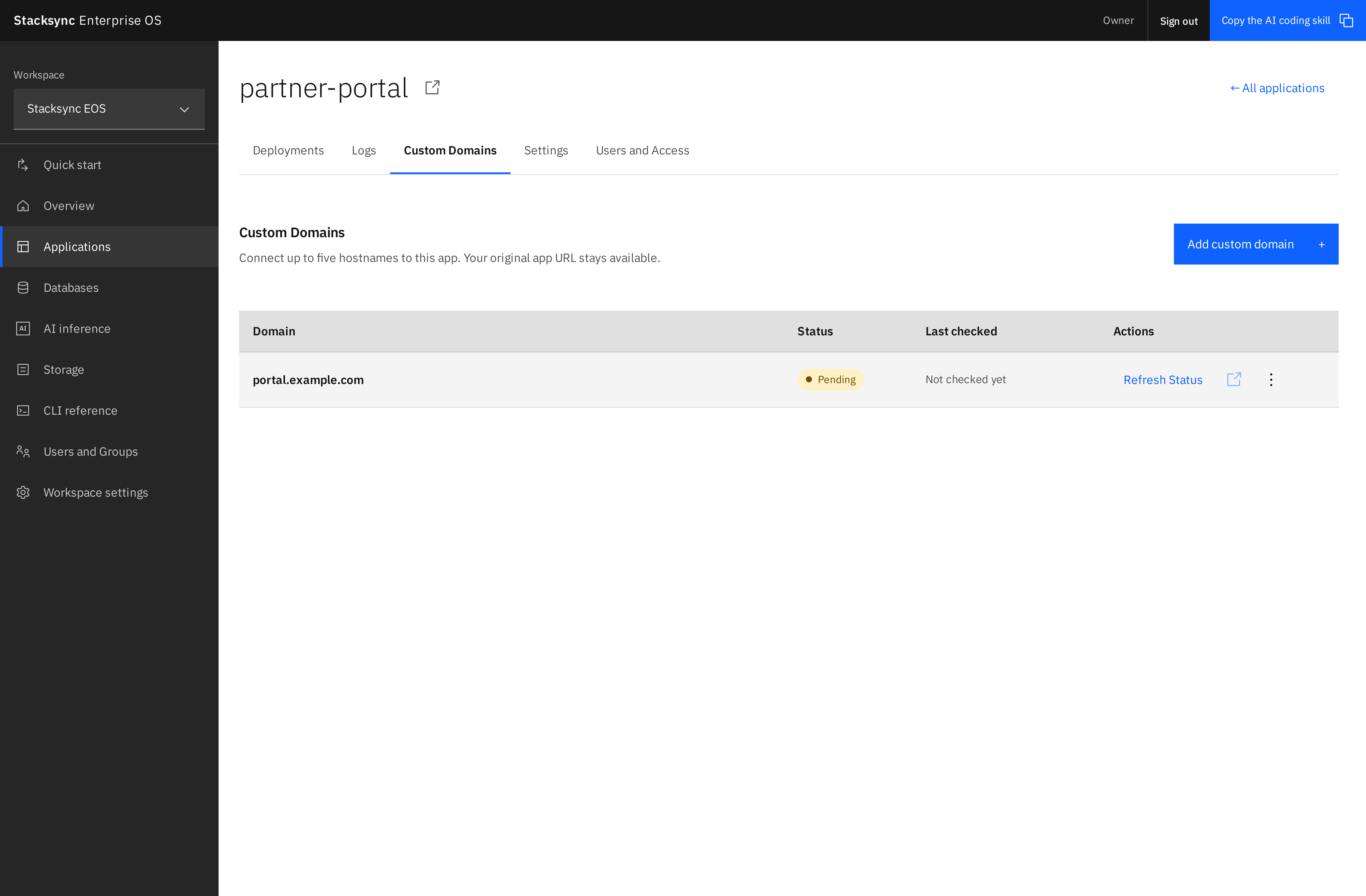
- Select Applications → your application → Custom Domains.
- Select Add custom domain to open the setup dialog, then enter the hostname, for example
portal.example.com. Omithttps://, a port, and any path. Wildcards such as*.example.comare not supported by this flow. Use punycode for an internationalized hostname. - Select Add domain.
- Use the copy icon beside each DNS name and value to copy the records into your DNS provider.
- Select Done to close the dialog. Verification continues automatically. The domain appears in the table with a Pending or green Connected badge.
Use the domain’s actions menu → Edit to reopen its DNS records. Edit shows the existing hostname and setup instructions; to change the hostname, delete it and add the new one.
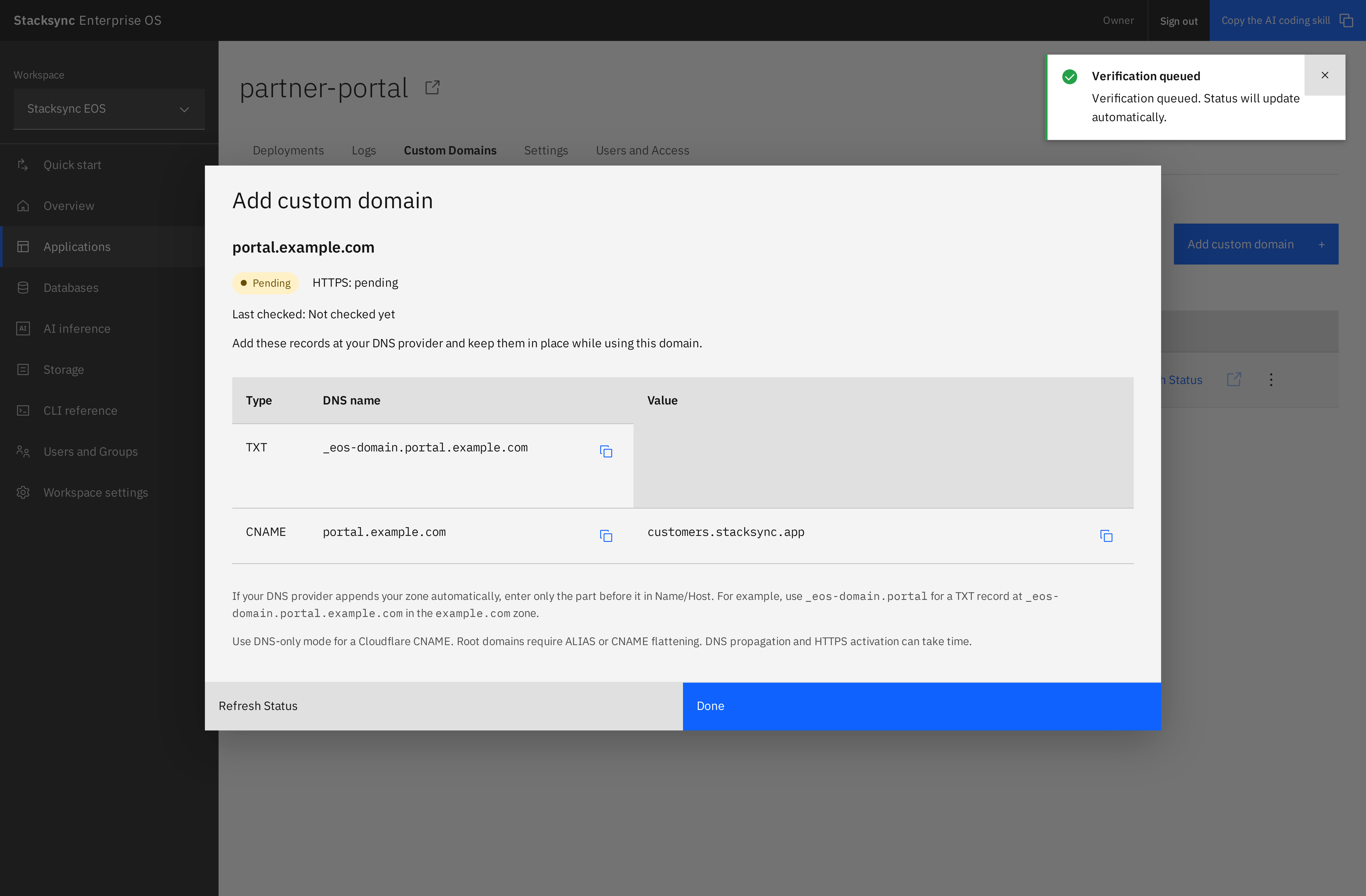
EOS displays full DNS names. Many DNS editors append your zone automatically. For the zone example.com, use the short Name/Host values below if your provider does this. Entering the full name in that editor would incorrectly create a name such as _eos-domain.portal.example.com.example.com.
| Type | Full DNS name | Name/Host when your provider appends example.com | Value/Data |
|---|---|---|---|
| TXT | _eos-domain.portal.example.com | _eos-domain.portal | The complete unique verification value displayed by EOS, including eos-domain=. |
| CNAME | portal.example.com | portal | The target displayed by EOS, normally customers.stacksync.app. |
| TXT, when requested | The additional validation name displayed by EOS. | Follow your provider's naming convention. | The corresponding hostname or certificate validation value. |
The ownership TXT record proves that you control the hostname. The CNAME sends requests to EOS. A CNAME does not redirect visitors to the target address: the browser keeps portal.example.com.
If your DNS provider is Cloudflare, use DNS only for the customer CNAME during onboarding. Remove conflicting records for that same hostname when you are ready to move its traffic. Do not remove unrelated email or other domain records.
Keep the ownership TXT and routing records in place while using the domain. EOS rechecks them. An unverified reservation that has not started provider registration expires after seven days; add it again if needed.
Wait for verification and HTTPS
EOS checks DNS and requests the hostname's HTTPS certificate automatically after ownership is verified. Select Refresh Status for a pending domain to queue another verification. Checks normally begin within a minute, but DNS propagation and certificate issuance can take longer.
The visible Custom Domains tab refreshes status automatically every ten seconds and shows Last checked for each hostname. This fetches the latest result; it does not run a fresh DNS check every ten seconds. The Refresh Status button queues a fresh check for a pending domain. Automatic updates preserve anything you are typing in the hostname field.
| Status | What to do |
|---|---|
| Pending | Follow the message shown for the domain. Check ownership TXT, CNAME, and any additional validation records. |
| Connected | Select Open app and test the interface and API through the custom hostname. |
| Deleting | EOS has disabled the hostname and is cleaning up its provider registration. |
| Verification temporarily unavailable | EOS will retry automatically. Keep the DNS records in place. |
Do not announce a new URL as ready until it shows Connected and you have tested it. If the hostname already serves a live website, coordinate the DNS change with its owner: this onboarding flow does not promise a zero-downtime migration while the certificate is being issued.
Use the same hostname for the interface and API
One domain covers all application paths:
| Purpose | Example |
|---|---|
| App interface | https://portal.example.com/ |
| App API | https://portal.example.com/api/orders |
| App assets | https://portal.example.com/assets/main.js |
Use relative URLs in the frontend, such as fetch('/api/orders'), so requests stay on the current hostname. Configure the app's public base URL, OAuth callback allowlists, absolute links, and cookies for the custom domain. Host-only cookies work well when an app has multiple domain aliases. If the app needs a configuration change, deploy that change through the normal EOS workflow.
EOS preserves request paths, query parameters, methods, and bodies. The gateway supplies the original hostname and HTTPS scheme through trusted forwarding headers. It does not rewrite application HTML, JavaScript, or hardcoded links to another API, storage service, or identity provider.
The app's managed authentication policy also applies through its custom domain. Connecting a domain does not make a restricted app public. Browser sign-in uses the existing central EOS login and returns to the custom hostname; the domain does not replace the EOS dashboard or identity-provider URLs.
The default stacksync.app URL remains available. Domain aliases point to the same app across subsequent deployments; adding a domain does not create a second app or redirect the default URL automatically.
Remove or move a domain
In Custom Domains, open the domain’s actions menu, select Delete, and confirm. EOS stops authorizing new requests for that hostname immediately, revokes its app sessions, and queues provider cleanup. The default app URL and other connected domains remain available. Connections that were already open are not forcibly terminated.
Remove the routing and verification records from your DNS provider when they are no longer needed. To connect the hostname to another EOS app, wait for the existing connection to disappear, add it to the new app, and replace the ownership TXT record with the new value.
Troubleshoot a pending domain
- The domain name was appended twice: EOS identifies the misplaced TXT record and displays the corrected Name/Host. For example, change
_eos-domain.portal.example.comto_eos-domain.portalwhen your DNS editor appendsexample.com. Keep Value/Data unchanged. - No ownership TXT record was found: add the displayed TXT record at the expected name. Check whether your DNS editor expects the full name or a relative name, and allow time for DNS caches to update.
- The TXT value does not match this app: replace Value/Data with the complete value shown in EOS, including
eos-domain=. Keep unrelated TXT records. - The TXT is correct, but the hostname does not point to EOS: set the CNAME target to the value shown in EOS. Use DNS-only mode for a Cloudflare customer CNAME; root domains need supported ALIAS or flattening.
- HTTPS is still pending: if ownership and routing are correct, allow time for certificate validation. Inspect any additional validation records. If you use restrictive CAA records, ask your DNS administrator to check which certificate authority is being requested.
- The hostname is already connected: remove its existing EOS connection first. A hostname cannot serve two apps at once.
- The app opens, but API calls use another domain: update the app's hardcoded API base URL or use relative paths. DNS cannot change URLs embedded in an application.
- The Custom Domains tab is missing: confirm that you have app Owner access. If the page says the feature is not enabled, contact your platform administrator.
Configure domains with the EOS CLI
Update to EOS 5.1.0 or later with eos update. Check your selected workspace with eos workspace current, then run:
eos app domains list my-app
eos app domains add my-app portal.example.com
eos app domains show my-app portal.example.com
eos app domains refresh my-app portal.example.com
eos app domains delete my-app portal.example.com
Use a project name or numeric app ID in place of my-app. Show, refresh, and delete also accept the domain UUID. Add/show print the DNS records, HTTPS status, and troubleshooting messages. Refresh queues another check; run show/list again after DNS changes propagate. Delete requires typing the exact hostname, and leaves the original app URL and other domains available.
Every command supports --json for automation; deletion still requires exact-hostname confirmation. The CLI uses your EOS credentials and selected workspace, without a Cloudflare API key. The same Owner permission and five-domain limit apply.
Automate domain management
The management API exposes these owner-only endpoints under your workspace URL:
| Method | Path |
|---|---|
| GET | /workspace/WORKSPACE_ID/api/access/apps/APP_ID/domains |
| POST | /workspace/WORKSPACE_ID/api/access/apps/APP_ID/domains |
| POST | /workspace/WORKSPACE_ID/api/access/apps/APP_ID/domains/DOMAIN_ID/verify |
| DELETE | /workspace/WORKSPACE_ID/api/access/apps/APP_ID/domains/DOMAIN_ID |
For creation, send {"hostname":"portal.example.com"} as JSON. Use the app's numeric ID, a management bearer token, and the matching X-Workspace-Id header. Mutations return HTTP 202; poll the list endpoint for verification and cleanup. Creation is idempotent for the same hostname on the same app.
These management endpoints are different from your application's API paths under the custom hostname.