

Manage files
Explore bucket folders, upload documents, preview supported formats, and manage stored objects.
Use the Files tab to work with bucket contents directly in EOS. Your operations team can inspect uploads, your marketing team can find assets, and developers can confirm that their application is storing the right files.
Browse folders and search
Open a bucket, then expand the arrow beside a folder. The table shows file names, sizes, upload times, and actions. Use search to find matching files and folders across the bucket, including files in nested folders.
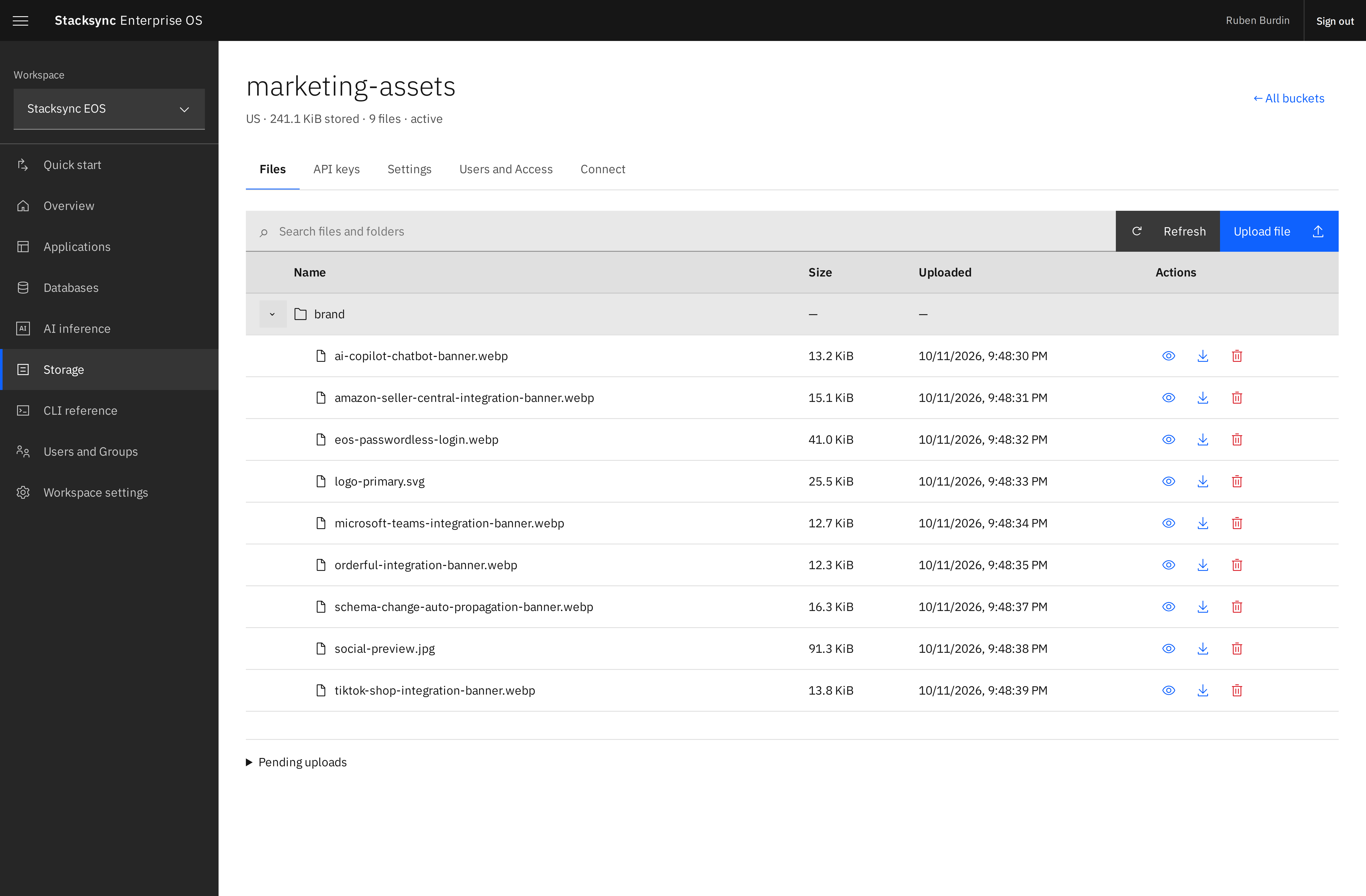
Folders are represented by object paths. For example, invoices/2026/october.pdf appears under the invoices and 2026 folders. You do not need to create those folders separately before uploading the file.
Upload a file
- Open the bucket's Files tab.
- Select Upload file.
- Choose a local file and enter its destination path.
- Upload it, then confirm that it appears in the file list.
Use meaningful paths such as partners/acme/contract.pdf. The current default upload limit is 50 MiB per file. Existing paths are not overwritten: a conflicting path is rejected, so use a new path for a new version or deliberately remove the old object first.
If an upload is interrupted, inspect Pending uploads before retrying. An ambiguous client response does not necessarily mean that nothing was uploaded.
Preview a file
Use the file's View action to open a preview for supported formats. The viewer supports common images, PDFs, text, and CSV files. Unsupported formats can still be downloaded.
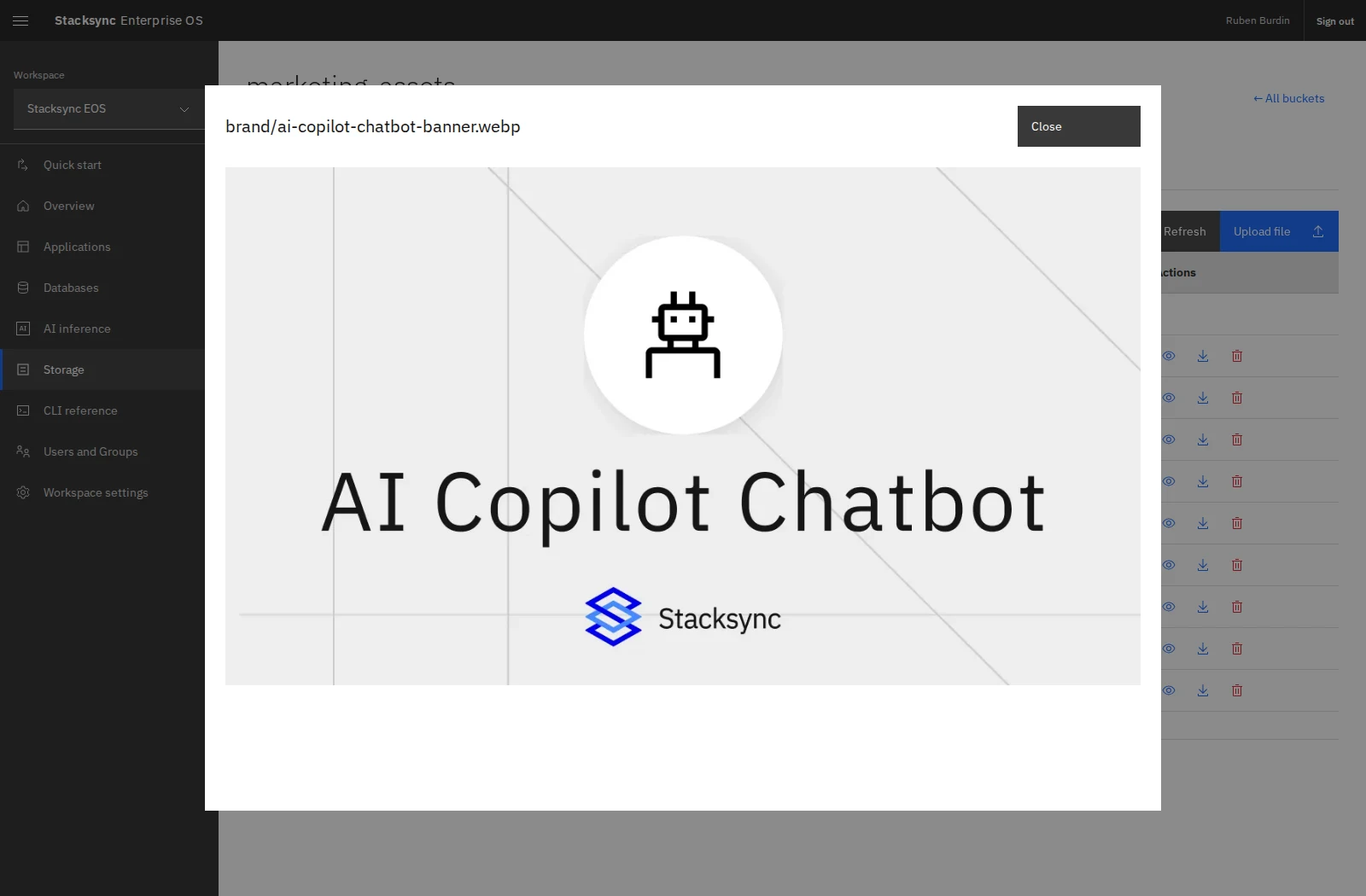
The CSV viewer presents supported tabular files as a table; files it cannot interpret reliably fall back to text. Previewing is a way to inspect stored content without first saving it to your laptop.
Download or delete
Use Download to retrieve a file. Downloads are delivered as attachments. Use Delete to remove an object after checking its path and confirming the action. It disappears from listings while underlying storage cleanup may take additional time.
Dashboard file access follows the user's bucket role. For application access, use a bucket API key with the relevant scopes.
Work from the CLI
With STORAGE_API_KEY securely set for this bucket:
eos storage upload ./october.pdf invoices/2026/october.pdf
eos storage objects list --prefix invoices/
eos storage download invoices/2026/october.pdf ./downloaded-october.pdf
List responses can include a cursor. Pass it with --cursor to continue retrieving objects. To deliberately delete a file, use eos storage objects delete OBJECT_PATH with a key that includes the delete scope.