

Deployments and settings
Control application versions, environment variables, container memory, and autoscaling from one place.
A deployment version records the source and configuration used to run your application. EOS keeps version history so your team can inspect what was deployed and diagnose problems with the corresponding build output.
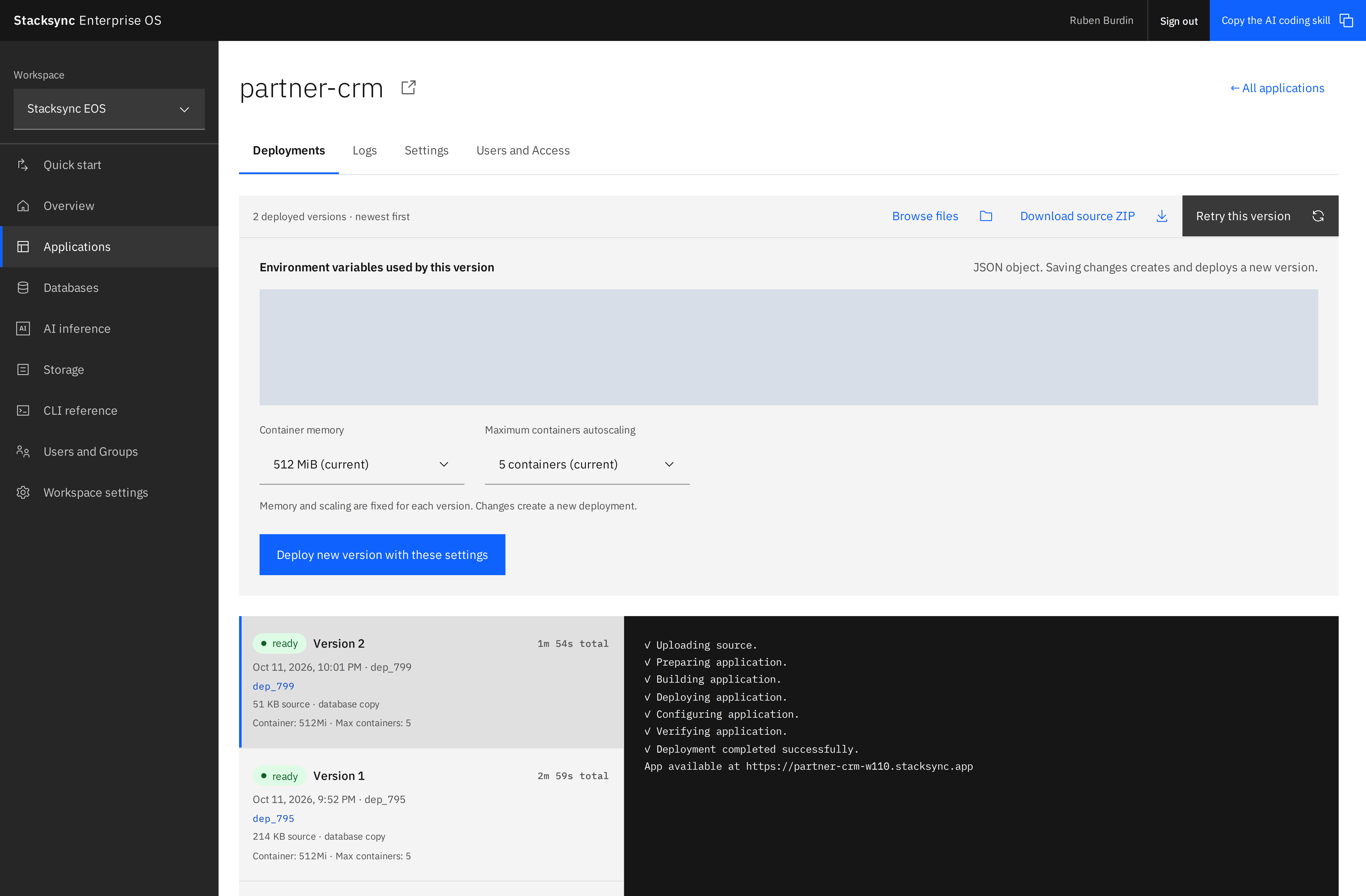
Open Applications → your application → Deployments. Select a version in the list to review its status, timing, source information, variables, and resource settings.
Container memory
Container memory is the memory available to each running container. Select the size that fits the application's runtime and workload. Increasing memory can help memory-intensive applications, but it does not fix a memory leak or replace performance testing.
Supported CLI values are 512Mi, 1Gi, 2Gi, and 4Gi:
eos deploy --project=partner-portal --memory=1GiMaximum containers autoscaling
Maximum containers autoscaling sets the upper bound on the number of application containers EOS can scale to. The current supported range is 1–20 containers.
This is a ceiling, not a request to keep that many containers running. A higher ceiling allows more concurrent capacity when the platform scales the app; a lower ceiling constrains its maximum footprint. Choose it alongside database connection limits and the capacity of other dependencies.
eos deploy --project=partner-portal --memory=1Gi --max-instances=5Omitting these flags keeps the existing app settings; new apps use server defaults. Memory and scaling are fixed for each version. Changing either setting creates a new deployment version.
Change configuration in the dashboard
- Select the version you want to use as the starting point.
- Review the Environment variables used by this version JSON object.
- Choose Container memory and Maximum containers autoscaling.
- Select Deploy new version with these settings.
- Follow the deployment output and verify the app after the new version becomes ready.
The dashboard submits the variable set for the new version, so preserve every variable the app still needs. Values can be strings, numbers, or booleans; keep the editor content a JSON object.
{
  "NODE_ENV": "production",
  "APP_TITLE": "Partner portal",
  "LOG_LEVEL": "info"
}
From the CLI, repeat --variable=KEY=VALUE to supply variables. Existing keys omitted from a normal CLI update remain unchanged; supplied keys replace their previous values. Keep secrets in server-side variables and out of browser bundles and source control.
Inspect source and deployment output
Use Browse files to inspect the selected version's retained source, or Download source ZIP to retrieve it. Retry this version starts another deployment attempt from the retained version; review its configuration first.
eos deployment versions partner-portal
eos deployment logs DEPLOYMENT_ID
eos deployment download DEPLOYMENT_ID ./source.zip
Use the deployment ID returned by EOS. Deployment logs describe the build and rollout. The app's Logs tab is for runtime behavior after deployment.
Diagnose a failed deployment
Start with the failed version's output. Check that the source includes the correct manifest and start command, dependencies install successfully, and the server listens on the supplied PORT. Build and test locally, run eos deploy --dry-run, then deploy the corrected version.
A failed status means that deployment attempt did not complete successfully. Verify the application's URL and current ready version separately before drawing conclusions about availability.