

Users and groups
Organize your company and external app users in a workspace, then share resources with the right teams.
Deploying an app or creating a database from the CLI does not require login. To invite users or manage collaboration in a guest workspace, first sign in and claim it with eos workspace claim WORKSPACE_ID. See guest workspaces for the 14-day deadline and device credential requirements.
A workspace brings people and resources together. Use Users and Groups to invite colleagues and organize teams; use each resource's Users and Access tab to decide what those teams can manage or use.
Workspace roles
| Role | Workspace capabilities |
|---|---|
| Admin | Manage workspace membership, roles, groups, and settings. Can see the full workspace group directory. |
| Member | Collaborate in the workspace and see its user directory. Can see groups they belong to. Resource access still requires grants. |
| External Operator | Use explicitly shared applications without access to the workspace directory or management APIs. |
At least one Admin must remain. An Admin does not automatically gain management access to every resource. A Member can own a resource without becoming a workspace Admin.
Invite colleagues
- Open Users and Groups → Users as a workspace Admin.
- Enter one email address or a comma-separated list.
- Select the intended workspace role.
- Select Send invitations.
- Follow each invitation's status in the user table.
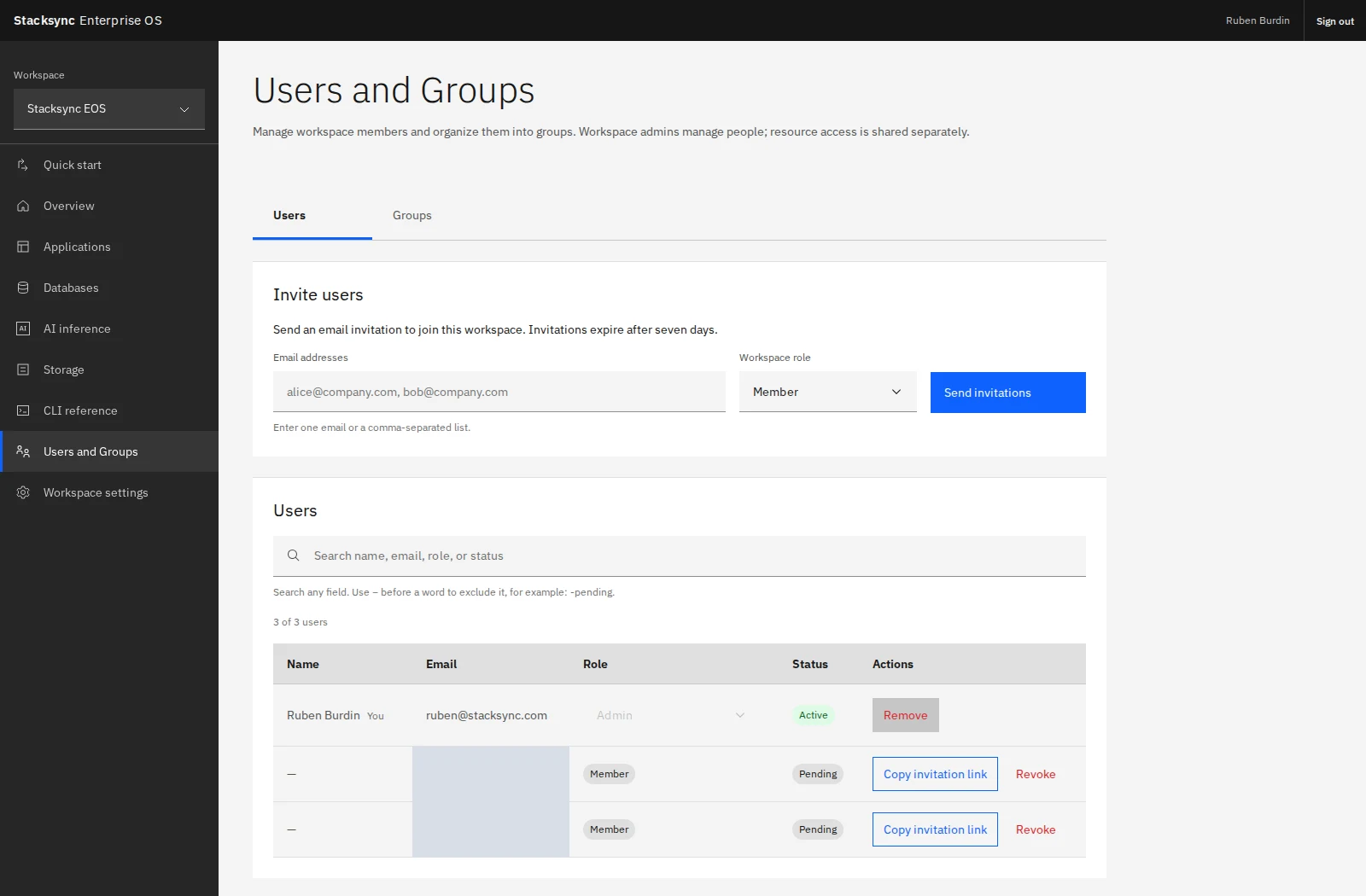
Invitations expire after seven days. Invitees sign in with the invited email address and accept their invitation. Administrators can copy an invitation link or revoke a pending invitation.
You can preassign resource or group access to a pending invitation. That access becomes active only after valid acceptance. External Operators are added directly by email rather than through the normal invitation acceptance flow; give them an explicit Operator grant on the app they should use.
Organize groups
Open the Groups tab, select Create group, and name it for a team or function, such as Engineering, Finance, or Operations. Edit the group to add or remove existing users or valid pending invitations.
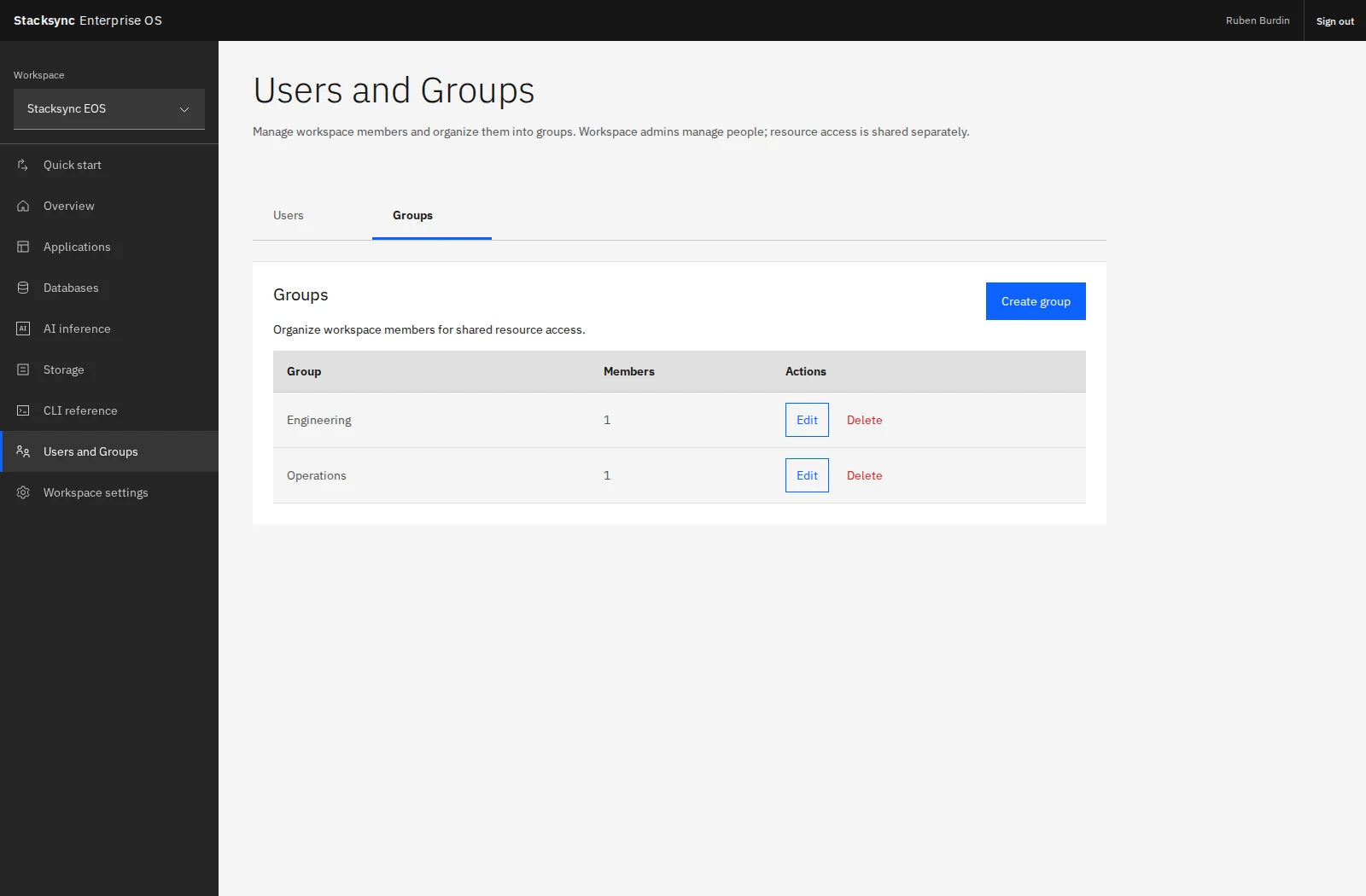
Groups make recurring access decisions easier: share a reporting database with Engineering as Editor, or an internal app with Operations as Operator. Adding or removing group members then updates inherited access across the resources shared with that group.
Groups containing External Operators may receive only Operator grants on applications. They cannot receive management roles or grants to databases, inference keys, or storage buckets. Remove or separate incompatible group membership rather than broadening a partner's access to internal resources.
Manage groups from the CLI
eos workspace users --json
eos workspace groups --json
eos workspace groups create 'Operations' --json
eos workspace groups add GROUP_ID user USER_ID
eos workspace groups add GROUP_ID invitation INVITATION_ID
eos workspace groups remove GROUP_ID user USER_ID
The explicit user or invitation type matters: these IDs belong to different recipient types. Group changes require a workspace Admin. Use the dashboard for workspace invitations, workspace role changes, and group deletion; dedicated CLI commands for those actions are not currently exposed.
Removing a workspace member clears their resource grants in that workspace. Review application policies and any previously distributed application credentials as part of your offboarding process.