

Workspace settings
Manage the workspace identity and govern which AI models are available to every inference key.
Deploying an app or creating a database from the CLI does not require login. To invite users or manage collaboration in a guest workspace, first sign in and claim it with eos workspace claim WORKSPACE_ID. See guest workspaces for the 14-day deadline and device credential requirements.
A workspace is the shared boundary for your team's applications, databases, AI keys, storage, and membership. Confirm the workspace in the sidebar before creating resources or changing settings.
General settings
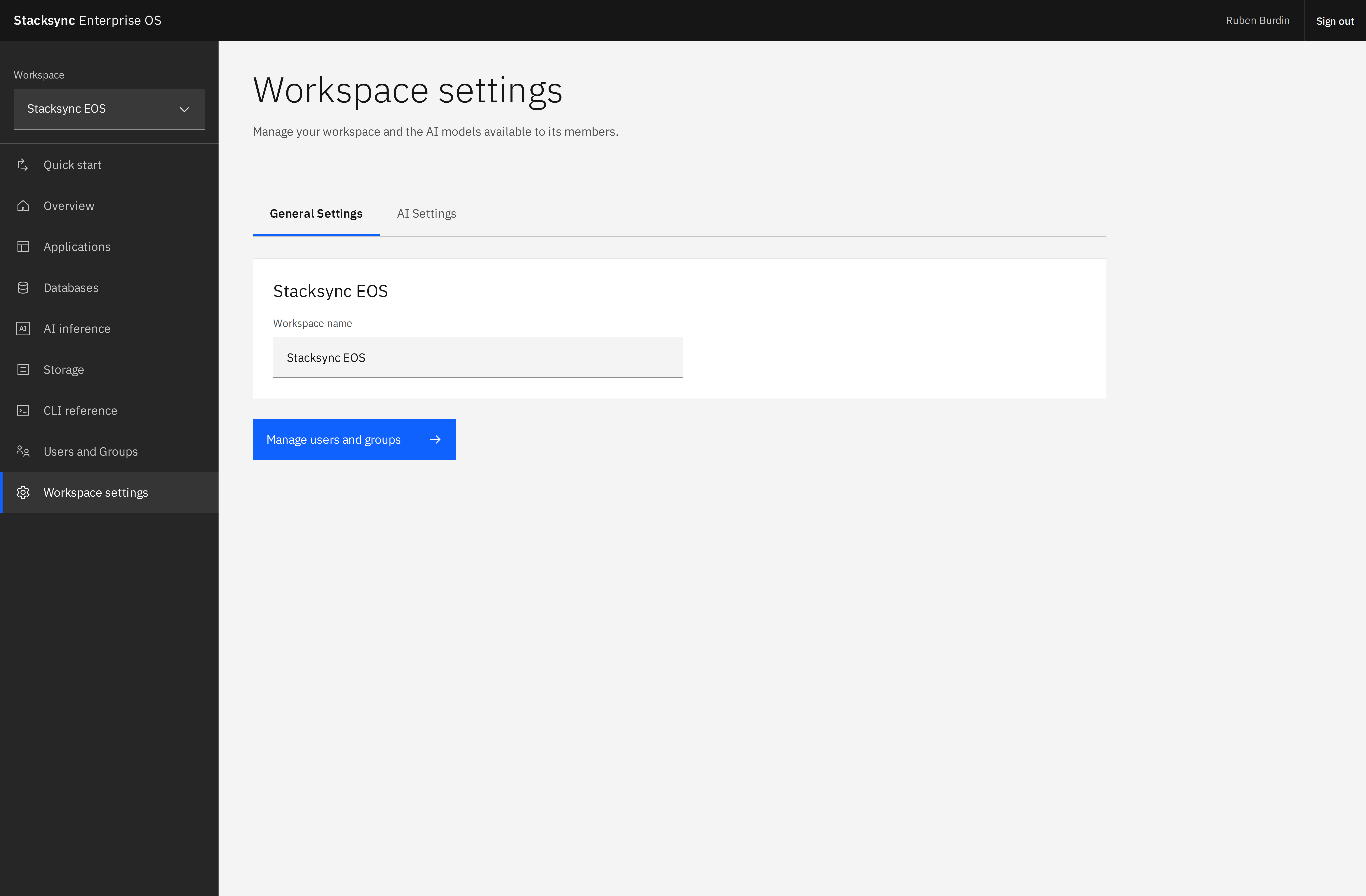
Open Workspace settings → General Settings. Workspace Admins can edit the workspace name and save it. Use Manage users and groups to maintain membership and team groups.
Switch workspaces from the sidebar when working with another team. In the CLI:
eos workspace list
eos workspace switch WORKSPACE_ID
eos workspace current
EOS_WORKSPACE_ID overrides the saved CLI selection for a command or environment. Check it if commands appear to use a different workspace than expected.
Control available AI models
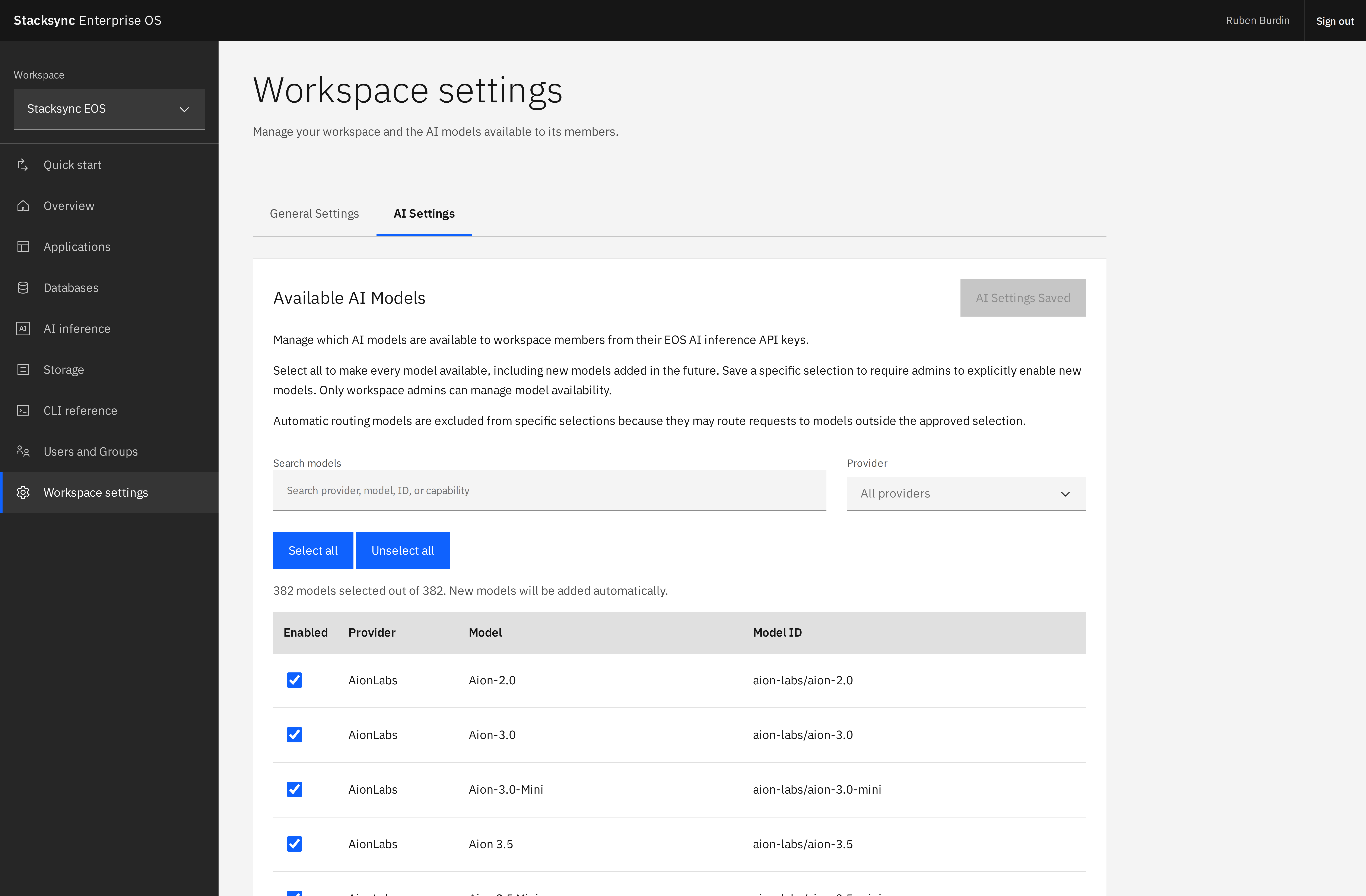
Open AI Settings to choose which models workspace inference keys can use. This policy applies centrally across the workspace: individual keys retain their own spending limits, but do not override the workspace's allowed-model list.
Make every model available
Use Select all and save if there are changes. This allows the full catalog, including new models added later. It is useful when teams should be able to evaluate new capabilities as the regularly updated catalog evolves.
Allow a specific selection
- Use Unselect all as a starting point, or adjust the existing selection.
- Search for a provider, model name, ID, or capability.
- Enable the models your team may use.
- Select Save AI Settings.
With a specific selection, newly added models are not automatically enabled. An Admin must explicitly approve them. Automatic routing models are excluded from specific selections because they may route requests to models outside the approved list.
An empty approved selection leaves no models available. Review the selected count and the needs of running applications before saving a restriction.
Combine model policy with budgets
The model policy controls which models an application can call. Each inference key's allowance controls how much it can spend. Use both: approve the models appropriate for your company, then set budgets by application or team.
Workspace administration does not replace resource sharing. Use access and permissions to grant access to a particular application, database, key, or bucket.
Open your selected workspace with eos open. Dashboard links include /workspace/{workspace_id} so copied links retain their context. See workspace URLs and opening EOS.