

AI inference
Give applications one API for AI models, with spending controls and request visibility built in.
Build AI into business applications without managing a separate integration and credential for every model provider. EOS inference keys give applications access to the available model catalog through one API.
Give teams room to experiment with AI while keeping model access and spending under control. Separate keys and budgets let you distinguish an early pilot from a tool the department uses every day.
A key is not tied to a single model. Each request chooses a model ID. By default, keys can use all models available to the workspace. The catalog is updated regularly, and workspace Admins can restrict which models their team may use in Workspace settings → AI Settings.
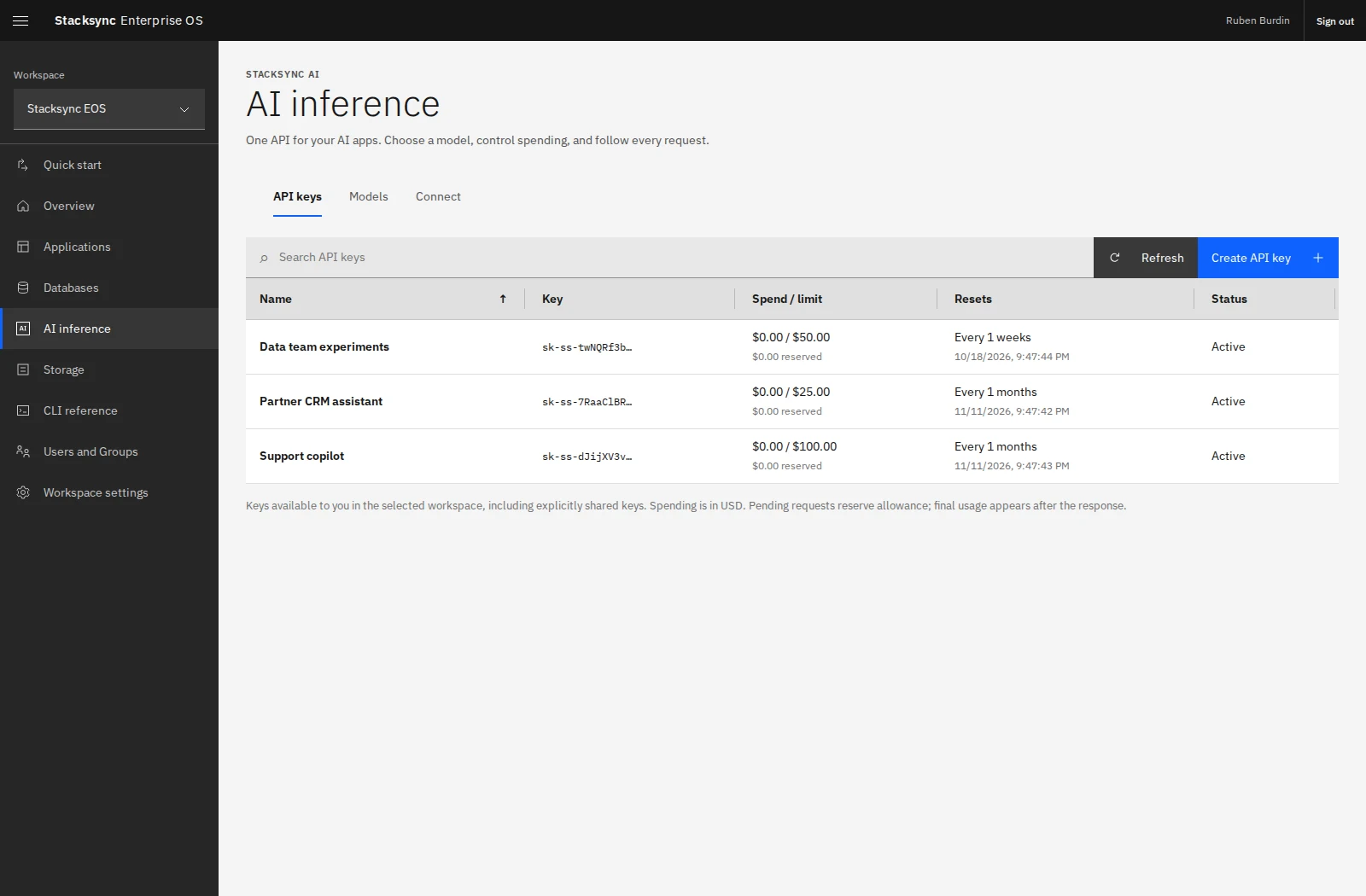
Create an inference key
- Open AI inference → API keys.
- Select Create API key and give it a name that identifies the app or purpose.
- Set a spending limit in USD and a reset schedule.
- Create the key and store its value securely. The complete key is shown only once.
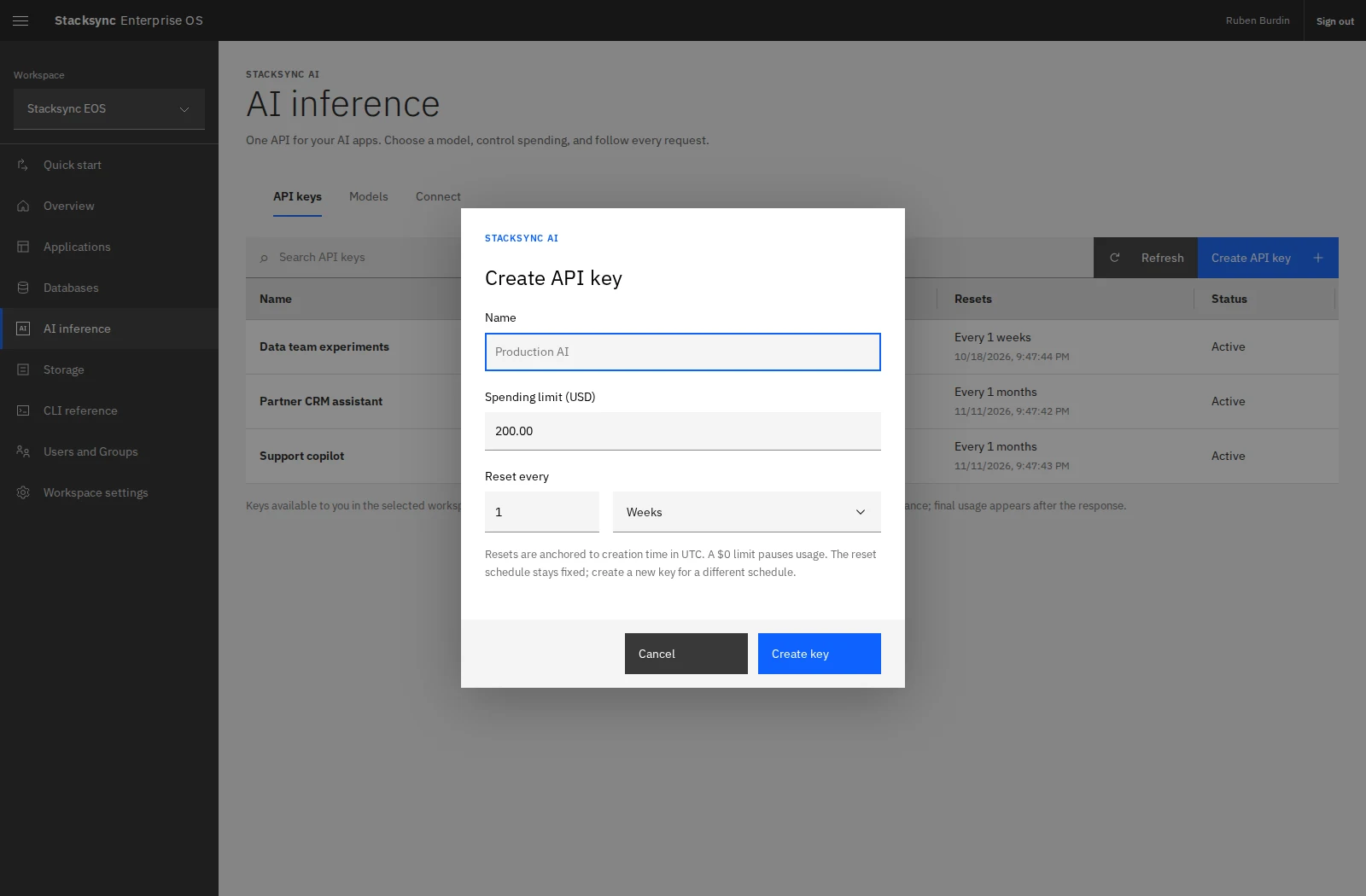
For example, give an experimental assistant a smaller allowance and a production support assistant its own key and budget. Separate keys make usage easier to understand and let you revoke one application's access independently.
eos inference keys create 'Support assistant' --limit 100 --every 1 --unit months --jsonThis command returns the secret key value. Capture the response privately and supply the key to your application as a server-side variable.
Choose a model
Open the Models tab to browse the catalog. Search by model name and filter by provider. Review model IDs, context capacity, and the displayed customer-facing prices before choosing a model for your application.
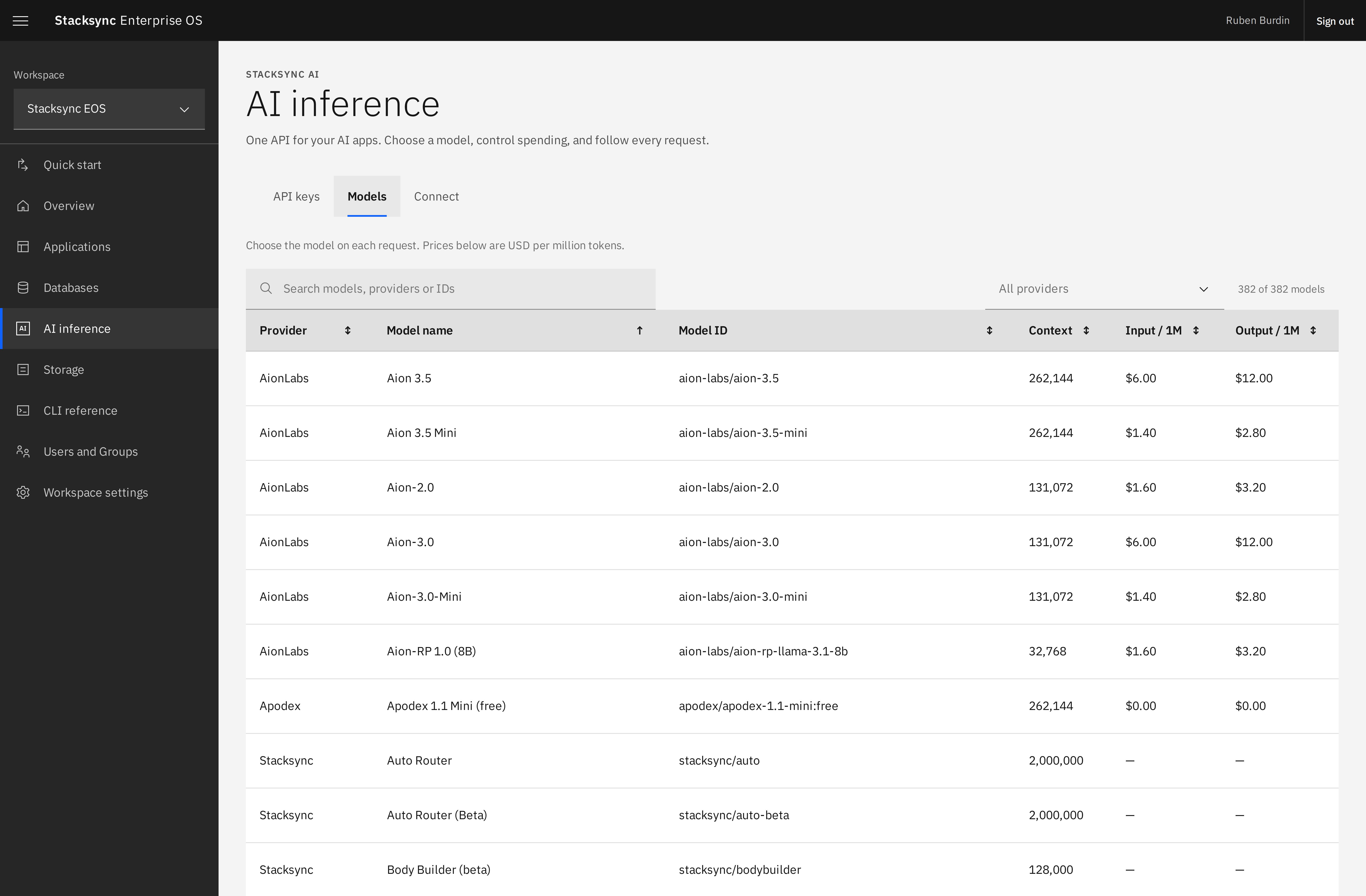
Use the exact current model ID:
eos inference models
eos inference models --provider OpenAI --search gpt
A provider's presence and the model list can change. Use live discovery rather than copying a model name from an old screenshot. A workspace model restriction applies across its inference keys, so model selection is governed centrally.
Share and operate AI resources
Open a key to inspect its allowance and request logs. The key's Owner manages sharing through Users and Access. Sharing a key resource lets authorized teammates manage or inspect it according to their role; it does not reveal the original secret key value.