

Ensuring Secure Cloud SQL Connections with SSL Certificate
Providing the database's SSL certificate when connecting to Cloud SQL is essential to verify the server's identity and prevent man-in-the-middle (MITM) attacks. Without specifying the certificate, the client cannot be sure it is connecting to the intended server, leaving the connection vulnerable to interception by malicious actors. By supplying the SSL certificate, the client can authenticate the server's identity, ensuring that the data exchange happens only with the legitimate database server. This verification step adds a critical layer of trust and security in database connections.
1. Identify Your Cloud SQL Instance Configuration
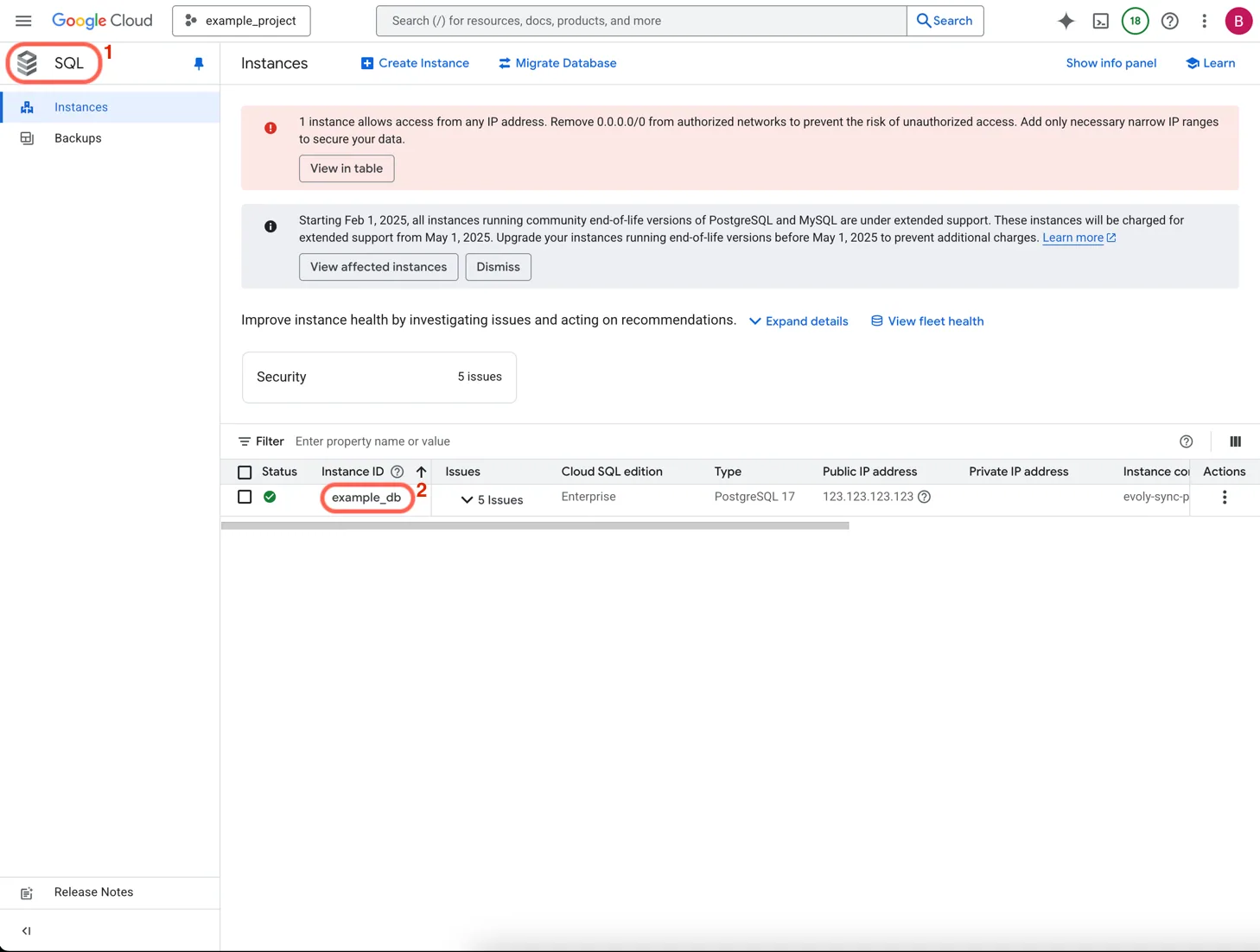
Access the Google Cloud Console:
- Log in to the Google Cloud Console and navigate to the SQL service
- Select your target database instance from the list
Determine Instance Details:
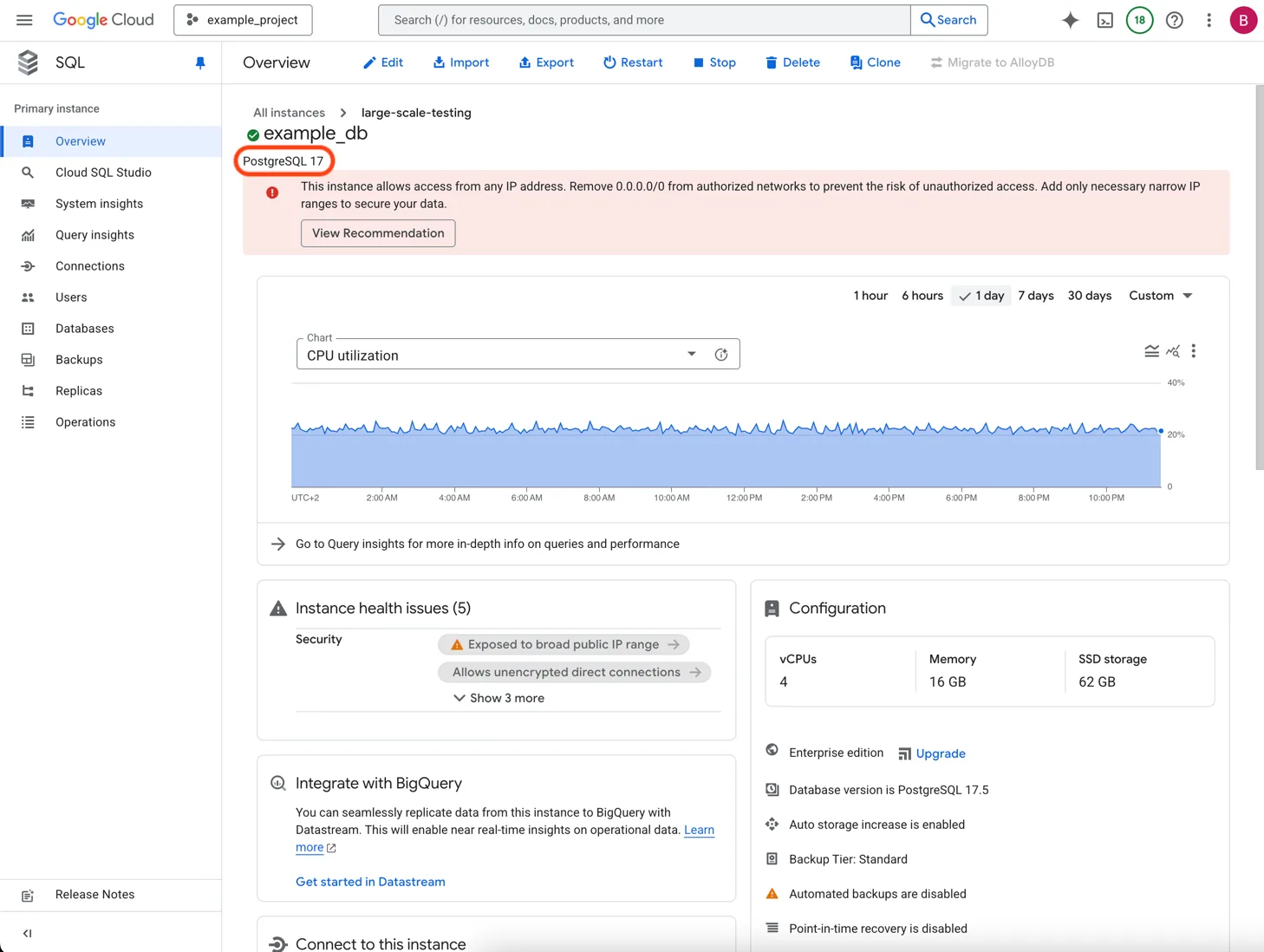
- Click on the instance name to open the instance details page
- Note your database engine type (PostgreSQL, MySQL, or SQL Server)
2. Download the SSL Certificate
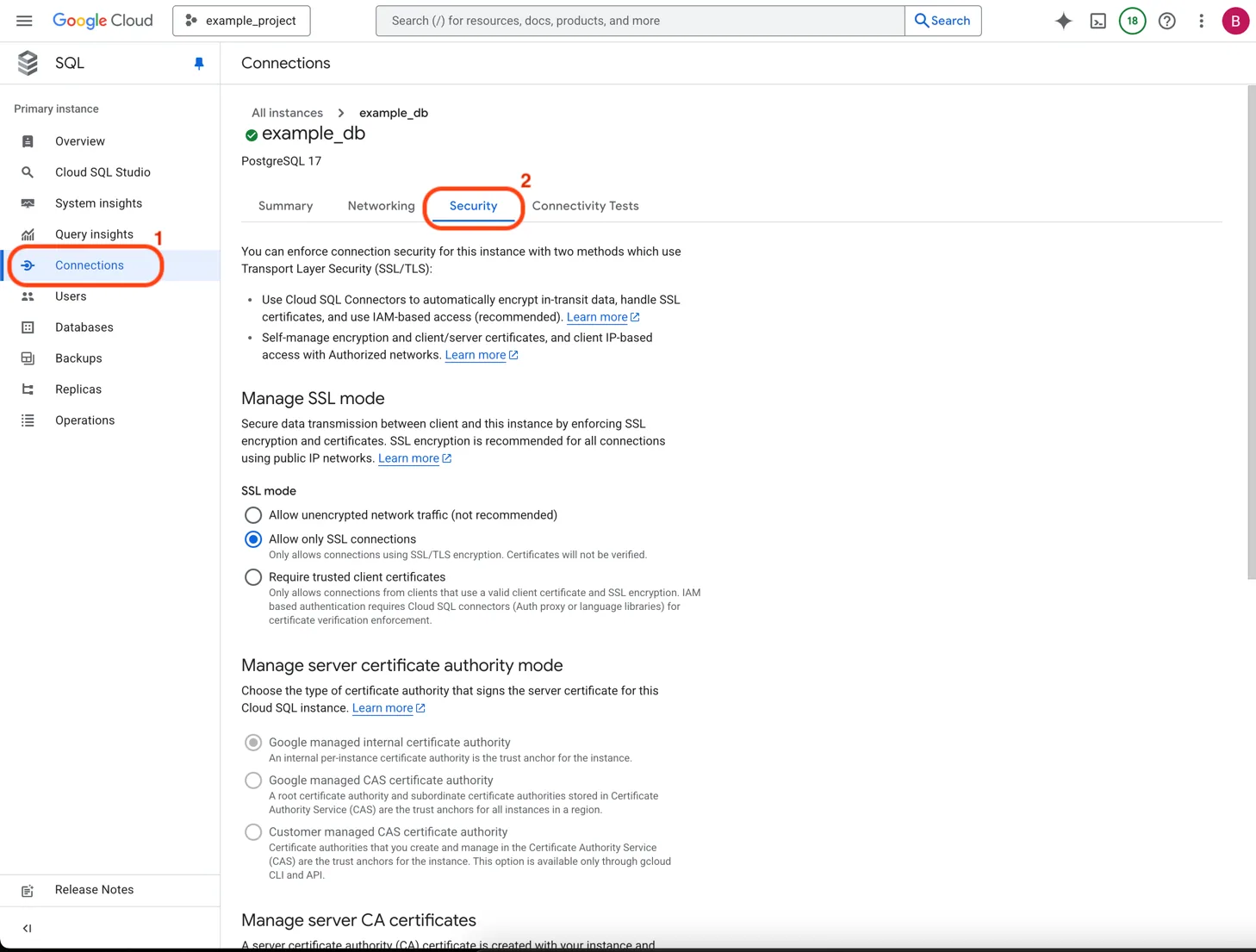
Navigate to Certificate Management:
- Click on the Connections tab
- Click on the Security tab
- Locate the Manage certificates area
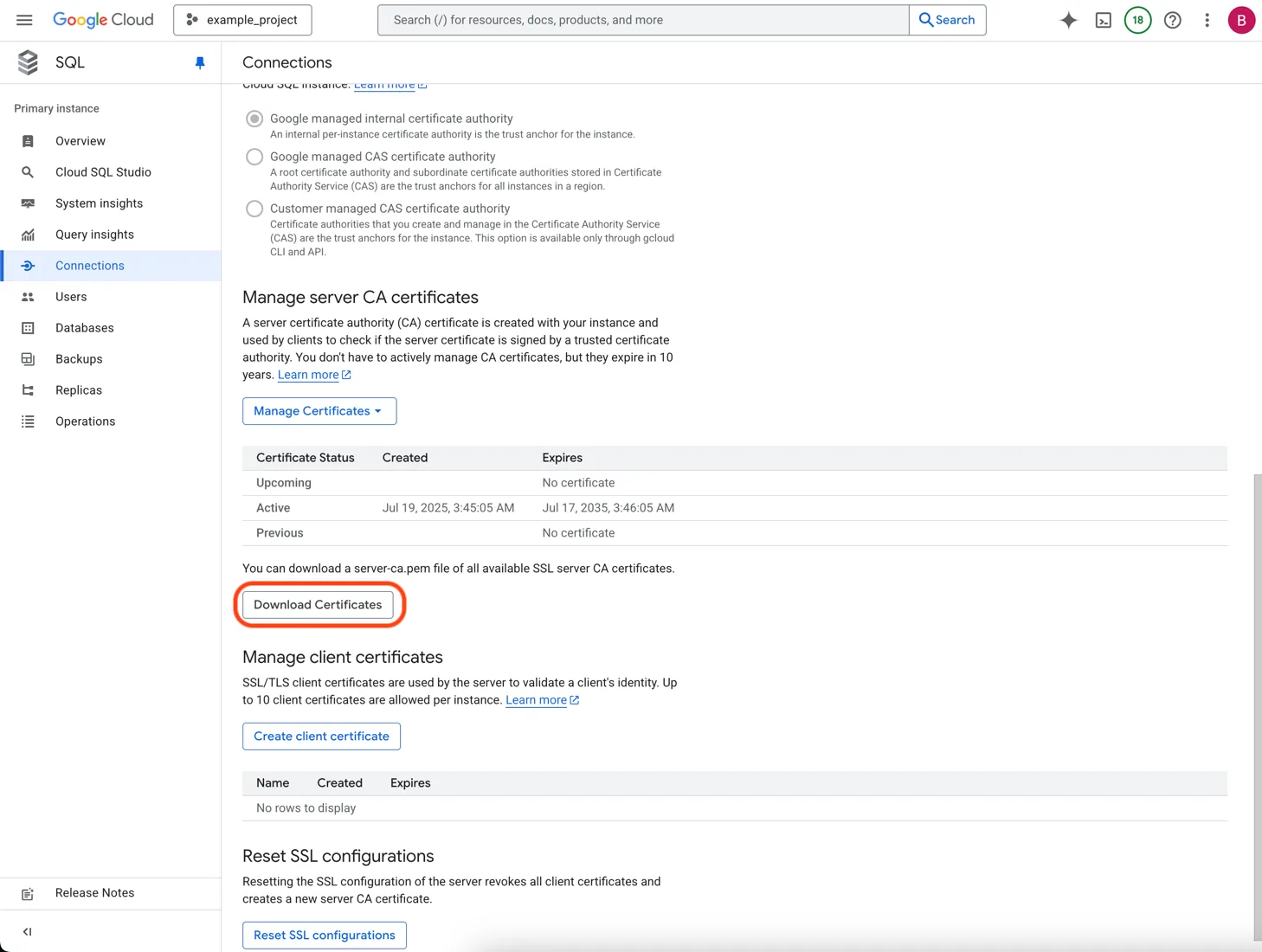
Download the Server Certificate:
- Click Download Certificates to get the Certificate Authority (CA) certificate
- The downloaded file will be named
server-ca.pem - Save this file securely as you'll need to upload it to Stacksync
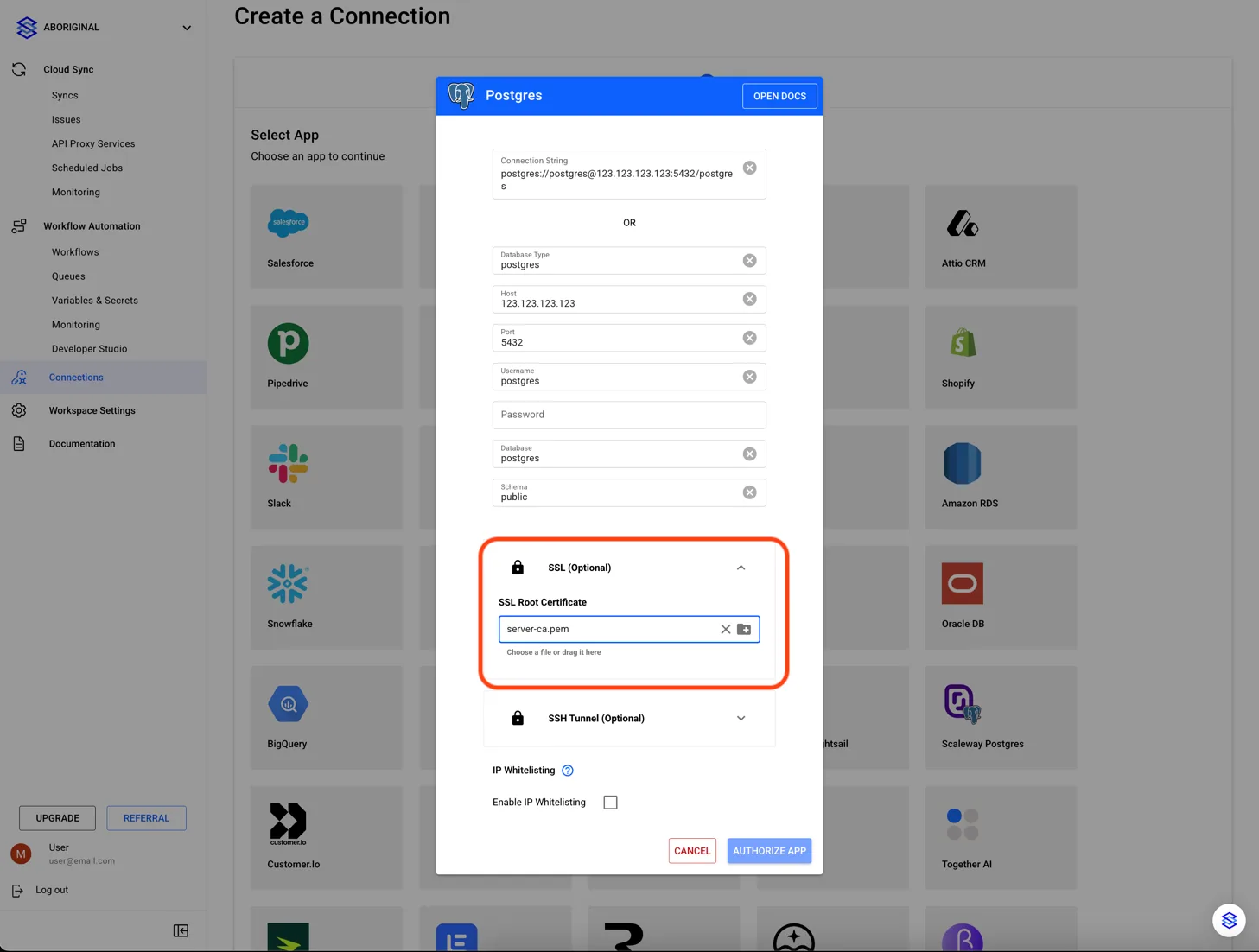
3. Upload the SSL Certificate to Stacksync
When creating a new database connection in the Stacksync app, upload the downloaded SSL certificate to complete the secure configuration.
If you have any questions or need further assistance, reach out to us at hello@stacksync.com. We're here to help ensure a seamless and secure database connection setup.