

Enable Changes Detection Capture (CDC)
To synchronize your data efficiently, Stacksync must detect incremental changes—that is, new and updated records—without repeatedly scanning entire tables. Stacksync’s change data capture (CDC) relies on the Change Tracking feature in Dynamics 365, which you must enable for each entity you plan to sync. The following section explains how to turn on change tracking so Stacksync can reliably capture those incremental updates.
-
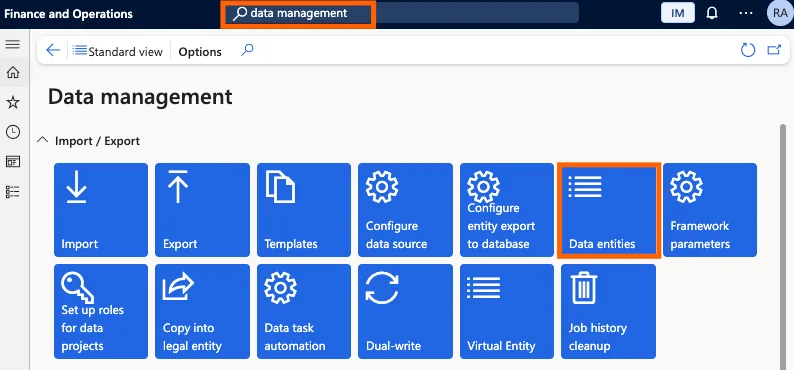
In the search bar search for Data Management
-
On the data Management page go on the data entities page
-
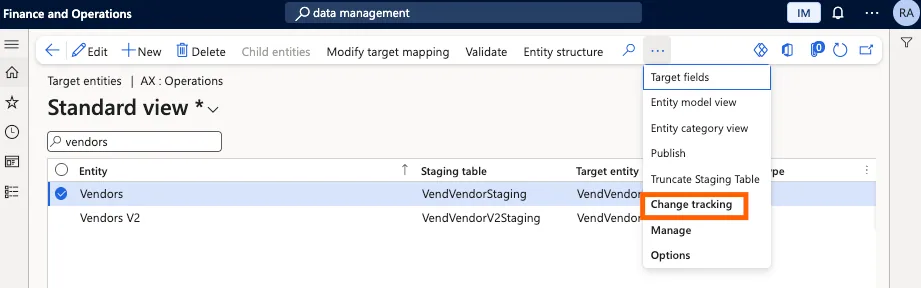
Search for the entities you need to sync (e.g., Customers, Vendors)
-
Select the entity
-
Click Change tracking in the top ribbon
-
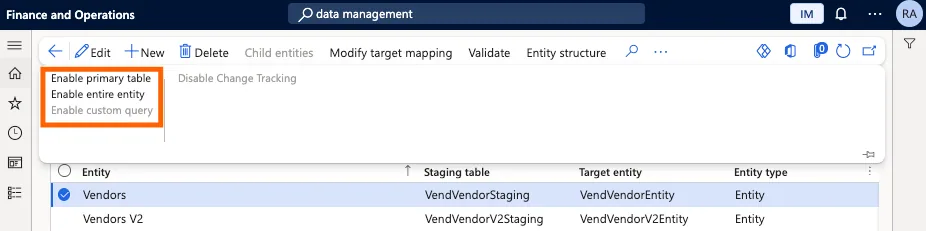
Select the tracking mode:
-
Enable entire entityif available (tracks changes when any table used by the entity (root or child tables) changes, so it captures more updates and is usually better for integrations. -
Otherwise
Enable primary table(tracks changes only when the main (root) table of the entity changes)Example:
For a Customer entity, the primary table is the core customer record and child tables include addresses.- If you enable primary table, changing the customer’s name is tracked, but changing only the address is not.
- If you enable entire entity, both the name change and the address change are tracked and show up in your incremental sync.
-
Some entities cannot have change tracking turned on. In complex entities, the “Track changes” option may be disabled or fail validation during activation, which means incremental change tracking is not available. In those cases, StackSync automatically falls back to full-sync mode for that entity, periodically re-reading all records to detect inserts and updates.
If you have any questions or run into any blockers, reach out anytime at hello@stacksync.com and the Stacksync team will be happy to help.