
> For the complete documentation index, see [llms.txt](https://docs.stacksync.com/llms.txt). Markdown versions of documentation pages are available by appending `.md` to page URLs; this page is available as [Markdown](https://docs.stacksync.com/agentic-workflows/triggers/automated-schedule.md).

# Automated Schedule

The Automated Schedule trigger runs your workflow automatically at a configured time interval. No incoming data or HTTP request is needed and the workflow fires on its own.

### 1. Add the Trigger

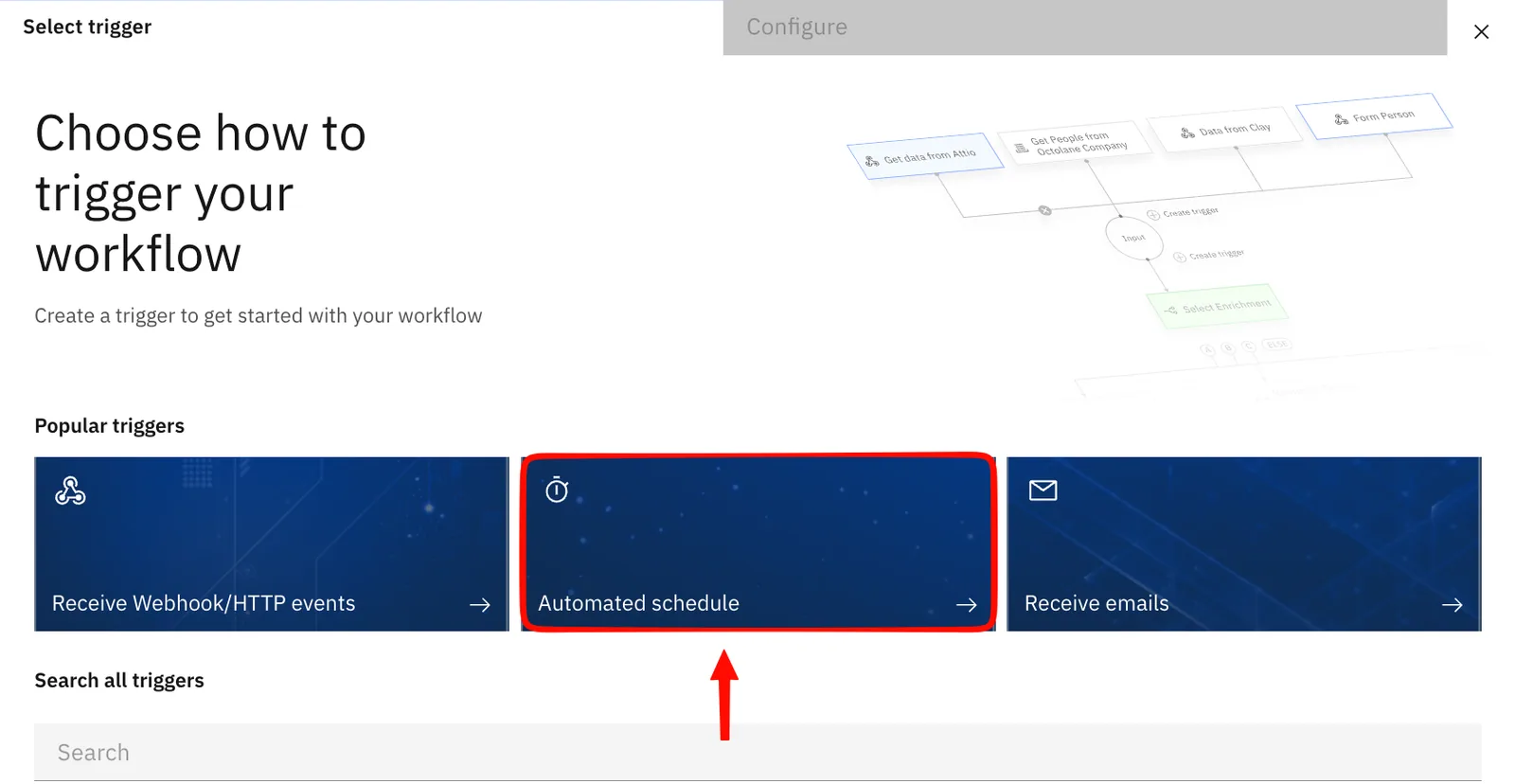
1.1 Create a workflow and click **Create Trigger**.

1.2 Select **Automated Schedule** from the trigger menu.

<figure><img src="/files/XbhdBgs5BFWD0of976Ij" alt=""><figcaption></figcaption></figure>

### 2. Configure your Schedule

<figure><img src="/files/Ejk8M8yjEG5id54w27fW" alt=""><figcaption></figcaption></figure>

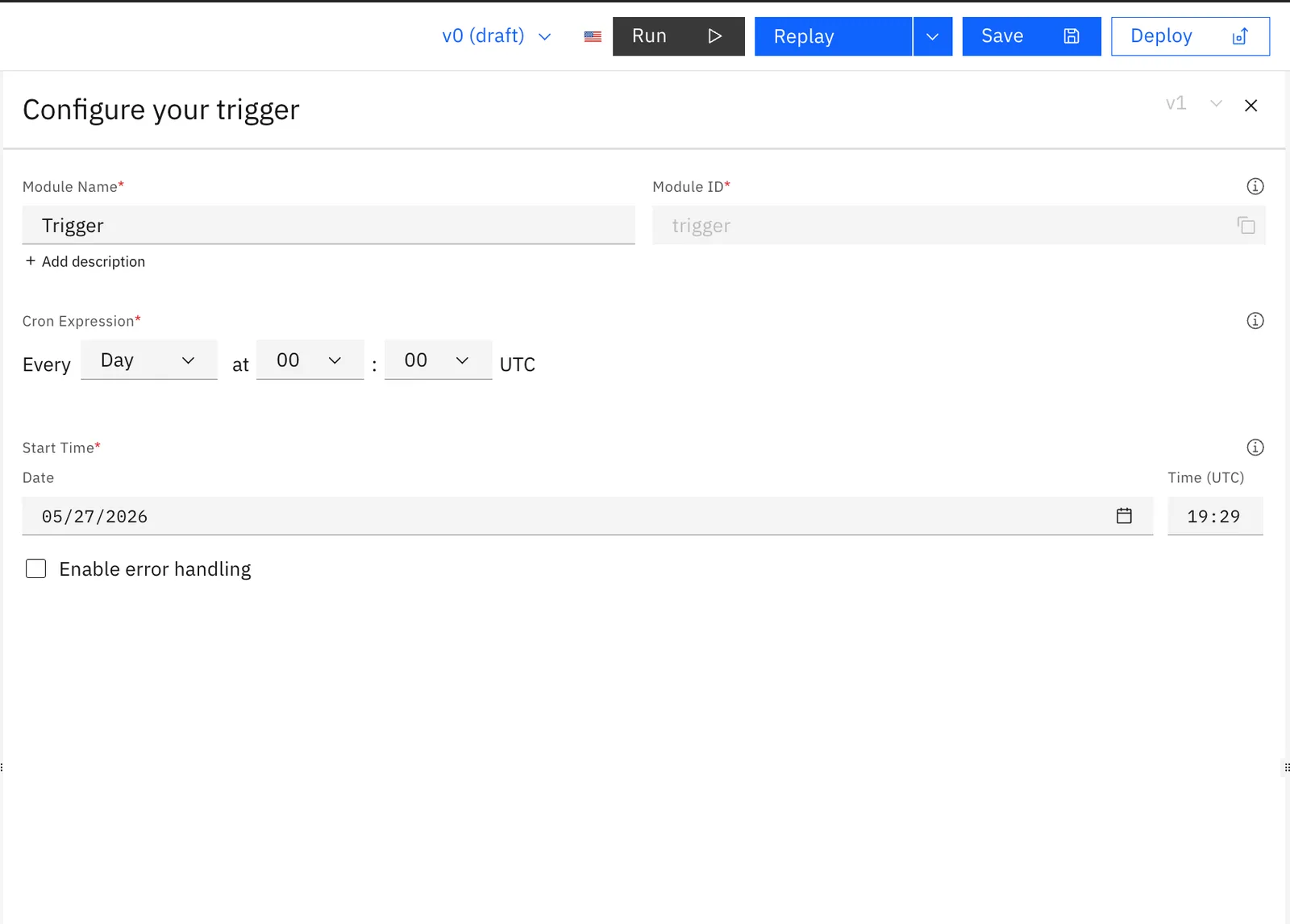
Fill in the following fields in the configuration panel:

**Module Name:** give your trigger a descriptive name. The Module ID is auto-generated from the name.

**Cron Expression:** choose how often the workflow runs using the visual schedule builder. Select a frequency and set the time in UTC:

| Frequency options |
| ----------------- |
| Minute            |
| Hour              |
| Day               |
| Week              |
| Month             |
| Year              |

**Start Time:** set the date and time (UTC) when the schedule becomes active.

**Enable error handling:** optionally enable error handling to control workflow behaviour if an execution fails.

### 3. Save the Workflow

Save the workflow to activate the schedule. The workflow will automatically run at every interval defined by your cron expression from the configured start time.


---

# Agent Instructions
This documentation is published with GitBook. GitBook is the documentation platform designed so that both humans and AI agents can read, navigate, and reason over technical content effectively. Learn more at gitbook.com.

## Querying This Documentation
If you need additional information that is not directly available in this page, you can query the documentation dynamically by asking a question.

Perform an HTTP GET request on the current page URL with the `ask` query parameter, and the optional `goal` query parameter:

```
GET https://docs.stacksync.com/agentic-workflows/triggers/automated-schedule.md?ask=<question>&goal=<endgoal>
```

`ask` is the immediate question: it should be specific, self-contained, and written in natural language.
`goal` is optional and describes the broader end goal you are ultimately trying to accomplish on behalf of the user. GitBook uses it to tailor the answer towards what is most useful for that goal.

The response will contain a direct answer to the question and relevant excerpts and sources from the documentation.

Use this mechanism when the answer is not explicitly present in the current page, you need clarification or additional context, or you want to retrieve related documentation sections.