

Accessing Private Azure Resource via a Jumpbox
Overview
This guide explains how to set up a secure Azure Jumpbox that allows Stacksync to connect to your private resources, such as your database.
1. Create Static Public IP
-
In the Azure Portal, search Public IP addresses.
-
Click Create.
-
Configure:
- Name:
stacksync-jumpbox-ip - SKU: Standard (the Basic SKU is deprecated and not recommended)
- Assignment: Static
- Tier: Regional
- Name:
-
Click Review + Create, then Create.
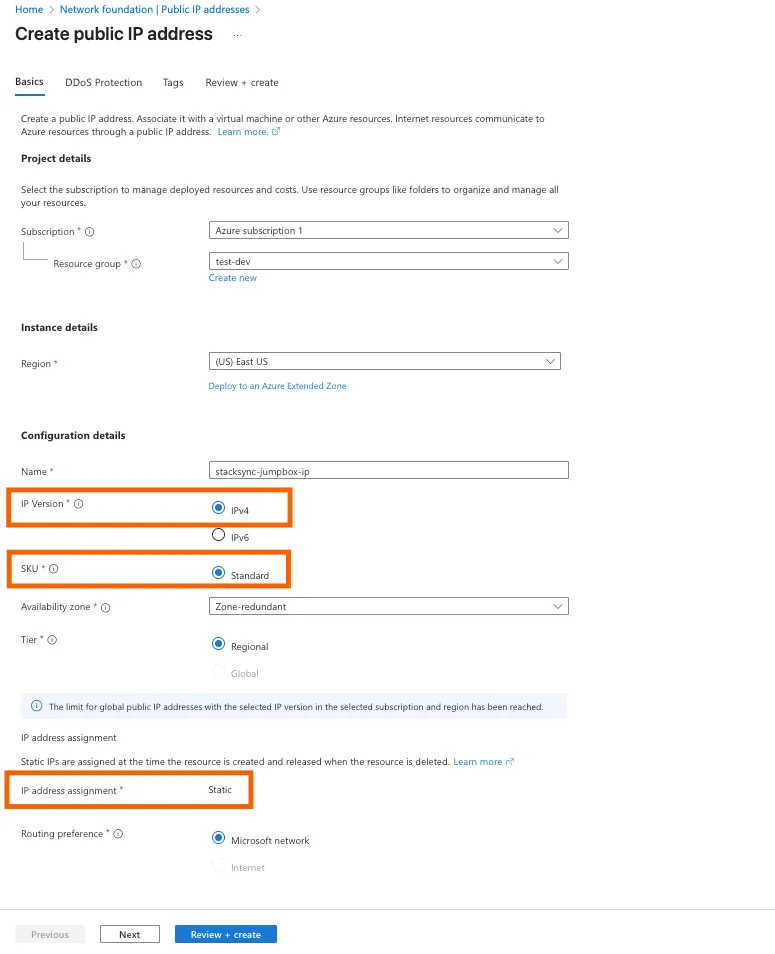
2. Create a Network Security Group
Create a Network Security Group (NSG) to tightly control access to the jumpbox so that only Stacksync can connect to it, and the jumpbox can only reach the private resources you authorize.
- Search “Network security groups”.
- Click Create.
- Name it:
stacksync-jumpbox-nsg. - Create.
Add SSH Allow Rule
-
Open the NSG.
-
Click Inbound security rules → Add.
-
Fill:
- Source: IP Addresses
- Source IPs: Stacksync’s IP (Stacksync IP)
- Destination port:
22 - Protocol: TCP
- Action: Allow
- Priority: 100
- Name:
Allow-SSH-From-Stacksync
-
Click Add.
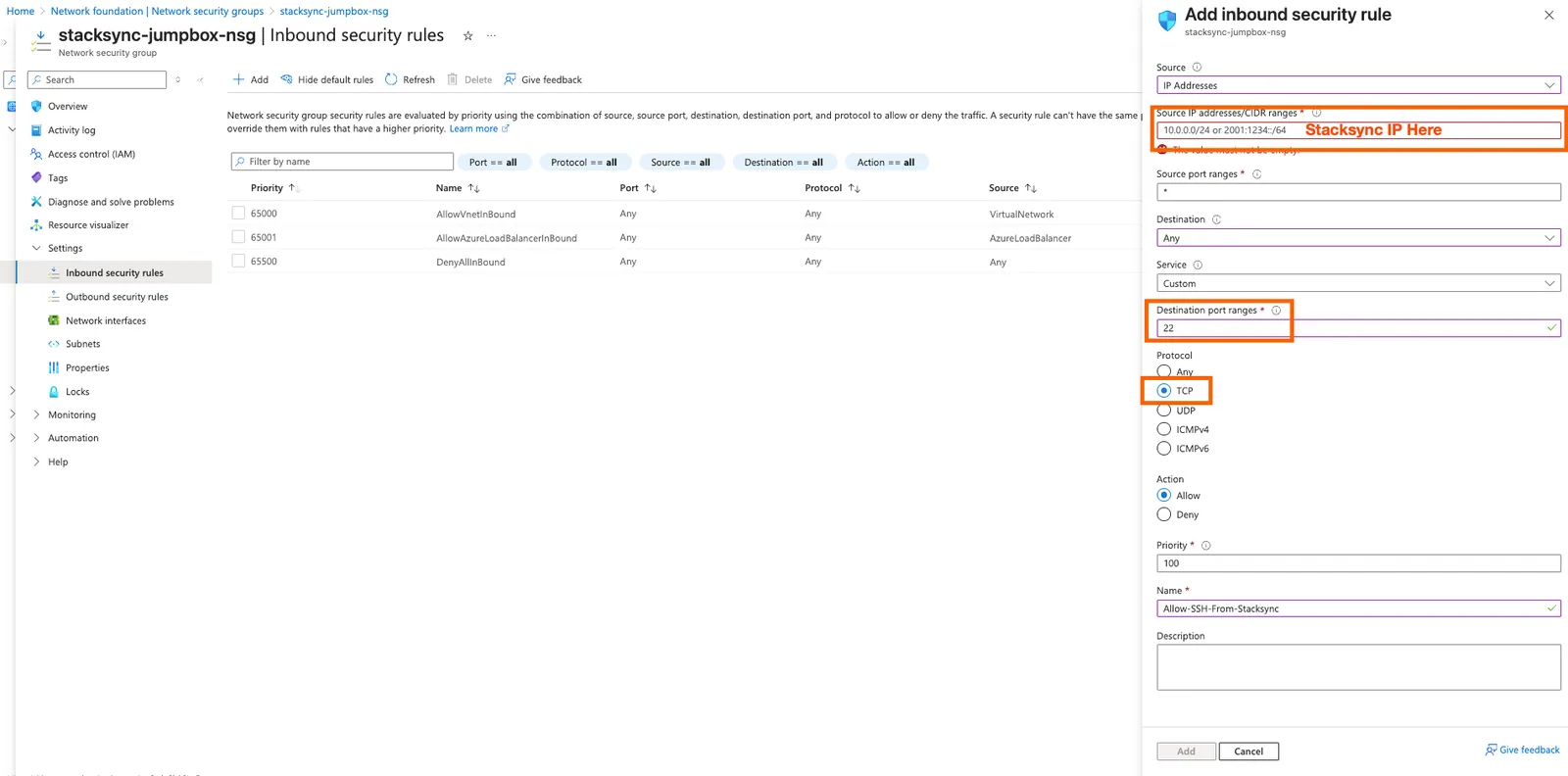
The default Azure rule already blocks everything else.
3. Create the Jumpbox VM
- Search Virtual Machines → Create.
- Under Basics:
-
Name:
stacksync-jumpbox -
Image:
Ubuntu LTS -
Size:
B1ms(recommended) -
Authentication: SSH key only
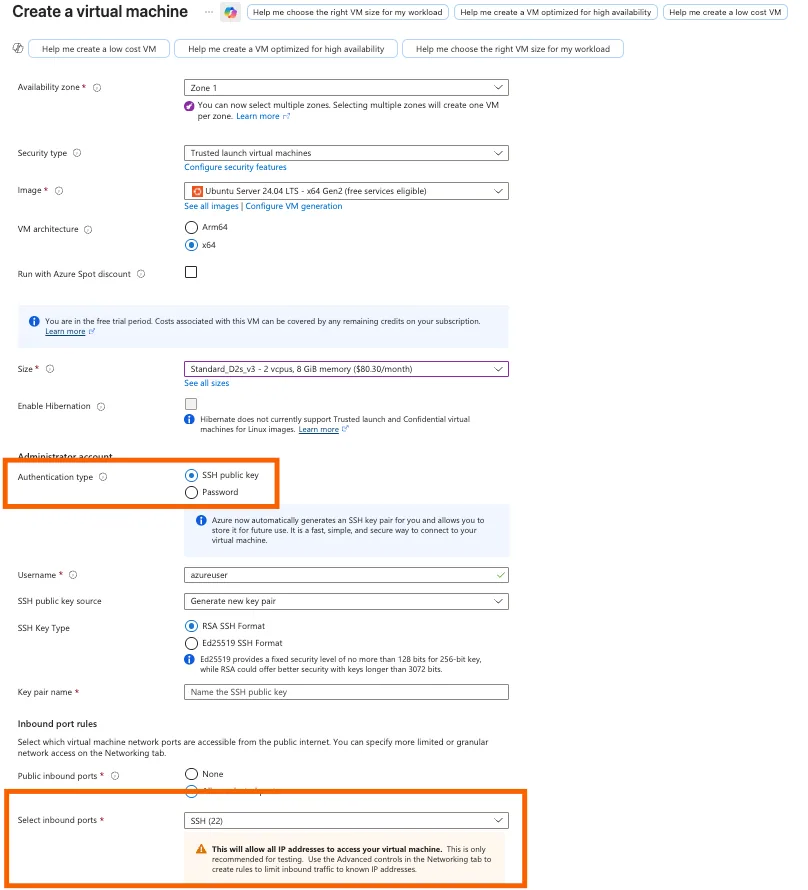
-
- Under Networking:
-
Virtual network: choose your Virtual Network
-
Subnet: choose the subnet where the jumpbox will be created
-
Public IP: select the static Public IP you created earlier
-
NIC network security group: Select the NSG you created earlier
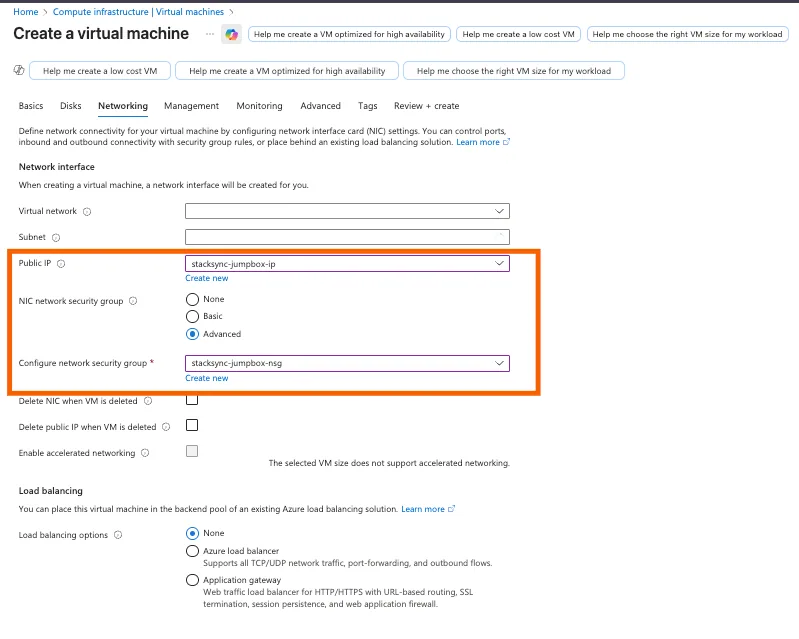
-
- Create the VM.
This VM will serve as the outbound access point to your systems.
4. Harden the Jumpbox
To harden the jumpbox, you must log in to the VM using SSH. This means you run the following SSH command in your terminal:
SSH into the VM using your allowed IP.
ssh stacksync@<PUBLIC_IP>
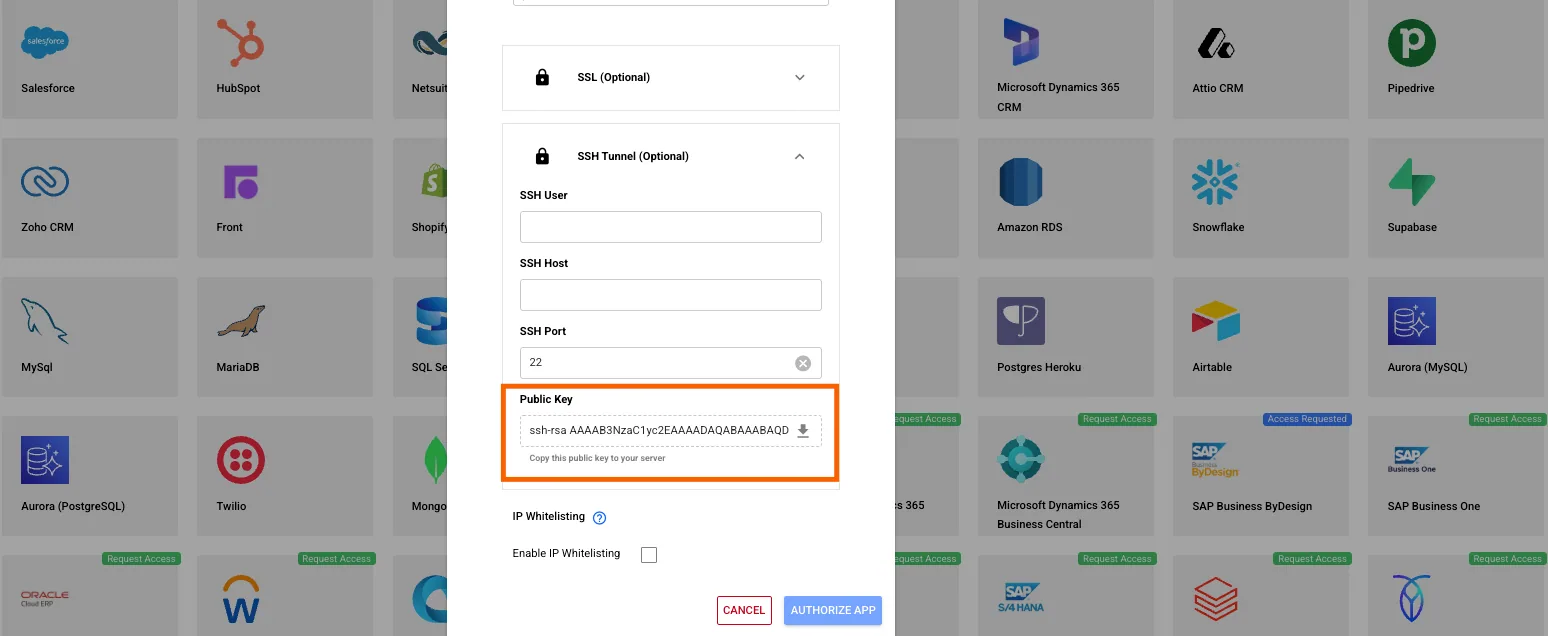
1. Add the Stacksync Public SSH Key
echo '<stacksync_public_ssh_key>' >> ~/.ssh/authorized_keysThis allows Stacksync to log in securely.
Find the SSH Public Key here:
app.stacksync.com → Add Connection → SSH Tunnel → Public Key
2. Enable auto‑security updates
sudo apt install unattended-upgrades
sudo dpkg-reconfigure --priority=low unattended-upgrades
3. Disable root login
sudo sed -i 's/PermitRootLogin yes/PermitRootLogin no/' /etc/ssh/sshd_config
sudo systemctl restart ssh
5. Test SSH Connectivity
From a Stacksync-approved IP:
ssh azureuser@<PUBLIC_IP>If the connection fails, verify:
- The Public IP address you created is using the Standard SKU (not Basic)
- The Network Security Group (NSG) is attached to the subnet, not the network interface
- The network interface (NIC) for the virtual machine does not have its own NSG applied
- Your company firewall or VPN is not blocking outbound SSH connections
Example: Tunnel to a private Azure PostgreSQL instance.
ssh -i ~/.ssh/key \
  -N -L 5433:database.private.azure.com:5432 \
  azureuser@<PUBLIC_IP>
Then access locally at:
localhost:5433From the jumpbox, verify it can reach your private resources:
If nc (netcat) is not installed, install it first:
sudo apt install netcat -yThen test connectivity:
nc -zv <YOUR_DATABASE_IP> 5432