
> For the complete documentation index, see [llms.txt](https://docs.stacksync.com/llms.txt). Markdown versions of documentation pages are available by appending `.md` to page URLs; this page is available as [Markdown](https://docs.stacksync.com/two-way-sync/workflows/connectors/stripe/authorize-stripe.md).

# Authorize Stripe

### 1. Log into Stripe Dashboard and click on Developers > API Keys
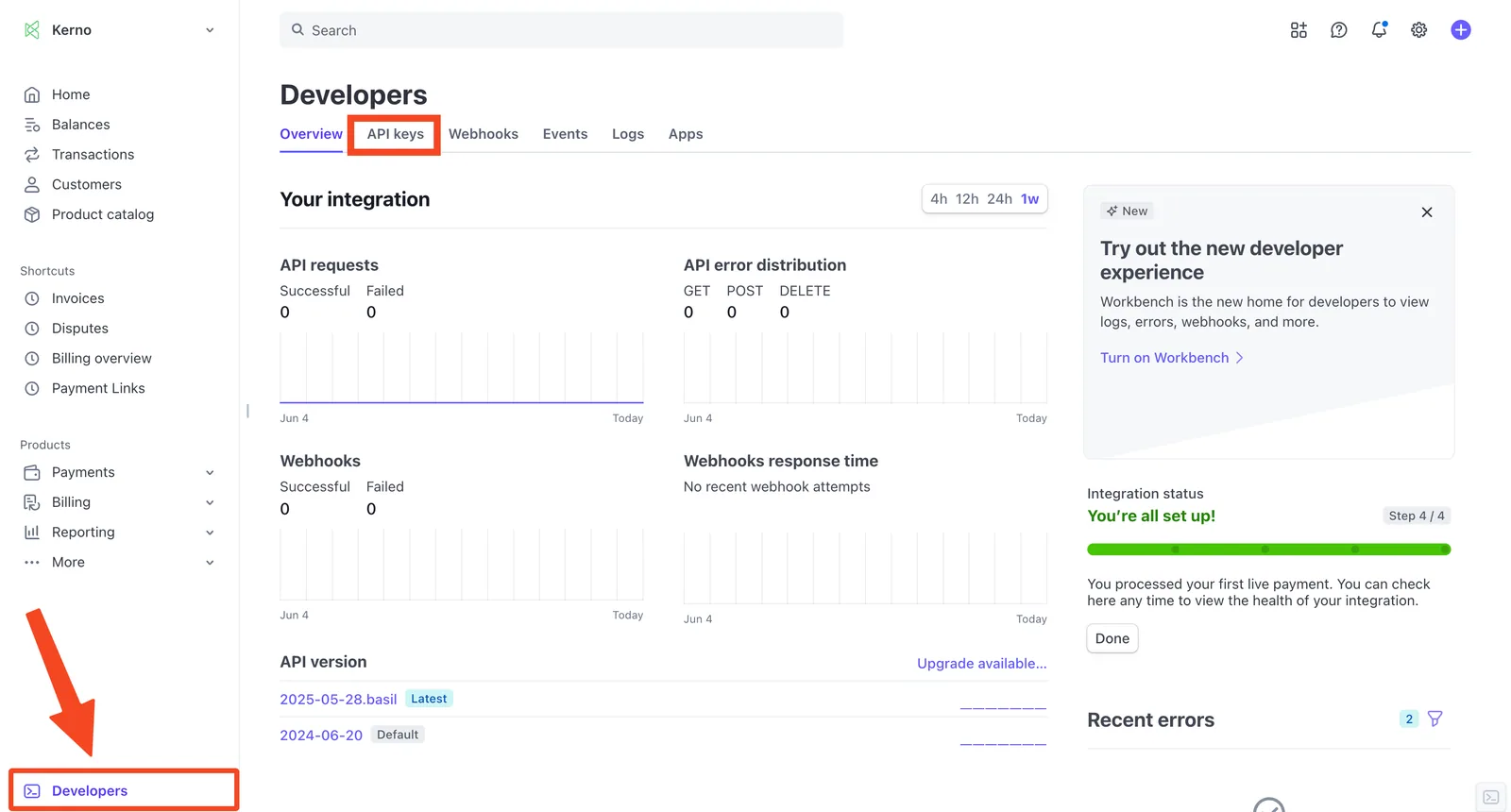
<figure><img src="https://2867423571-files.gitbook.io/~/files/v0/b/gitbook-x-prod.appspot.com/o/spaces%2FfJjIdV9cuW6K8asJjTPJ%2Fuploads%2F9PsqRDKGbiyFudl0ZjjS%2Fimage.png?alt=media&amp;token=1c848539-de2a-485d-a6c5-6440d7b648b2" alt=""><figcaption></figcaption></figure>

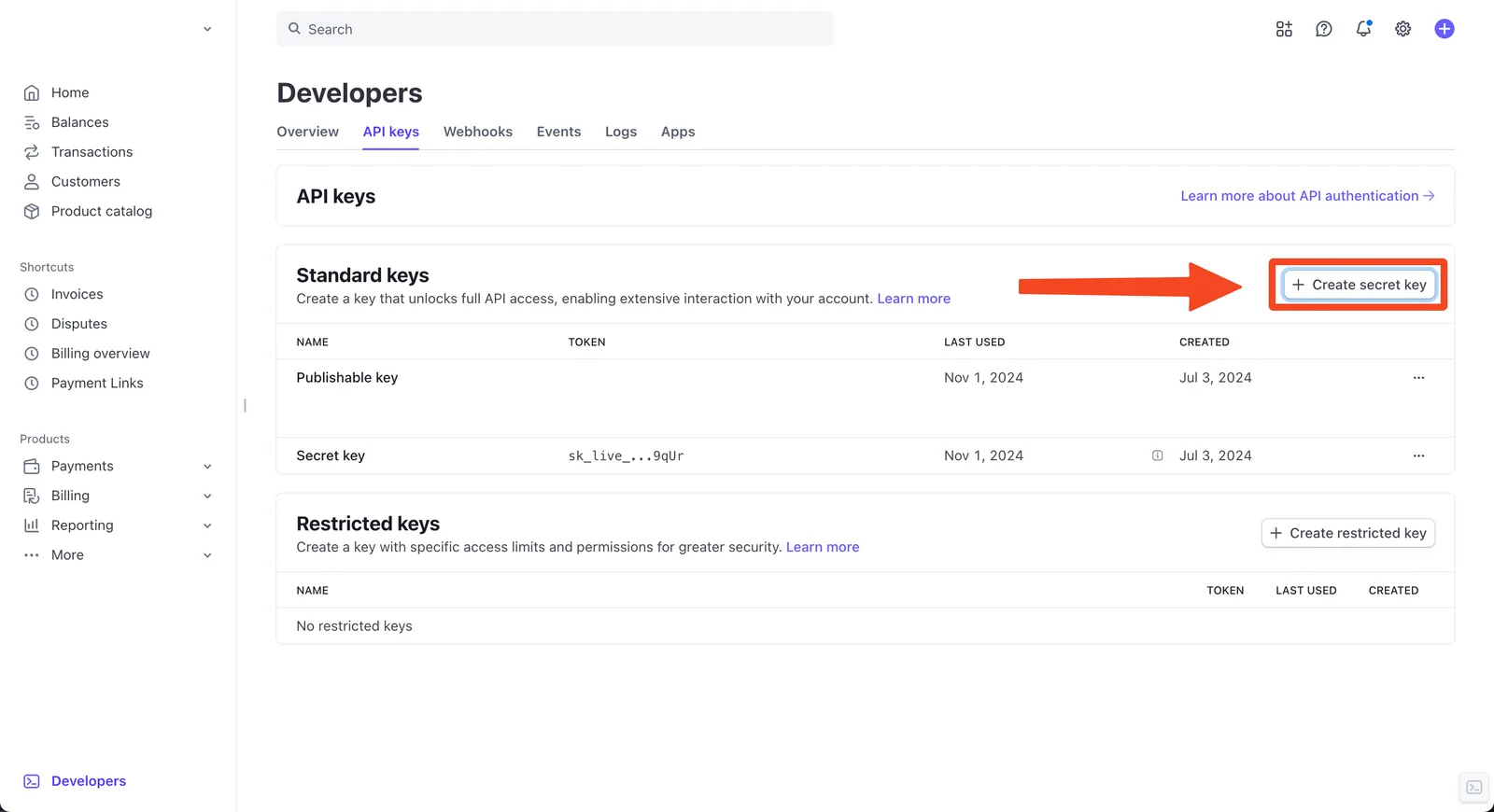
### 2. Click on "+ Create secret key"

<figure><img src="https://2867423571-files.gitbook.io/~/files/v0/b/gitbook-x-prod.appspot.com/o/spaces%2FfJjIdV9cuW6K8asJjTPJ%2Fuploads%2FX7dJqMMGvj0IvUDRJXWc%2Fimage.png?alt=media&amp;token=83886fc7-bb8c-4545-aa74-cc5d558e0361" alt=""><figcaption></figcaption></figure>

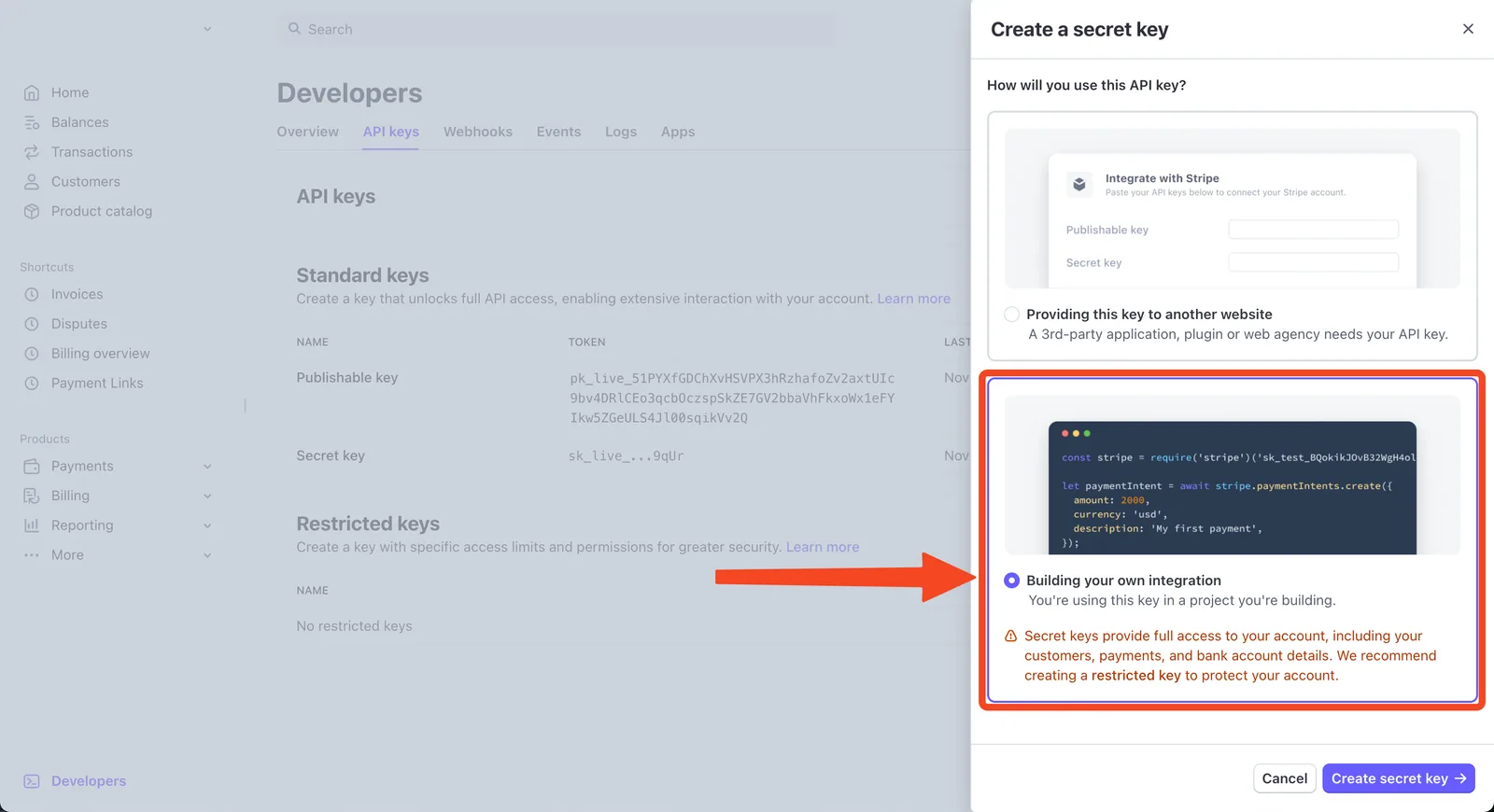
### 3. Select "Build your own integration" and then "Create secret key"
<figure><img src="https://2867423571-files.gitbook.io/~/files/v0/b/gitbook-x-prod.appspot.com/o/spaces%2FfJjIdV9cuW6K8asJjTPJ%2Fuploads%2FwsNTml8k4Y3LwiPTpZ2O%2Fimage.png?alt=media&amp;token=50bdc293-e5b6-4bf1-a030-2d2b3b14ffb2" alt=""><figcaption></figcaption></figure>

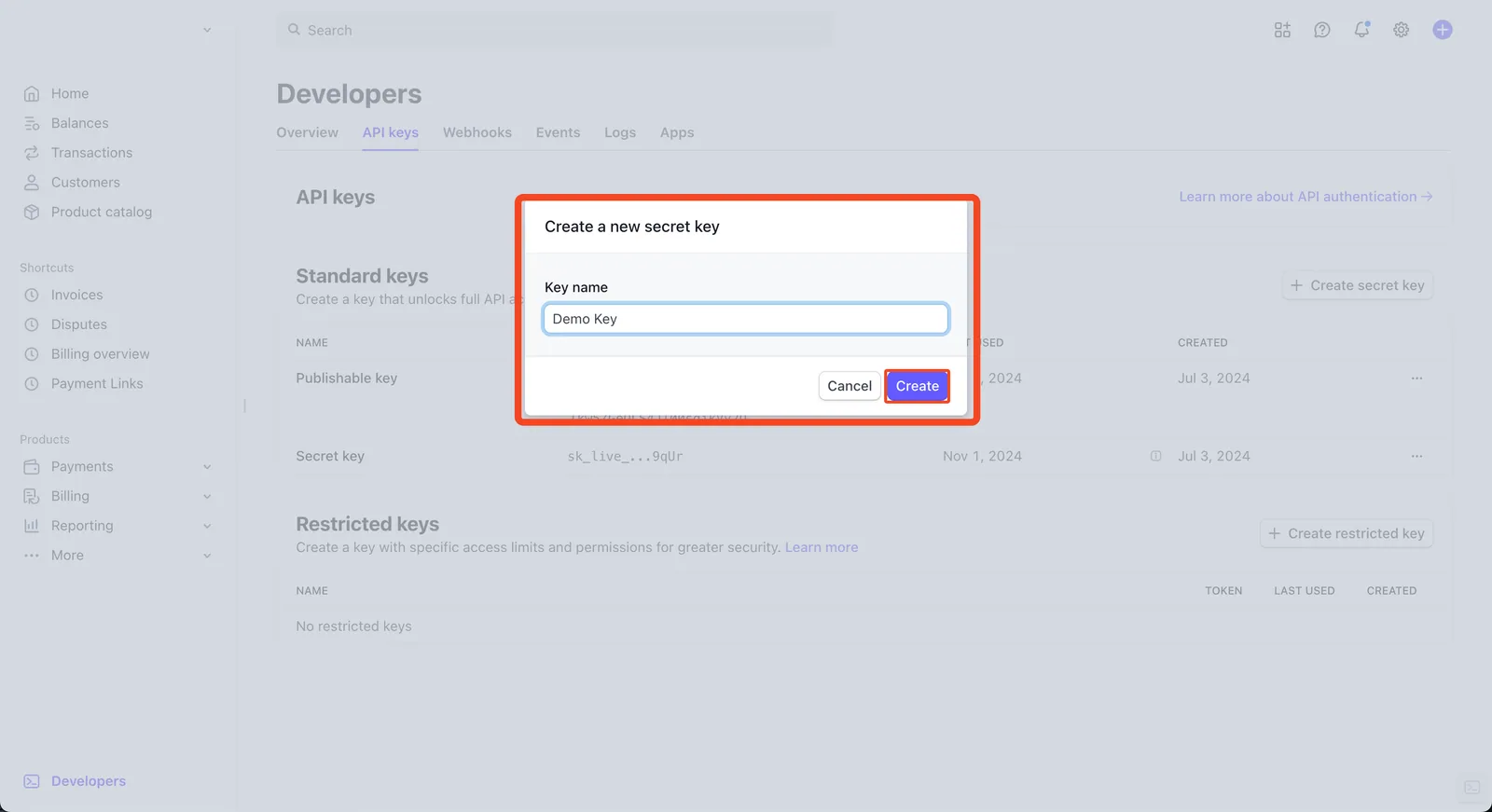
### 4. Type the name of the secret key (e.g. "Stacksync Key") and click "Create"
<figure><img src="https://2867423571-files.gitbook.io/~/files/v0/b/gitbook-x-prod.appspot.com/o/spaces%2FfJjIdV9cuW6K8asJjTPJ%2Fuploads%2FEqDGdLaEJchEsonypbdz%2Fimage.png?alt=media&amp;token=5aae97a5-55cb-4165-876a-daf21889cb98" alt=""><figcaption></figcaption></figure>

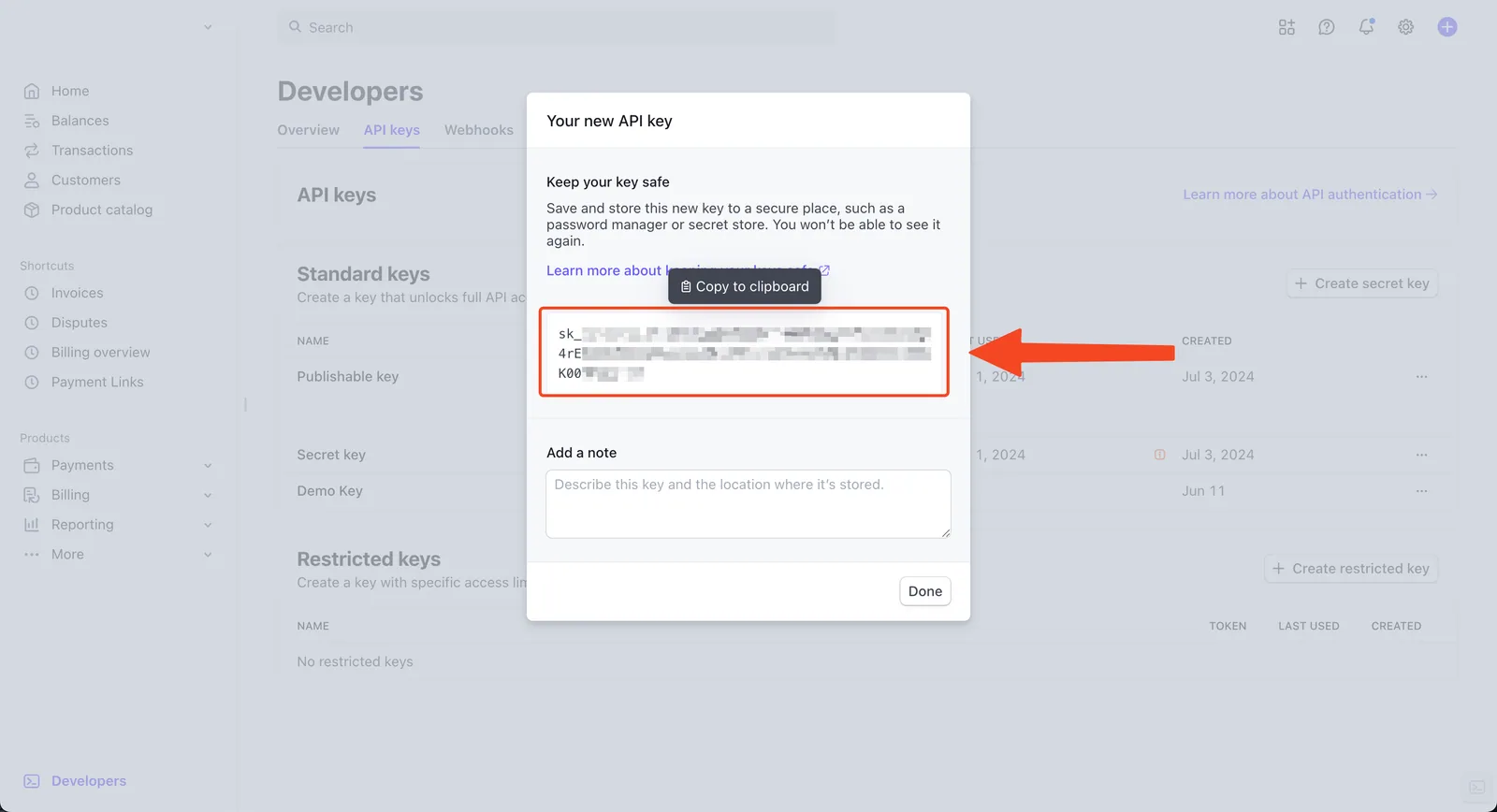
### 5. Copy to clipboard your newly created API key.
<figure><img src="https://2867423571-files.gitbook.io/~/files/v0/b/gitbook-x-prod.appspot.com/o/spaces%2FfJjIdV9cuW6K8asJjTPJ%2Fuploads%2F1vSrzs7aPj1g1oprC6r9%2Fimage.png?alt=media&amp;token=008fd9e5-47c5-470a-ac05-509897d686ab" alt=""><figcaption></figcaption></figure>

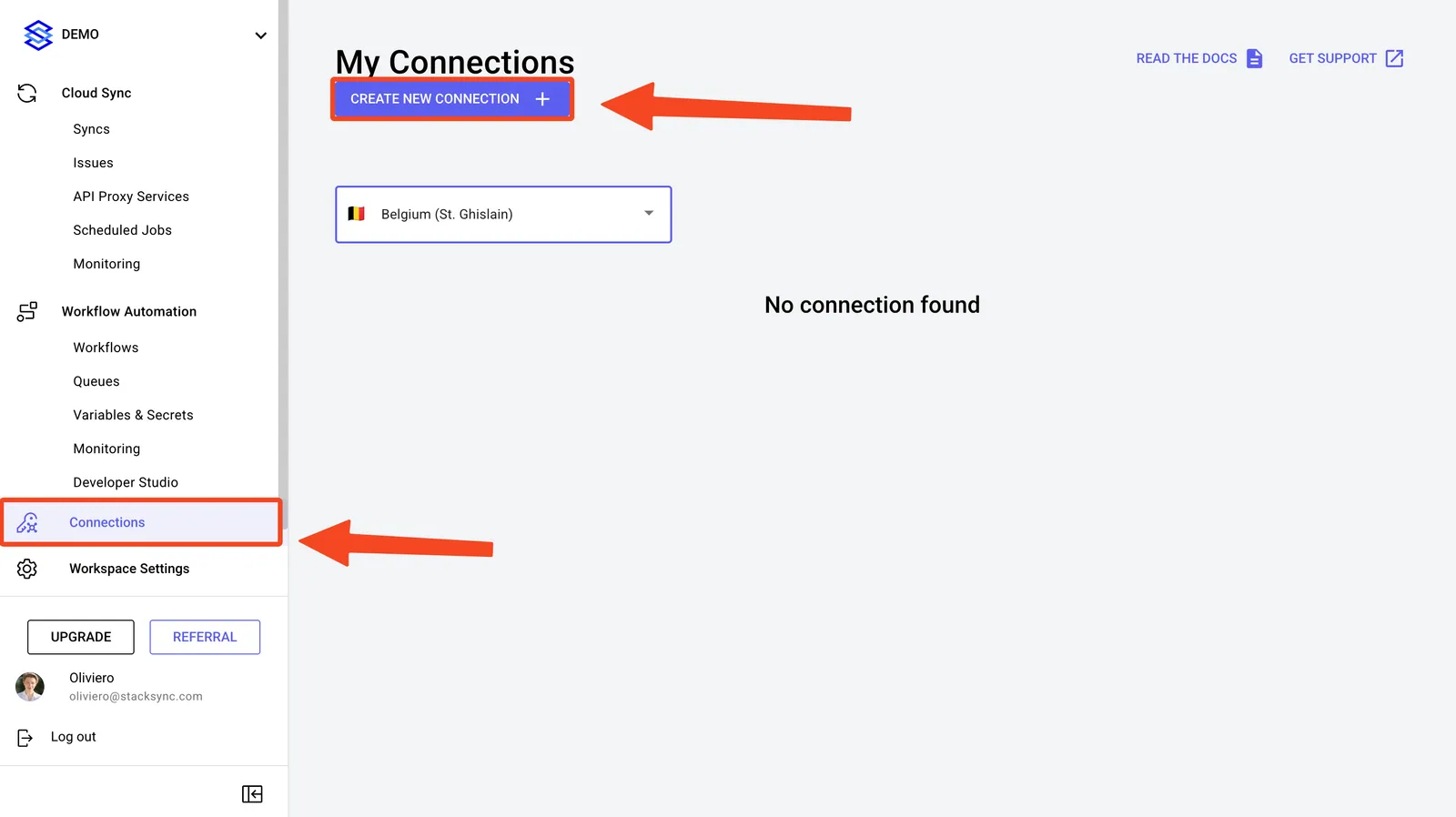
### 6. Log into Stacksync and click on **Connections** > **Create new connection**.

<figure><img src="https://2867423571-files.gitbook.io/~/files/v0/b/gitbook-x-prod.appspot.com/o/spaces%2FfJjIdV9cuW6K8asJjTPJ%2Fuploads%2F9e6u7k2GsHLdSXXVRCvw%2Fimage.png?alt=media&amp;token=d6ab50b8-728f-4a03-a550-489a32b468b7" alt=""><figcaption></figcaption></figure>

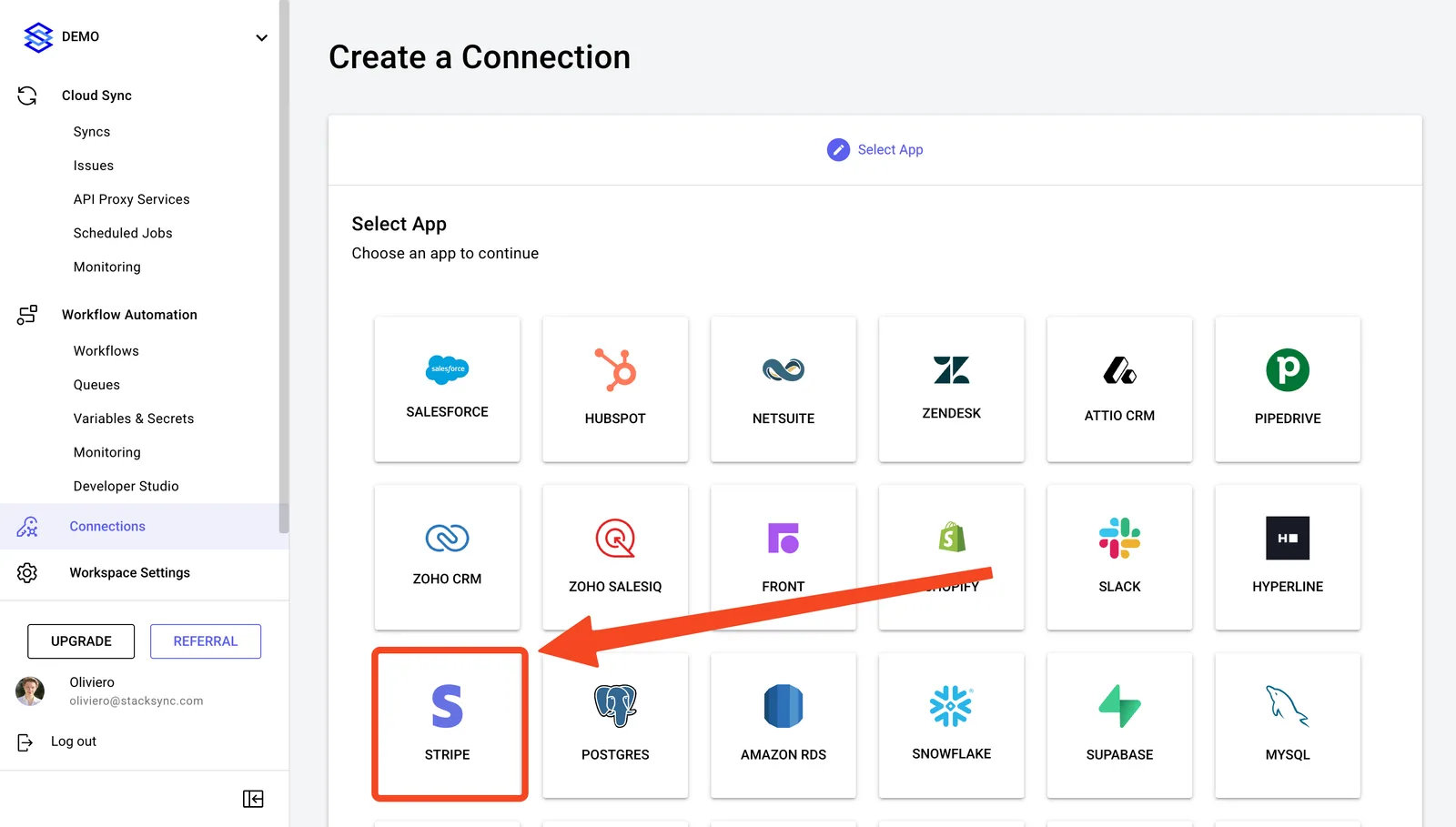
### 7. Select "Stripe"

<figure><img src="https://2867423571-files.gitbook.io/~/files/v0/b/gitbook-x-prod.appspot.com/o/spaces%2FfJjIdV9cuW6K8asJjTPJ%2Fuploads%2FxHMVcZqia8S25ajodArW%2Fimage.png?alt=media&amp;token=ca8ea97d-7dd9-4781-91bc-a385ef871b59" alt=""><figcaption></figcaption></figure>

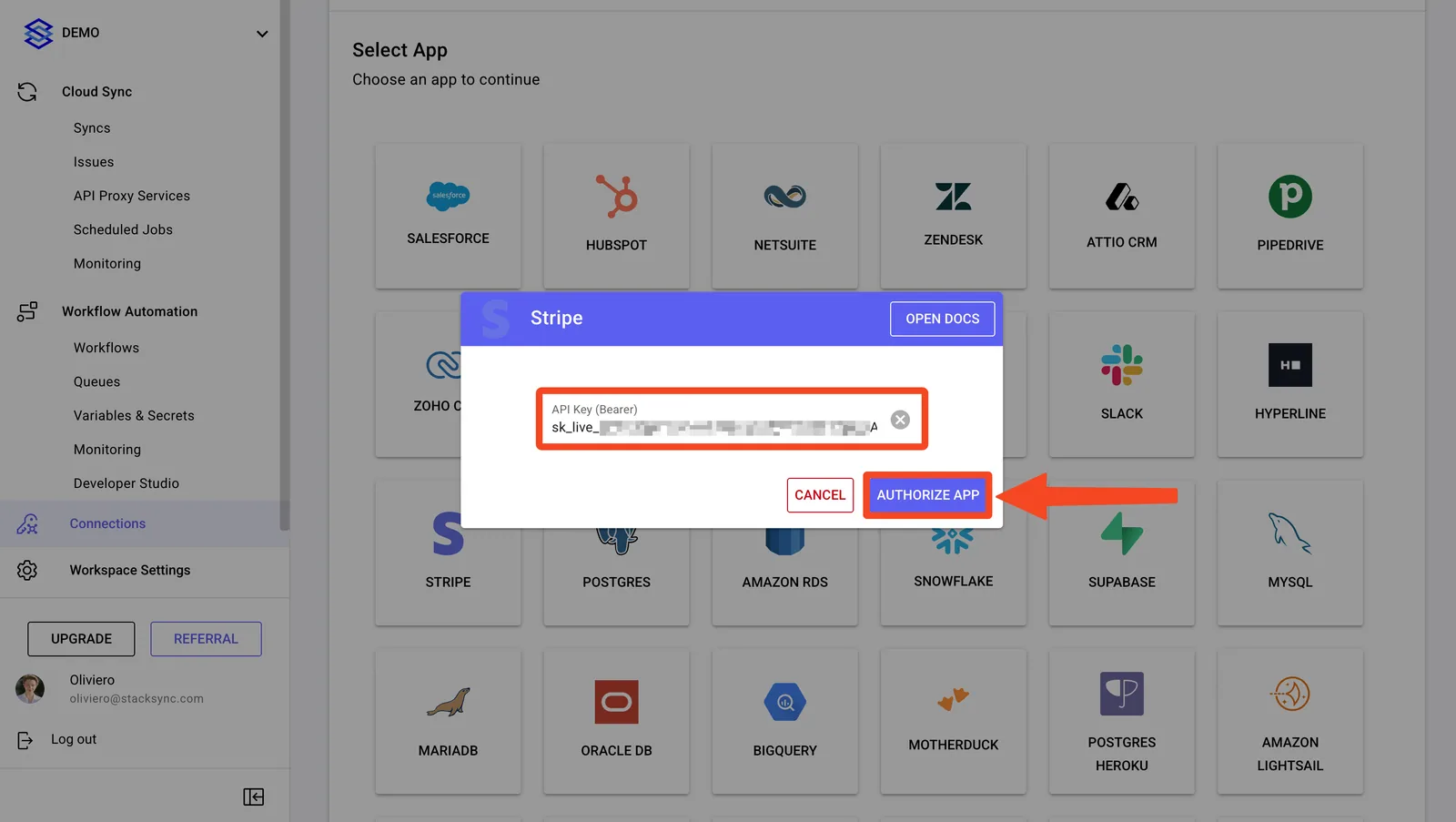
### 8. Paste in your Stripe API Key and click "Authorize App"
<figure><img src="https://2867423571-files.gitbook.io/~/files/v0/b/gitbook-x-prod.appspot.com/o/spaces%2FfJjIdV9cuW6K8asJjTPJ%2Fuploads%2FuUvqoI4GLKe6sP6rqPmL%2Fimage.png?alt=media&amp;token=7b1eff73-0fa1-4606-a120-d5876f437a3a" alt=""><figcaption></figcaption></figure>

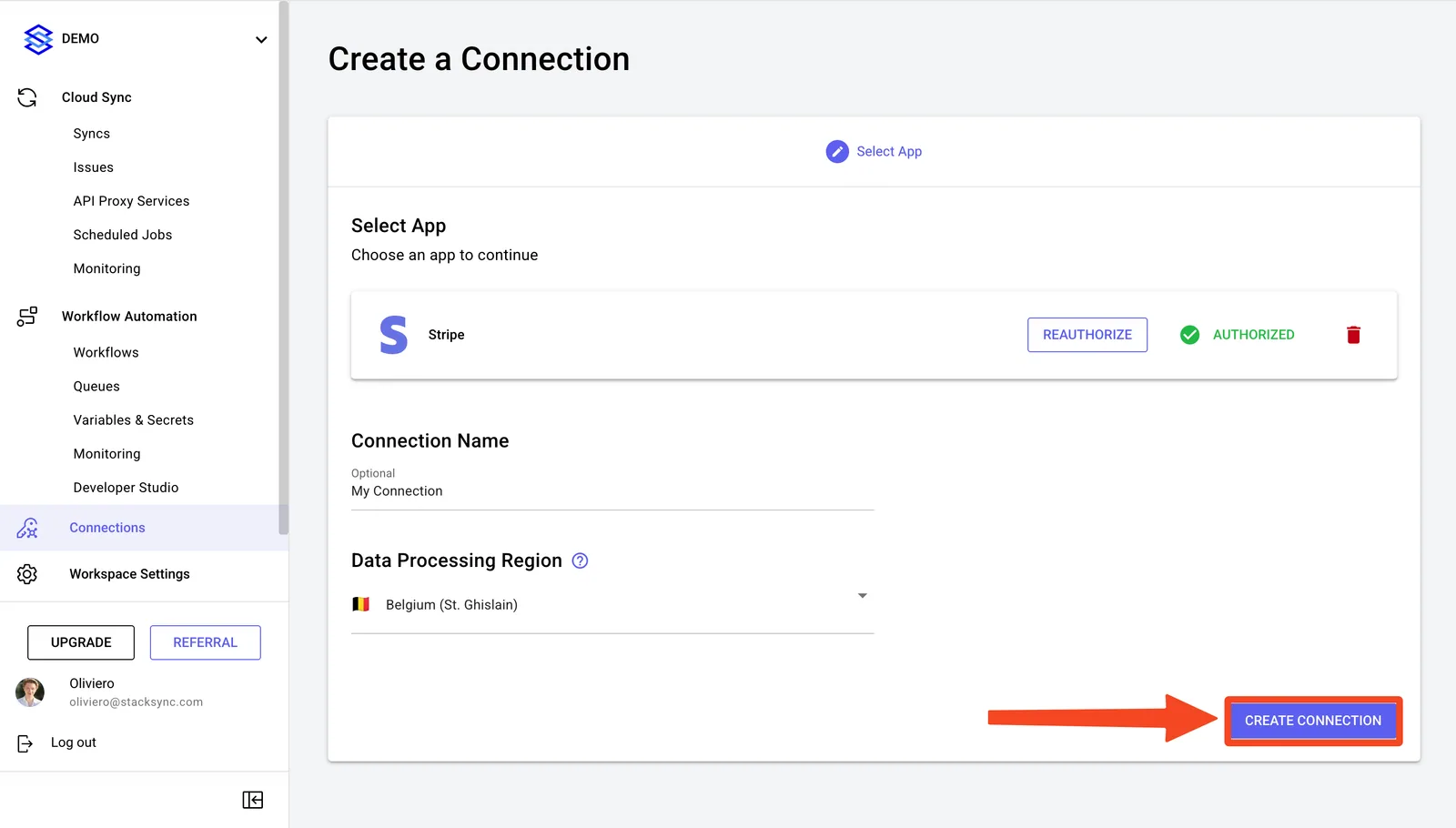
### 9. Change the Connection Name or Region and click "Create Connection"
<figure><img src="https://2867423571-files.gitbook.io/~/files/v0/b/gitbook-x-prod.appspot.com/o/spaces%2FfJjIdV9cuW6K8asJjTPJ%2Fuploads%2FazV9XqJFUpSBSUFoQ0Ep%2Fimage.png?alt=media&amp;token=4faec775-22cb-4300-b91b-9146b16ee687" alt=""><figcaption></figcaption></figure>