
# Authorize Zoho

Connecting to Zoho is done without any coding required in a few steps.

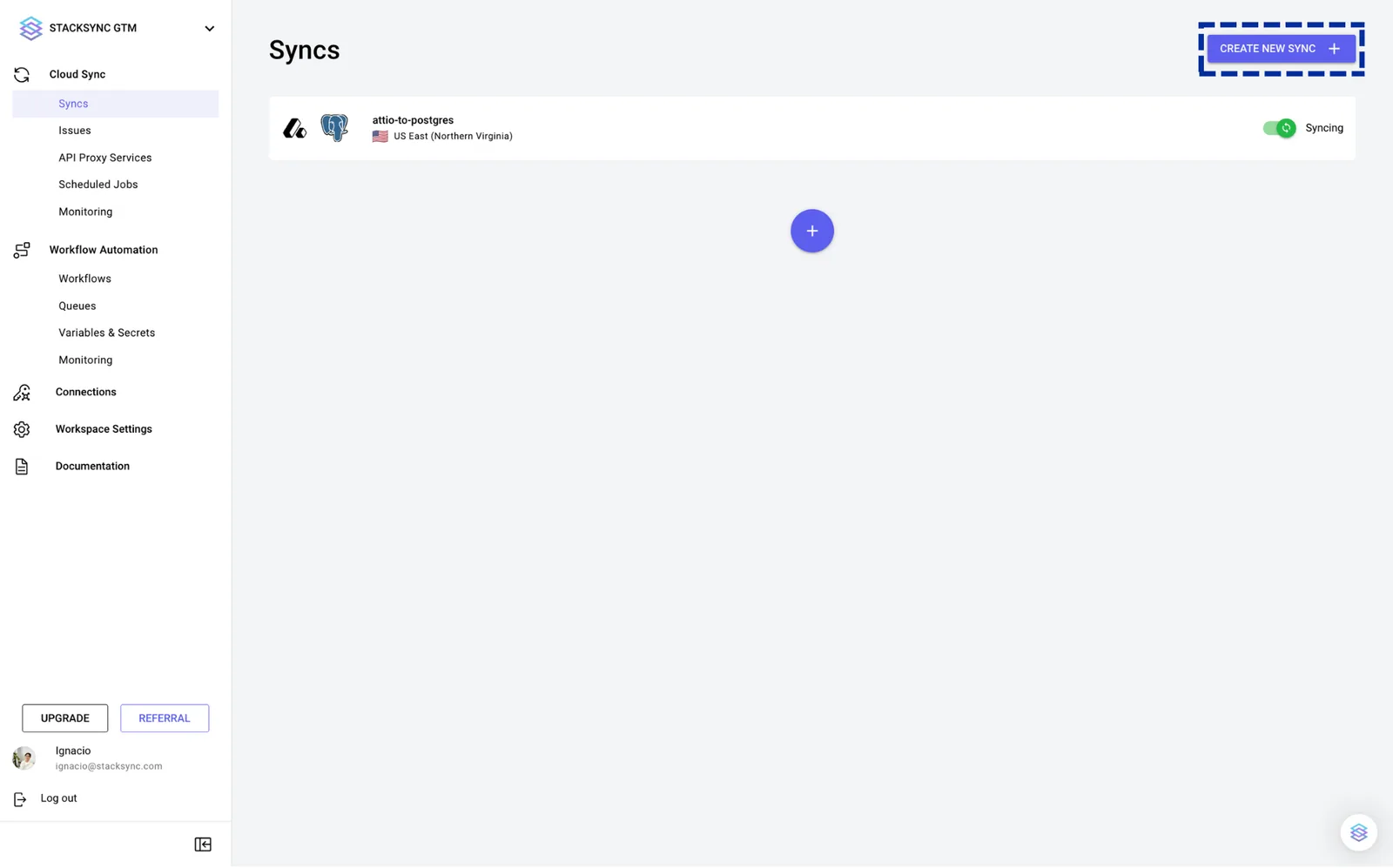
1. In Stacksync, click on "Create new sync".&#x20;

   <figure><img src="https://2867423571-files.gitbook.io/~/files/v0/b/gitbook-x-prod.appspot.com/o/spaces%2FfJjIdV9cuW6K8asJjTPJ%2Fuploads%2F4iVMw4IAXLoG91lDNWz7%2F6.png?alt=media&#x26;token=4ffb627a-5774-4c85-a3ab-3a8677638d79" alt=""><figcaption></figcaption></figure>
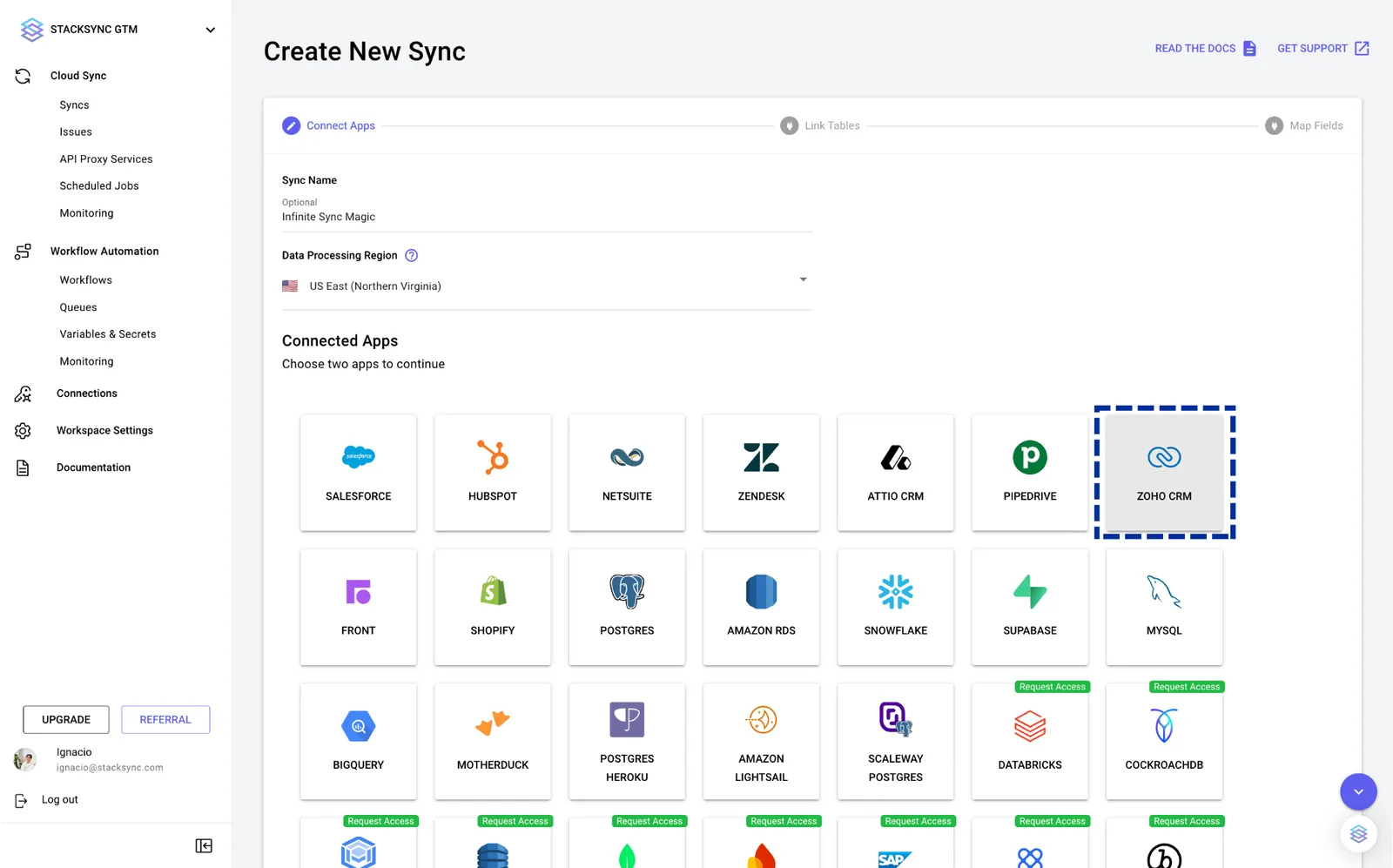
2. Select "Zoho CRM".&#x20;

   <figure><img src="https://2867423571-files.gitbook.io/~/files/v0/b/gitbook-x-prod.appspot.com/o/spaces%2FfJjIdV9cuW6K8asJjTPJ%2Fuploads%2F7wv8rXrpL4uZnGVvFgWb%2F10.png?alt=media&#x26;token=ca673651-ebca-4e46-a5c3-4679acda82af" alt=""><figcaption></figcaption></figure>
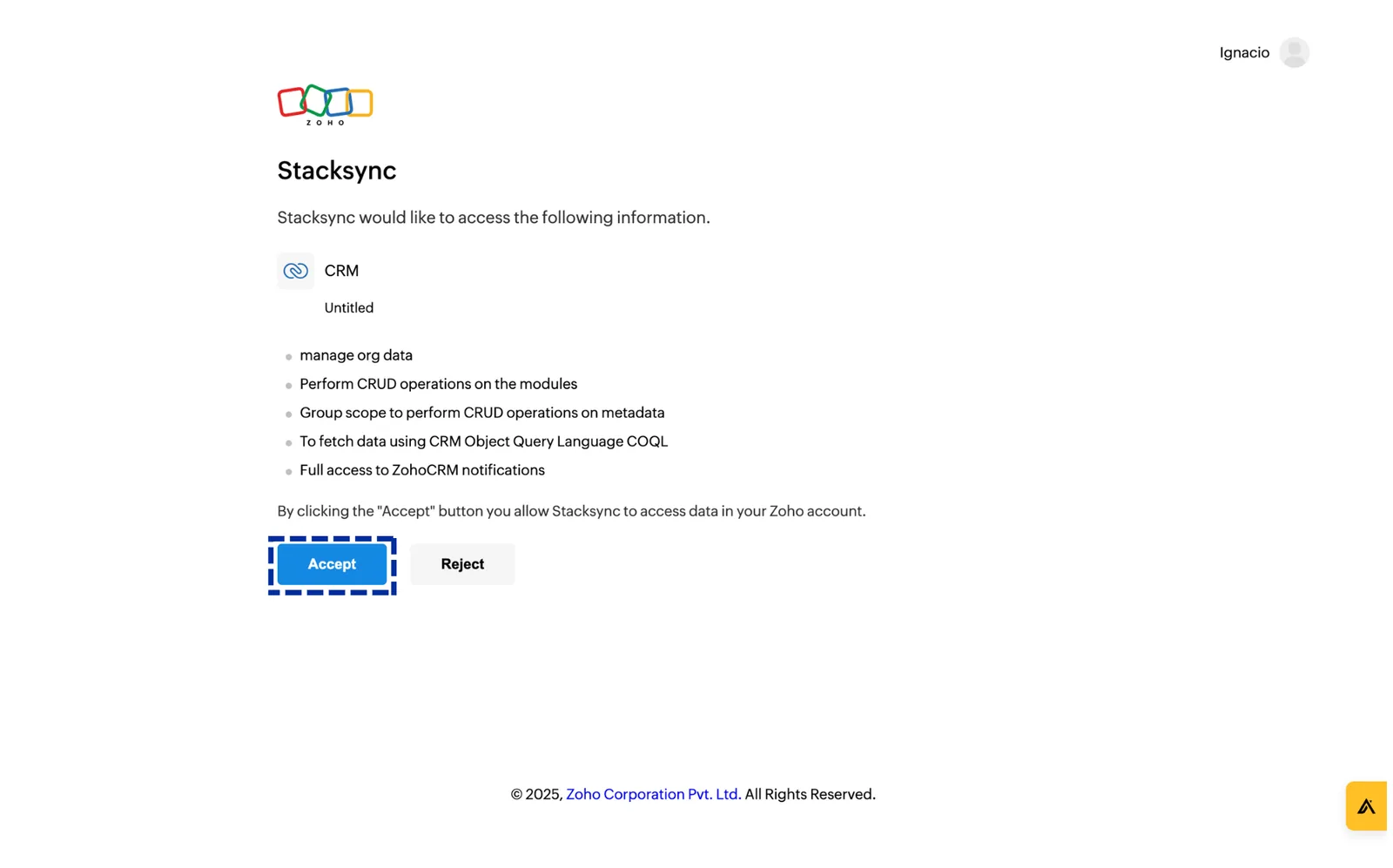
3. A new tab will open. Log in to Zoho and authorize Stacksync.&#x20;

   <figure><img src="https://2867423571-files.gitbook.io/~/files/v0/b/gitbook-x-prod.appspot.com/o/spaces%2FfJjIdV9cuW6K8asJjTPJ%2Fuploads%2FJcqAyVFE4WXnlR02vFvV%2F7.png?alt=media&#x26;token=0e788351-0107-4bf0-a0ae-62e02987cc01" alt=""><figcaption></figcaption></figure>
4. Connect your database and click continue.&#x20;
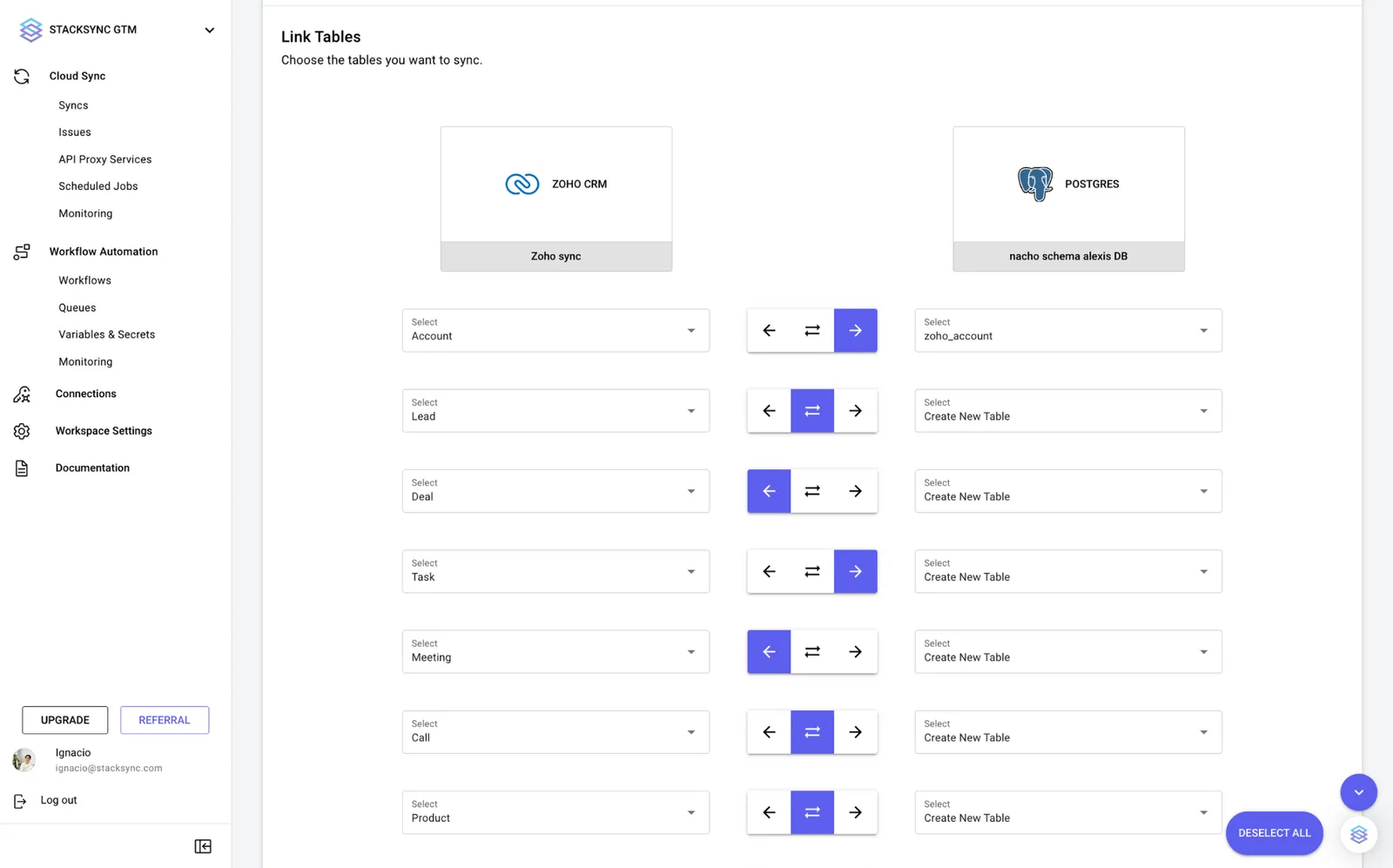
5. Map which Zoho objects to sync. Choose between an existing table in your database, or generating a new one.&#x20;

   <figure><img src="https://2867423571-files.gitbook.io/~/files/v0/b/gitbook-x-prod.appspot.com/o/spaces%2FfJjIdV9cuW6K8asJjTPJ%2Fuploads%2FslFRjUpXl90Eg0KmUqDo%2F9.png?alt=media&#x26;token=0c809650-95ef-4a2a-a74c-3787bf5c3288" alt=""><figcaption></figcaption></figure>
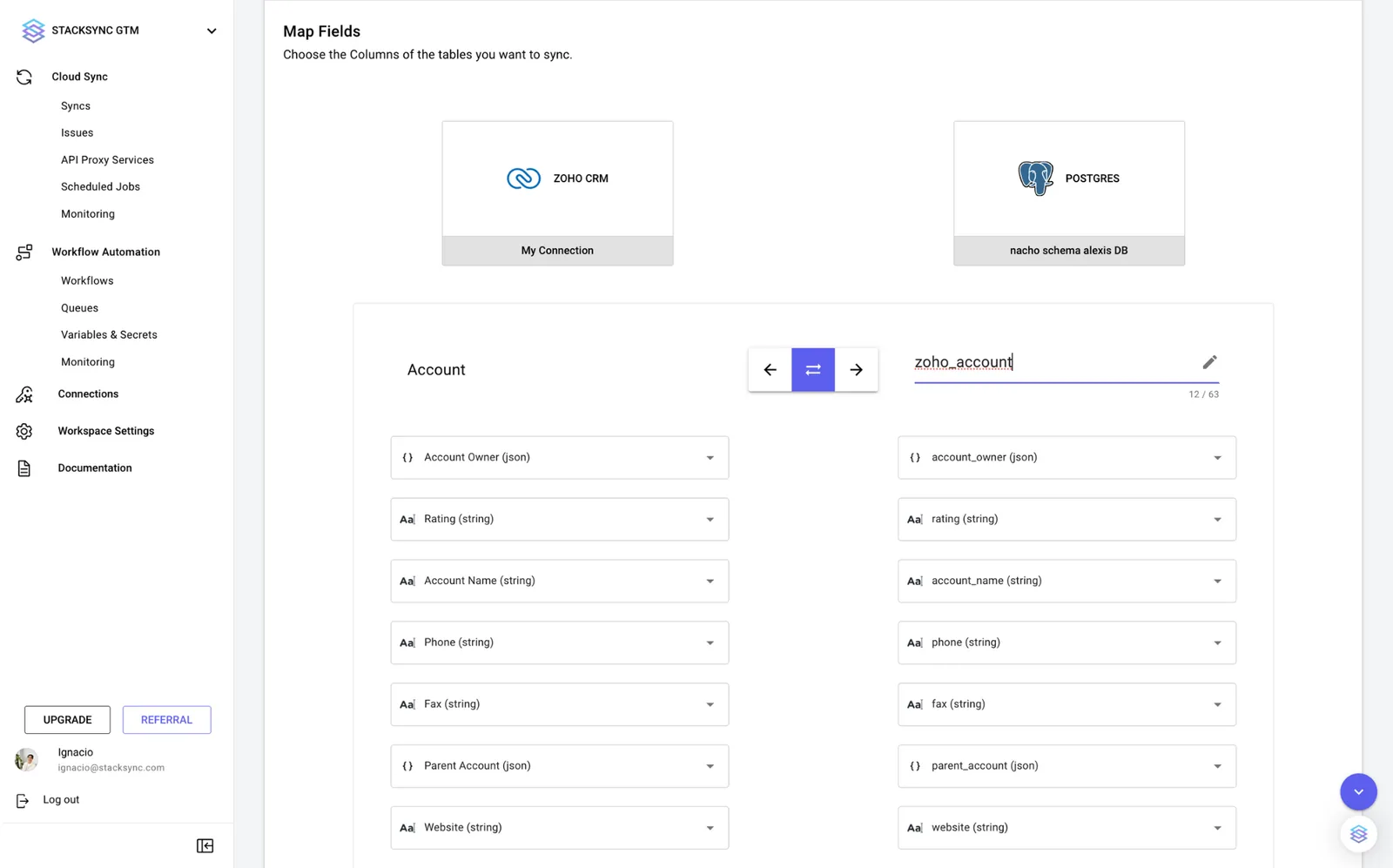
6. Finally, link the fields to sync between Zoho and your target database.
   <figure><img src="https://2867423571-files.gitbook.io/~/files/v0/b/gitbook-x-prod.appspot.com/o/spaces%2FfJjIdV9cuW6K8asJjTPJ%2Fuploads%2Fw3led2NcBhVe38JUljrZ%2F8.png?alt=media&#x26;token=c9380b4d-5220-4ebf-8436-27901fc1097f" alt=""><figcaption></figcaption></figure>
7. Click "Create sync". Click on the toggle to activate your sync. Data is now flowing!&#x20;