

Access a Private AWS RDS Instance via a Jumpbox
reading time: 3min, implementation time: 13min
Accessing a private Amazon RDS instance is a common requirement in cloud-based architectures — but exposing your database directly to the internet introduces serious security risks.
To mitigate this, a jumpbox (bastion host) is used as a controlled entry point to reach resources within a private subnet.
This guide walks you through setting up and using an SSH tunnel via a jumpbox to connect to your private RDS instance.
By following these steps, you’ll be able to securely manage your database while keeping it fully isolated and protected within your private network.
1. Create an EC2 instance
- Log in to your AWS Management Console.
- Navigate to the EC2 Dashboard.
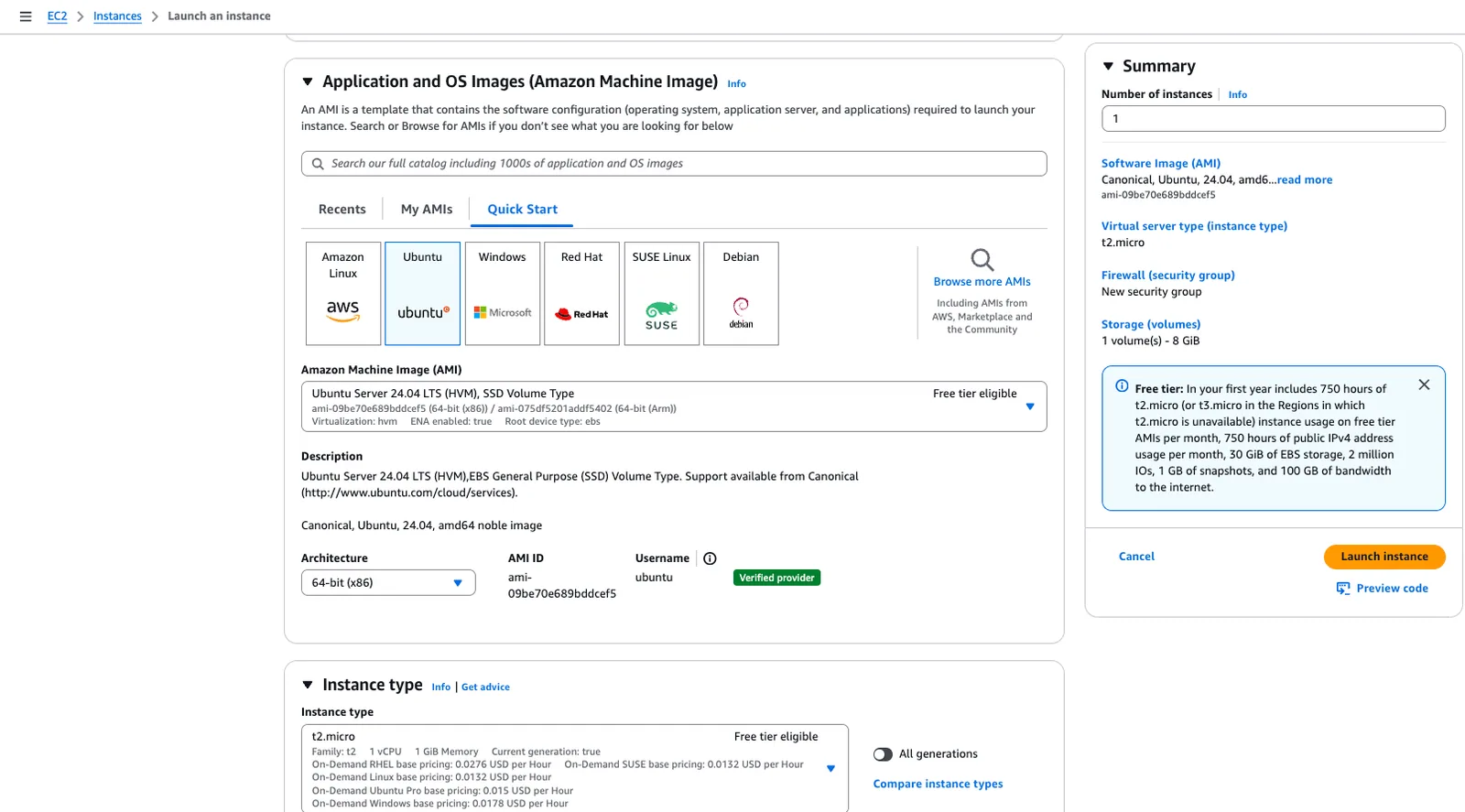
- Create a new EC2 instance and configure it as follows:
Configuration Details:
- Region: Same region as your RDS instance.
- Availability Zone: Preferably the same AZ as your RDS to minimize latency.
- Instance Type:
t2.micro(1 vCPU, 1 GiB memory) — approximately $10.80/month, which is sufficient since the jumpbox only handles data tunneling.
2. Grant ssh access to your client service
Connect to your instance via SSH:
ssh <ssh_user>@<jumpbox_ip>- Use
ubuntuas the SSH user if the EC2 instance is running Ubuntu. - Use
ec2-userif the instance is running Amazon Linux.
3. Whitelist trusted IPs
The most effective security measure is to whitelist only the IP addresses that are allowed to connect to your Jumpbox.
We recommend granting access exclusively to the IPs that require it.
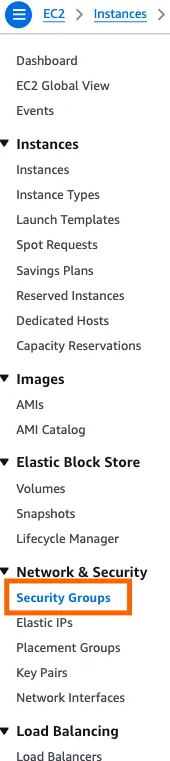
You can do this by creating a dedicated Security Group under the Network & Security section and adding inbound rules for your trusted services or hosts.
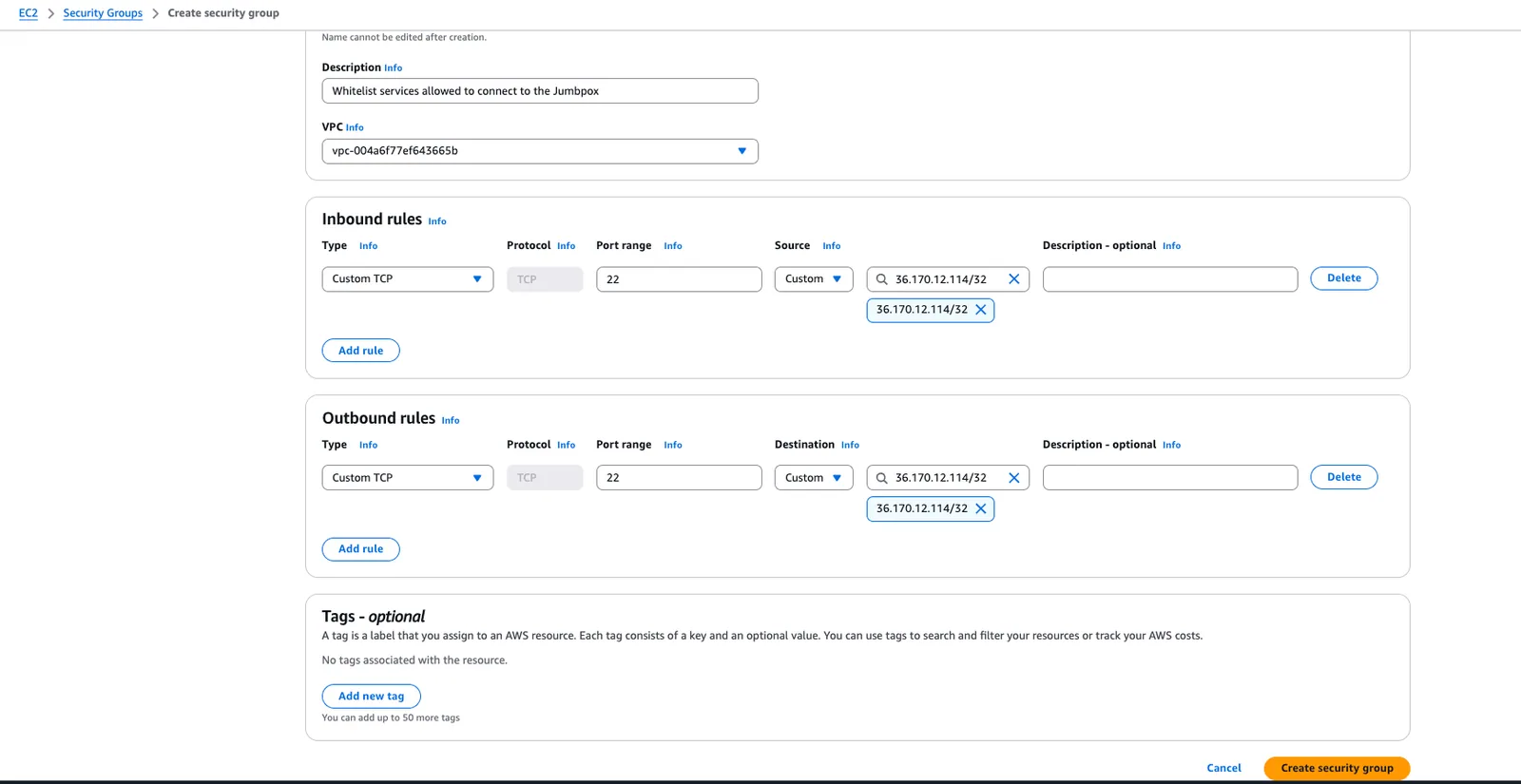
You can now attach the newly created security group to your Jumpbox EC2 instance to apply the updated access rules.
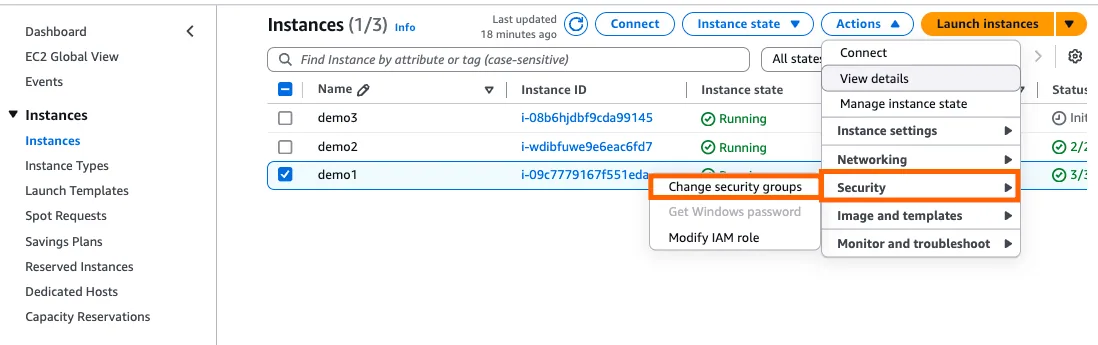
You can verify that only your whitelisted client can access the jumpbox by running:
telnet <jumpbox_ip> <ssh_port>If the command times out, it confirms that access from your current network is blocked, and only the authorized client can connect.
4. Grant the jumpbox access to your DB
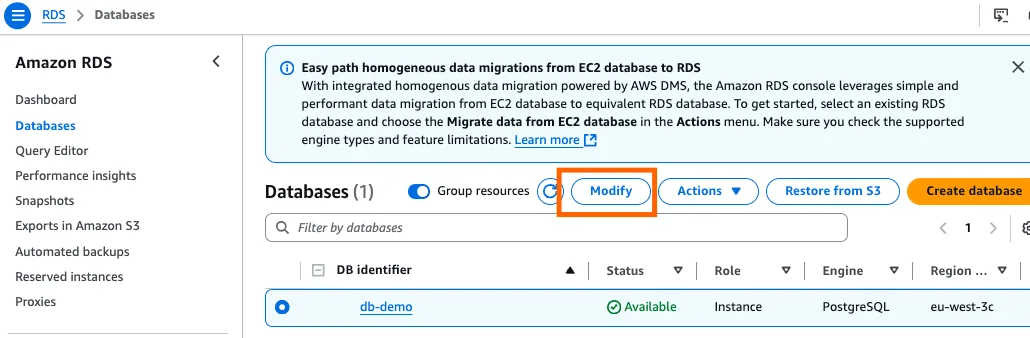
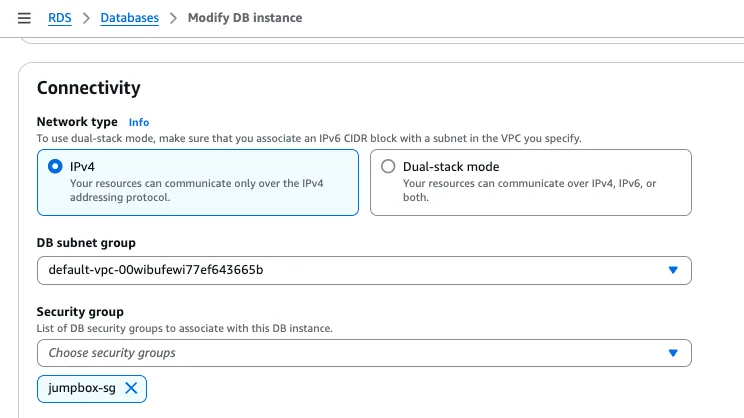
Create a dedicated security group for the Jumpbox to access the database, following the same process described in the previous step.
Then, update your database’s security group rules to allow inbound connections only from this new Jumpbox security group.
✅ Test Your Setup
You can verify your configuration by running the following commands from the service or machine you whitelisted:
# Create the SSH tunnel
ssh -L 5432:<db_ip>:5432 -N -f <jumpbox_user>@<jumpbox_ip>

# Connect to the database through the tunnel
psql -h localhost -p 5432 -U <DB_USER> -d <DB_NAME>
If the connection succeeds — congratulations 🎉
You can now securely access your private database through an SSH tunnel that routes traffic via your jumpbox.
🔒 (Optional) Additional Security Measures
To further strengthen your setup beyond the steps in this tutorial, consider implementing the following best practices:
- Use an SSL certificate to secure all encrypted connections.
- Configure a firewall (e.g., AWS Security Groups or ufw) to strictly control inbound and outbound traffic on the jumpbox.
- Create a dedicated system user instead of using default accounts such as
ubuntuorec2-user. - Limit privileges: disable
sudoaccess for the SSH user and grant only the minimum permissions required. - Change the default SSH port (22) to a custom port to reduce exposure to automated attacks.
- Install Fail2Ban to automatically block IPs that trigger repeated failed login attempts.
- Deploy auditd to monitor and log all system-level events for auditing and anomaly detection.
If you have any questions, feel free to ping us at hello@stacksync.com we'll be happy to help!