

Fix the Salesforce OAuth Error
When creating your Salesforce connection, you may see this error:
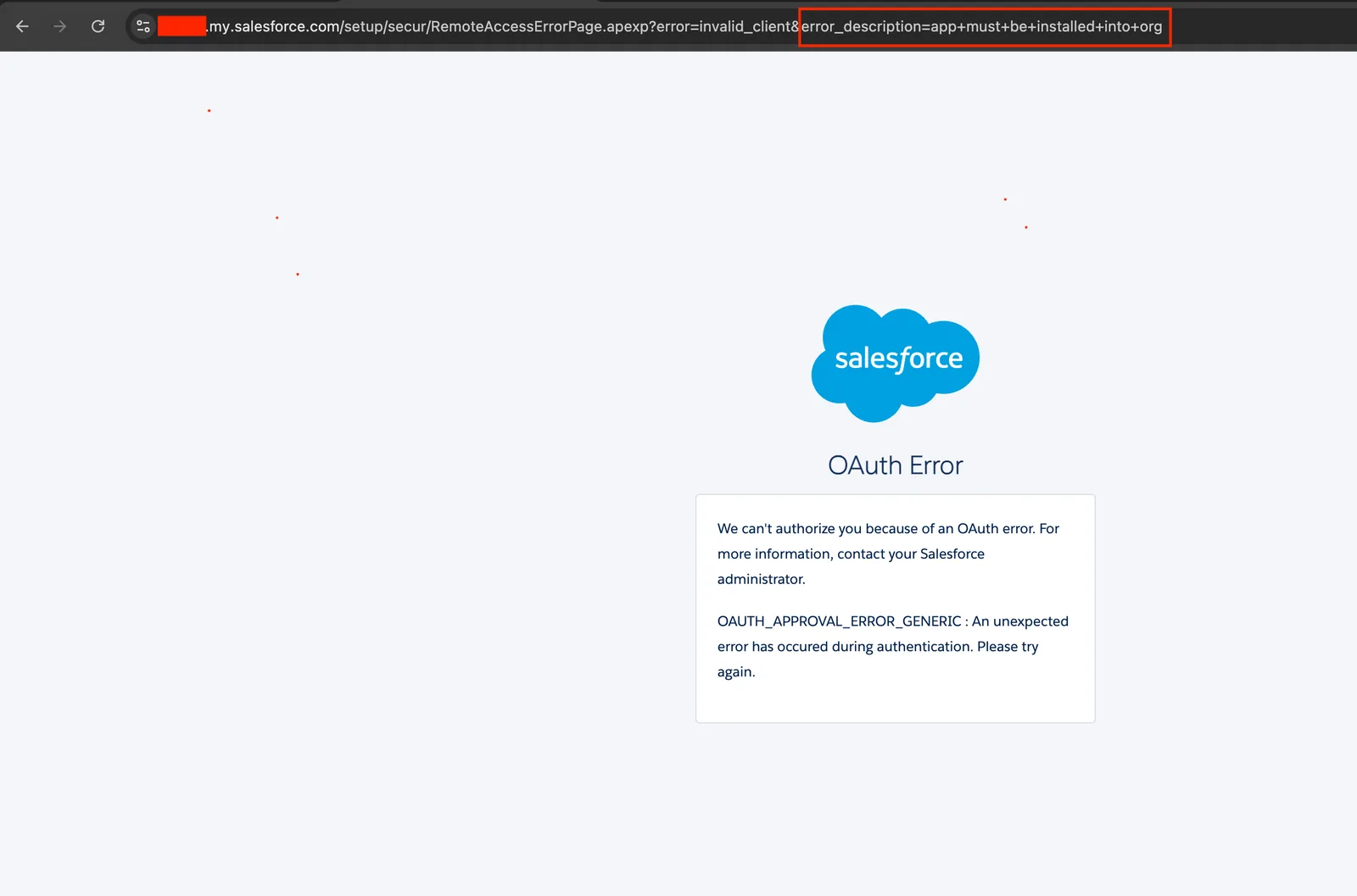
This happens because Salesforce requires the Stacksync app to be installed and approved in your Organization before anyone can use OAuth.
Install the Stacksync App in Your Salesforce Org
Before any user can create a Salesforce connection in Stacksync, the Stacksync App must be installed in your Salesforce org. This step only needs to be done once.
1. Make sure the installer has the required permission
The user who performs the first OAuth authorization must have the Salesforce permission:
“Approve Uninstalled Connected Apps”
To enable it:
- Go to Setup
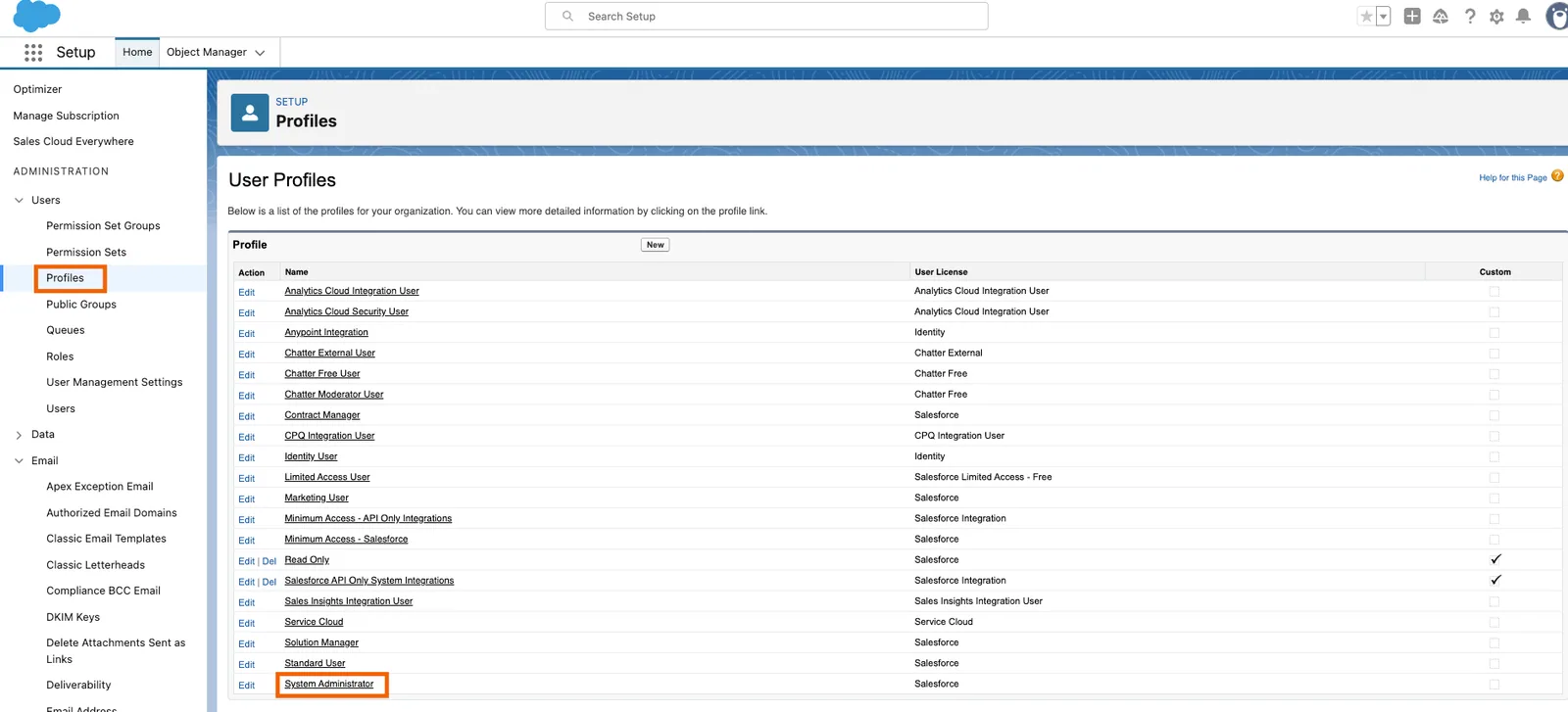
- Search for Profiles
- Open the profile of the user who will install the app
(e.g., System Administrator or any user profile with this permission) - Enable “Approve Uninstalled Connected Apps”
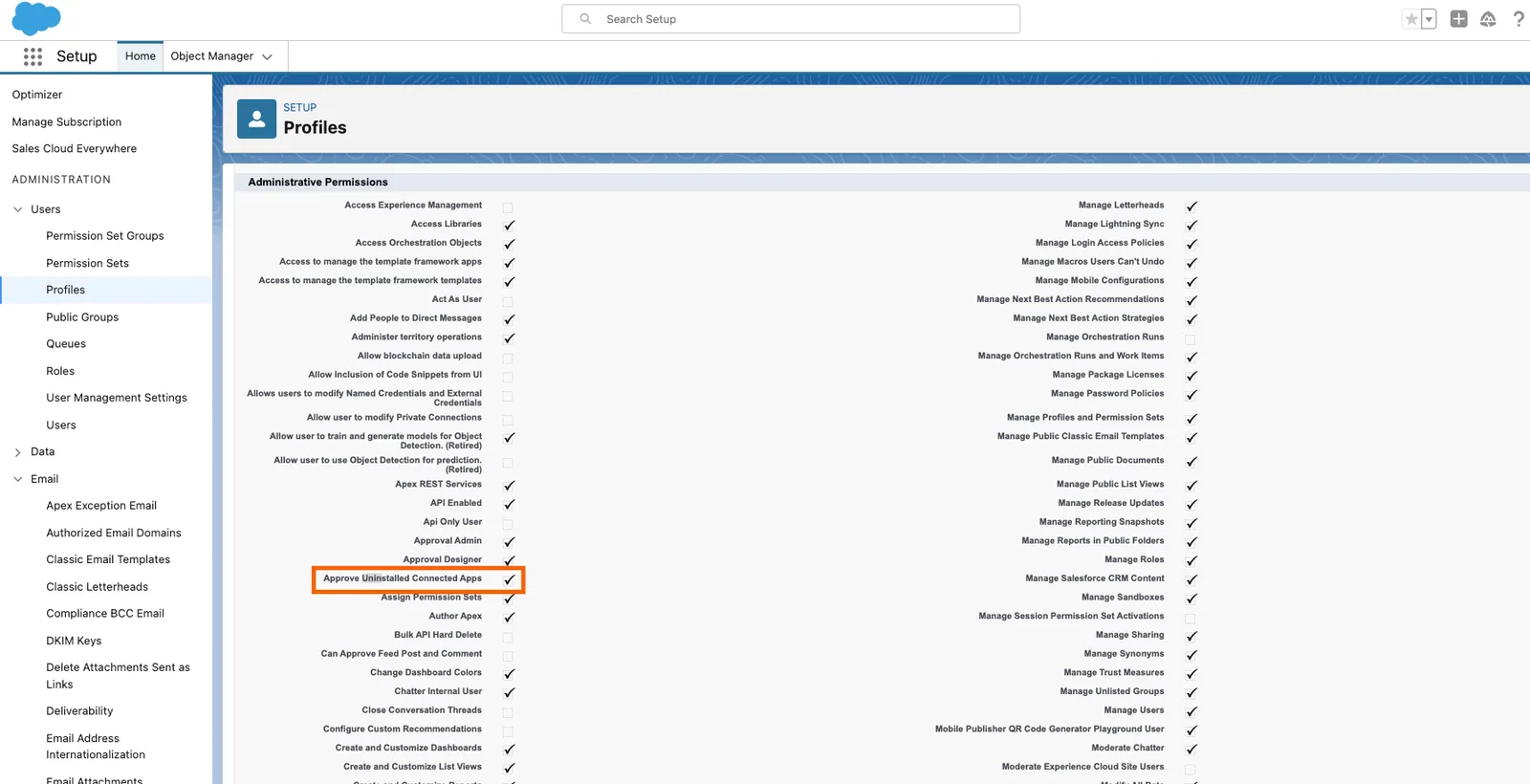
This permission lets the user approve and install connected apps.
2. Perform the first OAuth authorization
After the permission is enabled:
- The user with that permission logs into Stacksync
- Starts the Salesforce OAuth flow
- Salesforce will show a prompt to approve and install the Stacksync App
- Once approved, if you want other users in your organization to be able to install this app, go to Setup → Connected Apps OAuth Usage, find Stacksync, and click Install. After that, selected users will be able to authorize successfully.

Other Users Can Now Use OAuth
Once the Stacksync app is installed, other Salesforce users (for example, a dedicated “Stacksync Integration User” with limited permissions) should be able to complete the OAuth flow without any extra steps.
If a user still encounters an OAuth error, go to Setup → Connected Apps OAuth Usage, find Stacksync, click Install or assign access. After that, the user will be able to authorize successfully.
Final Result
- One user with the proper permission installs the app once
- All other allowed users can now use OAuth to create Salesforce connections in Stacksync