# Storage API access
> Connect applications to private buckets with scoped credentials and simple file operations.
Source: https://docs.stacksync.com/enterprise-os/storage/api-access
A bucket API key lets a backend upload, list, read, or delete files without using a person's EOS management token. The key selects its bucket, so the application does not send a bucket ID with each file request.
## Create a key with the right permissions
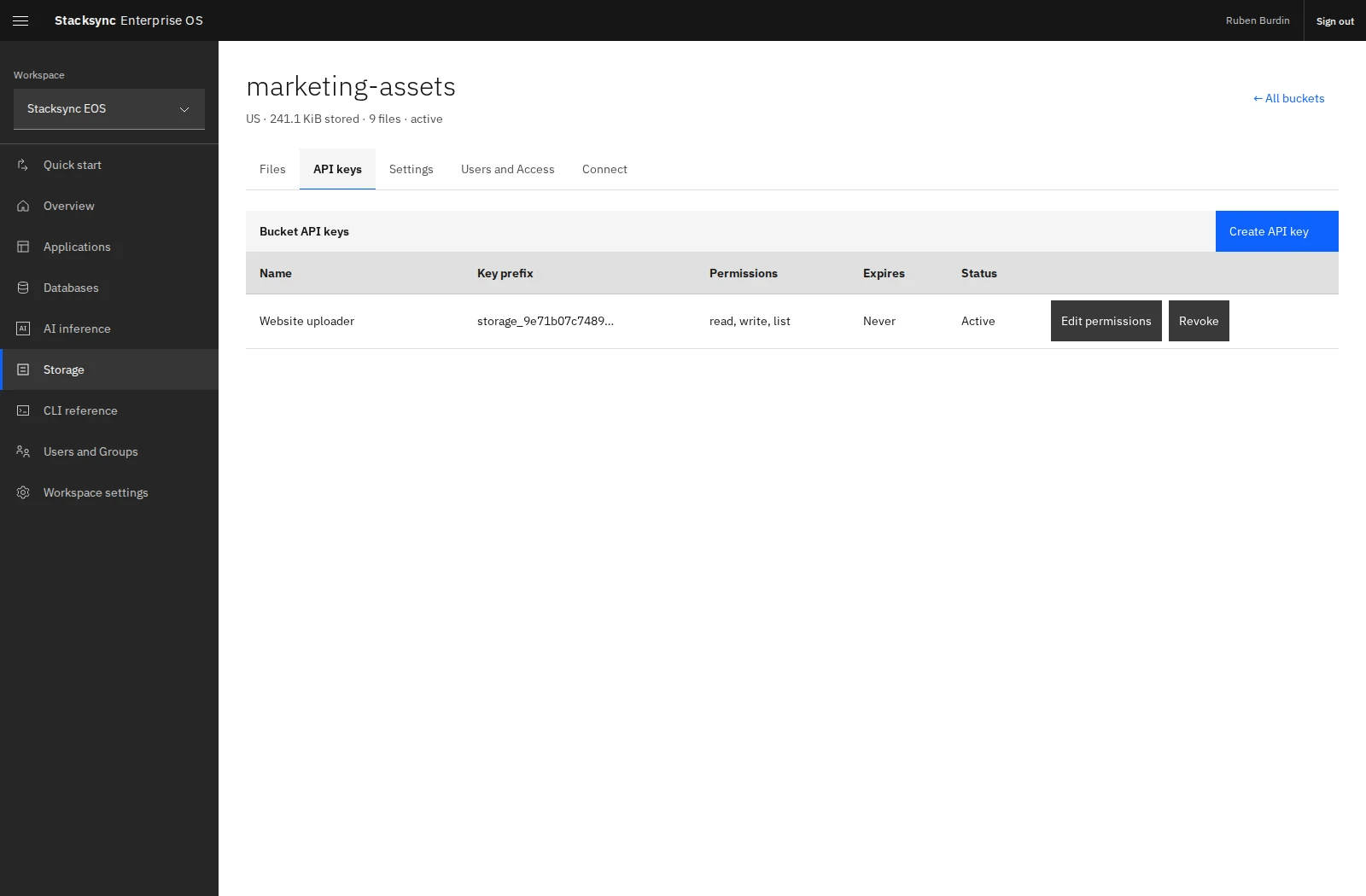
Open **Storage → your bucket → API keys → Create API key**. Give the key a descriptive name, choose its scopes, and set an expiry if needed. Store the complete value when it is shown; it is only available once.
Bucket API keys have explicit permissions and can be updated or revoked independently.
| Scope | Allows |
| -------- | ------------------------------ |
| `read` | Download file contents. |
| `write` | Upload new files. |
| `list` | List objects and browse paths. |
| `delete` | Delete stored objects. |
For an uploader that does not need to delete existing documents, use `read,write,list`:
```sh
eos storage keys create BUCKET_ID 'Portal backend' --scopes read,write,list
```
Management commands require EOS sign-in and the selected workspace. File commands use the separately supplied `STORAGE_API_KEY`. Sharing the bucket with another user does not reveal existing key values.
## Connect the application
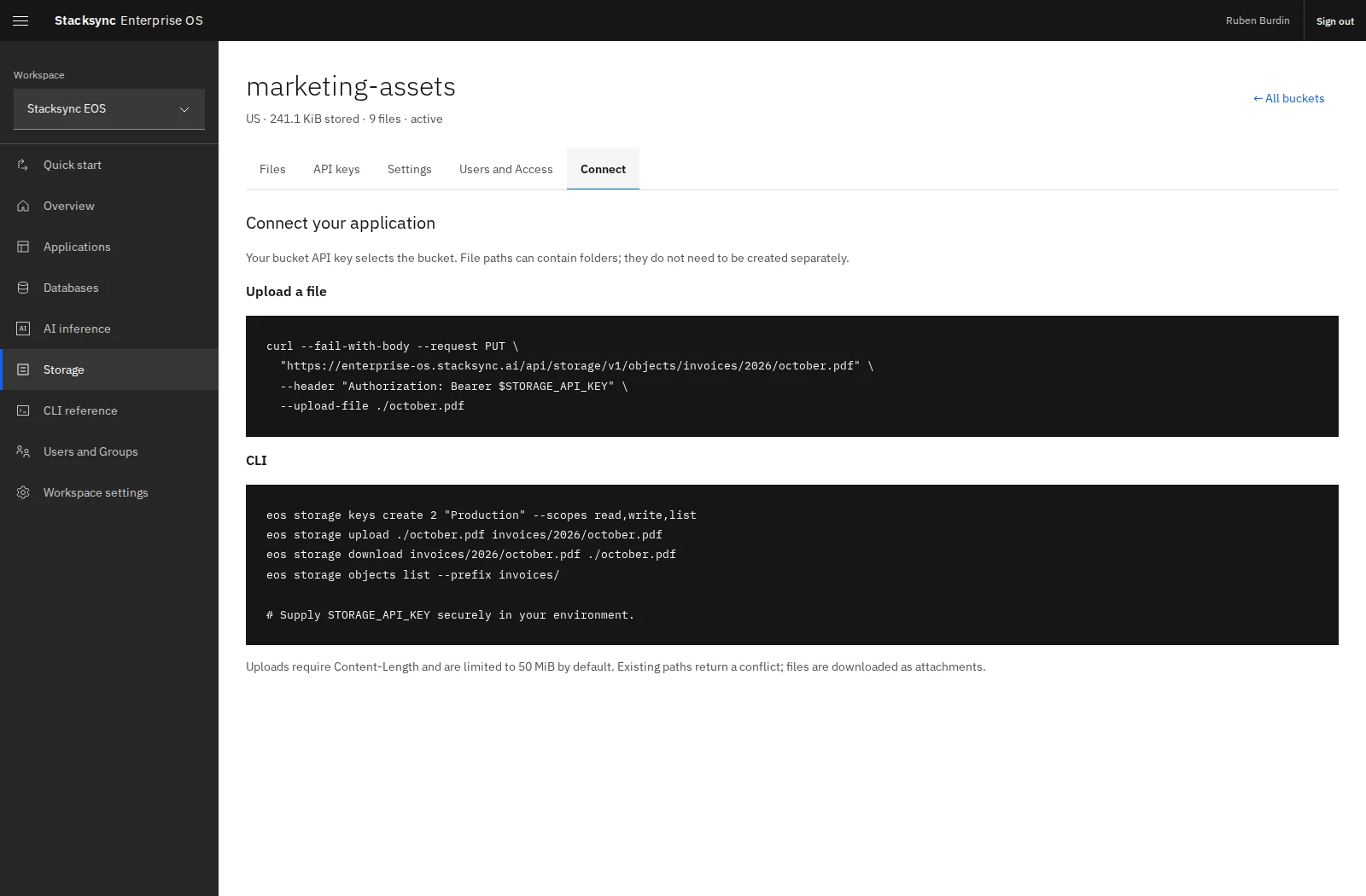
Open the bucket's **Connect** tab for API and CLI examples.
The Connect tab provides storage API and CLI examples for the selected bucket.
The storage API base path is:
```text
https://enterprise-os.stacksync.ai/api/storage/v1
```
Upload a file with its destination object path and the key in the Authorization header:
```sh
curl --fail-with-body --request PUT 'https://enterprise-os.stacksync.ai/api/storage/v1/objects/invoices/2026/october.pdf' --header "Authorization: Bearer $STORAGE_API_KEY" --upload-file ./october.pdf
```
Requests need a Content-Length, and the default maximum upload is 50 MiB. Existing object paths return a conflict rather than being overwritten. Keep the key server-side and have your application's own backend enforce which files its end users may access.
## Rotate or reduce access
Use **Edit permissions** to update a key's scopes, or **Revoke** to stop its use. For a replacement key, configure and verify the new key in the application before revoking the old one.
```sh
eos storage keys update BUCKET_ID KEY_ID --scopes read,list
eos storage keys revoke BUCKET_ID KEY_ID
```
The management permission to administer a bucket and the application's key scopes are independent. Removing a teammate's sharing grant is not a substitute for revoking an application key that they already possess.
## Inspect interrupted uploads
```sh
eos storage uploads list BUCKET_ID
eos storage uploads cancel BUCKET_ID UPLOAD_ID
```
Use returned IDs, inspect pending uploads before retrying, and cancel only the upload you intend to abandon. For repeatable upload workflows, the CLI also accepts `--idempotency-key KEY` on `eos storage upload`.