# File Storage
> Give applications private file buckets, a visual file explorer, and scoped API access.
Source: https://docs.stacksync.com/enterprise-os/storage
Store the documents, images, and exports that make business applications useful. EOS Storage combines private buckets with a visual file explorer and API keys for application access.
Keep the supporting files alongside the workflow they belong to. Teams can explore and manage those files in the dashboard, while applications use scoped API access to work with the same bucket.
Use a bucket for a coherent purpose, such as partner documents, marketing assets, or customer exports. Each bucket has its own region, limits, sharing grants, and API keys.
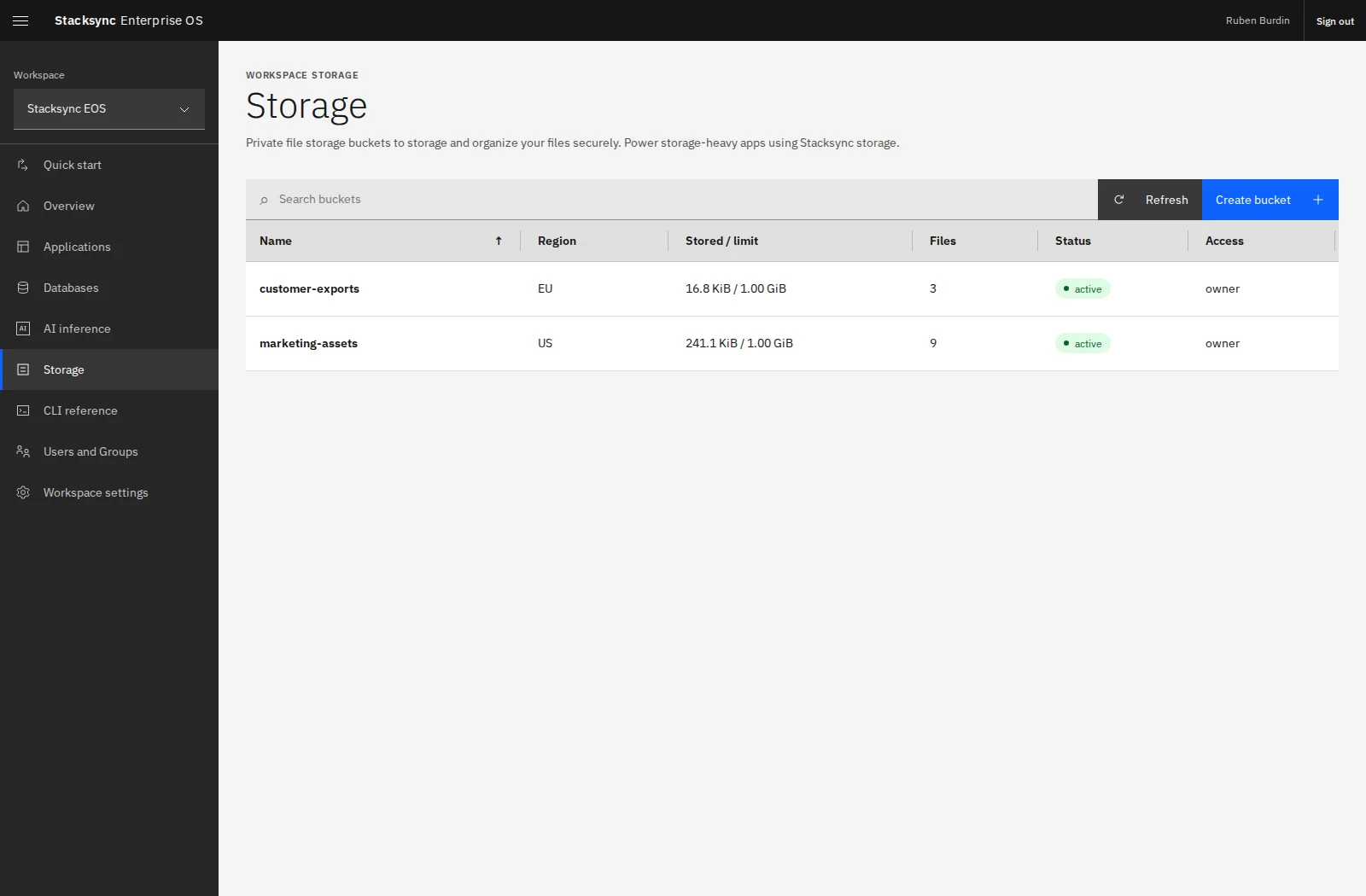
Storage buckets in the Stacksync EOS workspace, showing region, usage, file count, and access role.
## Create a bucket
1. Select **Storage → Create bucket**.
2. Enter a name that describes its purpose.
3. Choose the region, **US** or **EU**.
4. Create the bucket, then open it to upload and manage files.
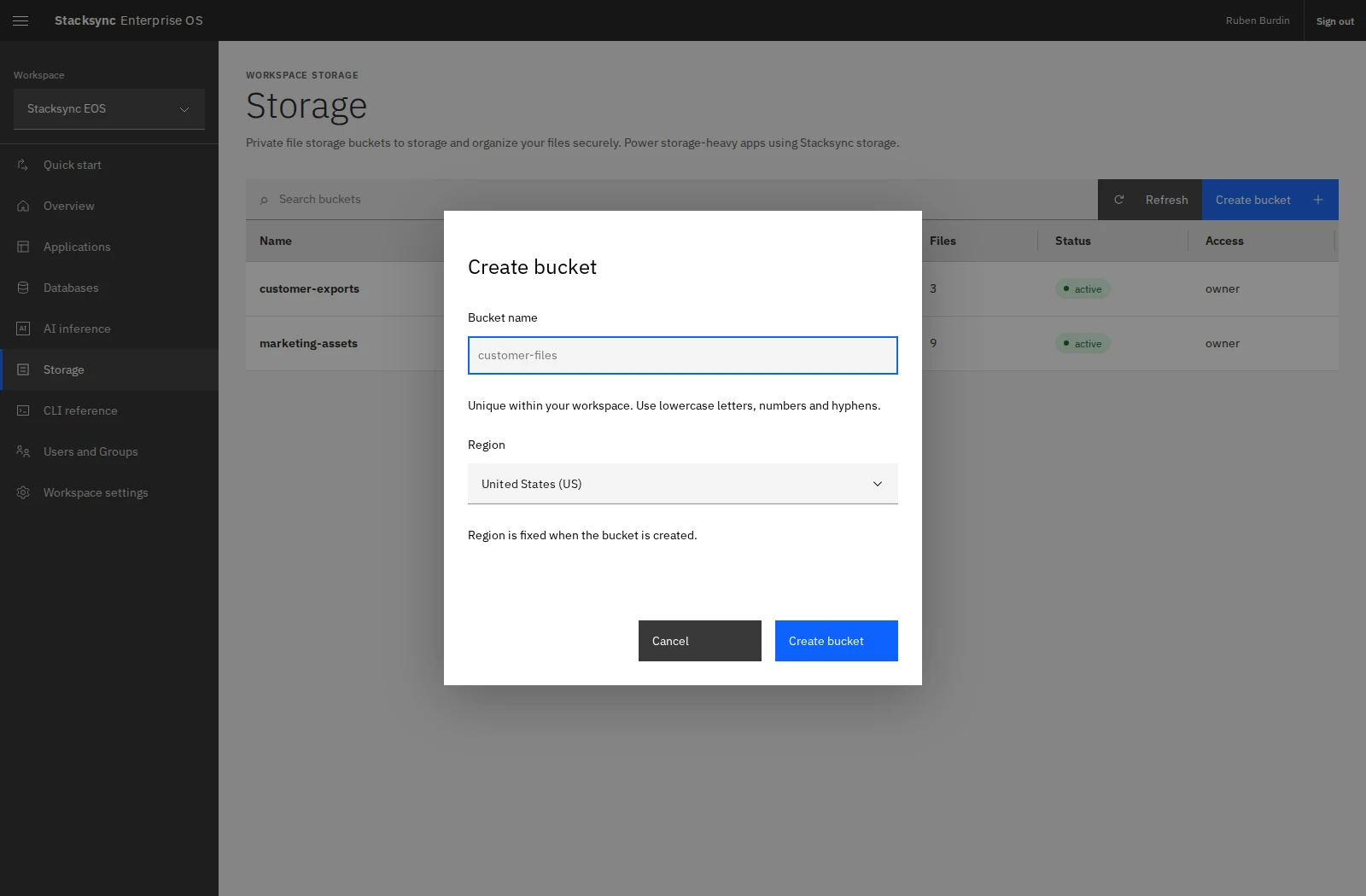
Create a private bucket and choose its storage region.
The region is fixed at creation. New buckets default to US when no region is specified through the CLI.
```sh
eos storage buckets list
eos storage buckets create 'partner-documents' --region EU
```
## Explore the bucket
| Tab | What you can do |
| -------------------- | ------------------------------------------------------------------------------------- |
| **Files** | Upload, search, explore folders, preview supported files, download, and delete files. |
| **API keys** | Create application credentials and manage their permissions or revocation. |
| **Settings** | Add a description and set storage and file-count limits. |
| **Users and Access** | Share the bucket with users and groups using resource roles. |
| **Connect** | Find connection examples for applications and the CLI. |
Owners manage the bucket's settings, keys, and sharing. Editors can work with its files. Viewers can inspect approved metadata, but do not gain file-content access simply by having a Viewer grant. Bucket API keys grant separate application access through their scopes.
## Set capacity limits
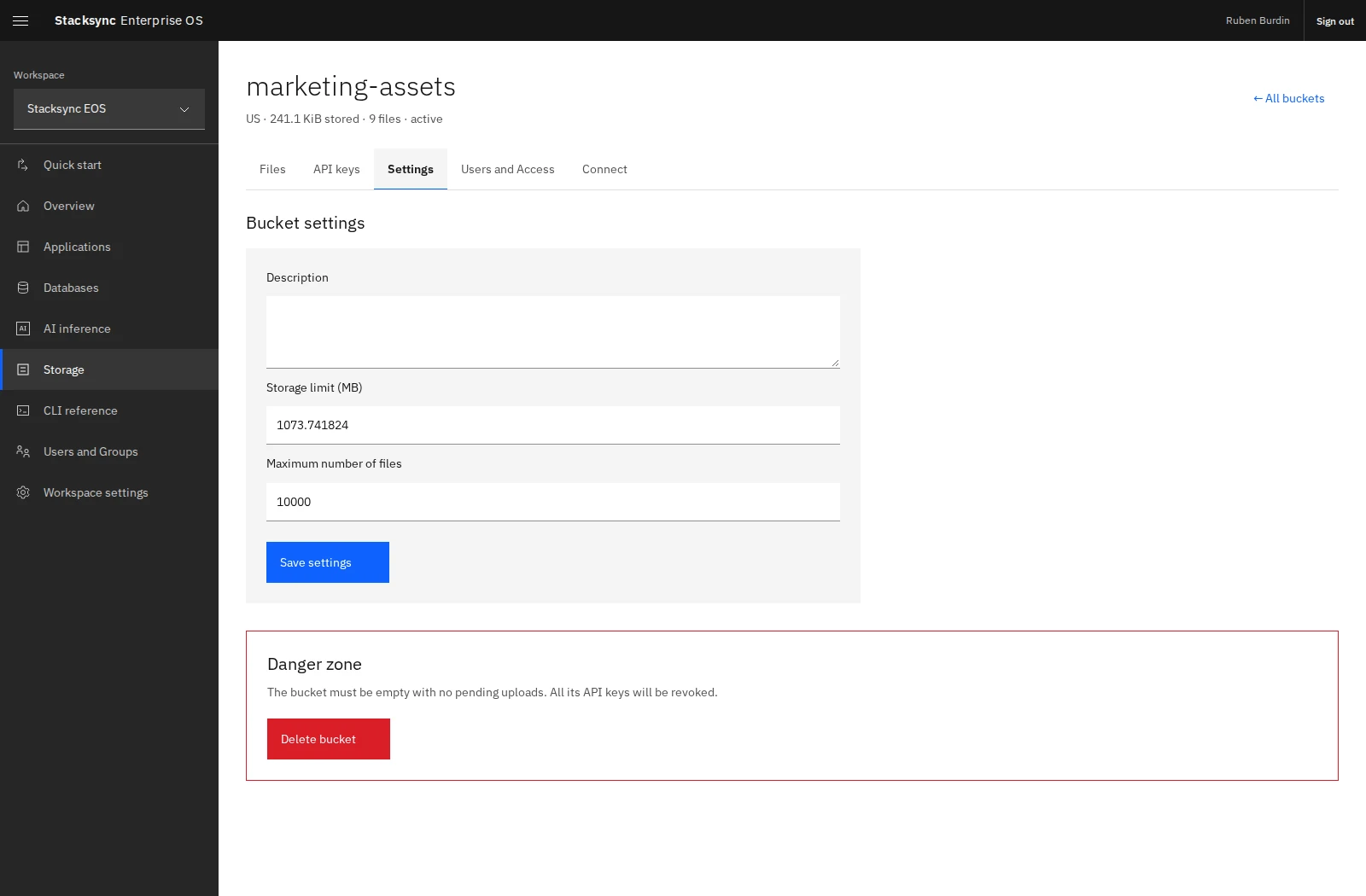
Open **Settings** to configure **Storage limit (MB)** and **Maximum number of files**, then select **Save settings**. These limits help keep a bucket's footprint aligned with its purpose.
Bucket settings combine a description with storage and file-count limits.
CLI updates use a byte count for the storage limit:
```sh
eos storage buckets update BUCKET_ID --byte-limit 1073741824 --object-limit 10000
eos storage usage --json
```
## Delete a bucket
The bucket must be empty and have no pending uploads before deletion. Deleting it revokes its API keys. Use the Owner-only deletion action in **Settings**, or provide the exact bucket name in the CLI:
```sh
eos storage buckets delete BUCKET_ID 'partner-documents'
```