# Connect and query
> Connect your application to PostgreSQL, browse tables, and run SQL in the EOS database workspace.
Source: https://docs.stacksync.com/enterprise-os/databases/connect-and-query
Open **Databases → your database** to work with application data. EOS combines connection management with a database workspace, so your team can inspect data and troubleshoot without switching tools.
## Connect an application
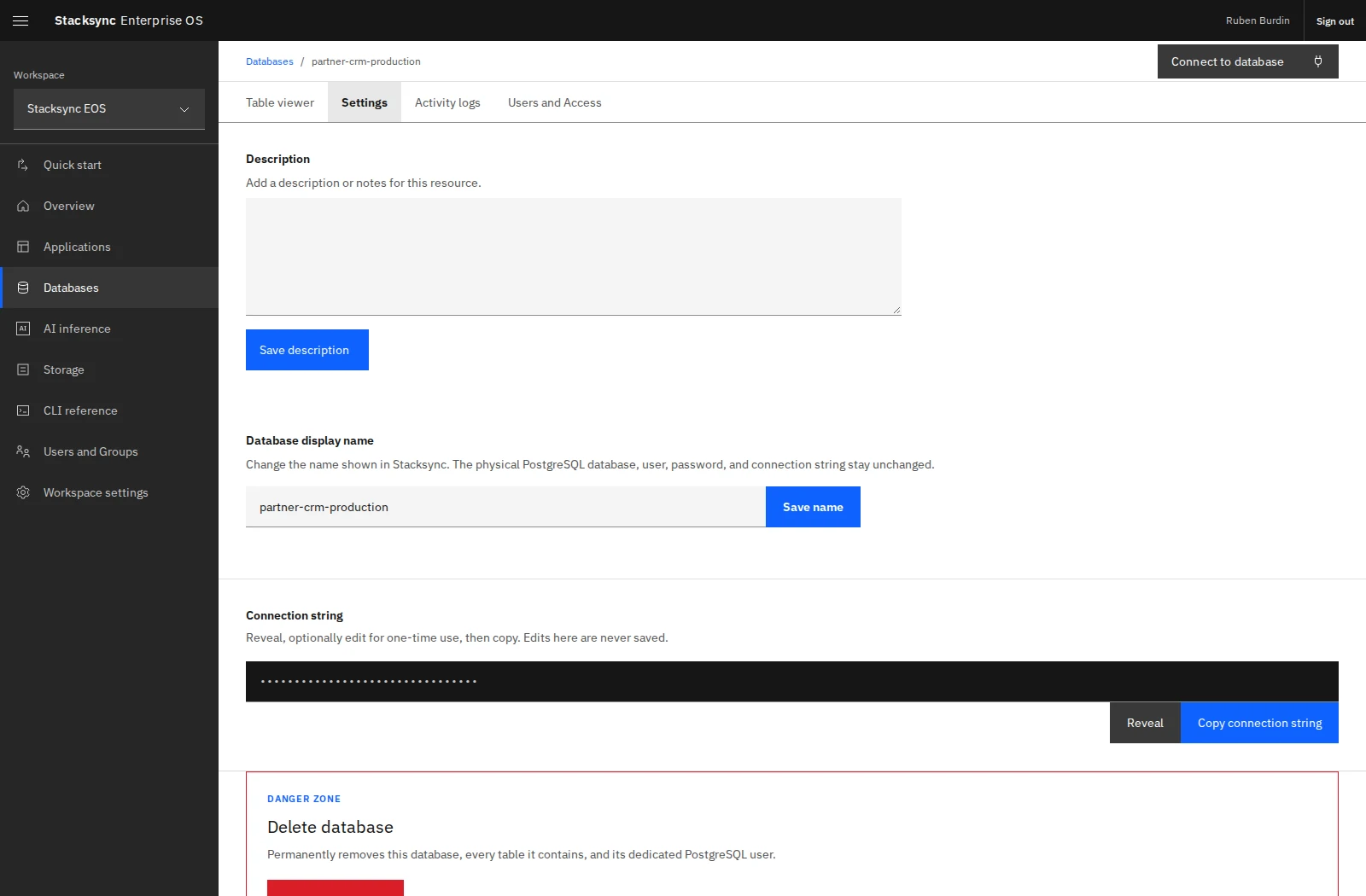
Select **Connect to database**, or open **Settings** to find the connection string. Use **Reveal** when you need to inspect it, then **Copy connection string**. The connection details can also be copied as individual parameters for clients that require separate host, port, database, user, and password fields.
Database settings include connection-string controls. The credential remains concealed in this screenshot.
Supply the connection string as a server-side application variable and use a standard PostgreSQL driver or ORM. Preserve the connection options supplied by EOS. Editing the connection string in the dashboard is for one-time copying; it does not save new database credentials.
From a trusted terminal:
```sh
eos database list
eos database credentials DATABASE_ID
```
The credentials command displays secrets. Use the exact ID returned by the list command, and keep its output private. Owners and Editors can retrieve credentials; Viewers cannot.
## Explore tables and run SQL
1. Open **Table viewer**.
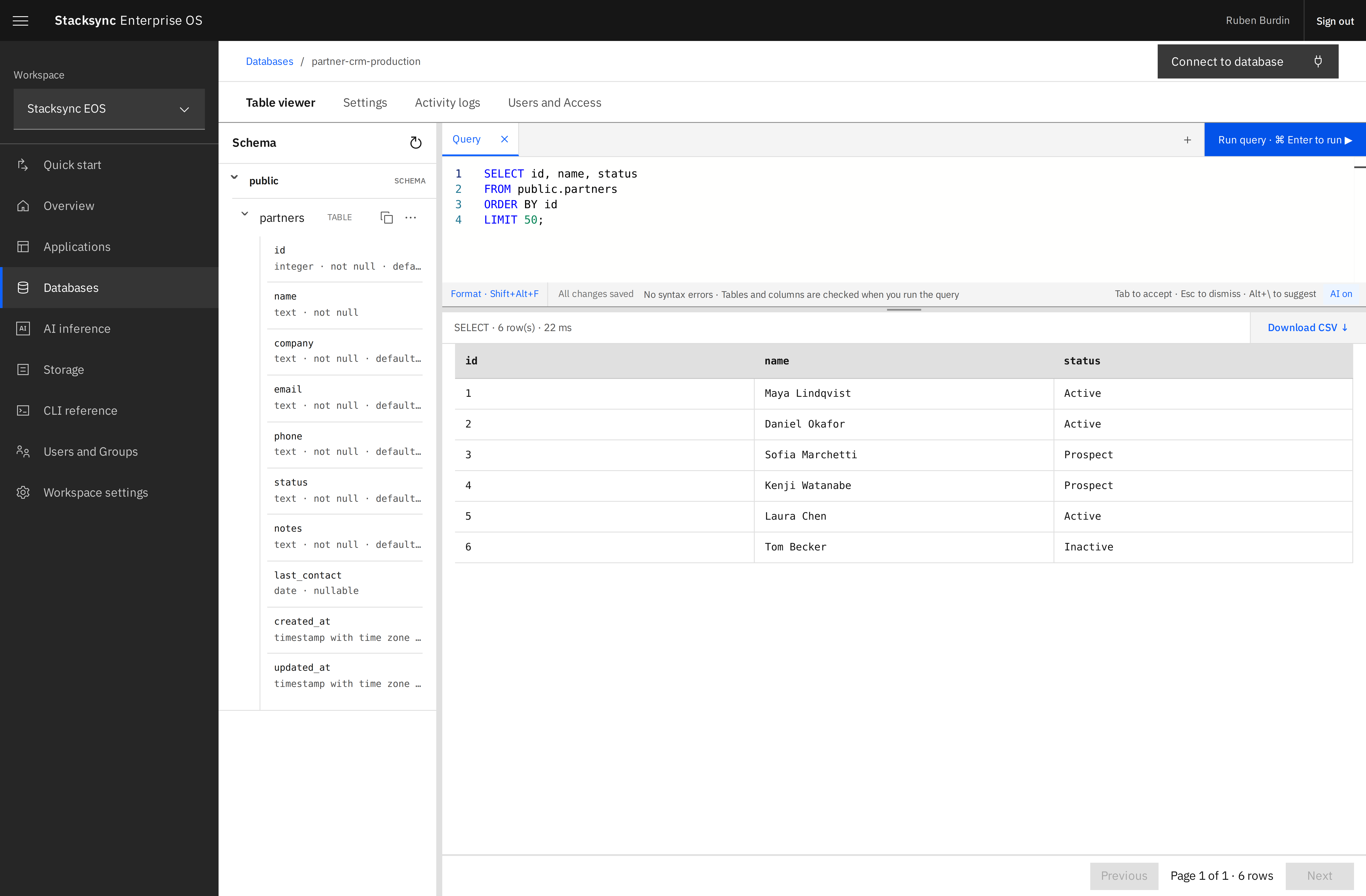
2. Expand a schema in the left-hand tree, then inspect a table and its columns.
3. Open a query tab and enter SQL.
4. Select **Run query**, or use Command+Enter on macOS / Control+Enter on other platforms.
5. Inspect the results, use pagination for larger results, or export results as CSV.
The database workspace shows the schema tree, SQL editor, and results for a sample partner query.
For a table created by your application, a first exploration query might be:
```sql
SELECT id, name, status
FROM public.partners
ORDER BY id
LIMIT 50;
```
Replace the table and column names with those in your database. The screenshot uses sample documentation data; a newly created database will not contain application tables until you create them or run migrations.
Query tabs preserve your SQL workspace. The editor includes formatting and AI assistance controls; review suggested SQL before running it. SQL executes against the actual database, so modifications change its data.
## Review activity
Open **Activity logs** for Stacksync-generated events such as database actions, credential access, and query execution metadata. These are application-level audit events, not native PostgreSQL server logs. Query events record metadata such as timing, command type, and row count rather than returned data or SQL text.
Share the database through [Users and Access](/enterprise-os/access-and-permissions) to collaborate without sharing a personal EOS sign-in.