# Databases
> Provision managed PostgreSQL for business applications, with dedicated credentials and a built-in data workspace.
Source: https://docs.stacksync.com/enterprise-os/databases
You can create one PostgreSQL database from the CLI without signing in. EOS creates a guest workspace and stores a private device credential. Claim the workspace before its 14-day deadline to keep the database. See [guest workspaces](/enterprise-os/guest-workspaces).
Give an application a durable place to store its business data without provisioning a database server yourself. EOS creates managed PostgreSQL databases with a dedicated database user and generated credentials.
Move a useful tool beyond one person's local files. A shared database gives the application a common place for business records, so the team can work from the same information as the workflow grows.
Databases are currently **co-located per workspace**: they share the workspace's database infrastructure, while each provisioned database has its own database and dedicated role. A managed database is logically isolated; it is not a dedicated database server.
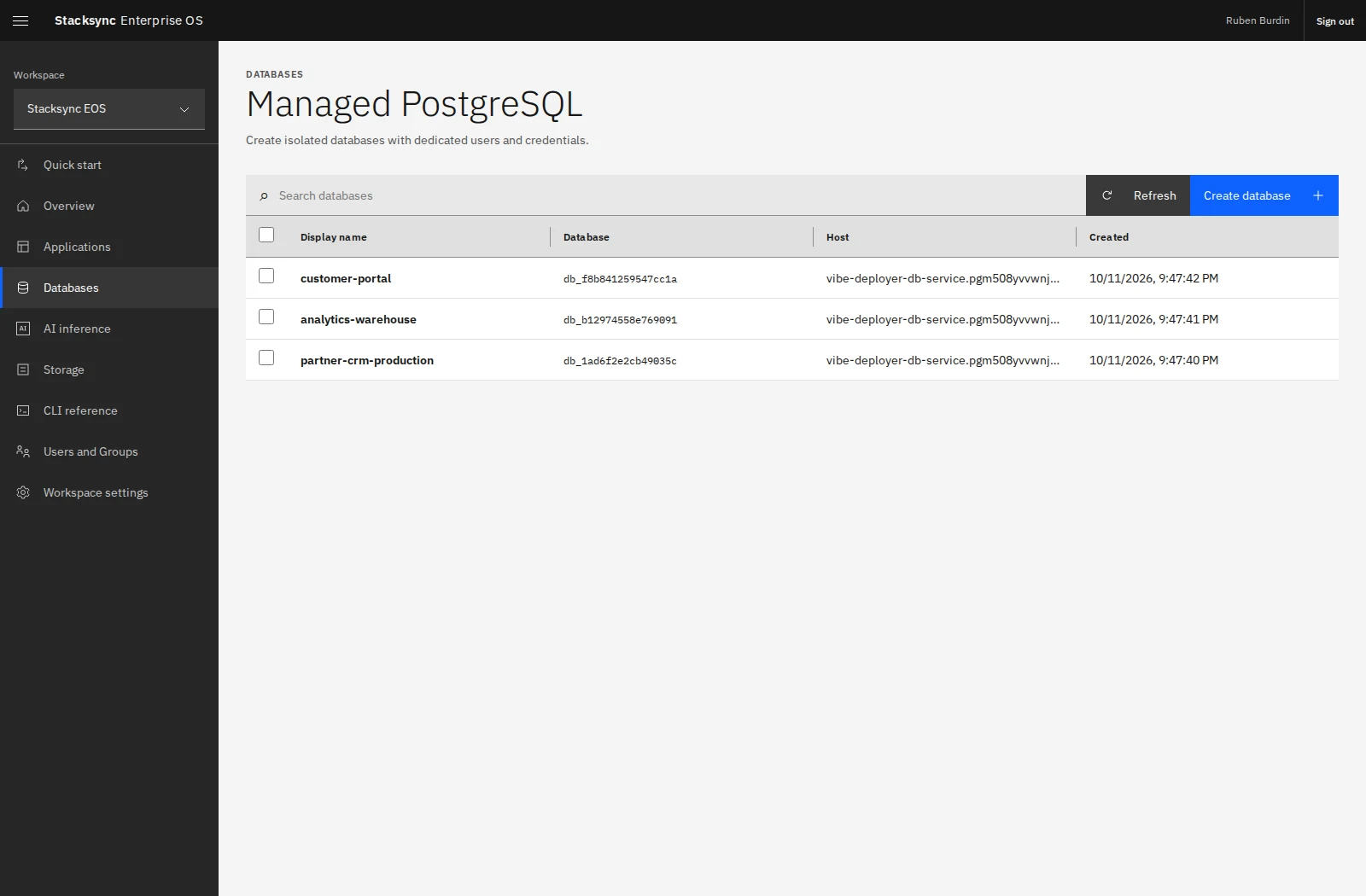
Managed PostgreSQL databases in the Stacksync EOS workspace.
## Create a database
1. Select **Databases** in the sidebar.
2. Select **Create database**.
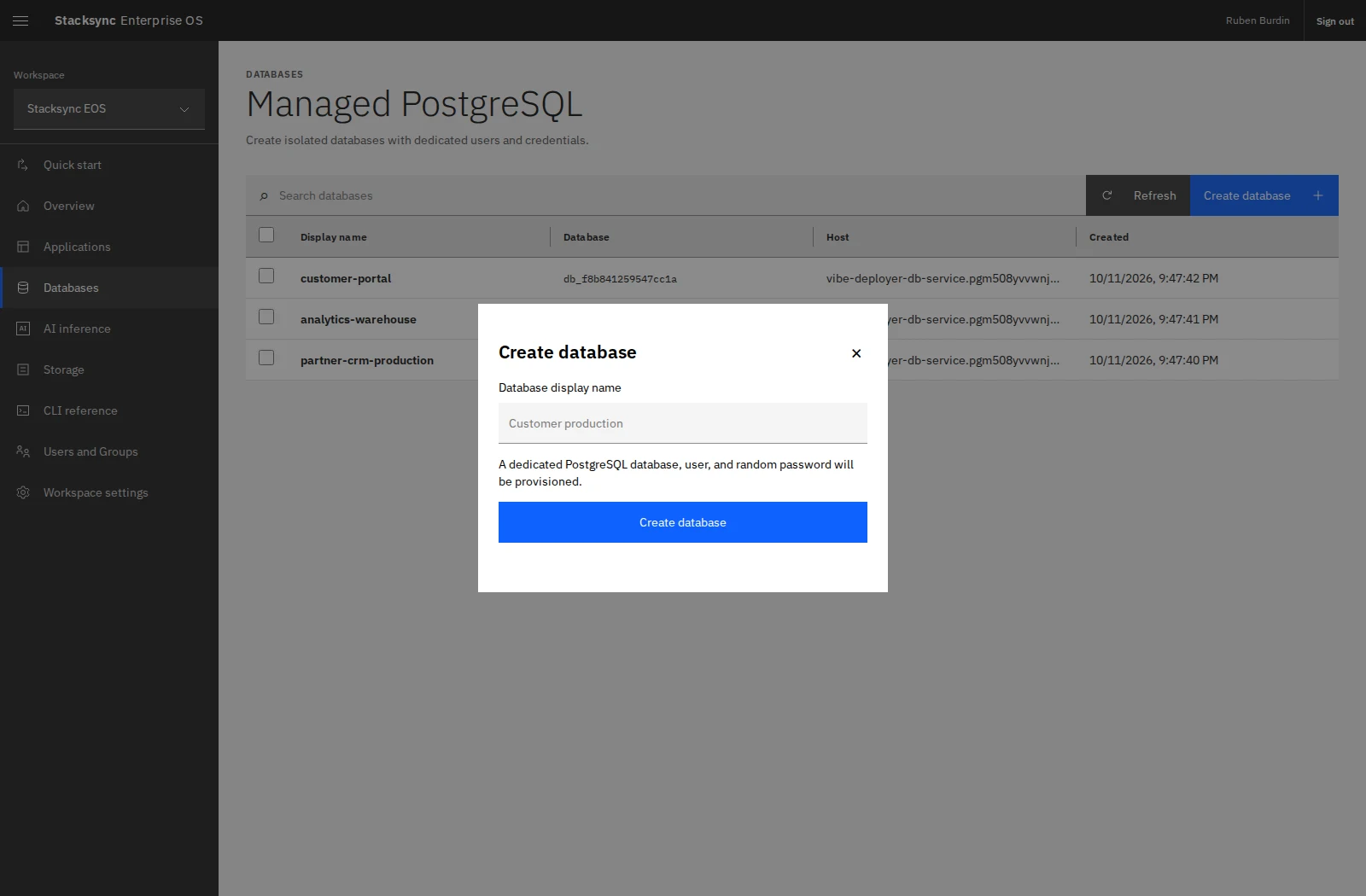
3. Enter a descriptive display name, such as `Partner portal production`.
4. Select **Create database** and open the resulting resource.
Create a managed PostgreSQL database with a descriptive name; EOS provisions the database, user, and password.
The display name helps your team identify the resource. Use separate names for distinct applications and environments. Database credentials should be supplied to the application through server-side configuration.
From the CLI:
```sh
eos database list
eos database create 'Partner portal production' --json
```
The create response contains credentials. Store it privately and keep credentials out of source control and shared logs.
## Work with the database
| Area | What it provides |
| -------------------- | ---------------------------------------------------------------------------------- |
| **Table viewer** | Schema and table browsing, SQL editing, query execution, and result inspection. |
| **Settings** | Resource description, display name, connection information, and database deletion. |
| **Activity logs** | Stacksync database and credential activity from the UI, CLI, and API. |
| **Users and Access** | Direct user and group sharing, managed by the resource Owner. |
Give developers Editor access when they need database credentials and SQL tools. Use Viewer for approved metadata without credentials. Workspace membership alone does not grant database access.
## Manage the lifecycle
Renaming a display name changes how the resource is identified in EOS; connect using the database's returned connection information. Deleting a database permanently removes its data and dedicated PostgreSQL user. Only an Owner can delete it, and the CLI requires the database ID and exact display name:
```sh
eos database delete DATABASE_ID 'Partner portal production'
```
Continue with [connect and query](/enterprise-os/databases/connect-and-query) to connect an app and explore its data.