# Connection rate limiting
> Keep every sync and workflow that uses a connection within your provider's request limit, and decide how they share it.
Source: https://docs.stacksync.com/connectors/setup-options/connection-rate-limiting
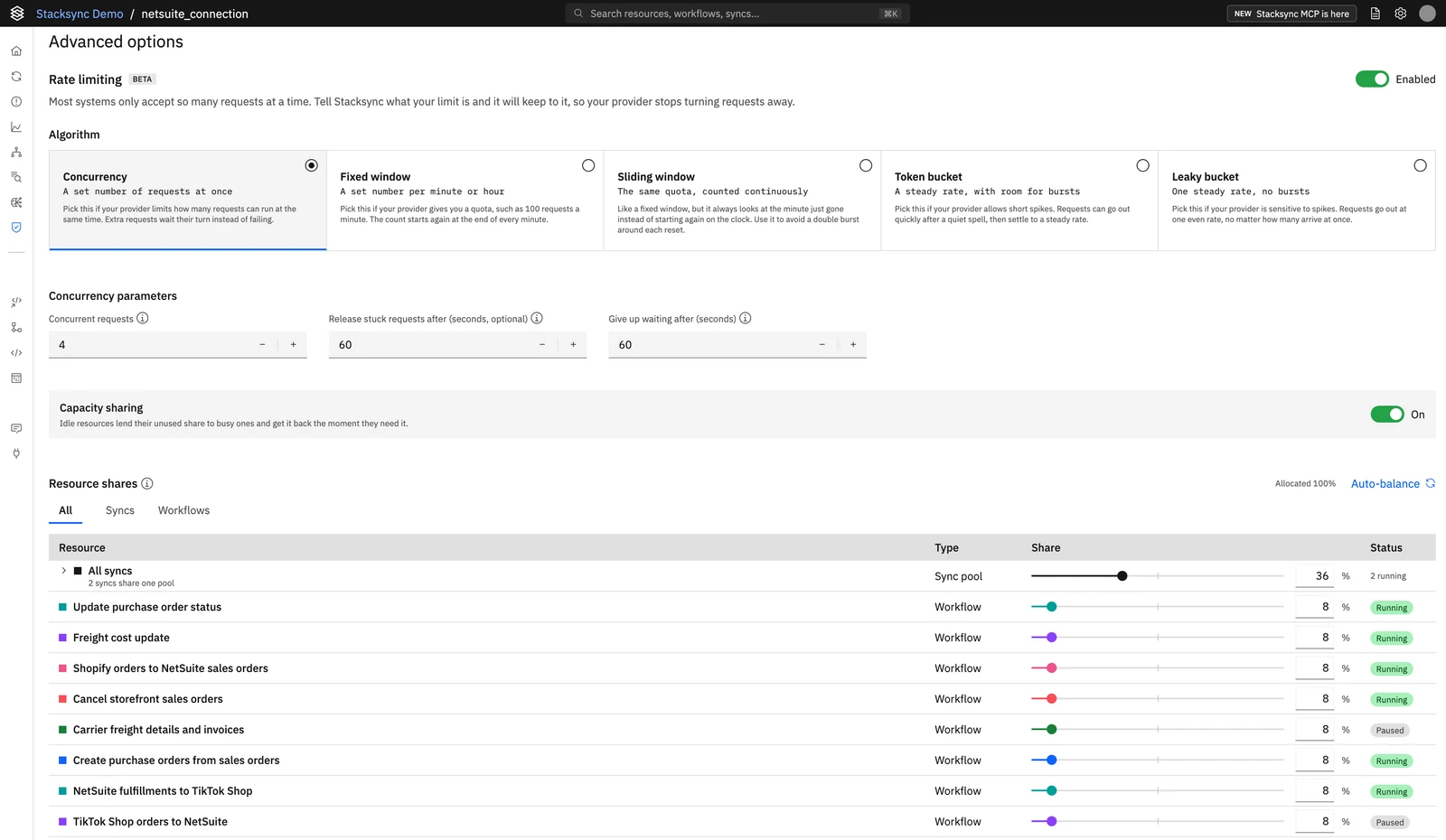
Most systems only accept so many requests at a time. Connection rate limiting sets one limit on a connection, and every sync and workflow that uses the connection keeps to it together, so your provider stops turning requests away.
Connection rate limiting is in beta and available for **NetSuite** connections. On other connections, select **Request access** in the same place to ask for it.
## Set a rate limit
You need the editor role or higher in the workspace to change a rate limit.
### Open the connection
Go to **Connections**, open the connection, and scroll to **Advanced options**.
### Turn on rate limiting
Switch **Rate limiting** to **Enabled**.
### Choose the algorithm that matches your provider's limit
| Algorithm | Pick it when your provider | Parameters |
| ------------------ | ---------------------------------------------------------------------------- | --------------------------------------------------------------------------------------------------------------- |
| **Concurrency** | Limits how many requests run at the same time | **Concurrent requests** (1 to 1,000). Optional: **Release stuck requests after**, 1 to 600 seconds, default 300 |
| **Fixed window** | Gives a quota per minute or hour, counted from the start of each window | **Requests per window** and **Window length** in seconds: 60 for a minute, 3600 for an hour |
| **Sliding window** | Gives the same quota, but you want to avoid a double burst around each reset | **Requests per window** and **Window length**, counted over the period just gone |
| **Token bucket** | Allows short bursts, then a steady rate | **Burst size** and **Steady rate** in requests per second |
| **Leaky bucket** | Is sensitive to spikes | **Requests waiting** and **Release rate** in requests per second |
To turn a per-minute limit into requests per second, divide it by 60.
Every algorithm also has **Give up waiting after** (1 to 120 seconds, default 60): a request that can't get its turn within this time fails. Keep it shorter than your sync or workflow timeout.
If other tools use the same provider account, set the limit below your provider's, so Stacksync leaves room for them.
### Share the limit between syncs and workflows
Under **Resource shares**, each workflow that uses the connection has its own share, and all its syncs share one pool. By default the syncs get 50% and the workflows split the rest equally. Change a share with its slider or number, or select **Auto-balance** to split what the syncs leave equally between the workflows.
* A share is what a resource always gets when every resource is busy at once.
* With **Capacity sharing** on, a resource that is idle lends its share to busy ones and gets it back as soon as it needs it.
* Shares are weighed against each other, so they don't have to add up to exactly 100%.
### Save
Select **Save rate limit**.
## When you add a sync or workflow
A sync or workflow that starts using the connection after you saved isn't covered by the limit yet: its requests don't count toward it. The panel lists the resources that aren't covered. Open the connection and select **Save rate limit** again to bring them under the limit.
## Turn off rate limiting
Switch **Rate limiting** off. The limit and its shares are removed, and the connection's syncs and workflows run without a limit.
Syncs also have their own per-app limit, set on the sync: see [API Rate Limit Management](/connectors/setup-options/manage-api-rate-limits).