# Genies
Source: https://docs.stacksync.com/ai-agents
Genies are AI agents that live in your Stacksync workspace. Each genie has a **master prompt** that defines its job, and **skills** built on your existing connections (Salesforce, NetSuite, Hubspot, and more) that the genie can use to get real work done.
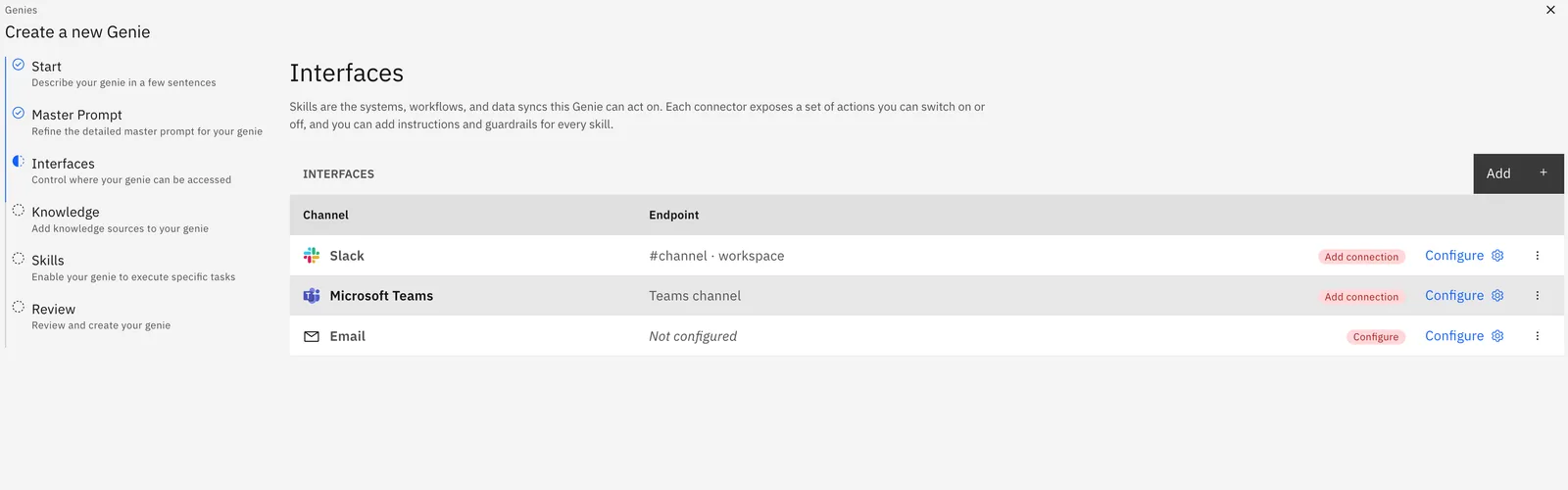
You talk to genies through **interfaces**: Slack, Microsoft Teams or Email. One genie can have several interfaces at once, the same copilot can answer a Slack mention, a Teams thread, and an inbound email.
## Create a genie
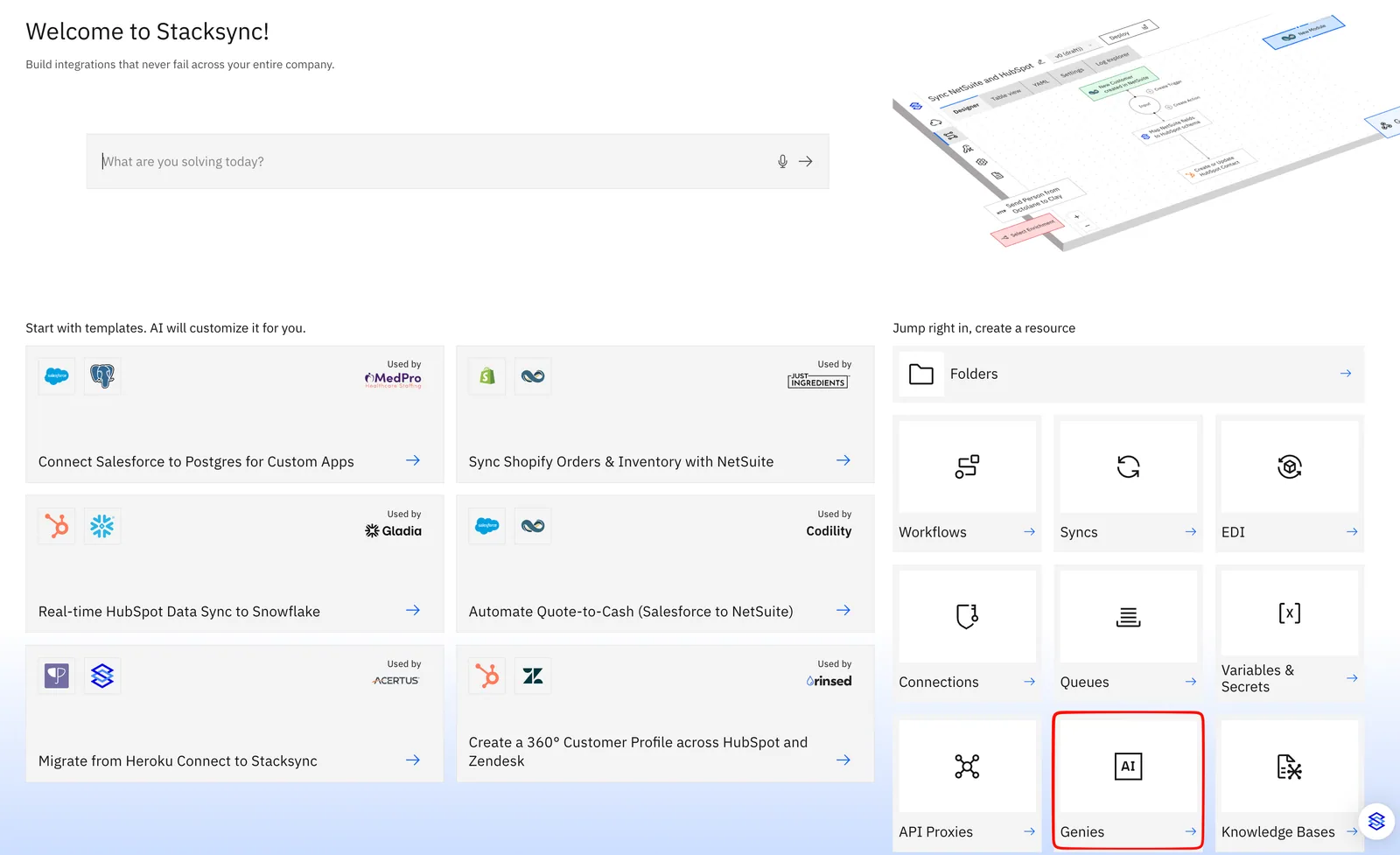
### 1. Click Genie in Create Resources
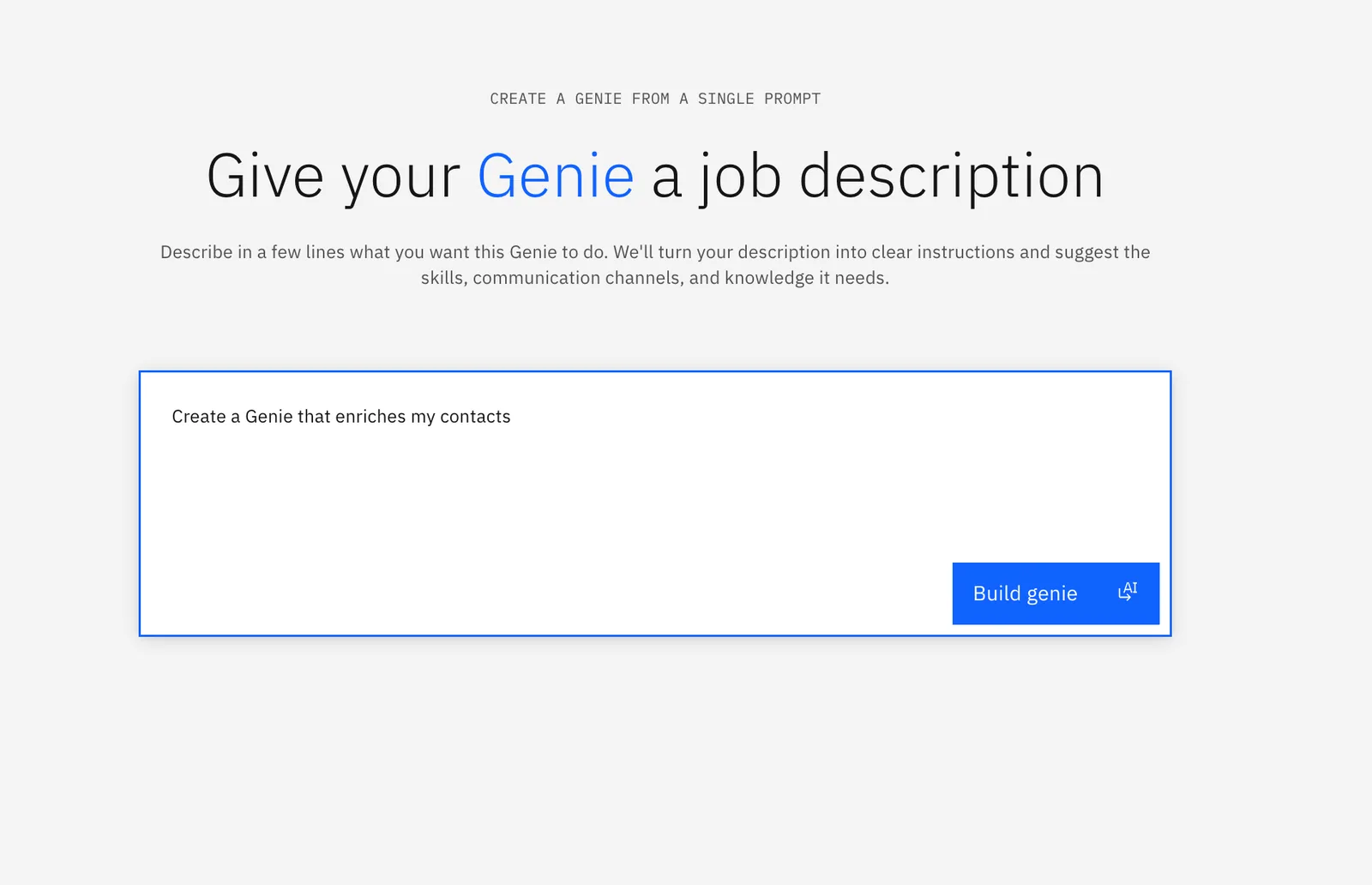
### 2. Describe the Genies task
Click Build Genie and review the Genie's instructions on the next page
### 3. Add an Interface
Open the genie's **Interfaces** section and click **Add**. Follow the setup page for your channel:
* Slack
* Microsoft Teams
* Email
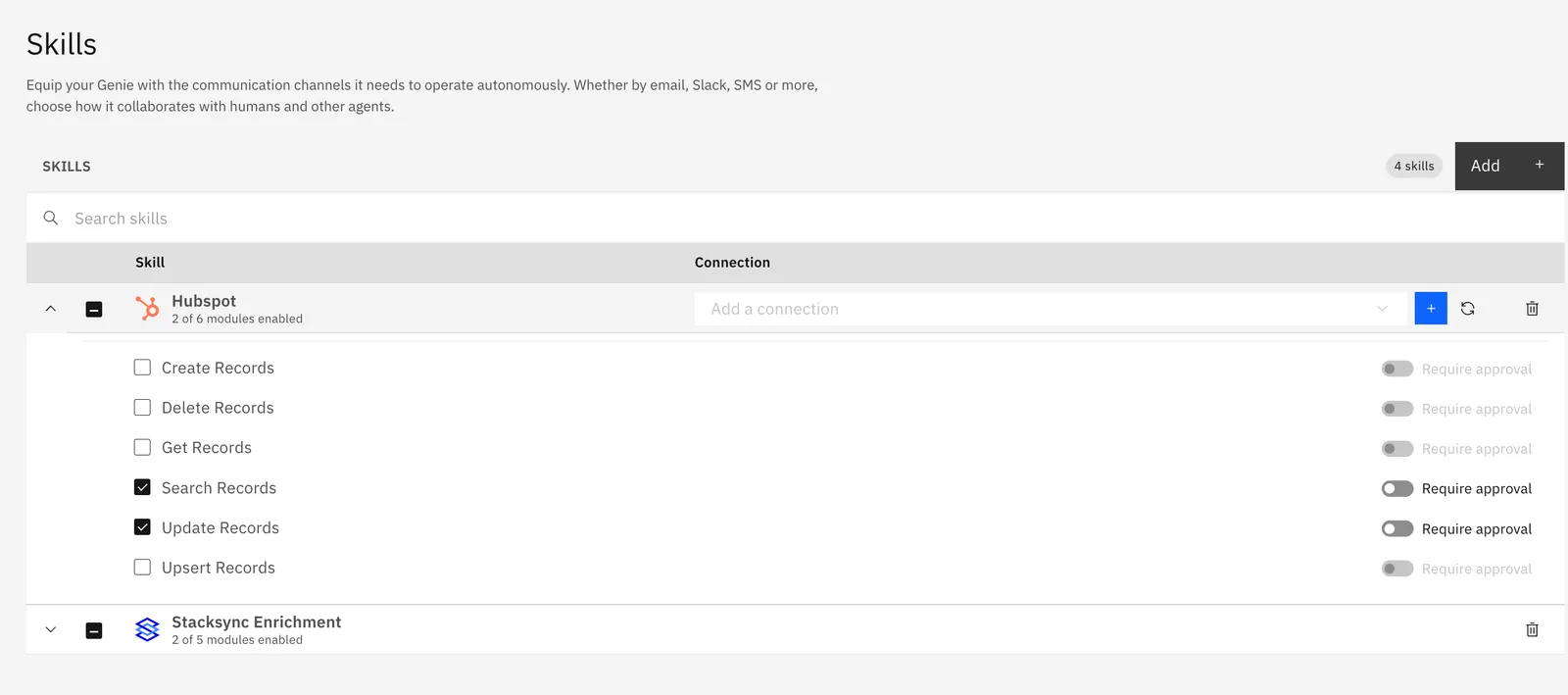
### 4. Add Skills
Skills are modules the genie may execute (create a record, send a message, run a query). Each skill uses one of your workspace connections. You can require an **approval** before a skill runs.
### 5. Review the Genie's configurations and Click Create
Your Genie is now ready to be used for your Enterprise use cases
## Access rights
**If your genie doesn't answer teammates, check this first.** By default, a genie only answers people who are signed-in members of your Stacksync workspace. To let everyone in a connected channel use the genie, open the genie's **Access rights** tab and set **Who can use the Genie** to **Public (authentication not required)**.
## Status
The **Access rights** tab also has a status toggle. Setting a genie to **Inactive** stops it from handling new messages on every interface and suspends its scheduled tasks.